Why Is My PC Throttling Itself Under Load?
TL;DR: Throttling is a built-in safety response, not a bug. Your CPU or GPU drops its clock speed when thermals or power limits are exceeded. The fix depends on whether the cause is heat, a failing cooler, degraded thermal paste, power supply limits, or software settings. Work through the checks in order before replacing anything.
What You Need
- A free monitoring tool: HWiNFO64 (Windows) or GPU-Z for graphics cards
- Access to your BIOS/UEFI settings
- A can of compressed air or a soft brush for dust removal
- About 20-30 minutes for the diagnostic sequence
1. Confirm That Throttling Is Actually Happening
Before blaming heat, confirm the CPU or GPU is genuinely reducing its clock speed under load.
Open HWiNFO64 and run a demanding task: a game, a video export, or a benchmark like Cinebench. Watch the following columns in real time:
- CPU Clock (should stay near its rated boost speed under load)
- CPU Package Power and CPU Temperature
- GPU Core Clock and GPU Temperature
- Throttling Reasons column (HWiNFO64 labels these explicitly)
If clocks drop while load stays high, throttling is confirmed. Note which throttling reason HWiNFO64 flags, because it tells you exactly where to look next.
2. Check Temperatures First
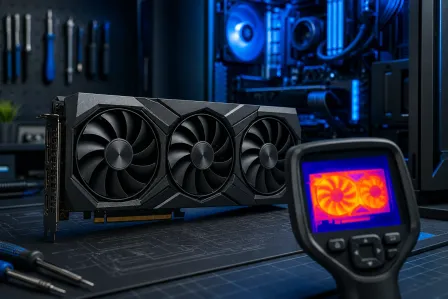
Thermal throttling is the most common cause. General safe ceilings under sustained load:
| Component | Normal Range | Throttle Concern |
|---|---|---|
| CPU (most modern) | 70-85°C | Sustained 95°C+ |
| GPU (most modern) | 70-83°C | Sustained 90°C+ |
| NVMe SSD | 40-60°C | 70°C+ |
If temperatures are high, move to step 3. If temperatures are normal but throttling is still happening, skip to step 5.
3. Inspect and Clean the Cooling System
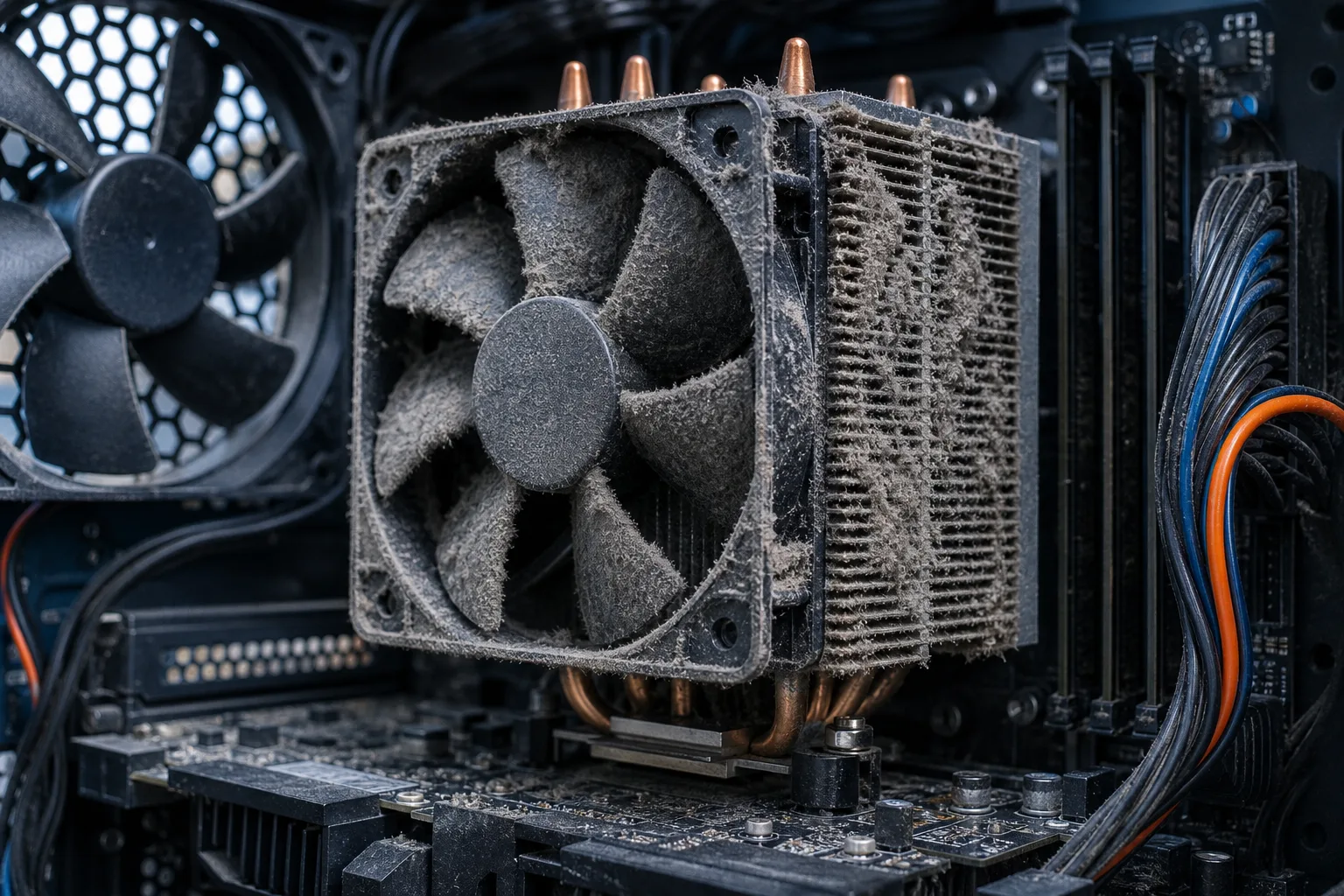
Dust is the leading cause of thermal throttling in machines older than 12-18 months in South Florida's humid, dusty environment.
- Power off and unplug the machine.
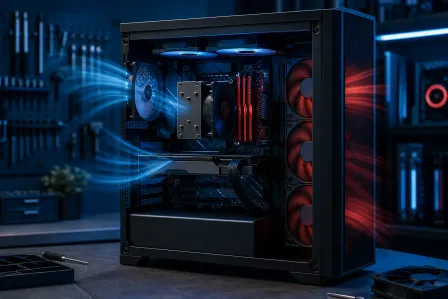
- Open the case and inspect the CPU heatsink and GPU fans for dust buildup.
- Blow out dust from heatsink fins, fan blades, and intake vents using compressed air.
- Confirm all fans spin freely and spin up under load (check in HWiNFO64 or BIOS fan monitoring).
- If a fan is not spinning, it needs replacement before any other fix.
After cleaning, retest. If temperatures drop significantly and throttling stops, dust was the culprit.
4. Replace Thermal Paste If Temperatures Stay High After Cleaning
Thermal paste between the CPU die and heatsink dries out over 3-5 years, raising temperatures by 10-20°C in some cases. This is a documented and common failure mode.
- Remove the CPU cooler.
- Clean old paste from the CPU lid and heatsink base using isopropyl alcohol (90%+) and a lint-free cloth.
- Apply a small, pea-sized amount of quality thermal compound (Arctic MX-6, Noctua NT-H1, or equivalent).
- Reseat the cooler evenly and retest.
For laptops, this repair often requires disassembling the entire bottom chassis. If you are not comfortable with that, this is a reasonable job to hand off. Laptop repair service is available if you would rather not risk damaging thin flex cables.
Computer acting up? Get a real diagnosis. Book a diagnostic
5. Check Power Limits and Power Delivery
If temperatures are fine but throttling still shows up in HWiNFO64, the cause is likely a power limit, not heat.
Power Limit Throttling (PL1/PL2 on Intel, PPT on AMD): Some OEM systems (pre-built desktops and most laptops) set conservative power limits below the chip's rated spec. These can sometimes be adjusted in BIOS or with manufacturer tools, but doing so may void warranty on some systems.
PSU-Related Throttling: If your power supply is undersized or failing, the system may throttle under peak draw to stay stable. Signs:
- Crashes or shutdowns under load rather than just slowdowns
- Voltage rails sagging (visible in HWiNFO64 under motherboard sensor readings)
- The system is fine at idle but unstable only during GPU-heavy or multi-core tasks
A power supply that cannot sustain its rated wattage is a hardware problem, not a settings problem.
6. Check Windows Power Plan
This one is embarrassingly simple to overlook. A laptop running on Battery Saver or a desktop set to Power Saver mode will cap CPU performance deliberately.
- Open Settings > System > Power & Sleep > Additional power settings.
- Select High Performance or Balanced (not Power Saver).
- For laptops plugged in, confirm the slider in the taskbar is set to Best Performance.
Retest. If throttling disappears, no hardware fix was needed.
7. Rule Out a Failing CPU Cooler or Dried-Out Heatsink Mount
If cleaning and repasting did not fix the thermal issue, the cooler itself may be failing:
- Fan bearing noise (grinding, clicking) means the fan is near end of life
- A cooler that is loose or improperly mounted creates a poor thermal contact, raising temps even with fresh paste
- Liquid coolers (AIOs) can lose coolant or have failing pumps, showing high CPU temps with a cold radiator
Check the radiator temperature by hand while under load. If it is barely warm while the CPU is hitting 95°C+, the pump has failed.
Common Mistakes
- Replacing the CPU before checking the cooler. Throttling almost never means a bad CPU. The CPU is doing exactly what it is designed to do.
- Reapplying thermal paste without cleaning the old layer. Stacking paste adds insulation, not conductivity.
- Raising power limits without improving cooling. Removing a power limit on a thermally constrained system just makes it thermal throttle harder and faster.
- Ignoring NVMe throttling. An overheating SSD causes stuttering that looks like CPU or GPU throttling but shows up in disk benchmarks as sustained speed drops.
- Assuming the fix is a factory reset. Throttling is hardware-driven. Software reinstalls do not change thermal paste or fan failure.
Bottom Line
Throttling is a symptom of the system protecting itself, and the cause is almost always thermal paste, dust accumulation, a failing cooler, or a power delivery mismatch. Work through the diagnostic sequence in order: confirm throttling in HWiNFO64, check temperatures, clean and repaste, then investigate power limits. Most desktop cases resolve at step 3 or 4. Laptops are more likely to need the full sequence and are harder to repaste without disassembly experience.
If you work through these steps and throttling persists, or if you find a failed pump, dead fan, or sagging PSU voltages, that is hardware repair territory. The team at Fix My PC Store on Okeechobee Blvd offers free initial diagnostics for most in-store repairs and can handle thermal repasting, cooler replacement, and PSU diagnosis. You can also start with remote support if you want a second set of eyes on your HWiNFO64 logs before opening the case.
For custom builds where throttling points to an undersized cooling or power setup from the start, the custom gaming PC builder is worth a look for getting the components matched properly.
Computer acting up? Get a real diagnosis.
Fix My PC Store has repaired thousands of machines across West Palm Beach. Honest pricing, no upsell games, and a free diagnostic for new customers with our email coupon.