Why Is My PC Showing Artifacts or Weird Pixels on Screen?
TL;DR: Screen artifacts are almost always caused by one of four things: an overheating or failing GPU, bad VRAM, a loose or damaged display cable, or a dying monitor. A few quick tests can narrow it down fast. If the artifacts follow the GPU rather than the monitor, the GPU is your likely culprit.
What Happened
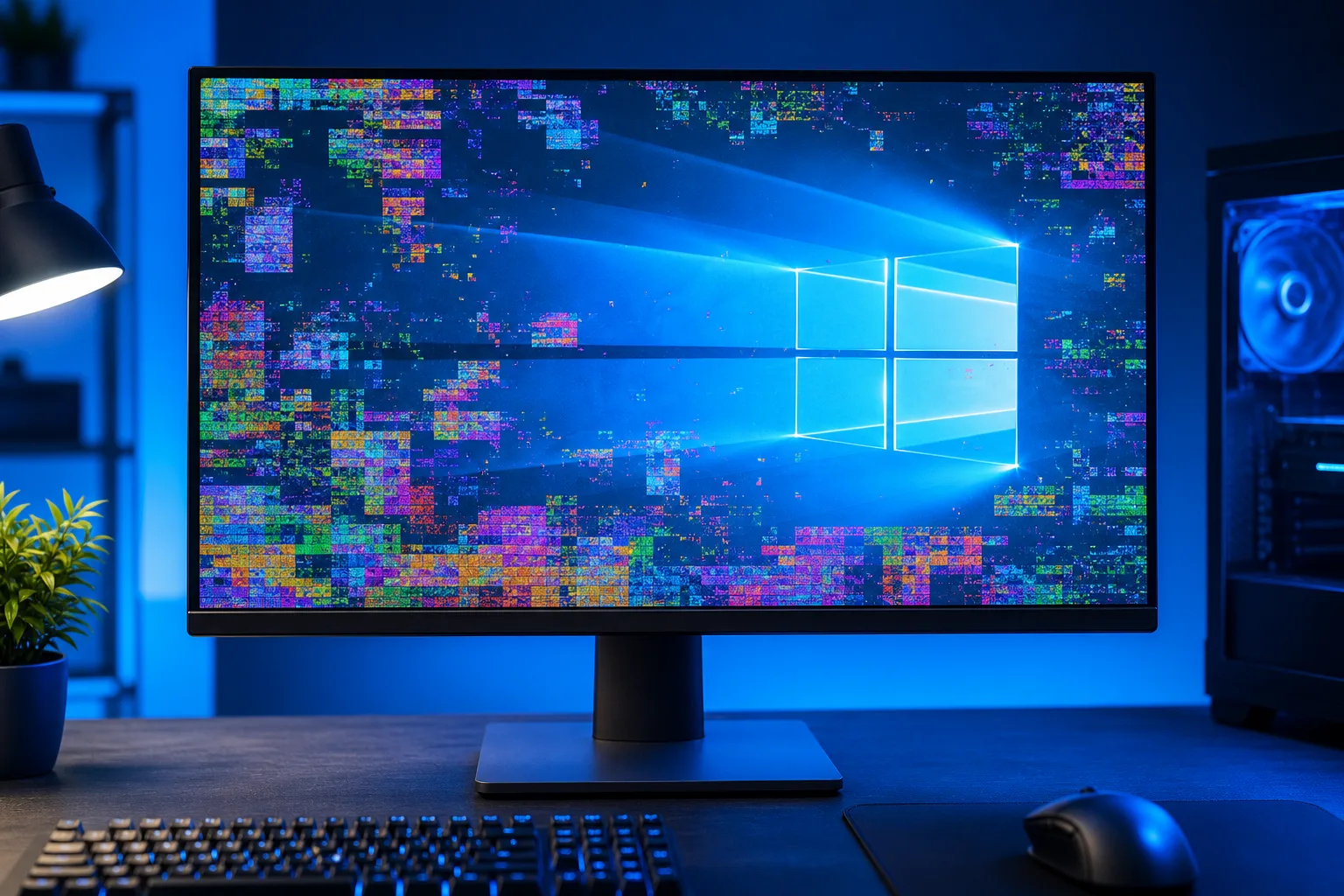
You fired up your PC and noticed something wrong. Maybe it was small colored squares scattered across the screen, horizontal lines cutting through your desktop, or a patchwork of random pixels that look like a corrupted image from the early internet.
Those are called screen artifacts, and they are visual glitches caused by incorrect data being sent to your display or rendered incorrectly by your graphics hardware.
Artifacts show up in a few common forms:
- Pixel clusters or snow: Scattered dots or blocks of wrong color
- Texture corruption in games: Stretched or polygonal geometry, flickering surfaces
- Screen tearing or flickering lines: Horizontal bands, especially under load
- Color banding or wrong hues: Large sections of the screen displaying the wrong color
- Black squares or Z-fighting: Common in 3D applications when VRAM is misbehaving
Each pattern gives a small clue. Texture corruption almost exclusively during gaming points toward the GPU or VRAM. Artifacts on the desktop at idle suggest something more fundamental like a hardware fault or a bad cable.
Why It Matters
Artifacts are not just cosmetic. They are a warning sign.
A GPU running too hot will throttle, artifact, then eventually crash your system. If the VRAM is failing, it will get worse over time, not better. Ignoring artifacts often ends with a completely dead graphics card or corrupted game data.
For gaming PCs especially, catching this early matters. A GPU replaced before it fully fails is cheaper and less complicated than recovering from a hard crash mid-session.
The four most common causes
1. GPU overheating This is the most common cause. When a GPU runs beyond its thermal limits, it starts producing visual errors. Check your GPU temperature under load using a free tool like GPU-Z or MSI Afterburner. Most modern GPUs should stay below 85-90°C under full load. Above that, thermal throttling and artifacts follow.
Dust-clogged fans and dried-out thermal paste are the usual culprits, especially on cards that are two or more years old.
2. Failing or overclocked VRAM Video RAM stores texture and frame data. When it starts to fail, or when an unstable overclock pushes it too hard, it feeds corrupt data to the display. This often looks like pixelated textures in games or random colored blocks.
If you recently overclocked your GPU and artifacts appeared shortly after, revert the overclock first. That alone resolves a large percentage of artifact complaints.
3. Bad display cable or port A damaged, loose, or low-quality DisplayPort or HDMI cable can cause flickering, color errors, and pixel noise. This one is easy to rule out. Swap the cable, try a different port on the GPU, and see if the artifacts change or disappear.
4. Failing monitor The display itself can generate artifacts, particularly older LCD panels with failing backlights or internal electronics. To isolate this, connect a second monitor to your GPU. If the artifacts disappear on the second screen, your primary monitor is the problem.
Diagnostic sequence
Work through these steps in order before assuming the worst:
- Swap the cable with a known-good one and try a different port.
- Test a second monitor to rule out a panel failure.
- Check GPU temperature under load with a monitoring tool.
- Revert any GPU overclock if one is active.
- Update or roll back GPU drivers. A bad driver update can cause artifact-like rendering bugs. Use DDU (Display Driver Uninstaller) in safe mode for a clean reinstall.
- Reseat the GPU in the PCIe slot after powering down and unplugging the machine.
- Run a stress test such as FurMark for 10-15 minutes and watch for artifact onset or thermal spikes.
If artifacts appear consistently on multiple monitors, survive a driver reinstall, and worsen under load, the GPU hardware is almost certainly failing.
Computer acting up? Get a real diagnosis. Book a diagnostic
What We Don't Know Yet
A few things can complicate the diagnosis.
If you are on a laptop, the GPU is integrated into the board and cannot be swapped or reseated easily. The cable is also internal, making self-diagnosis harder.
Some artifacts produced by driver bugs look identical to hardware failure. Without a spare GPU to swap in for comparison testing, it is genuinely difficult to be 100% certain without professional diagnostics.
And if your system is showing artifacts in the BIOS or before Windows loads, that rules out software and points firmly at hardware, either the GPU, the cable, or the monitor.
What to Do About It
If the cable swap and driver reinstall fixed it, great. Keep an eye on temperatures and you are likely fine.
If you rolled back an overclock and things stabilized, leave the clock alone or dial it in more carefully.
If artifacts persist through all the software steps above, you are probably looking at a hardware problem: a failing GPU, bad VRAM, or a monitor on its way out. At that point, professional diagnostics make sense. A technician can test with known-good components to isolate the failing part definitively.
For gaming PC owners, a failing GPU is worth addressing quickly. A card that artifacts today can die completely under a heavy gaming session tomorrow, sometimes taking save data or other components with it.
Bring it into Fix My PC Store on Okeechobee Blvd in West Palm Beach. Initial checks are free for most standard in-store repairs, and the scope and cost are explained before any work begins. You can also schedule a repair online. Hours are Monday through Friday 9 a.m. to 6 p.m. and Saturday 9 a.m. to 5 p.m.
If you are building or upgrading and want to start with reliable hardware, the custom gaming PC builder is worth a look.
Computer acting up? Get a real diagnosis.
Fix My PC Store has repaired thousands of machines across West Palm Beach. Honest pricing, no upsell games, and a free diagnostic for new customers with our email coupon.