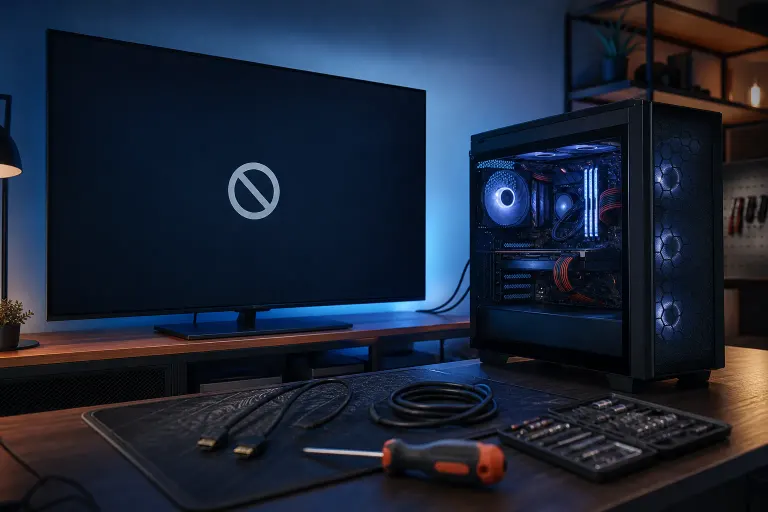
Gaming PC Recognized by TV but No Signal: What's Actually Happening
TL;DR: When a TV detects your PC but shows no signal, the display link is established but the image data is being rejected or never sent. The most common culprits are a resolution or refresh rate the TV cannot handle, the GPU outputting from the wrong port, or an HDMI handshake failure. These are all fixable without new hardware in most cases.
What Happened
There is a difference between a TV detecting a device and a TV displaying one. When you switch your TV to the HDMI input and it shows the source name or stops saying "no cable connected," that is the physical layer of the connection working. The TV and PC are exchanging basic handshake signals through the HDMI or DisplayPort cable.
But if the screen stays black or says "no signal" after that, the problem is one layer up: the actual video signal is not arriving in a format the TV accepts.
Common reasons this happens on a gaming PC:
- Wrong GPU output port. Most modern gaming GPUs have multiple DisplayPort outputs and typically one HDMI port, though configurations vary by model, but not all ports are active simultaneously, especially when a monitor is already connected. The card may be sending the picture to a different port than the one you plugged the TV into.
- Resolution or refresh rate out of range. If your desktop is set to 1440p 165Hz and your TV tops out at 1080p 60Hz, the TV will reject the signal entirely. It handshakes but cannot render what it receives.
- HDMI version mismatch. A 4K HDR signal from an HDMI 2.1 port hitting an older TV with HDMI 1.4 inputs can cause a blank screen even with the cable seated correctly.
- Duplicate vs. extend mode confusion. Windows may be extending the desktop to an invisible virtual display instead of the TV, leaving the TV with nothing to show.
- Driver or EDID handshake failure. Sometimes the GPU misreads the TV's capability data (EDID) and sends a signal the display cannot parse.
Why It Matters
This failure mode is genuinely confusing because everything looks connected. You plugged in the cable, the TV sees the source, but the screen is black. People waste hours swapping cables or assuming the GPU is dead when the actual fix takes two minutes in Windows display settings.
For gaming specifically, getting the TV connection wrong can also lock you into the wrong refresh rate or color space once you do get a picture, which tanks frame pacing even if your FPS counter looks fine.
Ready to build a rig that actually rips? Start your build
What We Don't Know Yet
Without seeing your specific setup, it is hard to pin down whether this is a software setting or a hardware limit. A few things that change the answer:
- Whether you have a dedicated GPU or are running integrated graphics (iGPU outputs on the motherboard and dGPU outputs on the card are separate, and mixing them is a common trap).
- Whether the TV has ever worked with this PC before or this is a first-time connection.
- Whether the cable is HDMI or DisplayPort, and what version it is rated for.
- Whether any other monitor is connected at the same time.
What to Do About It
Work through this in order. Each step rules out one cause.
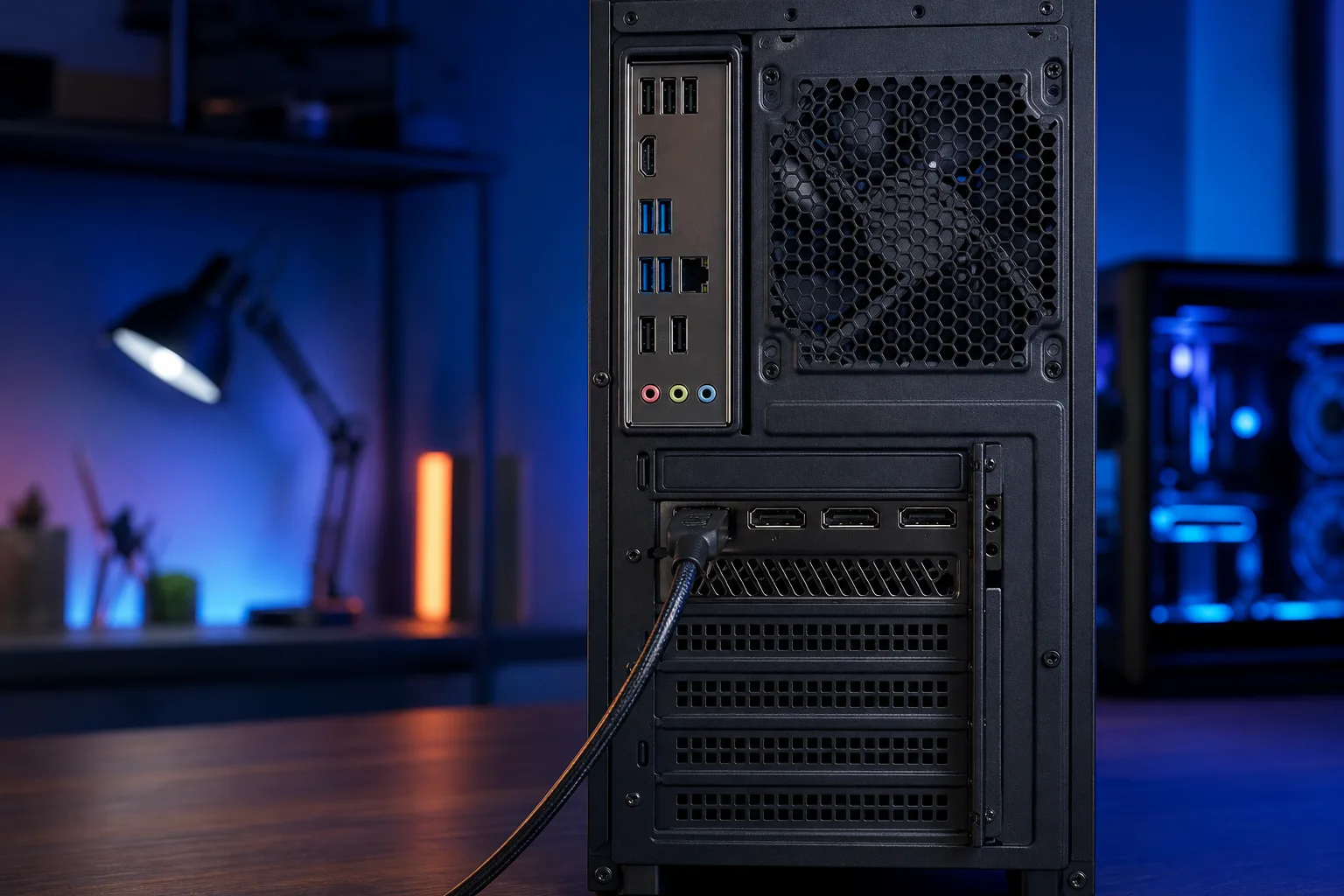
Step 1: Check which GPU port you are using. If you have a discrete GPU (Nvidia, AMD, Intel Arc), the cable must go into the ports on the GPU, which sit lower on the back panel. Ports on the motherboard above them use the iGPU and are often disabled when a dGPU is installed. Plug the TV cable directly into the GPU.
Step 2: Force a lower resolution before connecting. If you can still access your primary monitor, go to Settings > System > Display, set your resolution to 1920x1080 and refresh rate to 60Hz before plugging in the TV. This gives the TV the best chance of accepting the signal on first connection.
Step 3: Use Windows key + P to cycle display modes. With the TV connected, press Win+P and select "Duplicate" or "PC screen only" (then switch back to "Extend"). Sometimes Windows needs a nudge to recognize the second display.
Step 4: Right-click the desktop > Display Settings > Detect. If the TV does not appear in the display list, hit Detect. If it appears but shows no signal on the TV, try changing the resolution assigned to that display down to 1080p 60Hz.
Step 5: Swap the HDMI port on the TV. Some TV HDMI ports are version 2.0 or 2.1 while others on the same TV are 1.4. Check your TV manual or the labels near the ports. Use the highest-version port available.
Step 6: Try a different cable. HDMI cables rated for 4K or 8K carry more bandwidth. If you are using an older cable, it may pass the handshake signal but not the full video stream. A High Speed HDMI cable is sufficient for 1080p 60Hz. For 4K 60Hz without HDR, a Premium High Speed HDMI cable is generally sufficient; Premium High Speed is also recommended for 4K 60Hz HDR.
Step 7: Update or reinstall GPU drivers. A stale driver can mess up EDID reading. Download the latest driver from Nvidia or AMD and do a clean install using DDU (Display Driver Uninstaller) in safe mode if the problem persists after a standard update.
Decision table: which fix to try first
| Situation | Most likely cause | First fix |
|---|---|---|
| Other monitor works fine, TV does not | Wrong port or resolution mismatch | Check GPU port, lower resolution |
| No monitor connected, only TV | Driver or EDID issue | Win+P > Duplicate, then update drivers |
| TV worked before, broke after driver update | Driver regression | DDU clean install of previous driver |
| 4K TV, 1080p source works, 4K does not | Cable or HDMI version limit | Swap to certified 4K cable, correct port |
| Laptop + TV via HDMI | iGPU/dGPU output conflict | Check laptop HDMI port in GPU control panel |
If you have worked through all of these and the TV still shows no signal while the PC detects it, the issue may be inside the GPU itself, a failing HDMI controller, or a defective port. That is worth having a tech look at. At Fix My PC Store in West Palm Beach (10140 Okeechobee Blvd, Suite B), initial checks on most in-store repairs are free, and they can run diagnostics on the GPU and display output before any work begins. You can also start with remote support if you want a technician to walk through your display settings live. For anything that needs hands-on GPU inspection, book a time or swing in Monday through Friday 9 a.m. to 6 p.m. or Saturday 9 a.m. to 5 p.m.
If you are building or upgrading and want to make sure your GPU, cable spec, and display chain are matched correctly from the start, the custom gaming PC builder is a good place to spec it out right.
Ready to build a rig that actually rips?
Custom gaming PCs built and tuned by people who game. Tell us your budget and target frame rate.