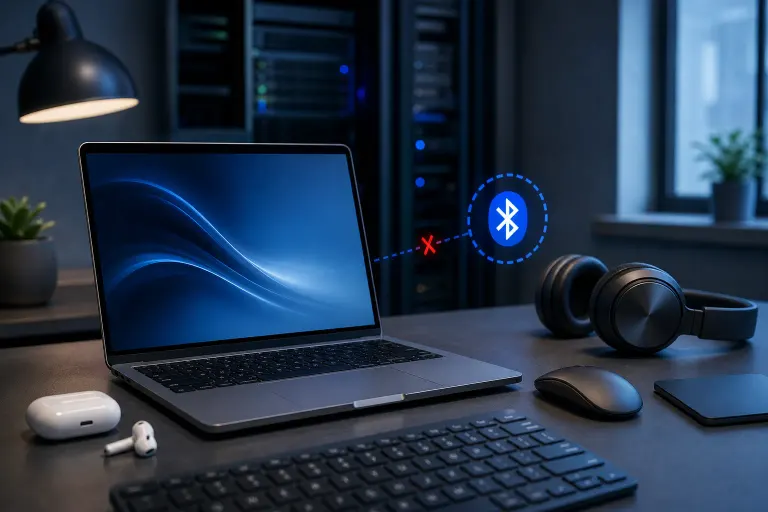
Why Is My Mac Bluetooth Dropping Every Few Minutes?
TL;DR: Frequent Mac Bluetooth drops are almost always caused by Wi-Fi channel interference, a stale Bluetooth preferences file, or a temporary firmware state. A short diagnostic sequence clears the most common culprits without any tools or technical background.
What Happened
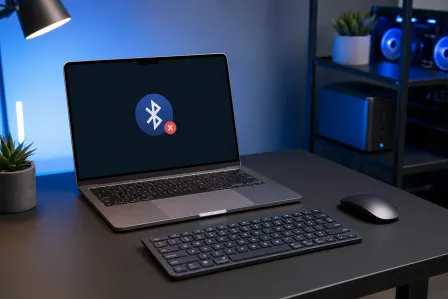
Your Mac and your Bluetooth device, whether that is a mouse, keyboard, headphones, or speaker, are losing their connection on a cycle. It reconnects after a few seconds, then drops again. The pattern repeats every few minutes like clockwork.
That cycling pattern is the clue. A truly broken Bluetooth radio tends to fail completely. Cycling drops point to something interfering with or periodically resetting the connection rather than a hardware failure.
Why It Matters
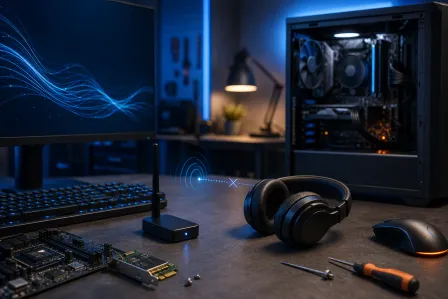
Bluetooth on a Mac shares antenna hardware and radio frequency space with Wi-Fi. Both use the 2.4 GHz band. When your router's Wi-Fi channel is congested or overlapping, it can knock Bluetooth devices offline in short, repeating bursts.
A second common cause is a corrupted com.apple.Bluetooth.plist file. macOS reads that file to manage paired devices and connection settings. When it contains bad data, the Bluetooth stack can stall, drop connections, and partially recover, creating the same cycling pattern you are seeing.
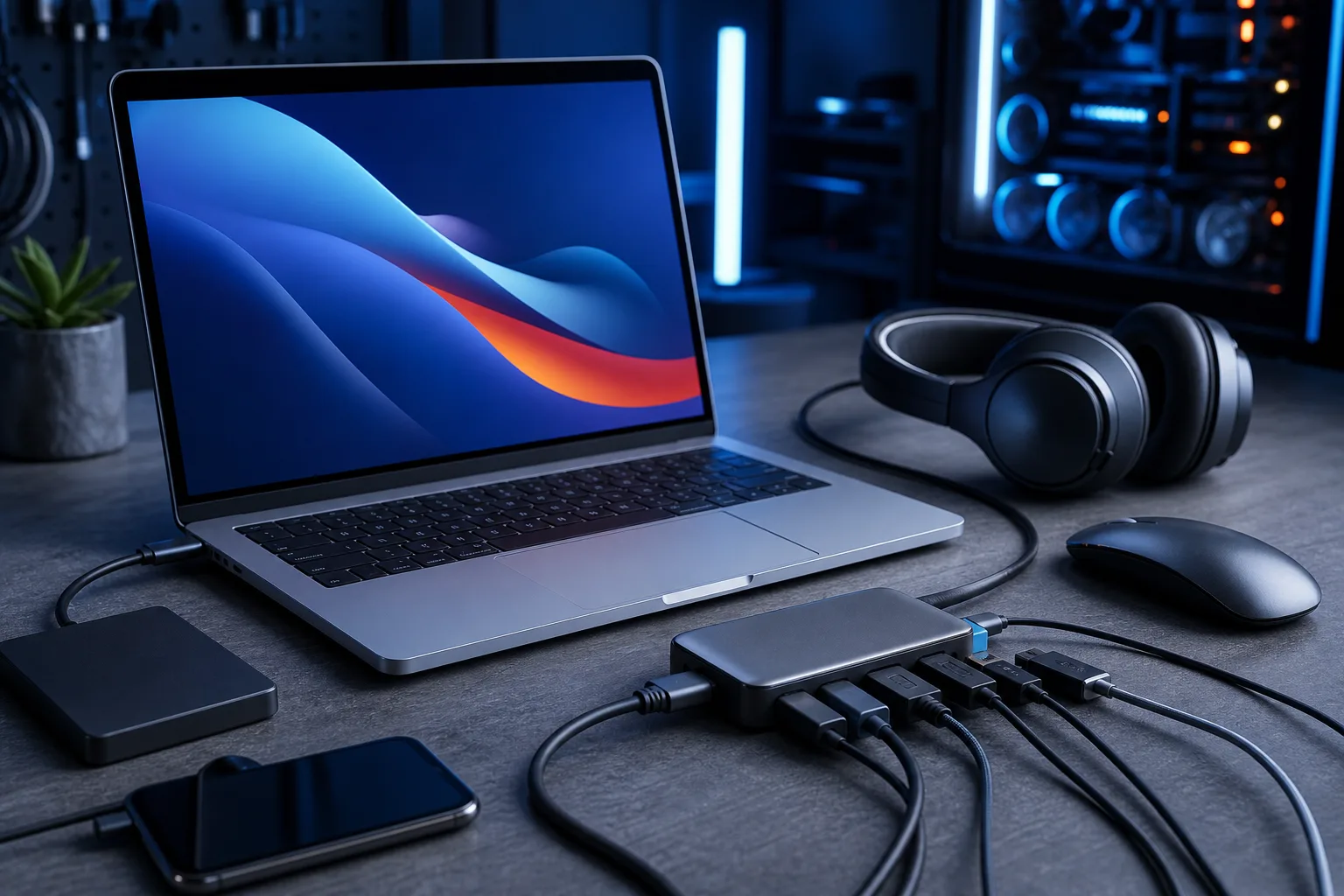
A third cause is USB 3.0 interference. USB 3.0 ports and cables are known to emit radio noise in the 2.4 GHz range. If you have an external hard drive, hub, or dongle plugged into a USB 3.0 port close to your Bluetooth devices, it can disrupt the signal. Intel published a design guide on this exact issue.
Computer acting up? Get a real diagnosis. Book a diagnostic
What We Don't Know Yet
A few things are harder to diagnose remotely:
- Whether your Mac's Bluetooth module itself has a hardware fault. This is rare but does happen, especially on older machines with wear or liquid exposure history.
- Whether a recently installed app or macOS update introduced a software regression. Apple occasionally ships updates that affect Bluetooth stability, and fixes may come in a point release.
- Whether a specific third-party peripheral is the problem rather than the Mac. Some older Bluetooth devices have firmware issues that cause them to drop connections regardless of which computer they are paired to.
What to Do About It
Work through this sequence in order. Each step addresses a different cause, so stop when the drops stop.
Step 1: Rule out USB 3.0 interference
Unplug any USB 3.0 devices, hubs, or adapters from your Mac. Wait two minutes and check if the drops continue. If they stop, the USB device was radiating interference. Try repositioning it or using a shielded cable.
Step 2: Change your Wi-Fi channel
Log into your router admin panel and switch the 2.4 GHz band to channel 1, 6, or 11. These are the only non-overlapping channels in the 2.4 GHz range. Alternatively, if your devices support it, move your Mac's Wi-Fi connection to the 5 GHz band, which does not interfere with Bluetooth at all.
Step 3: Reset the Bluetooth module
On macOS Ventura or later, try holding Option + Shift and clicking the Bluetooth menu bar icon, then choosing Reset the Bluetooth module. Note that this hidden menu option may not be available on all versions of Ventura or Sonoma, Apple has moved or removed it in some releases. If you do not see the option, skip ahead to Step 4 (deleting the preferences file), which addresses the same underlying software layer.
On older macOS versions (Monterey and earlier), hold Shift + Option while clicking the Bluetooth menu bar icon and choose Debug > Reset the Bluetooth module.
Step 4: Delete the Bluetooth preferences file
Quit all apps. Open Finder, press Command + Shift + G, and navigate to:
~/Library/Preferences/
Find the file named com.apple.Bluetooth.plist and move it to your Desktop as a backup. Restart your Mac. macOS will generate a fresh preferences file. Re-pair your Bluetooth devices and test.
Step 5: Check for a macOS update
Go to System Settings > General > Software Update. If a macOS point release is available, install it. Bluetooth fixes are frequently included in minor updates.
Decision Table: What the Drop Pattern Tells You
| Drop pattern | Most likely cause | First step to try |
|---|---|---|
| Drops every 2-5 min, reconnects fast | Preferences file or firmware | Steps 3 and 4 |
| Drops when transferring files via USB | USB 3.0 interference | Step 1 |
| Drops get worse near your router | Wi-Fi channel conflict | Step 2 |
| Drops on one device only | Peripheral firmware issue | Try a different device |
| Drops on all devices, nothing helps | Possible hardware fault | Professional diagnostic |
If you work through all five steps and the drops continue on multiple devices, the Bluetooth module itself may need inspection. That is a job for a technician with diagnostic tools. You can book a Mac repair at Fix My PC Store on Okeechobee Blvd in West Palm Beach, or start with remote support if you want a technician to look at software-side causes first. Initial in-store checks are free for most standard repairs.
Computer acting up? Get a real diagnosis.
Fix My PC Store has repaired thousands of machines across West Palm Beach. Honest pricing, no upsell games, and a free diagnostic for new customers with our email coupon.