Why Is My Laptop Screen Flickering? How to Find the Cause
TL;DR: Flickering is almost always either a software/driver problem or a hardware problem (loose cable, failing backlight, bad panel). Record a slow-motion video of the flicker, then work through the steps below to isolate which side is the culprit. Software fixes are free; hardware usually needs a bench repair.
What you need
- A smartphone with slow-motion video (helpful for pattern analysis)
- Access to Windows Task Manager or macOS Activity Monitor
- An external monitor and cable (HDMI or DisplayPort) for the key isolation test
- About 20-30 minutes
Step 1: Record the flicker in slow motion
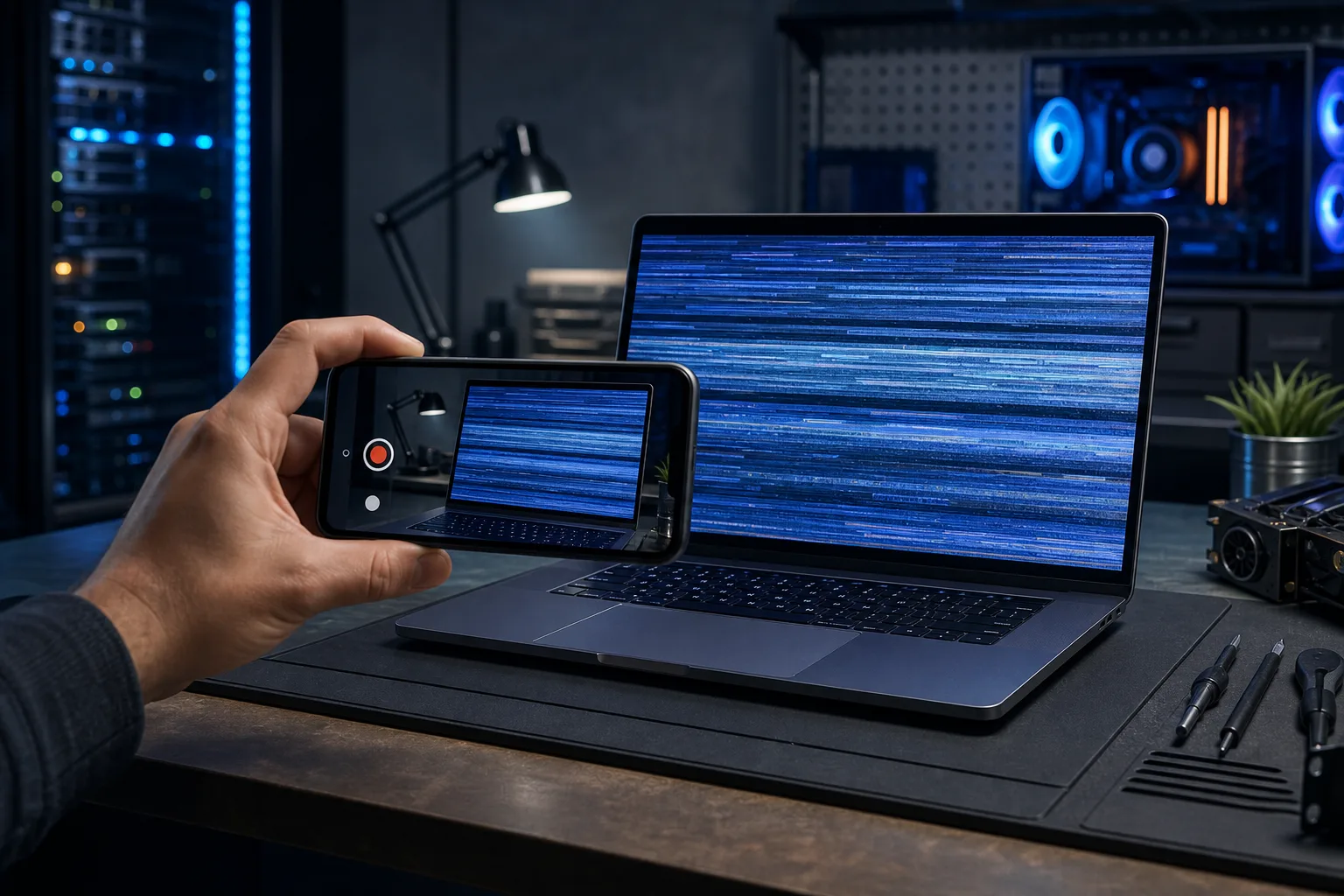
Pull out your phone, set it to slow-motion (120fps or higher), and film your laptop screen while it flickers. Play it back.
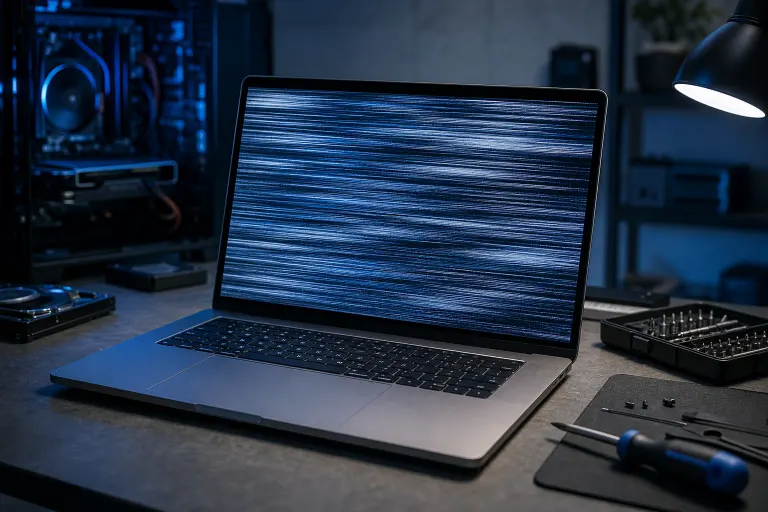
- Horizontal banding that rolls through the image usually means a refresh rate mismatch or driver issue.
- Random blackouts or white flashes often point to a loose display cable or failing backlight.
- Flicker only in certain areas of the screen is a strong sign of panel damage or a delaminating LCD.
This one clip saves you a lot of guesswork before you touch a single setting.
Step 2: Check whether Task Manager itself flickers
On Windows, press Ctrl + Shift + Esc to open Task Manager, then watch the screen.
- If Task Manager flickers too, the problem is almost certainly a display driver or a system conflict. Software is your first target.
- If Task Manager stays stable while the rest of the screen flickers, an incompatible app (often a system tray tool or antivirus overlay) is likely the cause.
On macOS, open Activity Monitor and watch for the same pattern with GPU process spikes.
Step 3: Verify your refresh rate setting
A mismatch between your panel's native refresh rate and what Windows is sending it causes a rolling flicker that looks almost identical to a driver bug.
Windows 11/10: Settings > System > Display > Advanced display > Choose a refresh rate.
Match the rate to your panel's spec (usually 60 Hz for standard laptops, 144 Hz or higher for gaming panels). If you see an odd value like 59 Hz or 143 Hz, switch to the correct integer and retest.
macOS: System Settings > Displays. Hold Option while clicking the refresh rate picker to see all available values.
Step 4: Update or roll back the display driver
A bad driver update is one of the most common causes of sudden flickering, especially after a Windows Update.
To update: Open Device Manager > Display adapters > right-click your GPU > Update driver > Search automatically.
To roll back: Same path, but choose Properties > Driver tab > Roll Back Driver. This option only appears if a previous driver is saved.
For AMD or NVIDIA dedicated GPUs, download the driver directly from AMD or NVIDIA rather than relying on Windows Update. Manufacturer drivers are usually more stable.
Computer acting up? Get a real diagnosis. Book a diagnostic
Step 5: Run the external monitor test
This is the single most important test for separating software from hardware.
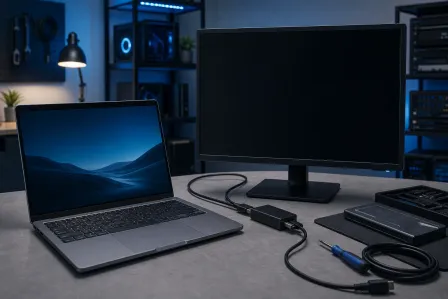
- Plug an external monitor into your laptop's HDMI or USB-C port.
- Mirror your display (Windows: Win + P > Duplicate).
- Watch both screens while doing normal tasks.
Decision table:
| External monitor stable | Internal screen flickers | Verdict |
|---|---|---|
| Yes | Yes | Hardware problem: cable, backlight, or panel |
| Yes (mostly) | No flicker on external | Same as above |
| Both flicker | Both flicker | GPU or driver problem |
| External also flickers | N/A | GPU or system-level issue |
If the external monitor is fine but your internal screen flickers, no amount of driver reinstalling will fix it. You're looking at a physical repair.
Step 6: The hinge wiggle test
Open and close your laptop lid slowly while watching the screen. Gently flex the area around the hinges.
- If the flicker changes intensity or stops when you move the lid, the display cable (which runs through the hinge) is pinched, fraying, or loose. This is extremely common on laptops with tight or worn hinges.
- If movement makes no difference, a loose cable at the connector (on the motherboard or panel end) is less likely but still possible.
Do NOT force the hinge or over-flex it. You just need a gentle range of motion test.
Step 7: Check for heat-related flickering
If flickering only appears after 20-30 minutes of use, heat is a suspect. Overheating GPUs and loose solder joints on display connectors can cause intermittent flicker that worsens as the machine warms up.
Download HWiNFO64 (free, Windows) and watch GPU and CPU temps while you replicate the flicker. If temps exceed 90-95°C on the GPU when flickering starts, thermal throttling or a failing GPU is on the table.
For a detailed look at heat diagnosis, check out our guide on computer repair services if you want a pro to pull the heat sink and repaste.
Common mistakes
Reinstalling Windows before testing the external monitor. A fresh OS install won't fix a cracked cable. Always run the external monitor test first.
Updating drivers when you should be rolling back. If flickering started right after an update, the new driver is probably the problem. Roll back first, then decide.
Ignoring the refresh rate setting. It sounds too simple, but a single wrong value causes persistent rolling flicker that looks exactly like a hardware fault.
Skipping the slow-motion video. Flicker patterns are hard to see in real time. The video tells you a lot before you open a single menu.
Bottom line
Start with the slow-motion video and the Task Manager test. If those point to software, fix the refresh rate and driver first. If the external monitor test shows the problem is hardware-side, or if the hinge wiggle test lights up, the repair is physical: LCD cable, backlight, or panel replacement.
Software fixes you can handle yourself. Hardware repairs on a laptop require disassembly and the right replacement parts, and a wrong move can damage the panel or connector further.
If you're in West Palm Beach or South Florida and the diagnosis points to hardware, our team at Fix My PC Store handles laptop screen and cable repairs from our Okeechobee Boulevard shop. You can also start with remote support if you want a technician to walk through the software steps with you before committing to a bench repair.
Computer acting up? Get a real diagnosis.
Fix My PC Store has repaired thousands of machines across West Palm Beach. Honest pricing, no upsell games, and a free diagnostic for new customers with our email coupon.