Why Is My Laptop Not Detecting a Second Monitor?
TL;DR: A laptop skipping a second monitor is almost always a cable, settings, or driver problem, not a dead GPU. Run the diagnostic sequence below before assuming hardware failure. If the port itself is damaged, that is a bench repair job.
What Happened
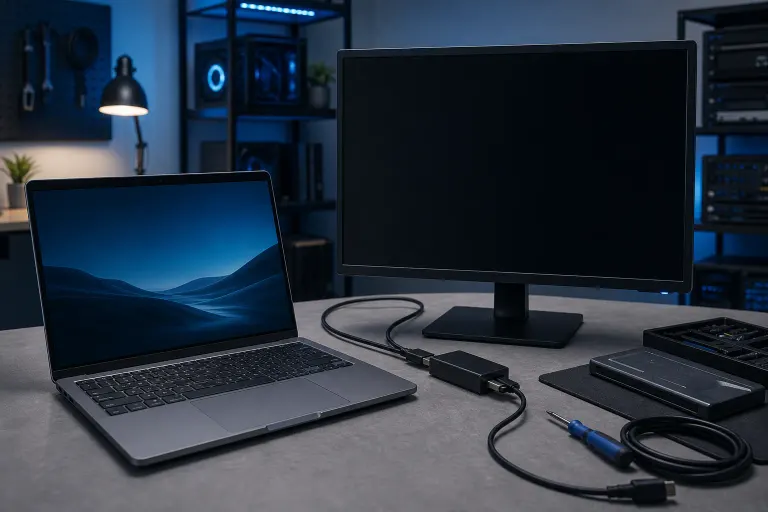
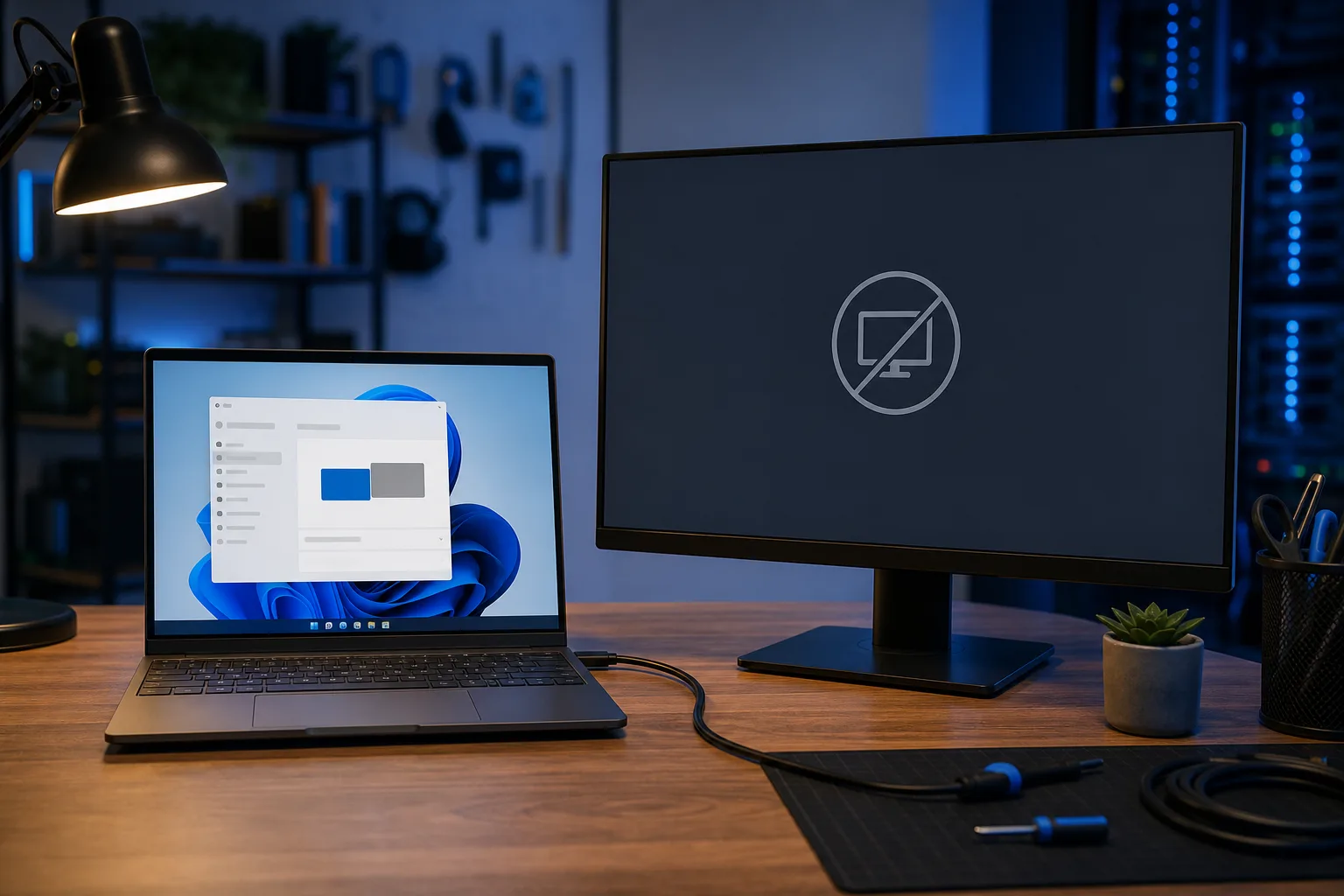
You plugged in an external monitor, nothing appeared, and now you are staring at a blank screen wondering what broke. This is one of the most common dual-display complaints, and it rarely means your graphics card is dead.
The signal chain between your laptop and a monitor has several links: the physical port, the cable, the monitor's input setting, Windows or macOS display settings, and the GPU driver. Any single link can break the chain.
Common triggers include a Windows update that reset display settings, a cable swap that introduced a faulty adapter, a monitor left on the wrong input source, or a driver that silently corrupted after a sleep cycle.
Why It Matters
Getting the diagnosis wrong wastes time. Reinstalling drivers when the monitor is on the wrong input does nothing. Swapping cables when the port is actually disabled in BIOS does nothing either.
Work through the sequence below in order. Each step rules out one layer.
Diagnostic Sequence
Step 1. Force a detection in display settings. On Windows: right-click the desktop, open Display Settings, scroll down, and click Detect. On macOS: System Settings, Displays, hold Option and click Detect Displays. If the monitor appears after this, you are done.
Step 2. Check the monitor's input source. Use the monitor's OSD (on-screen display) buttons to confirm it is set to the correct input, HDMI 1, HDMI 2, DisplayPort, USB-C, whichever matches the cable you plugged in. This is the single most skipped step.
Step 3. Swap the cable or adapter. A cheap HDMI cable or USB-C to DisplayPort adapter failing is extremely common. Test with a different cable if you have one. If you are using a USB-C or Thunderbolt adapter, confirm the adapter is rated for video output, not just data or charging.
Step 4. Try a different port on the laptop. Some laptops have multiple USB-C ports but only one carries a video signal. Check your laptop's spec sheet or manufacturer support page for which ports support DisplayPort Alt Mode.
Step 5. Update or roll back the GPU driver. On Windows, open Device Manager, expand Display Adapters, right-click your GPU, and choose Update Driver. If a recent update broke things, choose Roll Back Driver instead. On macOS, GPU drivers ship with system updates, so check for a pending macOS update.
Step 6. Test the monitor on a different device. Plug the monitor into another laptop, a desktop, or even a gaming console. If it works there, the issue is with your laptop's port or settings. If it does not work there either, the monitor itself may be the problem.
Step 7. Check for a BIOS or firmware setting. Some business laptops let IT administrators disable ports in the BIOS. If you are on a corporate machine and steps 1 through 6 failed, a BIOS-level restriction could be the cause.
Computer acting up? Get a real diagnosis. Book a diagnostic
What We Don't Know Yet
The diagnostic above covers the most common causes, but a few edge cases are harder to pin down without hands-on testing.
A port that passes visual inspection but has a bent pin or cracked internal connector will often fail intermittently. It might work when the cable is wiggled but drop signal constantly in real use. That is not diagnosable from software alone.
GPU hardware faults are rare but real. If multiple monitors fail on multiple cables across multiple ports, the GPU or the motherboard's video output circuit may be the issue. That needs bench diagnostics.
For gaming laptops specifically, some systems have both an integrated GPU and a discrete GPU. Certain ports are hard-wired to one chip or the other. If the port you are using routes through the iGPU and the iGPU is disabled or power-managed off, the monitor will not appear. Nvidia's MUX switch setting in Armoury Crate, Synapse, or your laptop's dedicated app can affect this.
What to Do About It
If the diagnostic sequence above resolved the issue, great. Make a note of which step fixed it so you can skip straight there next time.
If you are still stuck after all seven steps, the problem is likely physical: a damaged port, a failed adapter IC, or a driver conflict that needs a clean reinstall. Those are worth getting looked at in person.
Fix My PC Store offers free initial checks on most standard in-store repairs at the Okeechobee Blvd shop in West Palm Beach. Bring the laptop and the cable and monitor if you can, because testing the full chain on the bench is the fastest way to isolate a stubborn port problem.
If you cannot get in easily, remote support can walk through the driver and settings side of the diagnosis with you directly.
For business users running dual-monitor workstations across a team, recurring display issues after Windows updates can often be addressed through a managed update policy. Managed IT services can help prevent the same driver chaos from hitting every machine at once.
Computer acting up? Get a real diagnosis.
Fix My PC Store has repaired thousands of machines across West Palm Beach. Honest pricing, no upsell games, and a free diagnostic for new customers with our email coupon.