Why Is My Laptop Charger Getting Hot? When to Worry
TL;DR: Chargers run warm under load, that is just physics. Hot enough to be uncomfortable to touch, discolored, or smelling like something is burning means stop using it now. Work through the checks below before buying a replacement, because the charger is sometimes the symptom, not the problem.
What you need
- A flat, hard surface to set the adapter on during testing
- A replacement cable or adapter to swap-test if you have one
- Five minutes and a nose (seriously, smell matters here)
1. Establish what "hot" actually means
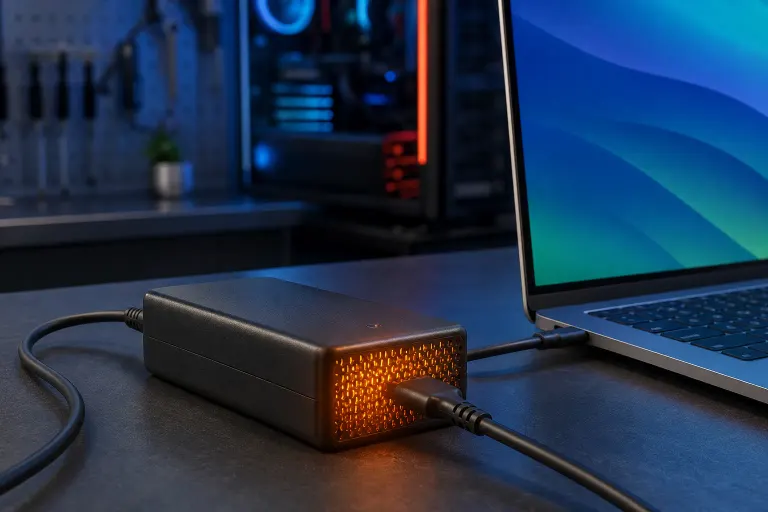
Touch the brick after an hour of use. Warm, like a coffee mug left on a desk, is normal. Adapters convert AC wall power to DC laptop power and shed heat doing it. That is not a defect.
The line is: can you hold your palm on it for five seconds without pulling away? If yes, normal. If no, something is wrong. If it is hot enough to leave a mark on a wood desk or soft surface, stop immediately.
(People who set their charger under a couch cushion and then complain it overheats get zero sympathy from me.)
2. Check where and how the adapter is sitting
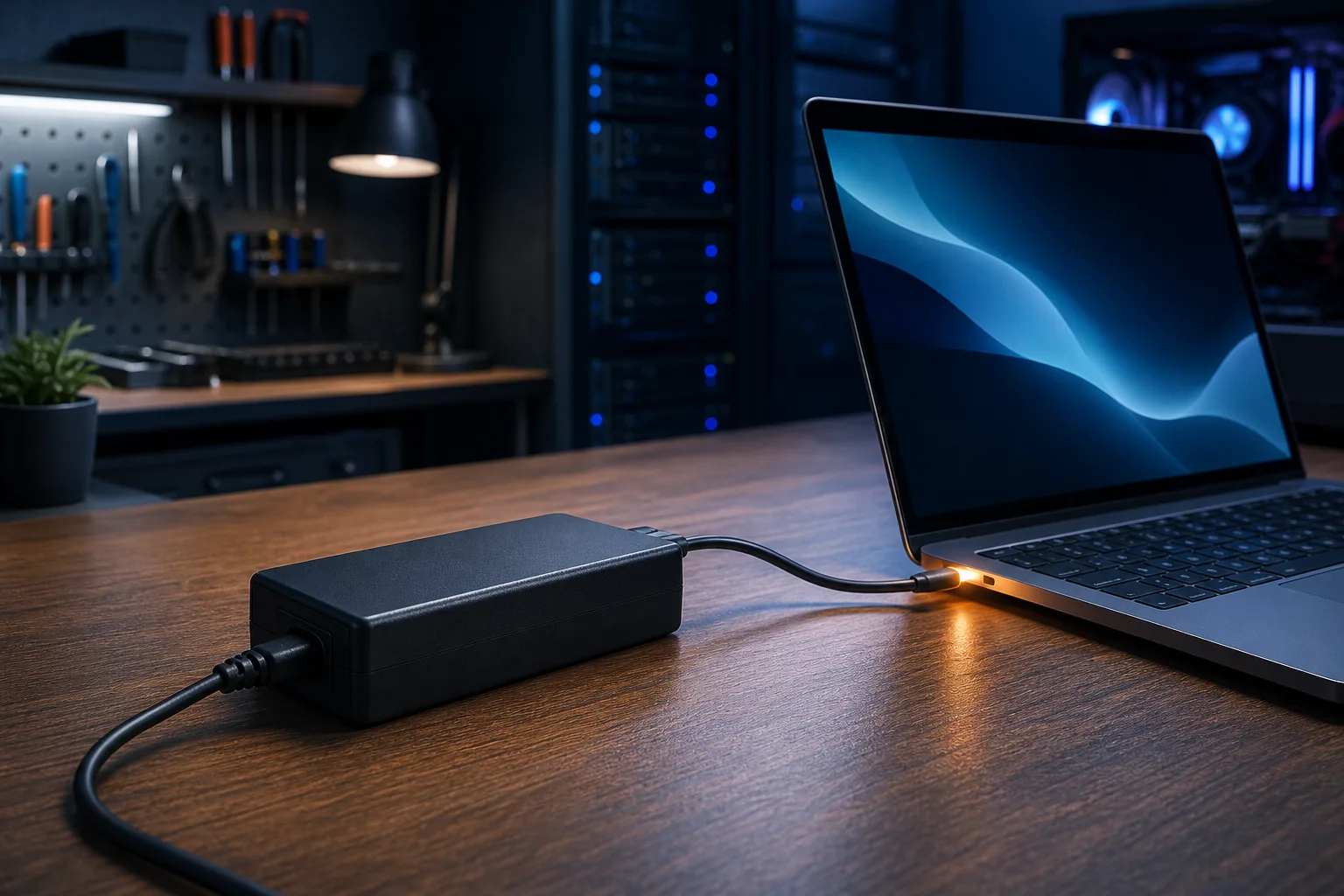
Adapters need airflow. Coiled cable trapping the brick against carpet, a bag, or bedding will make even a healthy charger run dangerously hot. Lay it flat on a hard surface, uncurl the cable, and retest.
If the temperature drops noticeably, the charger is probably fine and you need to change your habits.
3. Look at what is plugged in on the other end
A laptop under heavy load, a dying battery that will not hold a charge, or a machine charging while running a GPU-intensive task all demand more current. More current means more heat in the adapter.
Run the laptop on a light task, browser only, no video. If the charger cools down, the load was the cause. If the charger stays scorching at idle, the adapter itself is suspect.
4. Inspect the cable and connectors
Run your fingers along the full length of the cable. Feel for kinks, soft spots, or areas where the insulation has cracked or melted slightly. Check the connector that plugs into the laptop for bent pins, scorch marks, or debris.
A damaged cable is a fire hazard, not a nuisance. Do not tape over a melted section and keep using it. (I have seen this. It is as bad an idea as it sounds.)
Computer acting up? Get a real diagnosis. Book a diagnostic
5. Check for a counterfeit or wrong-wattage adapter
Third-party chargers are not automatically bad, but cheap counterfeits skip the safety components that regulate heat. If you are using a replacement that came from a random online marketplace for a suspiciously low price, that is your first suspect.
Also verify wattage. Plugging a 45-watt adapter into a laptop that needs 65 watts makes it run hot and stressed constantly. The correct wattage is usually printed on the bottom of your laptop or in the manual.
Authoritative guidance on counterfeit power adapters and what to look for is available from the U.S. Consumer Product Safety Commission.
6. Run the decision table
| What you observe | Likely cause | Action |
|---|---|---|
| Warm but touchable, no smell | Normal heat under load | No action needed |
| Hot when laptop is idle | Failing adapter or bad battery | Replace adapter, test battery |
| Hot only when buried or coiled | Airflow blocked | Change placement habits |
| Smell of burning plastic | Adapter fault or damaged cable | Stop immediately, replace |
| Discoloration on brick or plug | Internal failure or arc | Dispose of safely, do not reuse |
| Charger trips circuit breaker | Serious internal short | Replace charger, inspect outlet |
7. Test with a known-good adapter if you can borrow one
Swap in a friend's identical or compatible adapter for 30 minutes. If the new one stays cool and yours was hot, the adapter is dead. If the new one also runs hot, the laptop itself, specifically the charging circuit or battery, is the problem.
A laptop that destroys chargers is telling you something important. It usually means a shorted charging port, a swollen battery pulling excess current, or a failed charge controller on the motherboard.
Common mistakes
Buying the cheapest replacement you can find. A fire-starting counterfeit costs less than a repair, right up until it does not. Stick to OEM chargers or reputable third parties with proper UL or CE certification markings.
Assuming the charger is the problem without testing. If the laptop is cooking chargers, replacing the charger is just buying time. The charging circuit needs to be looked at.
Ignoring a burning smell. That smell is insulation breaking down. It does not fix itself.
Using a charger rated for a different voltage. Voltage mismatches can fry the laptop's motherboard, not just the adapter.
Bottom line
Warm is normal. Hot, smelly, discolored, or circuit-tripping is not. Work through the steps above in order before you spend money on a replacement, because if the laptop itself is the problem, a new charger will not fix anything.
If the adapter checks out fine but the laptop is still chewing through chargers, or if you find a damaged charging port, that is time to bring it in. Fix My PC Store on Okeechobee Blvd in West Palm Beach can check the charging circuit, test the battery, and tell you what is actually going on before you spend more money guessing. Initial diagnostics for standard in-store repairs are free. Call us at 561-819-9999 or schedule a repair.
Computer acting up? Get a real diagnosis.
Fix My PC Store has repaired thousands of machines across West Palm Beach. Honest pricing, no upsell games, and a free diagnostic for new customers with our email coupon.