Why Does My PC Throttle Itself When It Gets Too Hot?
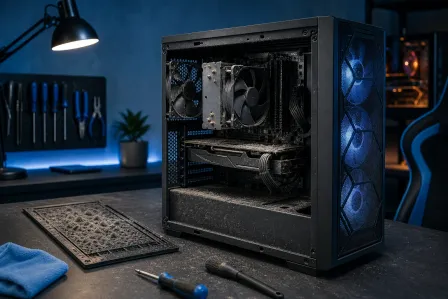
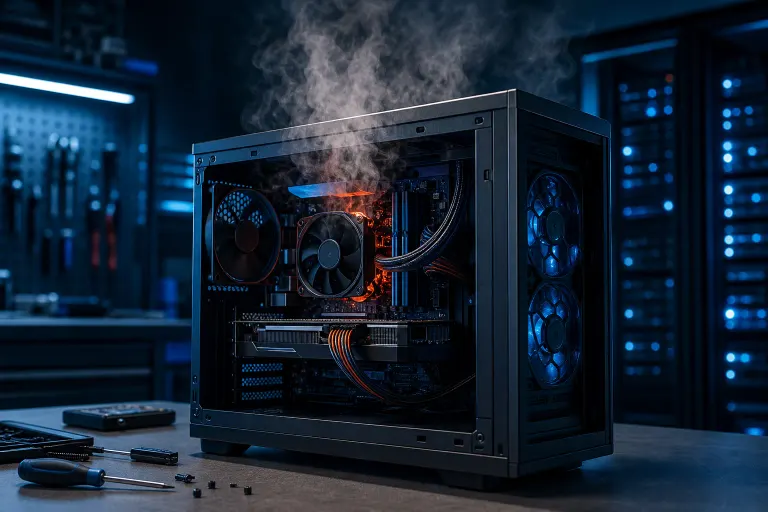
TL;DR: Thermal throttling is your CPU or GPU deliberately slowing itself down because it's getting too hot, and it's a safety feature, not a malfunction. Clean out the dust, check your cooling contact, fix your airflow, and if none of that works, the thermal paste or the cooler itself is probably shot. Ignore it long enough and you'll eventually get shutdowns or shortened hardware life instead of just slow frame rates.\n\nHere's the thing people get wrong constantly. Throttling isn't the problem. Throttling is the symptom. The chip is basically slamming the brakes because it's about to cook itself, and modern CPUs and GPUs are smart enough to do that automatically. So when your machine chugs along fine for ten minutes then suddenly turns into a slideshow, that's not a virus, that's not "Windows being Windows," that's silicon protecting itself from you.\n\nI see this constantly on the bench. Laptop comes in, customer swears it's "just old and slow." I run a stress test, watch the temps climb to the 90s in under two minutes, and clock speeds nosedive right along with it. That's not old age. That's a machine suffocating.\n\n## What you need\n\n- A free monitoring tool like HWMonitor or HWiNFO (to actually see temps and clock speeds, not guess)\n- Compressed air (canned, or better, a small electric duster if you own one)\n- A soft brush (an old toothbrush works, don't laugh)\n- Isopropyl alcohol (90%+) and a lint-free cloth or coffee filter, for paste work\n- Thermal paste, if you're going that far (a small tube, you don't need much)\n- A Phillips screwdriver set, precision bits for laptops\n- Patience, because rushing a repaste job is how you end up with paste on your motherboard instead of your CPU\n\nIf any of that sounds like more than you want to mess with, that's a completely reasonable place to stop and just book a repair instead. Nobody gets a medal for stripping a laptop screw.\n\n## Step 1: Confirm it's actually thermal throttling\n\n Don't assume. Download HWiNFO (free, legit, no sketchy toolbar installs) and run it while doing whatever makes your PC struggle, gaming, video export, whatever. Watch two numbers: temperature and clock speed (frequency). If temps are climbing into the 90s Celsius on a CPU or GPU and clock speed is dropping at the same time, that's throttling, plain and simple.\n\nDesktop CPUs generally start getting nervous somewhere in the 85-95°C range depending on the chip (check your specific model's spec sheet, don't trust some forum post from 2016). Laptops run hotter as a rule because there's less room to dump heat, so seeing higher numbers there isn't automatically alarming, but a sustained pin at the max is still bad news.\n\n## Step 2: Open it up and look at the dust situation\n\nThis is the boring answer and it's also the answer about 60% of the time. Dust is an insulator. It builds up in the heatsink fins, it clogs the fan blades, it forms a nice cozy blanket right where heat needs to escape, and then people wonder why their five-year-old machine suddenly can't keep up with a Word document.\n\nDesktop: pull the side panel, use compressed air in short bursts (don't just hold the trigger down, you can spin fan blades fast enough to damage the bearings), and hold fans still with your finger while you blast them so they don't overspeed. Get into the heatsink fins from multiple angles. If you've never cleaned it and it's been a couple years, you'll be shocked at what comes out.\n\nLaptop: this is trickier because you usually have to actually open the case to get at the heatsink and fan properly. Blowing air into the side vents does basically nothing except rearrange the dust bunnies. If you're not comfortable taking apart a laptop, this is a legitimate reason to bring it in for laptop repair rather than gambling with tiny screws you'll lose in the carpet.\n\n## Step 3: Check your airflow, not just your internals\n\nA spotless interior still overheats if the airflow around it is garbage. Common offenders I see constantly:\n\n- Desktop tower shoved into a closed cabinet or against a wall with zero clearance\n- Laptop running on a bed, couch, or blanket (soft surfaces block the intake vents on the bottom, it's basically smothering itself)\n- Case fans all blowing the same direction with no exhaust, creating a hot pocket instead of airflow\n- A room that's just plain hot because someone's "saving on the AC bill" (down here in South Florida in July, that's not a small factor, your PC feels the humidity too)\n\nGive the machine room to breathe. A laptop stand or even a hardback book underneath does more good than people expect. For desktops, make sure intake and exhaust fans are actually working together, not fighting each other.\n\n## Step 4: Inspect (or replace) the thermal paste\n\nThermal paste is the stuff between the CPU and the heatsink that actually transfers heat, and it dries out over time, usually somewhere in the 3-5 year range depending on quality and heat cycles. Dried out paste turns crumbly and stops doing its job, so even a perfectly clean, well-ventilated machine can throttle if the paste underneath the cooler has gone bad.\n\nIf you're comfortable getting in there: remove the cooler, clean off the old paste completely with isopropyl alcohol on both the CPU surface and the cooler's contact plate, and apply a new pea-sized dot (or thin line, depending on your CPU shape) before reseating the cooler evenly. Too much paste is almost as bad as too little, so resist the urge to slather it on.\n\nThis is genuinely one of those jobs where a lot of people do more harm than good on their first try, especially on laptops where the cooler assembly is delicate and the CPU is soldered in tight quarters. If you're not confident, this is a solid case for computer repair instead of a YouTube tutorial and a prayer.\n\n## Step 5: Check the fan itself, not just what's around it\n\nFans die. Bearings wear out, blades get slower over the years even after cleaning, and some laptop fans just get stuck (I've written about that exact problem before, ask me about the ones that scream at full speed forever, or worse, the ones that barely spin at all). Listen to it. Does it sound gritty or uneven? Does it spin up at all under load, or does it seem stuck at one speed regardless of temperature? A dying fan will throttle your system just as effectively as dust or bad paste, and no amount of cleaning fixes a fan motor that's simply worn out.\n\n## Step 6: Check your power and BIOS settings\n\nSometimes it's not purely thermal, it's a power limit interacting badly with heat. Laptops especially have aggressive power plans that throttle under battery power or in "balanced" mode well before actual thermal limits are hit. Check your Windows power plan, check if there's a "performance" or "cooling policy" option in your laptop manufacturer's software, and on desktops, check that your BIOS isn't running some aggressive factory power limit that's more conservative than it needs to be. This one's a smaller piece of the puzzle usually, but worth ruling out before you assume it's purely a heat issue.\n\n## Common mistakes\n\nBlasting compressed air without holding the fan still. You can spin a fan well past its rated RPM with a canned air blast, which can damage the bearing. Hold the blades with a finger or a bit of tape while you spray.\n\nSlathering on way too much thermal paste. More paste doesn't mean better cooling. Excess paste can squeeze out the sides and even cause a short on some boards. A small, controlled amount beats a big blob every time.\n\nIgnoring it because "it still works." Sustained high heat shortens the life of every component nearby, not just the CPU. It's cheaper to fix the airflow now than replace a fried motherboard later.\n\nBuying a new laptop instead of fixing the one you have. I get it, throttling feels like the machine is dying. Half the time it's a $20 cleaning and repaste job, not a death sentence. Don't let a salesperson at a big box store convince you otherwise.\n\nAssuming a laptop stand or cooling pad alone fixes internal dust buildup. Those help airflow around the machine, they do nothing for the compacted dust already inside. Different problem, different fix.\n\nSkipping the diagnosis step entirely. Cleaning dust out of a machine that's actually throttling because of a bad power setting or dying fan wastes your time. Confirm what's actually happening before you start disassembling things.\n\n## Bottom line\n\nThrottling is your PC being smart, not broken. It's telling you there's a heat problem, and heat problems are almost always fixable with cleaning, better airflow, or fresh thermal paste. The machine that seems to have gotten "slow with age" is very often just a machine that's been quietly suffocating under two years of dust nobody bothered to clean out.\n\nIf you've gone through all six steps and it's still throttling, or if the idea of cracking open a laptop makes you break out in a cold sweat, bring it in. We deal with this exact complaint on the bench weekly, and it's usually a fast, cheap fix once we actually get eyes on the internals. Book a repair or swing by and we'll pull the covers off and show you exactly what's going on in there.
Computer acting up? Get a real diagnosis.
Fix My PC Store has repaired thousands of machines across West Palm Beach. Honest pricing, no upsell games, and a free diagnostic for new customers with our email coupon.