Why Is My Gaming PC Stuttering Only in the First Few Minutes?
TL;DR: Early-session stutter that clears up on its own usually means your hardware is warming up, your storage is spinning up, or your GPU is compiling shaders in the background. It is almost never a sign your rig is dying. The fix depends on which cause matches your symptoms.
What Happened
You boot a game, the first two to five minutes feel like a slideshow, then everything snaps into smooth 60-plus FPS and stays there. The stutter is real, it is repeatable, and it only happens at the beginning of a session.
This specific pattern shows up in four main scenarios:
1. Shader compilation Modern games, especially those running DirectX 12 or Vulkan, compile shaders the first time you load a level or encounter a new scene. Your GPU is doing math in the background while you are trying to play. AMD and NVIDIA both handle this differently, but neither is instant. Games built on Unreal Engine 5 are especially notorious for this. (Microsoft DirectX 12 documentation)
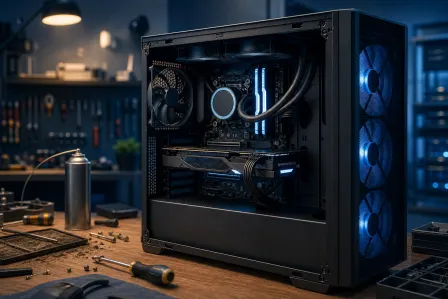
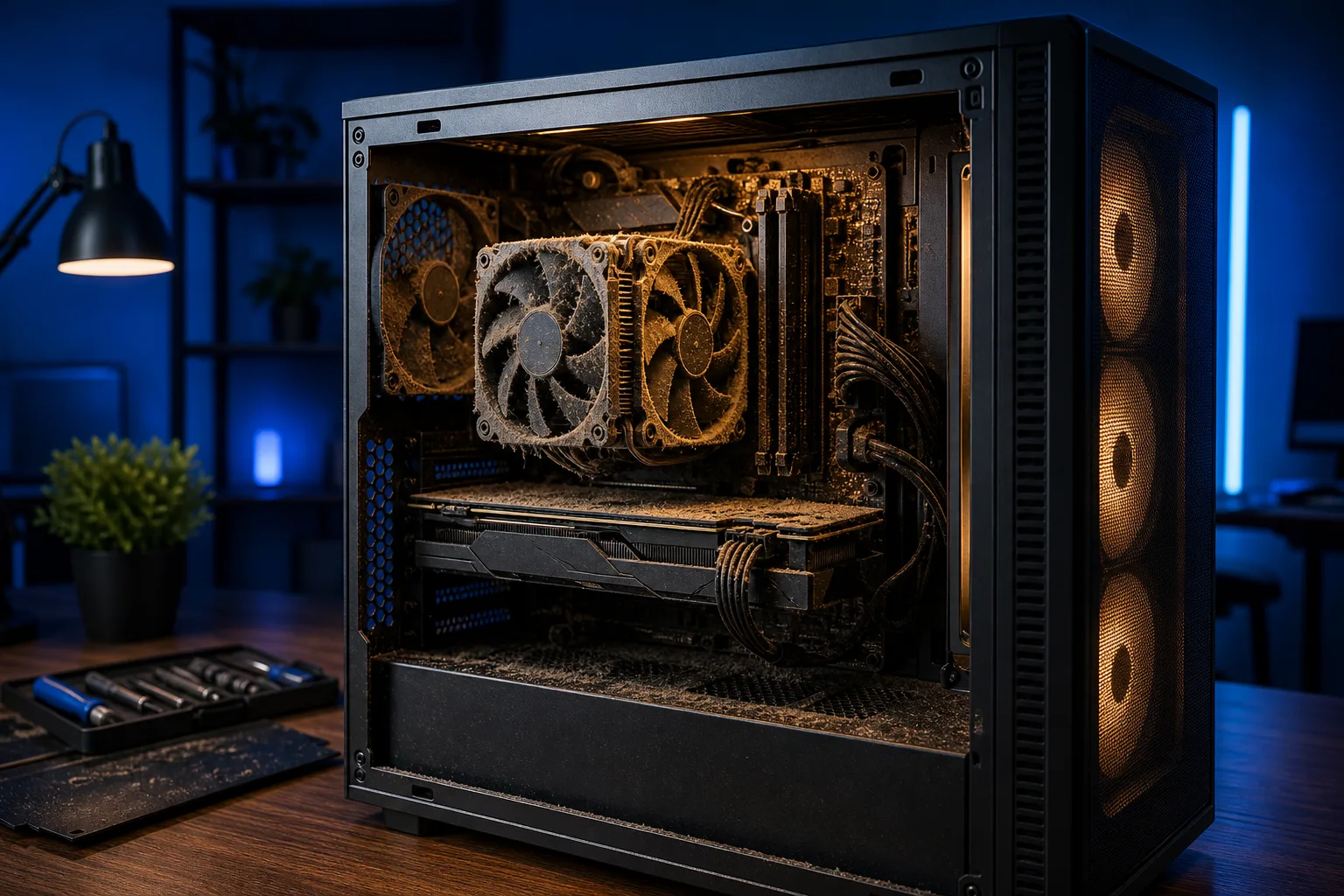
2. Thermal ramp-up Your CPU and GPU do not run at full boost clocks the instant you launch a game. They ramp up as temperatures rise to their target range. If your cooler is undersized, dried-out thermal paste is throttling the chip, or the case airflow is weak, the ramp takes longer and frame times spike while it happens.
3. HDD or slow SATA SSD seeking A spinning hard drive or even a budget SATA SSD can struggle to stream assets fast enough when a game first loads its world. The stutter clears once the most-used assets are cached in RAM. If your game lives on an HDD, this is probably your culprit.
4. Background process interference Windows Update, antivirus scans, and cloud-sync apps often run aggressively right after boot. They compete for disk I/O and CPU cycles exactly when you are launching a game. This one tends to be less predictable but follows the same early-session pattern.
Why It Matters
Ignoring early stutter is usually fine if the cause is shader compilation. That is baked into how modern rendering works and nothing is broken. But if the cause is thermal throttling or a failing drive, letting it slide means you are running hardware under stress that compounds over time.
Thermal paste dries out. Fans collect dust. An HDD under constant seek load is closer to failure than a healthy one. The stutter you are shrugging off today can be the warning sign you wish you had acted on later.
Ready to build a rig that actually rips? Start your build
What We Don't Know Yet
One pattern can have multiple causes stacked on top of each other. A game that stutters because of shader compilation AND lives on an HDD AND runs on a system with marginal cooling will stutter worse than a system with only one of those problems. You need to isolate them.
Also, driver bugs can cause early-session stutter that mimics thermal issues. NVIDIA and AMD both push driver updates that sometimes introduce frame-time variance. Checking GPU driver release notes after a stutter appears out of nowhere is worth doing before you pull anything apart.
What to Do About It
Work through this diagnostic sequence in order:
Step 1: Identify the pattern. Does the stutter happen in every game or just one title? One title points to shader compilation or a game-specific bug. Every game points to a system-level cause.
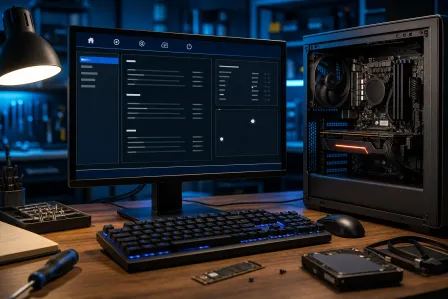
Step 2: Check thermals during the stutter window. Open HWiNFO64 or MSI Afterburner while gaming. If your CPU or GPU clocks are bouncing around in the first two minutes and then stabilize, thermal throttling is happening. Look at the "TjMax" and power limit columns.
Step 3: Check your storage. Look at which drive your game is installed on. Run CrystalDiskMark on that drive. An NVMe drive should be reading above 2,000 MB/s sequential. A SATA SSD above 400 MB/s. If you are on HDD, moving the game to an SSD is the single highest-FPS-payoff upgrade you can make for under $60.
Step 4: Delay your game launch after boot. Wait five minutes after booting Windows before launching your game. If the stutter disappears, background processes were the culprit. You can then investigate Task Manager's Startup tab and Windows Update active hours.
Step 5: Check shader pre-compilation settings. Some games, like those using DXVK or Vulkan, let you force shader pre-compilation before you play. Steam's Proton layer does this automatically on Linux. On Windows, check the game's graphics settings for a "shader pre-warm" or "pre-compile shaders" toggle.
Decision Table: Which Cause Matches Your Situation?
| Symptom | Most Likely Cause | First Move |
|---|---|---|
| Only one specific game stutters | Shader compilation | Check for a game update or shader pre-warm option |
| All games stutter, clocks bounce in HWiNFO | Thermal throttling | Clean fans, replace thermal paste |
| Stutter clears after 5-min wait post-boot | Background processes | Audit startup programs and Windows Update schedule |
| Game is on HDD, stutter clears mid-session | Storage seek lag | Move game to SSD |
| Stutter appeared after a driver update | GPU driver bug | Roll back driver in Device Manager |
If you check thermals and see your CPU hitting throttle temps even at idle or early load, that is worth getting eyes on. Dried thermal paste on a hot Florida rig running in a closed room is more common than people expect. If you want a professional set of eyes on what is going on under the hood, you can book a diagnostic at Fix My PC Store or check out the custom gaming PC repair page to see what the shop covers. Initial in-store checks are free for most standard repairs.
And if you want to see what a properly built rig looks like from the ground up, the custom gaming PC builder wizard is worth a few minutes of your time.
Ready to build a rig that actually rips?
Custom gaming PCs built and tuned by people who game. Tell us your budget and target frame rate.