Why Is My PC Randomly Shutting Off Without Warning?
TL;DR: Random, no-warning shutdowns are usually caused by overheating, a struggling power supply, or a failing hardware component. You can narrow down the culprit with a few free tools and some basic checks. If the problem keeps happening after those steps, a tech should look at it before something gets damaged permanently.
What Happened
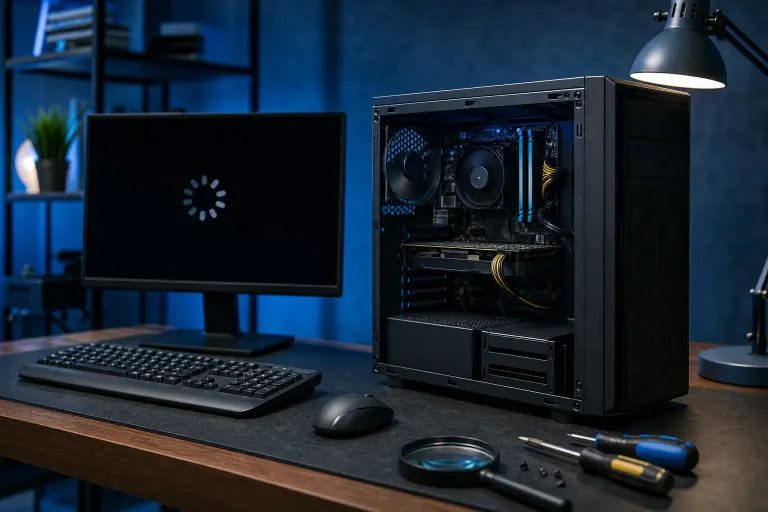
Your PC just cut off mid-task, no warning, no error screen. It powered back on like nothing happened, or maybe it refused to start for a minute. That behavior is almost never random. Windows has a built-in safety mechanism that triggers an immediate shutdown when a sensor reading crosses a danger threshold. The PC is protecting itself.
The three most common triggers are:
- Thermal shutdown. The CPU or GPU hit a temperature limit (often 90-105°C depending on the chip). The system cut power to avoid permanent damage.
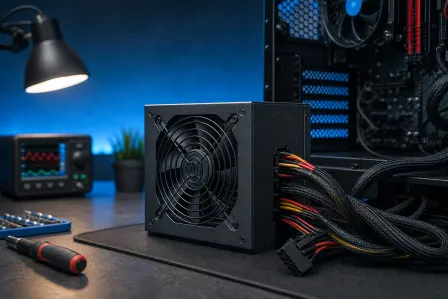
- Power supply failure. A PSU that can no longer deliver stable voltage will cause an instant shutdown, especially under load, like gaming or video rendering.
- Hardware fault. Bad RAM, a failing drive, or a loose connection can cause the system to drop power or trigger a critical kernel error that skips the blue screen and just shuts down.
Why It Matters
A single random shutdown can be a fluke. Repeated shutdowns are a warning. Every thermal event stresses solder joints and degrades thermal paste. A PSU that is failing can send voltage spikes before it dies, and those spikes can kill other components, your motherboard, GPU, or drives.
Ignoring this also puts your data at risk. A sudden power cut while Windows is writing to disk can corrupt files or, on older spinning hard drives, cause physical damage to the read head.
Computer acting up? Get a real diagnosis. Book a diagnostic
What We Don't Know Yet
Without running diagnostics, you cannot tell from the outside whether this is a cheap fix (clogged vents, dried-out thermal paste) or a serious hardware failure. The symptoms overlap heavily. A GPU thermal shutdown and a PSU brownout look identical from the user's seat.
The Event Viewer log and a temperature monitoring tool give you the first real clues.
What to Do About It
Step 1: Check the Event Viewer log
Right after the PC restarts, open Event Viewer (search it in the Start menu). Go to Windows Logs > System and look for errors stamped at the exact time of the shutdown. A critical entry labeled Kernel-Power, Event ID 41 means Windows lost power unexpectedly, pointing toward PSU or hardware. A thermal event may show a warning from your motherboard's sensor driver.
Step 2: Monitor temperatures under load
Download a free tool like HWiNFO64 or HWMonitor. Run it while doing whatever triggers the shutdown (gaming, rendering, a stress test). Watch the CPU and GPU temperature columns. If either climbs above 90°C before the shutdown happens, thermal protection is the culprit.
Step 3: Check airflow and cooling hardware
Shut the PC down, unplug it, and open the case. Look for:
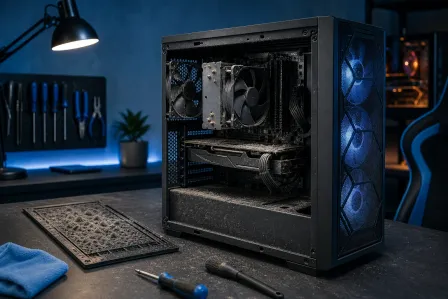
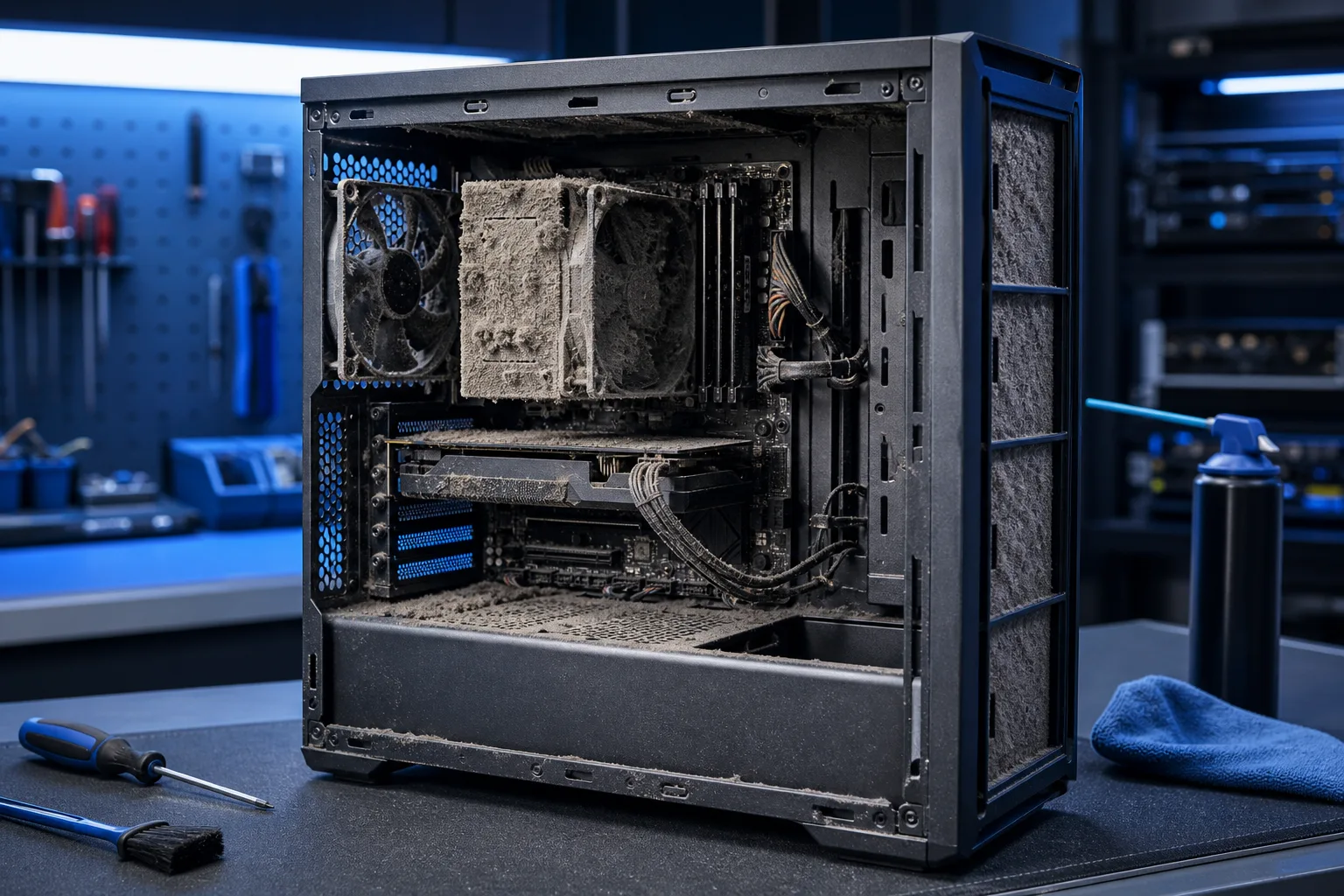
- Dust clogging the CPU heatsink fins or GPU fans
- A CPU fan that spins slowly or not at all
- Thermal paste that has dried out and cracked (common after 3-5 years)
- Cables blocking airflow paths inside the case
Cleaning the dust and reapplying thermal paste often resolves thermal shutdowns completely.
Step 4: Test the RAM
Bad RAM causes crashes that skip the blue screen. Run Windows Memory Diagnostic (built into Windows, search it in Start) or boot from a MemTest86 USB drive and let it run overnight. Errors here mean at least one stick of RAM needs replacing.
Step 5: Evaluate the power supply
A PSU is harder to test at home without a multimeter or a spare unit to swap in. Key signs it is the problem: shutdowns happen under load but not at idle, the PC smells faintly of something burning near the PSU, or the fan on the PSU is unusually loud or silent. If temperatures are fine and RAM tests clean, the PSU is the next logical suspect.
Decision table: What your symptoms suggest
| Symptom | Most likely cause |
|---|---|
| Shuts off during gaming or heavy CPU use | Overheating (CPU or GPU) |
| Shuts off under load, fine at idle | PSU struggling under demand |
| Shuts off randomly, even at idle | RAM fault or loose connection |
| Shuts off, then won't restart for a few minutes | Thermal cutoff, cooling issue |
| Blue screen sometimes, shutdown other times | Driver conflict or failing drive |
When to bring it in
Self-help works well for cleaning dust, reseating RAM sticks, and checking temps. If you have cleaned the cooling system, tested RAM, and the shutdowns continue, the next steps (PSU load testing, GPU stress diagnostics, checking the motherboard for bad capacitors) are faster and safer with proper tools.
Fix My PC Store offers free initial checks for most in-store repairs. Bring it to the shop at 10140 Okeechobee Blvd, Suite B, West Palm Beach, FL 33411, or call 561-819-9999. You can also book a repair or ask a question online. If you prefer not to leave home, remote support can help you run diagnostics and interpret Event Viewer logs in real time.
For more on keeping your system running reliably, the computer repair page covers what to expect from a full diagnosis.
Computer acting up? Get a real diagnosis.
Fix My PC Store has repaired thousands of machines across West Palm Beach. Honest pricing, no upsell games, and a free diagnostic for new customers with our email coupon.