Why Is My PC Stuttering Only in Open-World Games? How to Diagnose and Fix It
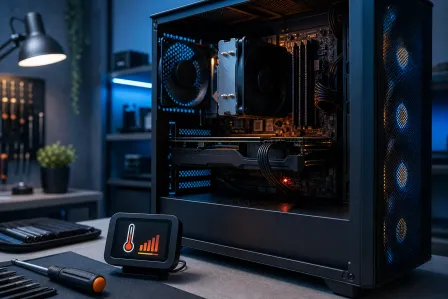
TL;DR: Open-world games stream massive amounts of data on the fly, stressing your RAM, VRAM, CPU, and storage all at once. Stuttering that only shows up in open worlds usually points to one of those bottlenecks, not a broken PC. A quick diagnostic sequence will tell you exactly which one.
What you need
- A free monitoring tool: MSI Afterburner with RivaTuner Statistics Server (RTSS) for real-time overlays
- Task Manager or HWiNFO64 for deeper CPU and RAM readings
- Windows Device Manager and your GPU driver installer
- About 30 minutes to run tests while playing
Why open-world games are uniquely demanding
A linear game like a corridor shooter loads one chunk of environment at a time. An open-world game has to continuously stream new terrain, textures, NPCs, and audio as you move. That constant streaming hits four resources simultaneously:
- RAM: stores the active world data the CPU is working with
- VRAM: holds textures and geometry the GPU is rendering
- CPU: handles world simulation, AI, physics, and asset loading threads
- Storage: feeds new assets the moment you cross a streaming boundary
When any one of those is the weakest link, you get hitches instead of smooth frames.
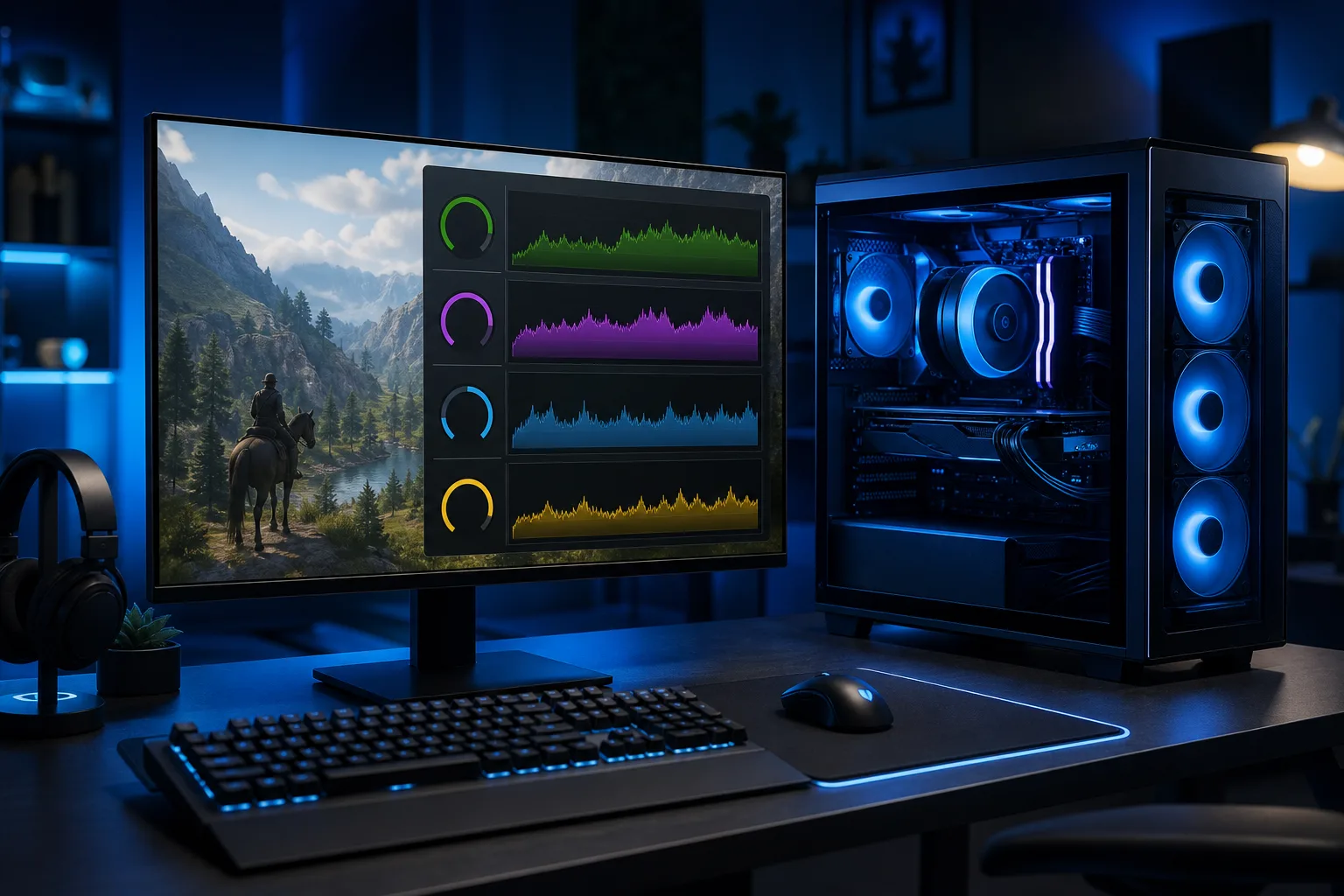
Step 1: Turn on your monitoring overlay
Install MSI Afterburner and enable the in-game overlay. Set it to show at minimum:
- GPU usage (%)
- VRAM usage (MB)
- RAM usage (MB or GB)
- CPU usage per core (or total %)
- Framerate
Now play the game normally for 10-15 minutes, especially near transitions like leaving a town, crossing a river, or fast-traveling. Watch what spikes right before or during a stutter.
This single step usually points you to the culprit.
Step 2: Check VRAM first. It's the most common cause
Look at your VRAM reading during a stutter. If it's at or near your GPU's limit (for example, 7.9 GB on an 8 GB card), the GPU is spilling assets into slower system RAM. That spill causes visible hitching.
What to do:
- Lower the in-game texture quality by one step
- Turn off or reduce shadow distance and foliage density, both are VRAM-heavy in open worlds
- Turn off ray tracing if enabled, it can double VRAM consumption
If the stutter drops significantly after lowering textures, VRAM was your bottleneck.
Step 3: Check RAM capacity and speed
Open Task Manager (Ctrl+Shift+Esc) and watch the Memory tab while playing. If total usage is above 85-90% during stutters, you're running out of physical RAM and Windows is swapping to your drive.
Also check: Is your RAM running in dual-channel? Two sticks in the correct paired slots roughly doubles memory bandwidth. Many PCs ship with one stick installed, leaving performance on the table. Check your motherboard manual for the correct slot pairing.
RAM speed matters in open-world games too. If you have DDR4 running at 2133 MHz when your CPU supports 3200+ MHz, enabling XMP or EXPO in your BIOS is a free performance gain.
Ready to build a rig that actually rips? Start your build
Step 4: Watch CPU core usage for a loading bottleneck
Some open-world engines are only lightly threaded for asset streaming. That means one or two CPU cores do most of the loading work. If those cores hit 100% right before a stutter, your CPU is the choke point.
What the overlay tells you:
- One core pinned at 100%, others idle: single-thread bottleneck, common in older engines like early Bethesda titles
- All cores at 80-90%+: overall CPU saturation, especially on 4-core or 6-core processors
Fixes here are limited without new hardware, but you can help by:
- Closing background apps before launching the game
- Setting the game's process priority to High in Task Manager
- Checking whether the game has a CPU thread count setting in its config file
Step 5: Rule out storage as the bottleneck
If your game is installed on a spinning hard drive (HDD), this is almost certainly contributing to your stutter. Open-world games stream data constantly. An HDD can't keep up with fast traversal or fast travel loading.
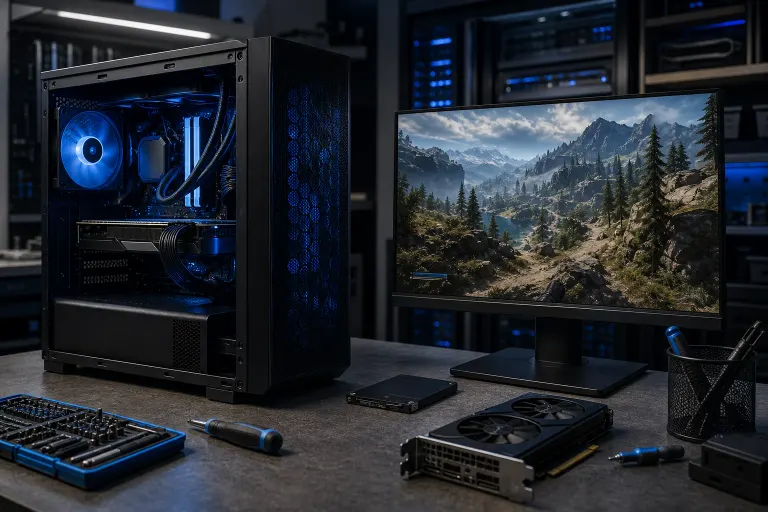
Installing the game on an SSD, even a budget SATA SSD, can eliminate the majority of streaming hitches in storage-bound titles. NVMe SSDs are even better for games with aggressive streaming like Cyberpunk 2077 or Microsoft Flight Simulator.
Not sure if your drive is an HDD or SSD? Open Device Manager, expand Disk Drives, and search the model number online.
Step 6: Update or clean-install your GPU driver
Driver bugs specific to certain games are real, and GPU vendors patch them regularly. If your stutter appeared after a game or driver update, a clean driver install is worth trying before anything else.
Use DDU (Display Driver Uninstaller) in safe mode to fully remove the current driver, then install the latest stable release from NVIDIA or AMD.
Also check whether the game has shader compilation running in the background. Some titles (like Hogwarts Legacy or The Last of Us PC port) stutter heavily on first play while compiling shaders. The stutter usually clears after the first session.
Common mistakes
Blaming the GPU first. GPU usage near 100% is normal and healthy. It means the card is fully engaged. Stutter from GPU overload looks different: dropped frames and thermal throttling, not hitching at streaming boundaries.
Lowering resolution to fix stutter. Resolution affects GPU rendering load, not streaming or RAM. Dropping from 1440p to 1080p will give you more frames, but it won't fix hitches caused by VRAM overflow or HDD streaming.
Ignoring Windows power plan. If your power plan is set to Balanced or Power Saver, your CPU may be downclocking during loading threads. Switch to High Performance or use the Ryzen Balanced plan if you're on AMD.
Reinstalling the game as the first step. Reinstalling doesn't change hardware limits, driver versions, or BIOS settings. It's rarely the fix for performance stutters.
Diagnostic decision table
| What the overlay shows during stutter | Likely cause | First fix to try |
|---|---|---|
| VRAM near 100% | Texture/VRAM overflow | Lower texture quality, disable RT |
| RAM above 85-90% | Insufficient system RAM | Close background apps, upgrade RAM |
| One CPU core at 100% | Single-thread bottleneck | Close apps, check game CPU settings |
| All CPU cores saturated | CPU too slow for this game | Close background tasks, future upgrade |
| No obvious spike, HDD installed | Storage streaming too slow | Move game to SSD |
| Stutter after driver or game update | Driver bug | Clean driver reinstall |
Bottom line
Open-world stutter is almost always a resource bottleneck, not a broken PC. The monitoring overlay tells you which resource is the problem, and most fixes are free settings changes or a driver update. If the overlay points to a hardware limit (not enough RAM, an old HDD, or a very old CPU), that's when an upgrade conversation makes sense.
If you've worked through these steps and still can't nail down the cause, or if the stutter is paired with crashes or overheating, a second set of eyes helps. You can reach the Fix My PC Store team through remote support for a live diagnostic, or bring your rig into the West Palm Beach shop via computer repair. If you're thinking about a hardware upgrade to solve this for good, the custom gaming PC builder is a good place to start.
Ready to build a rig that actually rips?
Custom gaming PCs built and tuned by people who game. Tell us your budget and target frame rate.