Why Does My PC Make Noise Only at Startup?
TL;DR: Startup-only noises are almost always mechanical parts spinning up from a cold or idle state. The three usual suspects are hard drives, cooling fans, and optical drives. A brief noise that fades is often normal. A noise that gets louder, repeats, or sounds like grinding or clicking is a warning sign worth acting on.
What You Need
- A quiet room so you can actually hear the noise clearly
- A flashlight or phone light to peek through case vents
- About 5 minutes to run the diagnostic steps below
- A can of compressed air (optional but useful)
Step 1: Identify What the Noise Actually Sounds Like
Not all startup noises mean the same thing. Pin it down before assuming the worst.
| Sound | Likely Source |
|---|---|
| Soft whirring that fades in seconds | Fans or HDD spinning up normally |
| Loud whirring or rattling that settles | Fan blade hitting a loose wire |
| Clicking or ticking (repeating) | Hard drive. Treat this as urgent |
| Grinding that stops after 30 seconds | Optical drive seeking with no disc |
| Single clunk then silence | HDD head park/unpark, usually fine |
| Beeping pattern at boot | POST error code, not mechanical |
If it sounds like clicking or grinding that does not fully stop, skip to Step 5.
Step 2: Check the Fans First
Fans are the most common source of startup noise, and they are the easiest to verify.
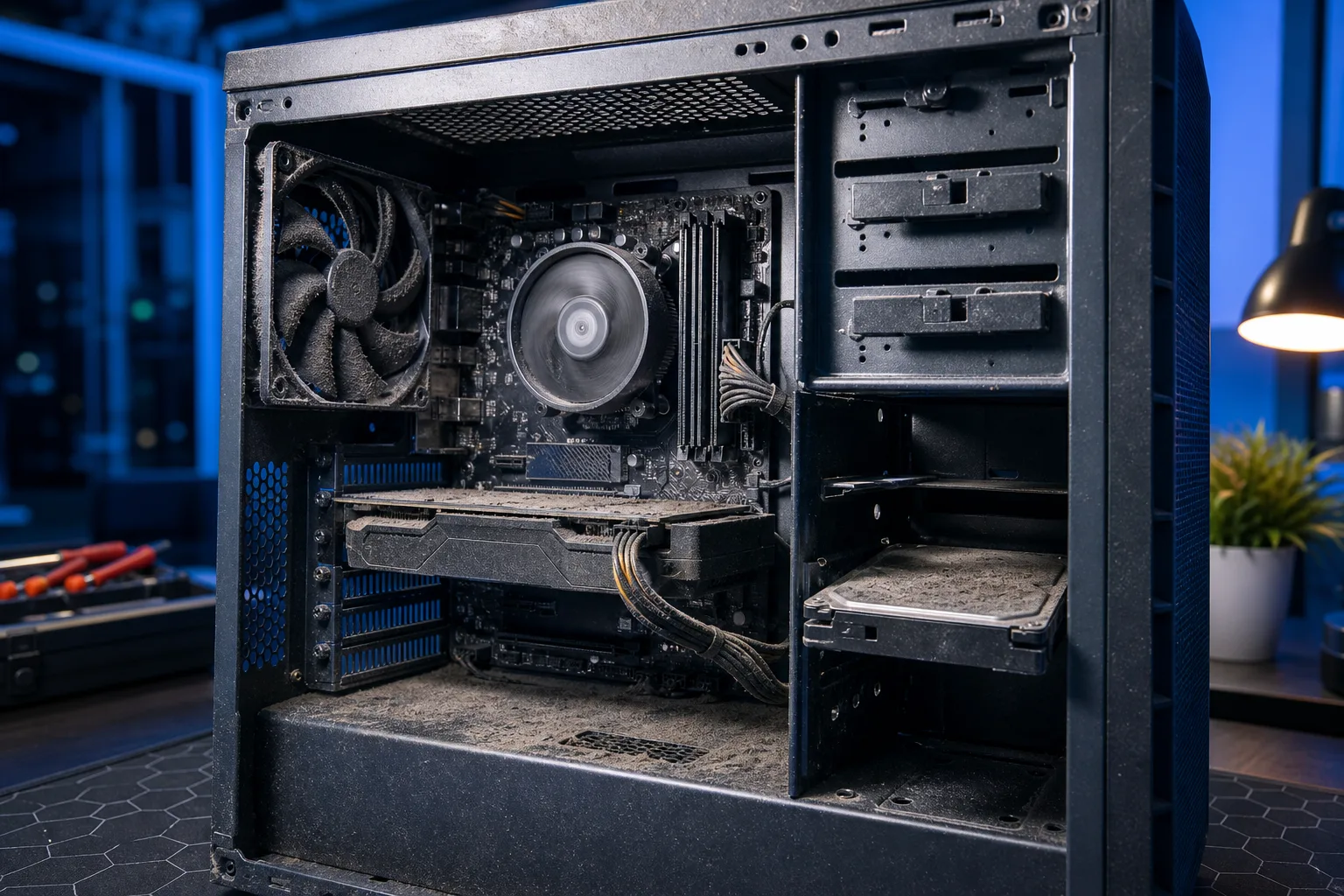
- Power on the PC with the side panel off if you can do it safely.
- Watch each fan as it spins up. Look for wobble, a blade touching a cable, or one fan that spins slower than the others.
- Gently redirect any cables that sit too close to a fan blade. Use a cable tie if needed.
- If a fan sounds rough even with no obstruction, the bearing may be worn. A $10-15 replacement fan is cheaper than ignoring it.
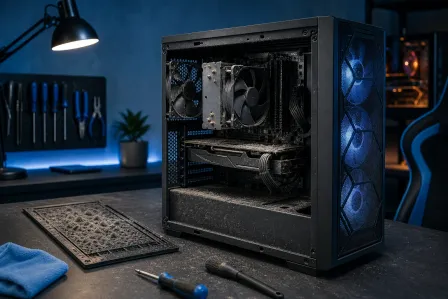
Dust is a huge factor here. A thick layer of dust on fan blades throws them off balance and creates vibration noise at high RPM, which is exactly when startup spins fans hardest.
Step 3: Check the Hard Drive
If you have a traditional spinning HDD (not an SSD), some startup noise is normal. Drives park their read heads when powered off and have to seek on first boot. You may hear a brief whir or single clunk. That is fine.
What is not fine: rhythmic clicking, repeated clunking, or a grinding sound that comes and goes. These are classic signs of a failing drive. This is sometimes called the "click of death" in storage circles, and it is a real data-loss risk.
If you suspect your HDD, run a S.M.A.R.T. check using a free tool like CrystalDiskInfo on Windows. A "Caution" or "Bad" result means back up your data immediately.
Computer acting up? Get a real diagnosis. Book a diagnostic
Step 4: Check the Optical Drive
Do you have a DVD or Blu-ray drive? Many PCs attempt to read an optical drive at startup even when no disc is present. This causes a brief grinding or whirring as the laser mechanism seeks and finds nothing.
Test it: eject the tray, leave it open, and reboot. If the noise disappears, the optical drive was the source. You can usually disable auto-spin in your BIOS/UEFI settings under boot device order.
Step 5: Hard Drive Clicking or Grinding That Does Not Stop
This step exists because it deserves its own space. A clicking or grinding HDD is not a "wait and see" situation.
Do this right now:
- Stop writing new data to that drive.
- Back up everything important to an external drive or cloud storage before the next reboot.
- Do not run disk repair tools on a mechanically failing drive. They can make things worse.
- Get the drive evaluated professionally.
Fix My PC Store handles hard drive diagnosis and data recovery from its Okeechobee Boulevard location, serving West Palm Beach, Royal Palm Beach, and Wellington. If the drive is failing, the team can advise on replacement and whether your data can be recovered. Book a repair appointment before the situation gets worse.
Step 6: Thermal Causes (Fan Ramps Up Hard Then Settles)
Some PCs store a lot of thermal energy overnight and the cooling system has to work harder in the first minute of boot. You may hear fans run at high speed for 20-40 seconds, then drop to a quiet idle. This is normal fan curve behavior.
It becomes a problem if:
- The fans never settle and stay loud after 2+ minutes of desktop use.
- The loud phase is getting longer over time.
- Your PC runs warmer than it used to.
Those patterns suggest dust buildup inside the heatsink fins or degraded thermal paste. A computer repair cleaning and repaste fixes this in most cases.
Common Mistakes
Ignoring repeating clicks. People often assume a clicking noise will "work itself out." It will not. Hard drive clicking is mechanical failure in progress.
Spraying compressed air without aiming carefully. Blasting air randomly can push dust deeper into a heatsink or spin a fan so fast you crack a blade. Short, directed bursts only.
Assuming noise means the PC is dying. Most startup noises have simple explanations. One rattling fan is not a catastrophe. Diagnose first.
Confusing POST beeps with mechanical noise. Beep codes at startup are the motherboard communicating an error (RAM, GPU, etc.), not a physical rattle. They need a different fix entirely.
Bottom Line
A brief whir or hum at boot is usually just mechanical parts waking up from cold. The noise that matters is one that repeats, sounds like clicking or grinding, or is getting worse over time. Use the steps above to narrow it down. Fans and optical drives are easy DIY fixes. A clicking hard drive needs professional attention before you lose data.
Need a hand? The team at Fix My PC Store can diagnose startup noise and handle repairs on-site in West Palm Beach. Schedule a repair or reach out through the contact page.
Computer acting up? Get a real diagnosis.
Fix My PC Store has repaired thousands of machines across West Palm Beach. Honest pricing, no upsell games, and a free diagnostic for new customers with our email coupon.