Why Does My Monitor Keep Flickering? How to Diagnose It
TL;DR: Monitor flickering usually comes down to one of four things: a bad cable, a wrong or corrupted display driver, an incorrect refresh rate setting, or failing hardware. Work through the steps below in order and you will isolate the cause in under 30 minutes most of the time.
What You Need
Before you start, gather a few things so you are not hunting around mid-diagnosis.
- A second cable (HDMI, DisplayPort, or DVI, whichever matches your setup)
- A second monitor or TV with a compatible input, if you have one available
- Access to Windows Device Manager or macOS System Settings
- About 20 to 30 minutes
You do not need any special software or tools for most of these steps. If you get to the hardware testing section and want professional help, you can always book a diagnostic with us.
Step 1: Check the Obvious Physical Stuff First
Before touching a single software setting, look at the physical connection. This sounds too simple, but a loose or damaged cable is the number one cause of flickering and it takes two minutes to rule out.
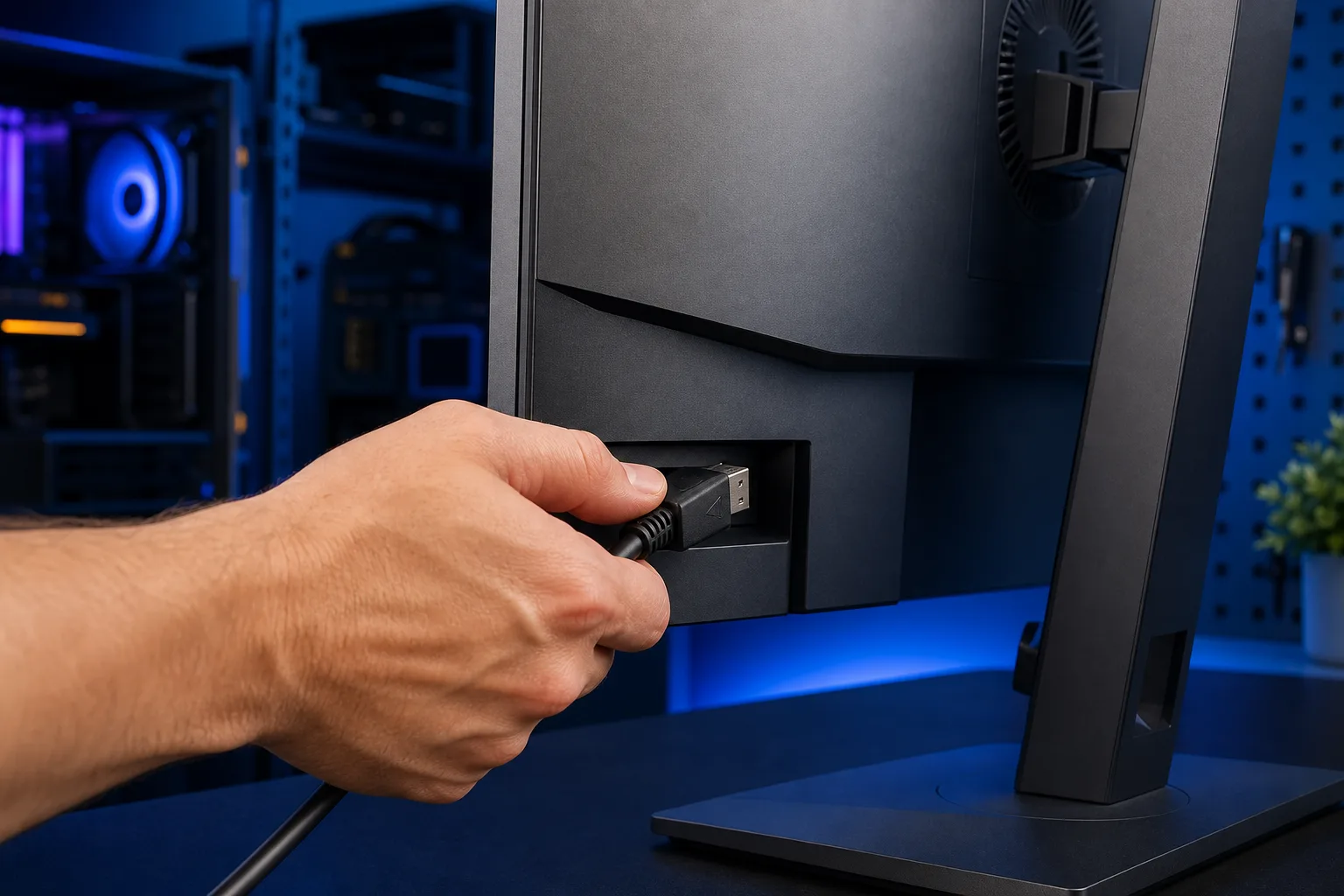
Reseat the cable. Power off the monitor, unplug the video cable at both ends (the monitor and the PC or laptop), then plug it back in firmly. If the connector has screws, use them. Loose DisplayPort and DVI connectors are notorious for causing intermittent flicker.
Swap the cable. If reseating does not help, try a different cable. Cables develop internal breaks, especially near the connectors where they get bent repeatedly. A cable that looks fine on the outside can still be failing inside.
Try a different port. Many graphics cards have two or more outputs. If you have been using HDMI port 1, try HDMI port 2 or switch to DisplayPort. A specific port can fail while the others work fine.
Move nearby electronics. Large fans, speakers with magnets, and some power strips can create electromagnetic interference that shows up as flicker. Try moving them away from the monitor and cable run.
If the flickering stops after any of these steps, you are done. If it continues, move to Step 2.
Step 2: Verify the Refresh Rate Setting
A mismatch between what Windows or macOS is sending and what the monitor expects can cause constant flickering or a rolling shimmer.
On Windows 10 or 11:
- Right-click the desktop and choose Display Settings.
- Scroll down and click Advanced Display Settings.
- Click Display Adapter Properties for the relevant monitor.
- Go to the Monitor tab.
- Check the Screen Refresh Rate dropdown. Set it to the native rate your monitor supports. Most standard monitors run at 60 Hz. Gaming monitors often run at 144 Hz or higher. Choosing a rate the monitor does not support causes flicker.
On macOS:
- Open System Settings (or System Preferences on older versions).
- Go to Displays.
- Check the Refresh Rate dropdown and match it to your monitor's spec.
If you are not sure what refresh rate your monitor supports, check the label on the back or search the model number. Setting it one step lower than the maximum and then back to the correct value can also clear a stuck setting.
Step 3: Update or Roll Back the Display Driver
A corrupted or newly updated graphics driver is one of the most common triggers for sudden flickering that starts out of nowhere.
Update the driver on Windows:
- Right-click the Start button and open Device Manager.
- Expand Display Adapters.
- Right-click your GPU (Intel, AMD, or NVIDIA) and choose Update Driver.
- Select Search Automatically. Restart when prompted.
Roll back if the flicker started after a recent update:
- In Device Manager, right-click the GPU and choose Properties.
- Go to the Driver tab.
- Click Roll Back Driver if the button is active. This restores the previous version.
On a Mac, display driver updates come through macOS Software Update. If flickering started after an OS update, check the Apple support forums to see if others are reporting the same issue with your model. Apple sometimes releases supplemental updates to fix display bugs.
For NVIDIA cards, you can also download drivers directly from nvidia.com. For AMD, amd.com/en/support lets you pick your exact GPU model.
If updating or rolling back the driver fixes the problem, great. If not, keep going.
Computer acting up? Get a real diagnosis. Book a diagnostic
Step 4: Check for a Software Conflict
Certain apps can conflict with the display driver and cause flicker, especially apps that use hardware acceleration or hook into the graphics pipeline.
Test in Safe Mode (Windows):
- Hold Shift and click Restart from the Start menu.
- Go to Troubleshoot, then Advanced Options, then Startup Settings.
- Select Safe Mode with Networking.
- Watch the monitor. If the flickering stops in Safe Mode, a third-party app or service is the likely culprit.
Common offenders include screen recording software, older antivirus programs, and some remote access tools. You can use Task Manager to check which apps start with Windows (Startup tab) and disable them one by one to find the conflict.
On a Mac, boot into Safe Mode by holding the Shift key at startup (or following the Apple Silicon steps if you have an M-series chip). The same logic applies. If the flicker disappears, a login item or extension is interfering.
Step 5: Test the Monitor on a Different Computer
This is the step that separates a monitor problem from a computer problem.
Connect your monitor to a different computer, laptop, or even a game console using the same cable. Watch it for a few minutes.
- Flicker persists on the second device: The monitor itself is likely failing. The backlight, internal power board, or the display panel may be going bad.
- Flicker disappears on the second device: The problem is in your original computer, most likely the graphics card, the motherboard video output, or a software issue you have not found yet.
This one test can save you a lot of time. It is worth borrowing a friend's laptop or plugging into your TV just to confirm.
If your monitor is failing, it may still be repairable. Our team handles monitor and display diagnostics as part of general computer repair work, so bring it in if you want a second set of eyes.
Step 6: Inspect the Monitor's Power and Internal Hardware
If the flicker follows the monitor to a different device, the issue is internal.
Check the power connection. Some monitors have a separate power brick. Make sure the connector is seated firmly at both the brick and the monitor. Try a different wall outlet or power strip.
Look for physical damage. A crack in the panel, a bent corner, or visible lines on the screen that appear alongside the flicker often point to a damaged panel or damaged ribbon cable inside the monitor housing.
Check for a failing backlight. If the flicker is more of a dim pulsing or the image looks dark and unstable, the backlight inverter may be dying. This is more common in older LCD monitors.
At this point, if you have not found the cause, the monitor likely needs a hands-on inspection. If you are in West Palm Beach or anywhere in South Florida, you can drop it off or schedule a repair and we will take a look.
For laptop users where the screen is built in, a flickering display is often a loose display cable inside the lid hinge. That is a common repair, and you can read more about what we do at laptop repair.
Common Mistakes to Avoid
Skipping the cable swap. People often assume the cable is fine because it looks fine. Internal wire breaks are invisible. Always swap the cable before assuming it is a driver or hardware issue.
Updating the driver when you should roll it back. If the flicker started the day after a Windows Update, rolling back the driver is often the faster fix. Updating again just reinstalls the broken version.
Blaming the monitor too quickly. If you never tested the monitor on a second device, you might replace a perfectly good monitor when the real problem is your graphics card.
Ignoring the refresh rate. Windows sometimes resets the refresh rate after a driver update or display reconnection. Check this every time flickering appears suddenly.
Overlooking the cable type. Not all HDMI cables support high refresh rates. If you have a 144 Hz monitor connected with a bargain HDMI cable, the cable might not carry the signal cleanly. Use a DisplayPort cable for high-refresh setups when possible.
Bottom Line
Monitor flickering almost always has a fixable cause, and working through it step by step saves you money and frustration. Start with the cable, check the refresh rate, update or roll back the driver, test in Safe Mode, and then isolate whether the monitor or the computer is at fault.
If you have worked through every step and still cannot pin it down, that is what we are here for. Bring your setup to Fix My PC Store in West Palm Beach or use our remote support option and we can dig into the software side without you leaving home. If you need something diagnosed in person, reach out and book a time. We are straightforward about what we find and what it takes to fix it.
Computer acting up? Get a real diagnosis.
Fix My PC Store has repaired thousands of machines across West Palm Beach. Honest pricing, no upsell games, and a free diagnostic for new customers with our email coupon.