How to Decide Which Files to Back Up (and Which to Skip)
TL;DR: Back up files you created or can't easily replace. Skip operating system files, app installers, and anything that can be redownloaded. A focused backup is faster, cheaper, and easier to restore from.
What You Need
- A clear idea of where your files actually live (Documents, Desktop, Downloads, etc.)
- At least one backup destination: an external drive, cloud storage, or both
- About 30-60 minutes to audit your files the first time
- Optionally: backup software like Windows Backup, Time Machine (Mac), or a third-party tool
If you are a business owner trying to protect company data, this is still useful reading, but you probably also want to check out managed IT and backup services for something more automated and monitored.
Step 1: Understand the Two Categories That Actually Matter
Before you start clicking and dragging, get this mental model locked in.
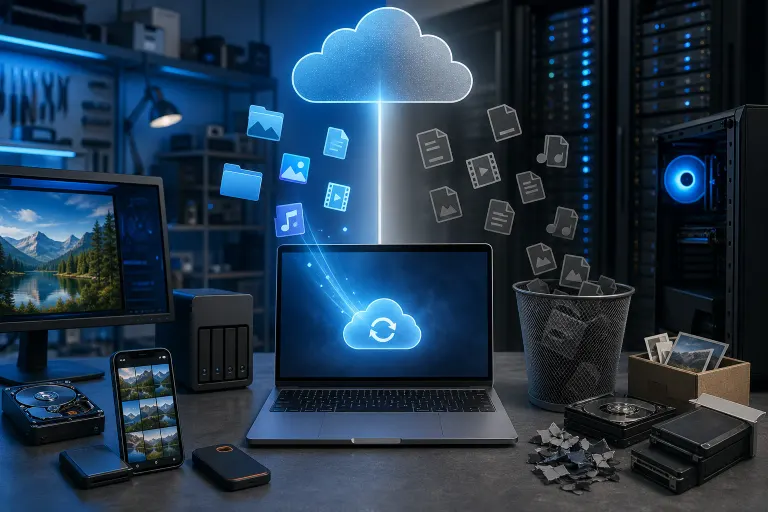
Category A: Irreplaceable files. These are things you created, received, or collected. Photos, videos, documents, spreadsheets, tax returns, client contracts, creative projects. If your hard drive died tonight and you lost these, you could not just redownload them. They are gone.
Category B: Replaceable files. These are things that can be reinstalled, redownloaded, or regenerated. Your operating system, app installers, browser cache, temp files. Losing these is annoying, not catastrophic.
The entire goal of a smart backup is protecting Category A while ignoring Category B. Simple.
Step 2: Identify Your Irreplaceable Files
Here is where most people get this wrong. They either back up literally everything (overkill) or assume the cloud handles it (dangerous assumption).
Go folder by folder. Here is what almost always belongs in your backup:
Documents folder. Word docs, PDFs, spreadsheets, tax files, anything work-related. Back this up.
Desktop. People pile stuff here and forget it. If you have files on your Desktop, check what they are. More often than not, they deserve a backup spot.
Photos and videos. This is the one that hurts most when it is gone. Family photos, vacation videos, client project files. Back them up and keep multiple copies.
Downloads folder. Audit this one carefully. A lot of Downloads folders are 90% installers and zip files you already extracted. But there are often receipts, PDFs, and other files hiding in there.
Email and contacts. If you use a desktop email client like Outlook, your local mailbox file can be huge and important. Cloud-based email like Gmail backs itself up automatically, but local archives do not.
Creative project files. Video edits, Photoshop files, music production projects, 3D models. These are large and irreplaceable. Back them up.
Browser bookmarks. Small, but painful to lose. Export them periodically.
Application data and settings. This one depends on the app. Password managers, game saves, and some creative software store important data in hidden folders. Check your specific apps.
Step 3: Identify What You Can Safely Skip
This is where you save serious storage space. Here is what you almost never need to back up:
The operating system itself. Windows and macOS can be reinstalled from scratch. Backing up your entire C: drive or System volume wastes gigabytes and makes restores complicated. Skip it.
Program files and applications. Apps can be reinstalled. The installers can be redownloaded. Do not back up your Program Files folder.
Temp and cache folders. Windows Temp, browser cache, thumbnail caches. These are junk files your computer generates automatically. Skip them entirely.
Downloads folder junk. That 500MB installer you used once two years ago? Gone. Zip files you already extracted? Gone. Duplicate files? Pick one copy.
Recycle Bin and Trash. If it is in the bin, you already decided you do not want it. Empty the bin before your backup runs.
Virtual machine files. These can be enormous. Unless the VM contains irreplaceable data, skip the VM disk image and just note what software you were running.
A good rule of thumb: if you can get it back by reinstalling an app or visiting a website, it does not need to be in your backup.
Computer acting up? Get a real diagnosis. Book a diagnostic
Step 4: Pick Your Backup Destinations
One backup is not a backup. It is a delay.
The standard recommendation is the 3-2-1 rule: 3 copies of your data, on 2 different storage types, with 1 offsite. That might sound like overkill for home users, but it is remarkably practical once you break it down.
- Copy 1: Your original files on your computer
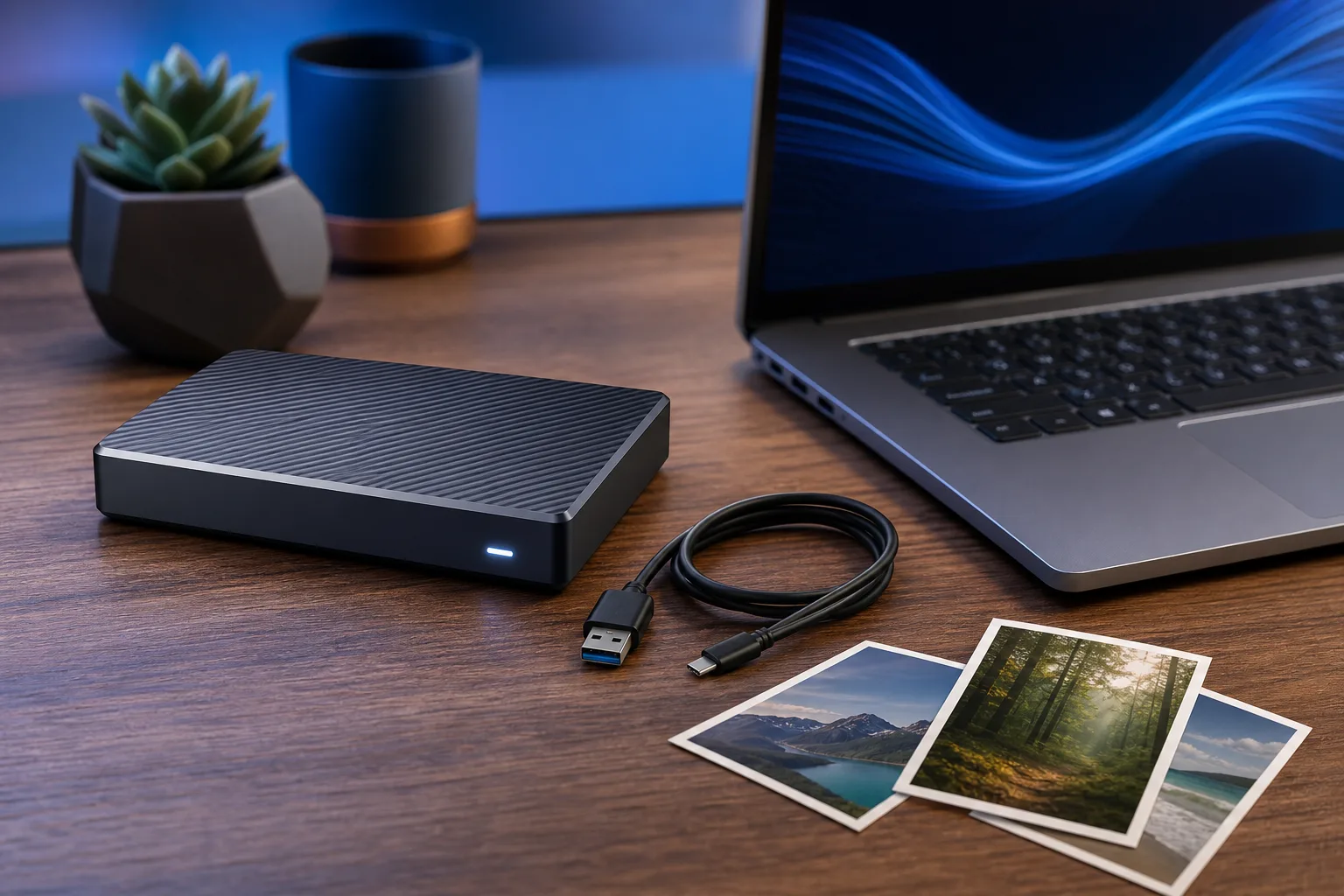
- Copy 2: An external hard drive or NAS at home
- Copy 3: Cloud storage (Google Drive, iCloud, Backblaze, OneDrive, etc.)
For businesses, this needs to be more formalized. Business backup and disaster recovery is a different problem than personal backups, especially when compliance and recovery time are on the line.
For cloud office files, Microsoft 365 includes OneDrive with versioning, which handles a lot of document backup automatically. But automatic is not the same as verified. You still need to check it works.
Step 5: Set a Schedule and Actually Stick to It
A backup you ran once in 2022 is not a backup strategy.
For most people, a weekly automated backup covers it. If you are working on active projects, do it daily. The key is automation. Human memory is terrible for this.
Windows has built-in backup tools. Mac has Time Machine. Both work reasonably well for local backups. For cloud, most services offer continuous sync, which is great for documents but not always ideal for large media libraries.
If you want to get a backup system set up but do not want to do it yourself, remote support is a quick way to have someone walk you through it without a trip to the shop.
Step 6: Test Your Backup Before You Need It
This step gets skipped constantly. It is the most important one.
A backup you have never tested is a backup you cannot trust. The restore process is what matters, not the backup process.
Once a month, pick one file at random and restore it from your backup to confirm it works. Once a year, do a more complete test. If you are using backup software, check for error logs regularly.
Hard drives fail. Cloud services have outages. Backup software has bugs. Testing is the only way to know you are actually protected.
Common Mistakes
Backing up the entire C: drive. People do this thinking it is comprehensive. It is mostly bloat. You end up with a 500GB backup when only 30GB of it is actually irreplaceable.
Trusting sync as a backup. Google Drive sync and Dropbox sync are not backups. If you delete a file on your computer, the sync deletes it in the cloud too. Some services keep a trash history, but it is limited. Sync and backup are different things.
Ignoring mobile devices. Your phone has photos, texts, contacts, and app data. None of that is on your computer backup. iOS and Android both have built-in cloud backup options. Use them. If your phone is toast and you need help recovering data, mobile repair services sometimes have options depending on the damage.
Not backing up email archives. If you have a local Outlook .pst file or archive, it is massive and precious. A lot of people assume email is safe because it is "in the cloud," but locally archived emails are only on your machine.
Setting and forgetting. Running one backup and calling it done. Schedules drift, drives fill up, software stops working. Check your backup system at least once a month.
Skipping versioning. If your backup overwrites the previous version every time, you lose the ability to recover from accidental changes or ransomware. Look for backup software that keeps multiple versions.
Bottom Line
A smart backup is not about copying everything. It is about knowing what matters and protecting exactly that.
Audit your folders once. Get clear on what is irreplaceable. Skip the reinstallable junk. Set up an automated system with at least one offsite copy. And test the restore, because that is the whole point.
If you are a business and this feels bigger than a personal project, it is. Losing company data is not just inconvenient, it can be legally and financially serious. Our team can help you build something solid. Check out business IT and cybersecurity or contact us directly to talk through your situation.
Your files deserve better than "I think I backed that up somewhere."
Computer acting up? Get a real diagnosis.
Fix My PC Store has repaired thousands of machines across West Palm Beach. Honest pricing, no upsell games, and a free diagnostic for new customers with our email coupon.