USB Drive Not Showing Up on Your PC: How to Find It
TL;DR
A USB drive that doesn't show up in File Explorer usually isn't dead, it's just hiding. Windows sometimes fails to assign a drive letter, or the port, cable, or file system is the actual problem. Work through Disk Management before you write off the drive (or the data on it). Most of these fixes take under a minute, and the ones that don't are still faster than paying someone to recover your files.
What you need
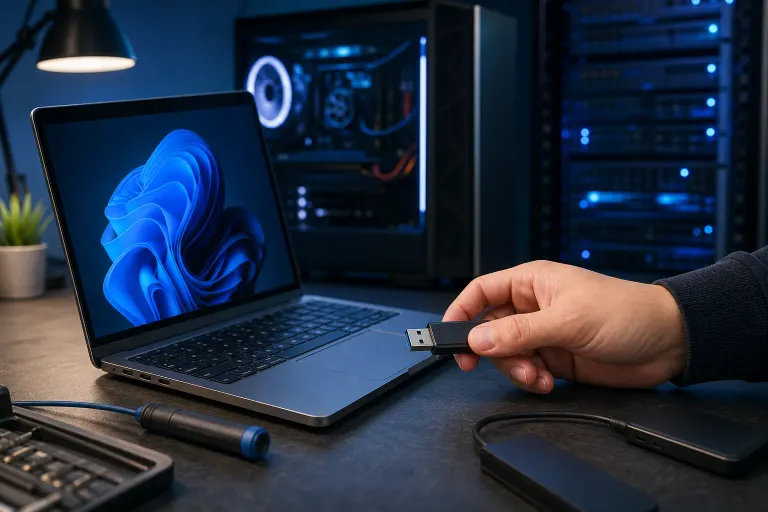
- The USB drive in question
- A working USB port (test more than one)
- Access to Disk Management (built into Windows, no download needed)
- A second computer to test with, if you have one available
- Patience, because half these fixes take thirty seconds and people skip them anyway
You don't need special software for most of this. Ignore the ads for "USB recovery pro" tools that pop up the second you Google this problem. Those tools have their place, but that place is after you've confirmed the drive is actually damaged, not before you've tried assigning a drive letter. Get through the basic checks first. You'll save yourself ten dollars and twenty minutes of installer bloat.
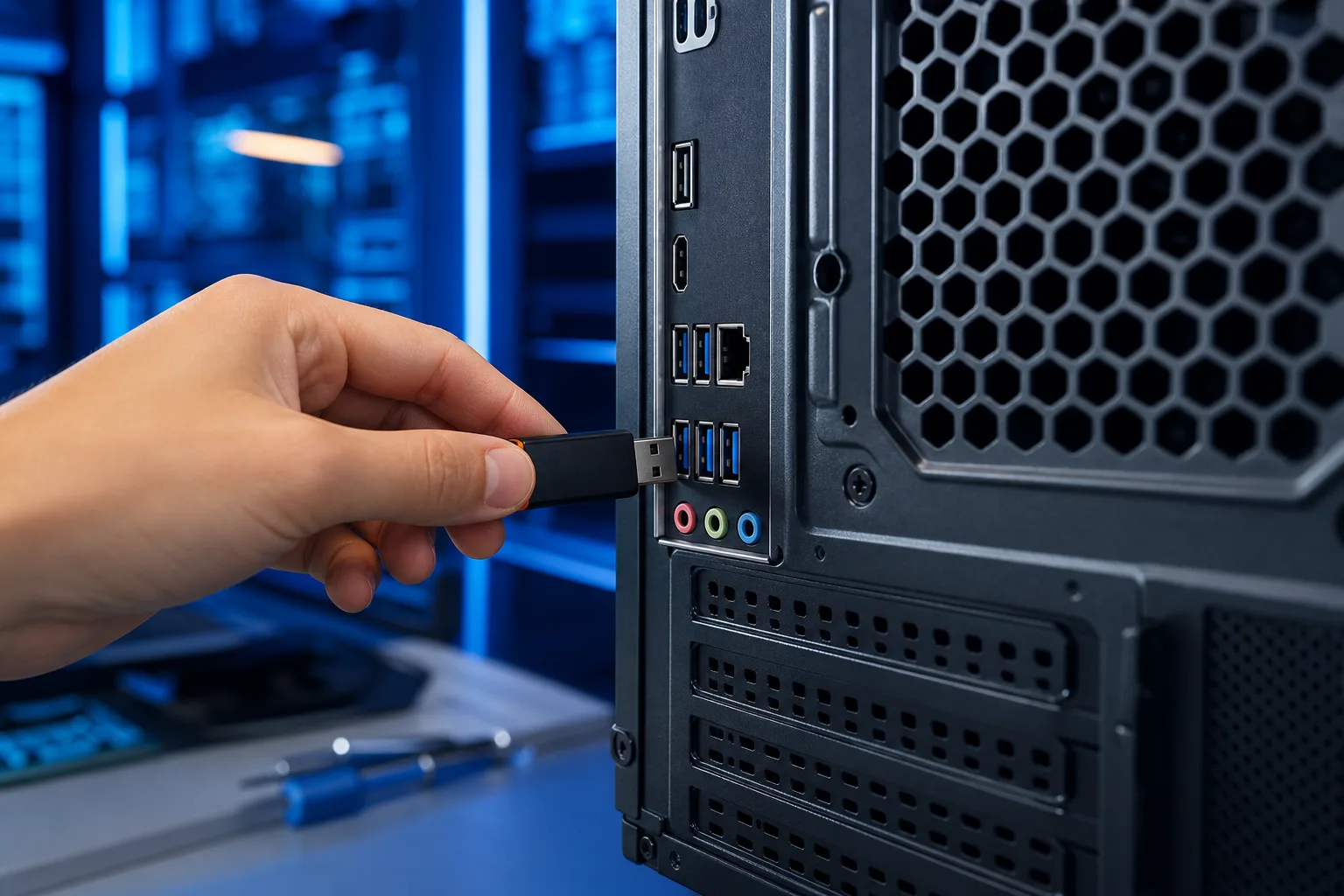
1. Check the port and cable before you blame the drive
I know, I know, you want to skip to the software fix. Do this first anyway. Physical causes account for a surprisingly large share of "my drive isn't showing up" complaints, and they're the fastest to rule out.
Unplug the drive and try a different USB port, preferably one on the back of a desktop directly off the motherboard, not a front panel port or a cheap hub. Front panel headers get loose over time and hubs can be flaky, especially the $8 ones from a gas station. USB hubs also have their own power limitations, and some older or higher-capacity drives draw more current than a hub can reliably supply, which causes intermittent detection failures that look exactly like a software problem.
If you're on a laptop, this matters even more here in South Florida. Humidity and salt air do a number on USB ports over months and years, corroding contacts you can't see. What looks like a clean port under normal light can have a thin layer of oxidation that breaks the connection just enough to prevent detection without being obvious to the eye. If the drive works in one port but not another, that's your answer, and it's a port problem, not a drive problem. We've written about how humidity messes with laptop ports if you want the full ugly picture.
Also try the drive on a different computer if you've got one handy. If it doesn't show up anywhere, the drive itself is more likely the issue. If it works fine elsewhere, the problem is your PC, not the drive. That single test tells you which direction to go and saves you from chasing the wrong rabbit.
2. Look in Disk Management, not just File Explorer
This is the step almost everybody skips, and it fixes the problem more often than you'd think. File Explorer only shows drives that Windows has fully recognized and assigned a letter. Disk Management shows everything Windows can see at the hardware level, whether it's been assigned a letter or not.
Right-click the Start button and choose Disk Management (or search for "Create and format hard disk partitions"). Plug in your USB drive and watch the list. If a new disk appears down there but has no drive letter, or shows as "Unallocated," that's why File Explorer never showed it. Windows sees the hardware, it just didn't hand it a letter.
Right-click the volume and choose Change Drive Letter and Paths. Click Add, pick a letter that isn't already in use, and hit OK. Check File Explorer again. This alone solves a huge chunk of "my drive vanished" complaints, particularly after Windows updates, which sometimes scramble drive letter assignments as a side effect of updating storage drivers.
If the drive shows as "Unallocated" with no volume at all, meaning the space is there but there's no partition, that's a different story. It could mean the partition table got corrupted, or the drive was never formatted in the first place. If the drive is new, you can right-click the unallocated space and create a new simple volume. If the drive had data on it, stop here and don't format it yet. Formatting will make recovery harder. See the section on file system issues below.
Computer acting up? Get a real diagnosis. Book a diagnostic
3. Check for a drive letter conflict
Sometimes Windows assigns your USB drive a letter that's already claimed by a network drive, a mapped folder, or a VPN client that reserves a letter even when it's not connected. The result is a silent conflict where Windows quietly fails to mount the drive because it thinks the letter is occupied, even if nothing is actually using it at that moment.
If you're on a business network with mapped drives, this happens more than people realize. A VPN client might permanently reserve D or E. A mapped network share might grab F. When you plug in a USB drive and Windows tries to hand it one of those letters, the drive just disappears from File Explorer without any error message explaining why.
Back in Disk Management, if you see the drive with a letter but File Explorer still won't show it, try reassigning it to something further down the alphabet, like X, Y, or Z. Letters nothing else is likely to grab. Right-click the volume, choose Change Drive Letter and Paths, click Change, and pick your new letter. This is a known annoyance with certain VPN software and older mapped network setups, the kind of thing our business IT clients run into more than home users, especially after they've connected to a new corporate VPN for the first time and don't realize it's reserved half the alphabet.
4. Update or reinstall the USB controller driver
Open Device Manager by right-clicking the Start button and selecting it from the menu. Expand Universal Serial Bus controllers and look for anything with a yellow warning triangle. Also check Disk drives for the same warning on your USB drive's entry. A yellow triangle means Windows detected something it couldn't load correctly, and that's often enough to prevent the drive from mounting.
If you see a warning, right-click and choose Update driver, then let Windows search automatically. If that doesn't fix it, try a different approach: right-click the device and choose Uninstall device. Don't check the box to delete the driver package, just remove the device entry itself. Then unplug the USB drive, wait ten seconds, and plug it back in. Windows will detect it as new hardware and reinstall the driver from scratch. This clears out driver corruption that builds up over time, especially on machines that hibernate instead of shutting down, where the USB subsystem sometimes gets stuck in a bad state across sessions.
This step is particularly useful on machines that haven't seen a real reboot in weeks. You know who you are. The laptop that's been in sleep mode since February. A full shutdown and cold boot fixes USB detection issues more often than it has any right to, because it resets the USB host controller in a way that sleep cycles don't.
5. Check the file system format
This one catches people who plug in drives formatted on a Mac, a Linux machine, a camera, or a game console. Windows reads NTFS and FAT32 natively and can usually handle exFAT as well. It does not read HFS+ or APFS (Mac formats) or ext4 (Linux) without third-party software.
If the drive shows up in Disk Management with a volume that has a letter, but you still can't open it in File Explorer, right-click the volume in Disk Management and look at what file system it reports. If it says RAW, that usually means Windows can't identify the file system, either because it's a format Windows doesn't support, or because the file system itself is damaged.
For unsupported formats, free tools like HFSExplorer (for Mac drives) or ext2fsd (for Linux drives) let you read the contents without reformatting. If the file system shows as RAW and you know it should be NTFS or FAT32, the partition table or file system header may be corrupted. Tools like Recuva or TestDisk can often recover the data or repair the structure without wiping everything. Try those before you reformat.
6. Test the drive's health directly
If none of the above has worked, it's time to check whether the drive hardware itself is failing. Flash drives and external hard drives don't last forever. USB flash drives in particular have limited write cycles and can fail in ways that make them detectable but unreadable.
For external hard drives, download CrystalDiskInfo (free, no bloat if you get it from the developer's site). It reads SMART data directly from the drive and tells you if the hardware is reporting errors, reallocated sectors, or pending bad blocks. A drive reporting those values is in the process of failing, and the priority shifts from fixing it to getting your data off it as fast as possible.
For flash drives, CrystalDiskInfo doesn't always work because many cheap flash drives don't implement SMART. In that case, try H2testw, which writes data to the drive and reads it back to verify the full capacity is functional. A flash drive that claims to be 64GB but only has 4GB of real storage, a common trait of counterfeit drives, will fail this test and show you exactly where it breaks down.
When to stop troubleshooting and call someone
If the drive makes clicking or grinding noises when you plug it in, stop immediately. That's a mechanical hard drive with a failing read head, and every additional power cycle risks making the damage worse. That's a job for a professional data recovery service, not a software tool.
If the drive was physically dropped, submerged, or exposed to heat, the same applies. Data recovery on a physically damaged drive is possible but it has to be done under controlled conditions, and the longer you keep trying DIY fixes, the lower your odds get.
Everything short of that, the missing drive letters, the driver conflicts, the wrong file system format, those are solvable problems. Work through this list before you spend money on recovery software or assume the drive is gone. Most of the time it isn't.
Computer acting up? Get a real diagnosis.
Fix My PC Store has repaired thousands of machines across West Palm Beach. Honest pricing, no upsell games, and a free diagnostic for new customers with our email coupon.