RAM vs SSD Upgrade: Which Should You Do First?
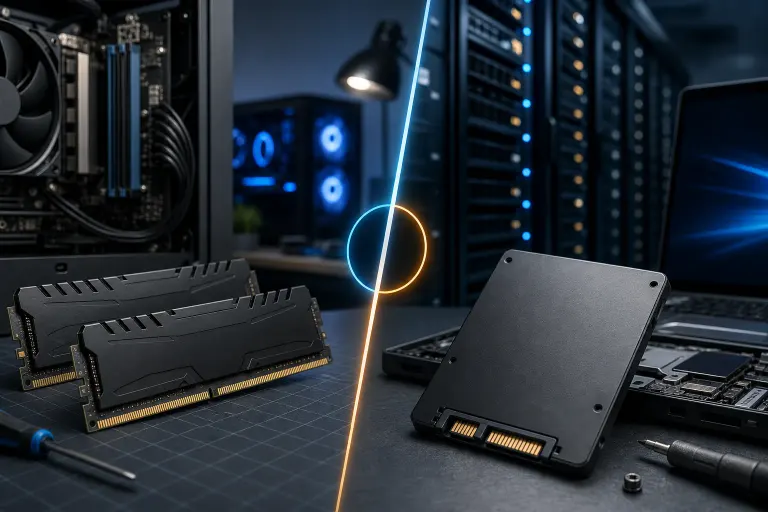
TL;DR: If your computer boots slowly, takes forever to open apps, or grinds when multitasking, an SSD almost always delivers the bigger improvement. If your machine is reasonably fast but stutters when you have a lot open at once, more RAM is your move. Most older machines need the SSD first.
At a Glance
| SSD Upgrade | RAM Upgrade | |
|---|---|---|
| Best for | Slow boots, slow app launches, old spinning hard drive | Stuttering with many tabs/apps open, frequent freezes under load |
| Typical cost | $60-$120 for most laptops | $30-$80 for most laptops |
| Difficulty | Easy to moderate | Easy to moderate |
| Who feels it most | Everyone on a mechanical hard drive | Power users, multitaskers, light video editors |
| Noticeable immediately? | Yes, dramatically | Sometimes yes, sometimes meh |
Why This Question Even Matters
Computers get slow for lots of reasons. Malware, bloatware, aging components, thermal throttling, you name it. But if your machine has a mechanical hard drive and you haven't swapped it for an SSD yet, that single fact explains about 80% of what you're experiencing.
On the other hand, if you already have an SSD and you're watching Chrome eat your entire machine alive with 40 tabs open, that's a RAM story.
The mistake people make is guessing. They buy RAM because it sounds like the "power" upgrade, or they buy an SSD because it's trendy, without actually checking what their machine is doing under the hood. A quick look at Task Manager (Windows) or Activity Monitor (Mac) tells you almost everything you need to know.
How to Actually Diagnose Your Bottleneck
Before you buy anything, spend five minutes here.
On Windows: Press Ctrl + Shift + Esc to open Task Manager. Click the Performance tab. Look at Disk, Memory, and CPU while you do your normal work. If your Disk is sitting at 100% constantly, you need an SSD. If your Memory is maxed out and you're not even doing anything intense, you need RAM.
On Mac: Open Activity Monitor from Spotlight. Click the Memory tab. Look at "Memory Pressure" at the bottom. A yellow or red pressure graph means your Mac is compensating for low RAM by using the drive as overflow, which kills performance. Check the Disk tab too for unusually high read/write activity.
This five-minute check removes all the guesswork. Don't skip it.
The Case for the SSD First
If your computer still has a mechanical spinning hard drive, stop reading and go book the SSD upgrade. Nothing else comes close to the performance gain you'll feel.
A mechanical drive reads and writes data at roughly 80-160 MB/s on a good day. A basic SATA SSD does 500-550 MB/s. An NVMe SSD (the kind that plugs directly into the motherboard on modern machines) can hit 3,000-7,000 MB/s. That is not a typo.
Boot times that used to take two minutes drop to fifteen seconds. Apps open instantly. Files save without that grinding hesitation. The whole machine feels like it got replaced, not just upgraded.
Here's the part people miss: Windows and macOS use something called a "page file" or "swap," which is a chunk of your hard drive used as emergency overflow when RAM runs low. If that swap space is on a slow mechanical drive, your computer bogs down hard the moment RAM fills up. An SSD doesn't eliminate the need for more RAM, but it makes RAM shortfalls far less painful.
For most people in South Florida coming into our computer repair shop with a slow machine, an SSD is the answer. We see it constantly.
Computer acting up? Get a real diagnosis. Book a diagnostic
The Case for More RAM
Ram matters most when your machine already has an SSD and you're still hitting walls.
Common signs you need more RAM:
- Chrome, Edge, or Firefox is constantly crashing tabs or reloading them when you switch back
- Your machine slows down when you have more than a handful of applications open
- Video calls stutter or drop quality even on a fast internet connection
- You do any amount of photo editing, music production, or light video work
- Task Manager or Activity Monitor consistently shows 85-100% memory usage during normal work
Most machines shipped in the last five years with 8GB of RAM. That was fine in 2018. In 2025, 8GB is starting to feel tight if you're a multitasker, and it's genuinely limiting for anything creative. Bumping to 16GB is the sweet spot for most users. If you're doing serious creative work or running virtual machines, 32GB is worth considering.
If you're building or upgrading a gaming rig, the RAM question gets more nuanced. Check out our custom gaming PC builder for specific recommendations based on your use case, because gaming RAM has speed and timing considerations beyond just capacity.
What About Doing Both?
Honest answer: both upgrades together is the best possible outcome for an aging machine, and the combined cost is often still cheaper than buying a new computer.
A laptop that's five to eight years old, running Windows 10 or 11, with a fresh SSD and 16GB of RAM feels remarkably capable for everyday work. We've done this transformation for plenty of folks in Palm Beach County and the Treasure Coast, and the reaction is almost always surprise at how much life is left in hardware they were about to throw away.
If budget forces you to pick one, use the diagnostic steps above and let your actual usage data make the call. But if you can stretch to both, do it.
Need help figuring out what your specific machine can handle? Our team does laptop repair and upgrades in-shop and can tell you exactly what's compatible before you spend anything.
Compatibility Caveats You Should Know
Not every machine can take every upgrade. A few things to check before you buy:
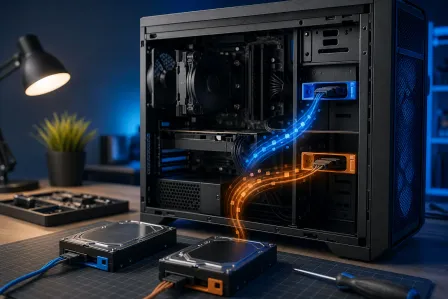
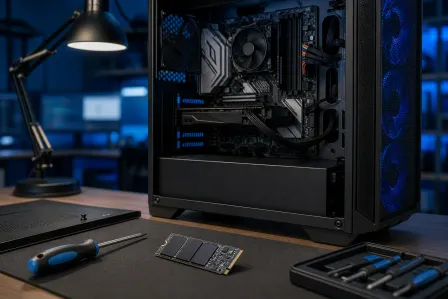
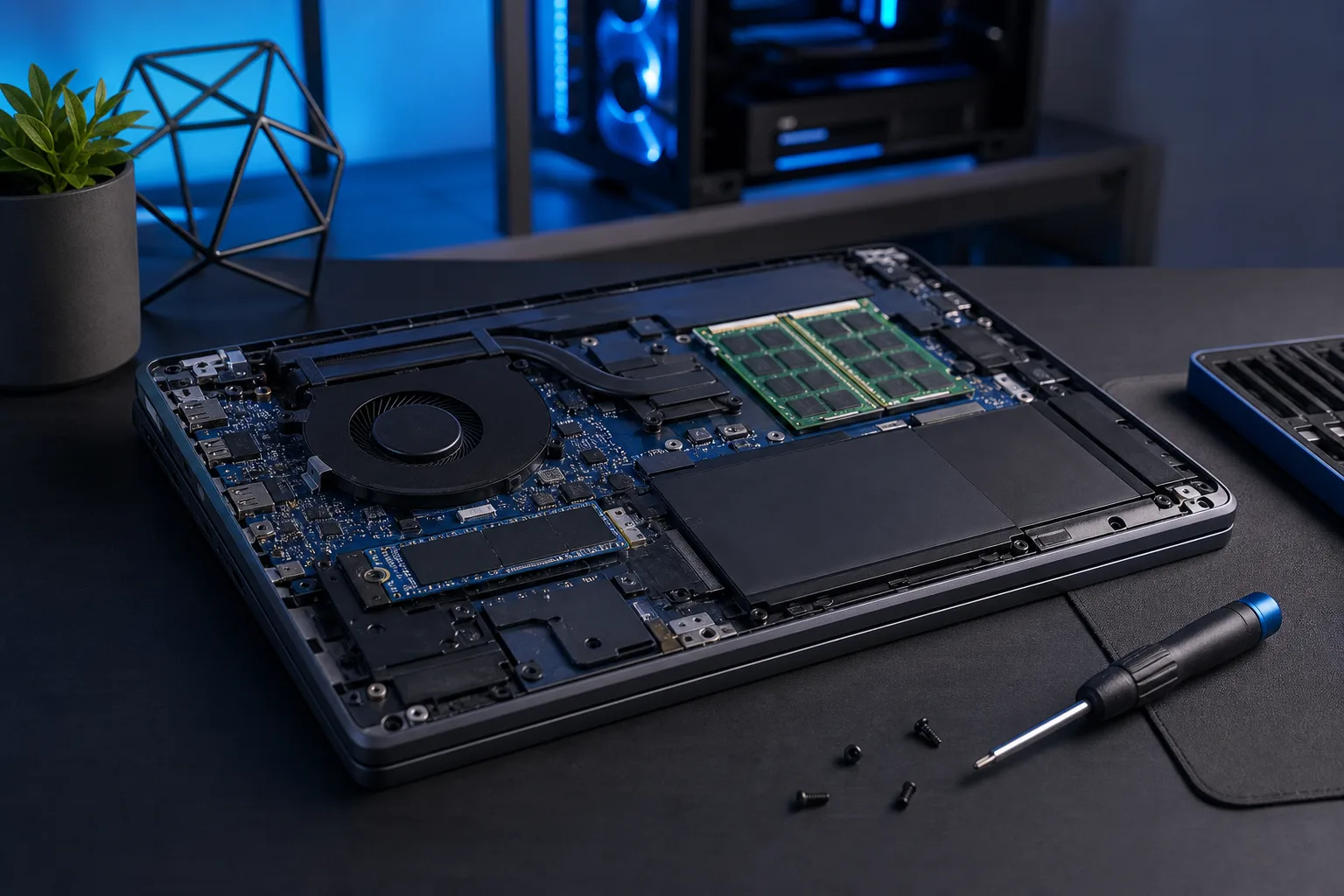
SSD compatibility: Most laptops from the last decade use either a 2.5-inch SATA slot or an M.2 slot (for NVMe). Some ultrabooks and newer MacBooks have SSDs soldered directly to the motherboard, which means no upgrade is possible without a board-level repair. Check your model's specs or bring it in.
RAM compatibility: Many modern laptops, and virtually all recent Macs, also have RAM soldered to the board. If your RAM is soldered, you cannot upgrade it, full stop. This is a big reason to max out RAM at purchase if you're buying new. For older machines with socketed RAM, you need to match the DDR generation (DDR3, DDR4, DDR5) and check the maximum supported capacity.
Macs specifically: Apple Silicon Macs (M1 and later) have unified memory that cannot be upgraded after purchase. Intel-era MacBooks (pre-2020 roughly) varied, some are upgradeable and some aren't. If you have a Mac and aren't sure, our Mac repair team can check it in minutes.
Remote Help If You're Not Sure
If you want to run through the diagnostic steps above but aren't confident reading what Task Manager or Activity Monitor is telling you, we can do this remotely. A quick remote support session lets us look at your system, identify the actual bottleneck, and tell you exactly what to buy and whether it's even compatible with your hardware.
No guessing. No wasted money.
Verdict
Here's the straight answer.
Get the SSD first if: Your machine still has a mechanical hard drive. Your Disk usage is pinned at 100% in Task Manager. Your computer takes more than 60 seconds to boot. You haven't upgraded storage since you bought the machine.
Get the RAM first if: You already have an SSD. Your Memory usage regularly hits 90%+ during normal work. You multitask heavily, use creative apps, or rely on browser-heavy workflows.
Get both if: The machine is more than four years old and you plan to keep using it. The combined upgrade cost is still less than a replacement. You want to actually enjoy using your computer again.
An SSD is the single highest-impact upgrade for most aging machines. RAM is the right call when you've already cleared that bottleneck and need more headroom. The five-minute diagnostic check in Task Manager or Activity Monitor removes the guesswork entirely.
If you're in West Palm Beach, Jupiter, Stuart, or anywhere across Palm Beach County or the Treasure Coast and want us to handle it, book a repair or upgrade and we'll sort it out.
Computer acting up? Get a real diagnosis.
Fix My PC Store has repaired thousands of machines across West Palm Beach. Honest pricing, no upsell games, and a free diagnostic for new customers with our email coupon.