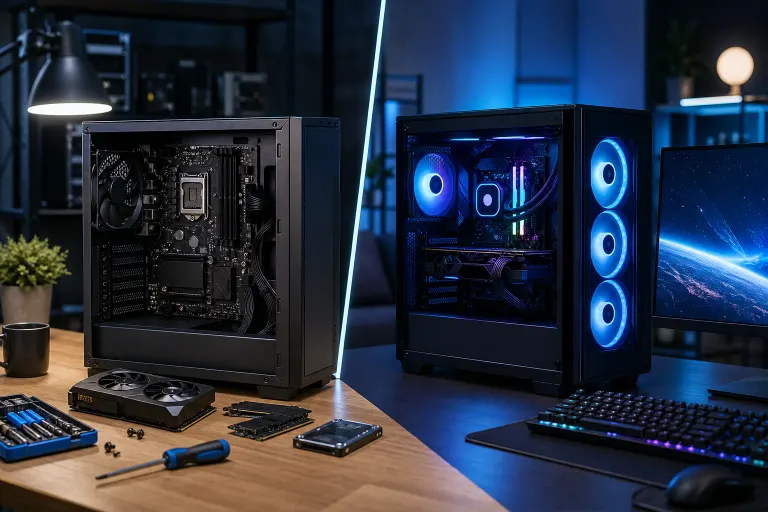
Upgrade Your PC or Buy a New One: How to Decide
TL;DR: Upgrading beats buying new in most cases where the bottleneck is one or two specific components. If your machine is over six or seven years old, running an outdated platform, or failing in multiple ways at once, a new PC is usually the smarter spend. The decision comes down to age, bottleneck type, and total cost.
At a Glance
| Factor | Upgrade Makes Sense | Buy New Makes Sense |
|---|---|---|
| PC age | Under 5-6 years | 7+ years old |
| Bottleneck | RAM, storage, GPU | CPU or aging motherboard platform |
| Component failures | One failing part | Multiple or escalating failures |
| Budget | Lower short-term spend | Willing to invest for 4-6 year horizon |
| Performance need | Moderate improvement | Major leap (e.g., gaming, video work) |
| OS support | Windows 11 compatible | TPM/CPU not supported |
Start Here: What Is Actually Slowing You Down?
Before spending anything, find the real bottleneck. A lot of people buy RAM when their storage is the problem, or upgrade storage when the CPU is choking. Misdiagnosis wastes money either way.
Quick diagnostic sequence:
- Open Task Manager (Ctrl + Shift + Esc) during the slowdown.
- Check the Performance tab. Which resource is pegged near 100%? CPU, RAM, or disk?
- If disk is maxed, check whether it is a spinning hard drive (HDD). Swapping to an SSD is often the single highest-impact upgrade you can make.
- If RAM is maxed and you have 8 GB or less, adding RAM is cheap and effective on most systems.
- If CPU is consistently at 90-100% during normal tasks, the processor is the ceiling. That usually means a platform-level problem, which gets complicated fast.
If you are not sure what you are looking at, a free initial check at Fix My PC Store can tell you exactly what is holding your machine back before you spend anything.
The Case for Upgrading
Upgrading wins when the problem is isolated and the rest of the system is healthy.
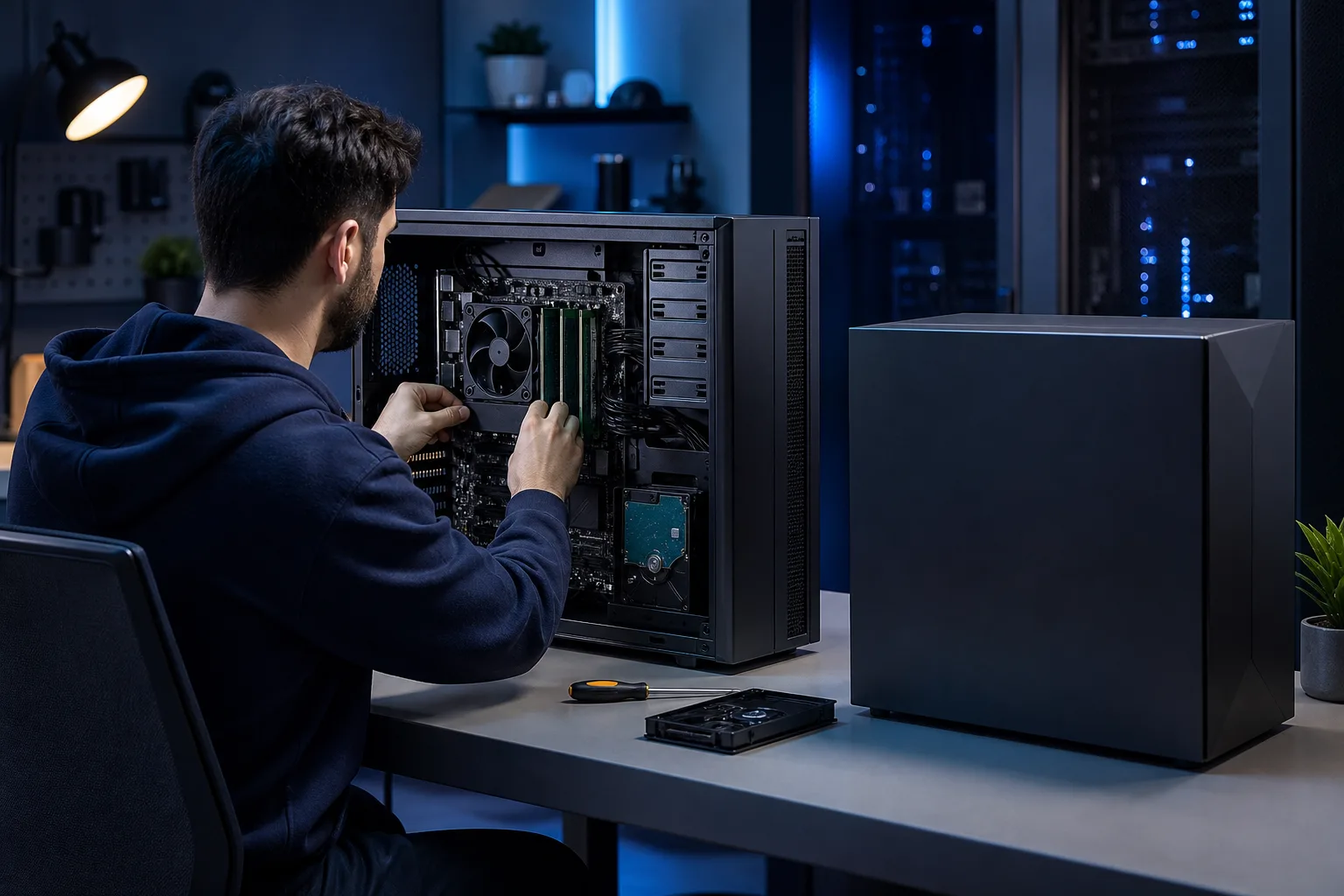
RAM is the most common easy win. Going from 8 GB to 16 GB on a machine running Windows 11 and Chrome with multiple tabs is a night-and-day difference. Most laptops and desktops from the last five years still support this.
Storage is the second-biggest lever. Replacing a mechanical hard drive with a SATA or NVMe SSD dramatically cuts boot times and application load times. This is one of the best value-per-dollar upgrades in PC repair.
GPU upgrades make sense for gaming PCs where the card is two or more generations behind but the CPU and platform are still current. A newer GPU in a capable system can extend its useful gaming life by two or three years.
Upgrading also avoids the hidden costs of buying new: data migration, software re-licensing, peripheral compatibility checks, and the time cost of setting up a new system from scratch.
Computer acting up? Get a real diagnosis. Book a diagnostic
The Case for Buying New
Buying new wins when the platform itself has hit a wall.
Age and platform limits matter more than people expect. If your CPU socket is old enough that there are no meaningful upgrade paths left, adding RAM to a creaky old processor just delays the inevitable. You end up with a faster-loading slow computer.
Windows 11 compatibility is a real forcing function. Microsoft's Windows 10 end-of-life is October 2025. If your CPU is not on the Windows 11 supported processor list, you are either stuck on Windows 10 past its support date or running an unsupported workaround. Neither is a good long-term position for a machine you rely on.
Multiple simultaneous failures are a red flag. If the HDD is dying, the battery is shot (on a laptop), and the fans are grinding, you are looking at stacking repairs on aging hardware. That math rarely works out.
Performance ceilings for demanding workloads. If you have moved into video editing, 3D rendering, or high-refresh-rate gaming and your CPU is more than five or six years old, no peripheral upgrade fixes the compute deficit. You need a newer platform.
Total Cost Comparison: A Worked Example
This is a hypothetical illustration. Actual prices vary by components and market.
Scenario: A five-year-old mid-range desktop is sluggish opening applications and during video calls.
- Diagnosis reveals: 8 GB DDR4 RAM, mechanical HDD, CPU at 40-50% during calls (not the bottleneck).
- Upgrade path: Add 8 GB RAM, replace HDD with SSD.
- Estimated upgrade spend: Relatively modest, often under $150-200 in parts depending on specs.
- Result: Fast, responsive machine with the same familiar setup.
- New PC path: Entry-level to mid-range desktop, $500-900+, plus time to migrate data and reinstall software.
Verdict in this scenario: Upgrade wins clearly.
Now flip it:
Scenario: An eight-year-old machine, CPU not Windows 11 compatible, fans making noise, and the user wants to start editing 4K video.
- Upgrade path: RAM and SSD still help, but the CPU cannot handle 4K editing and the platform has no upgrade path. You would spend money on a machine that still cannot do the job.
- New PC path: Makes sense. A modern mid-range system handles the workload and gets another five or more years of platform support.
Verdict in this scenario: Buy new.
Special Cases Worth Mentioning
Gaming PCs have their own upgrade logic. If you have a capable platform with a lower-tier GPU, a GPU upgrade is often the right call. If you want a purpose-built machine tuned from the ground up, check the custom gaming PC builder to see what a fresh build looks like at different budgets.
Business machines have an extra consideration: security. An aging PC that cannot run a supported OS is a liability for any business handling client data. If you are managing a fleet of aging machines, it is worth talking through a refresh plan. Business IT support can help map that out.
Remote work setups sometimes benefit from a hybrid approach: upgrade the existing machine for daily tasks and add remote support coverage to keep it running well between hardware decisions.
Verdict
Upgrade if: your PC is under six years old, the bottleneck is RAM or storage, and nothing else is failing. The payoff is real and the cost is low.
Buy new if: the CPU platform is outdated or Windows 11 incompatible, you have stacking failures, or your workload has genuinely outgrown what any upgrade can fix.
Not sure which bucket you are in? Bring it in for a free initial check at Fix My PC Store on Okeechobee Blvd. We will tell you straight whether an upgrade makes sense or whether you are better off putting that money toward something new.
Computer acting up? Get a real diagnosis.
Fix My PC Store has repaired thousands of machines across West Palm Beach. Honest pricing, no upsell games, and a free diagnostic for new customers with our email coupon.