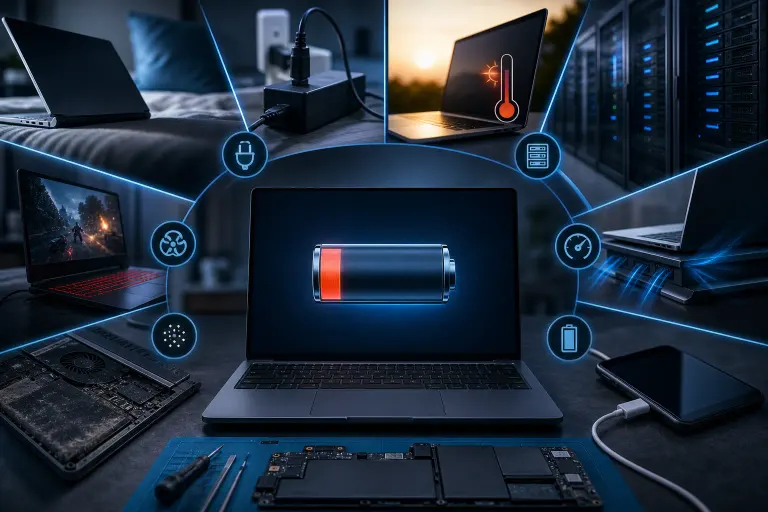
7 Things That Silently Kill a Laptop Battery Over Time
TL;DR: Heat, bad charging habits, and certain software behaviors quietly degrade your laptop battery long before it shows obvious symptoms. Most of these are fixable once you know what to look for. If your battery health is already tanked, laptop repair is worth a conversation.
Your laptop's battery didn't just suddenly get bad. It got there slowly, one warm afternoon and one overnight charge at a time. Lithium-ion batteries degrade through a predictable set of abuses, and most people commit at least three or four of them without realizing it.
No doom and gloom here. Just the seven real culprits, explained plainly.
1. Leaving It Plugged In at 100% All the Time
This one surprises people. Surely keeping a battery full is a good thing, right? Not quite.
Lithium-ion cells experience something called high-voltage stress when they sit at 100% charge for extended periods. The chemistry inside is under constant pressure, and that accelerates wear. Manufacturers know this. That's why Macs have an Optimized Battery Charging setting, and Windows 11 has a similar feature under power settings. Both try to hold the battery around 80% until you actually need the extra capacity.
If your laptop spends most of its life plugged in at a desk, consider enabling those settings or manually unplugging once it hits 80-90%. It genuinely extends battery lifespan over months and years.
2. Heat. Constant, Relentless Heat.
Heat is the single biggest battery killer. Full stop.
Here in South Florida, this matters more than it does for people in cooler climates. Using your laptop on a bed, couch cushion, or lap blocks the vents and traps heat against the chassis. The battery sits right there soaking it up. Over hundreds of charge cycles, that heat permanently reduces the battery's capacity to hold a charge.
The same thing happens when you leave a laptop in a hot car, even briefly. Parked cars in West Palm Beach in July can hit temperatures that would cook a lithium-ion pack in under an hour.
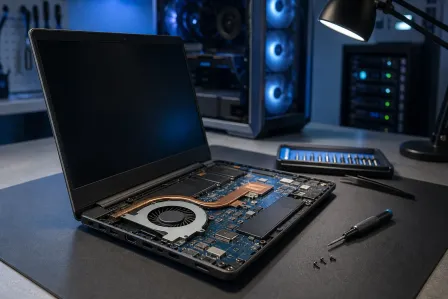
Use a hard flat surface. Keep the vents clear. If your laptop runs hot constantly even on a desk, the thermal paste on the CPU may need replacing. That's a repair job, not a DIY project for most people, and it's something we handle regularly at our computer repair shop.

3. Draining It to Zero Regularly
Running your laptop completely dead used to be recommended back in the era of nickel-cadmium batteries. People still do it today out of habit or some vague sense it's good for the battery. It's not.
For lithium-ion cells, deep discharges are stressful. Each time you hit 0%, the battery goes through a more damaging charge cycle than if you'd plugged in at 20 or 30 percent. Do this consistently and you're chewing through battery health faster than normal use would.
Plug in before you think you need to. Somewhere between 20-30% is a reasonable floor. You don't need to obsess over it, but letting it die daily is genuinely bad.
4. Software That Won't Quit Running in the Background
This one's sneaky because you can't see it happening.
Apps that constantly run in the background, sync data, check for updates, or index files keep your processor and storage active when you think the laptop is idle. That ongoing low-level work generates heat and burns battery charge continuously. On Windows, the culprits are often antivirus scans, OneDrive sync loops, browser tabs doing background video, and startup programs you forgot you installed.
On macOS, Activity Monitor will show you what's eating CPU cycles. On Windows, Task Manager's Startup tab and the Performance tab are your friends. Close what you don't need. If you're managing a fleet of business laptops and this is a recurring headache, managed IT can help you get control of it at scale.
If you're not sure what's normal and what's suspicious, that's also worth a quick remote support session. Someone can look at your running processes in about 15 minutes and tell you what to kill.
Computer acting up? Get a real diagnosis. Book a diagnostic
5. Extreme Cold Storage (Yes, Cold Hurts Too)
Everybody talks about heat. Cold gets less attention but it does real damage too, especially in a different way.
Storing a laptop in a cold environment, like a car overnight in winter (less of an issue in Florida, granted, but it happens), or even a heavily air-conditioned space for a long time, can temporarily reduce battery performance. If you store a laptop unused for months in a cold place with the battery at either 0% or 100%, you accelerate permanent capacity loss.
The general guidance from most battery researchers is to store a battery at around 50% charge if it's going to sit unused for a while, and at room temperature. Not 90 degrees in a garage, not 45 degrees in a storage unit.
6. Screen Brightness and Wireless Radios Maxed Out Constantly
This isn't killing your battery in the chemical sense the way heat does. But it matters for how quickly your battery depletes per charge cycle, which means more cycles overall, which means faster cumulative wear.
A laptop screen at full brightness is often the single largest power draw on the system, bigger than the CPU under light workloads. If you're running at 100% brightness in a dim room because you never adjusted it, you're burning through battery unnecessarily.
Wireless radios are similar. Bluetooth left on when you're not using anything. Wi-Fi scanning constantly when you're working offline. These are small draws individually, but they add up across a full workday.
Brightness around 50-70% is usually plenty indoors. Turn Bluetooth off when you're not using it. These are tiny habits with a real compounding effect on how many charge cycles your battery goes through per year.
7. Skipping Software and Firmware Updates
This is the one that surprises people most.
Battery management isn't purely hardware. Your laptop uses firmware and operating system-level power management to regulate how the battery charges, discharges, and reports its health. Manufacturers regularly push updates that improve these algorithms, fix bugs that cause incorrect charge readings, or address issues that cause the battery to charge inefficiently.
Skipping Windows updates, macOS updates, or especially BIOS and firmware updates means you might be running outdated power management code. Some laptops have had documented bugs where an outdated BIOS caused the battery to overcharge or report false health data.
This also connects to security. Outdated firmware is a real vulnerability, not just a battery issue. If you're running a business and your machines aren't being properly updated and monitored, that's a gap worth closing. Business cybersecurity starts with basics like this.
For the average home user: keep Windows or macOS updated, and check the manufacturer's support page for firmware updates once or twice a year.
Bottom Line
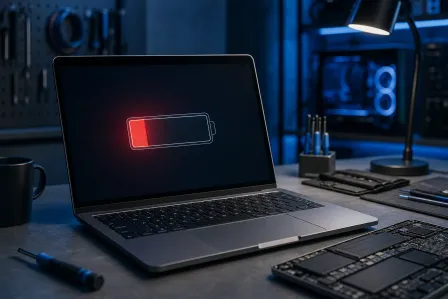
Your laptop battery has a finite number of charge cycles before it starts losing meaningful capacity. The seven things above all either burn through those cycles faster or directly damage the battery chemistry between cycles.
The biggest wins: stop leaving it at 100% plugged in all day, keep it cool, and stop draining it to zero. Those three alone will noticeably extend your battery's useful life.
If you're already past the point of no return and your laptop is limping through a few hours on a charge when it used to last all day, battery replacement is usually straightforward and affordable. Book a time with us and we can check your battery health and tell you what it'll take to fix it. We've done this for plenty of folks across West Palm Beach and the Treasure Coast.
And if you're a business with employees whose laptops are constantly dying mid-meeting, that's a managed IT conversation worth having at /business-it. Dead batteries are a productivity problem, and usually a preventable one.
Computer acting up? Get a real diagnosis.
Fix My PC Store has repaired thousands of machines across West Palm Beach. Honest pricing, no upsell games, and a free diagnostic for new customers with our email coupon.