Slow PC: Malware or Just Too Many Startup Apps?
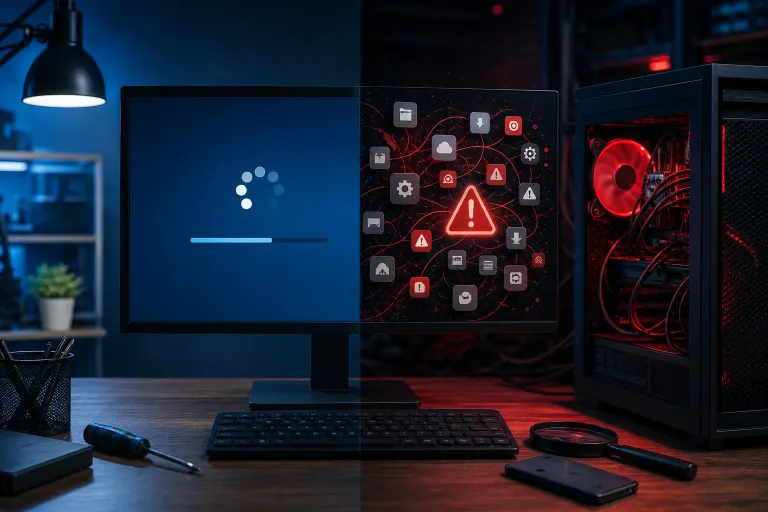
TL;DR: A slow PC is usually one of two things: too many programs launching at startup, or something malicious eating your resources in the background. Task Manager, your startup list, and a scan from your actual antivirus (not a pop-up ad pretending to be one) will tell you which. Work through the steps below before you assume the worst or start deleting files at random.
What you need
You don't need fancy tools for this. Grab these first:
- A Windows PC that's acting sluggish (this guide is Windows-focused, since that's where most of these symptoms show up)
- Access to Task Manager (Ctrl+Shift+Esc, memorize that one)
- Whatever antivirus is already installed, built-in Windows Security counts
- 15 to 20 minutes of uninterrupted time
- A notepad or phone to jot down what you find, because you WILL forget what that weird process name was five minutes later
That's it. No need to download six "PC cleaner" apps. In fact, please don't. Half of those are more annoying than the problem they claim to fix.
1. Open Task Manager and watch it for a full minute
Don't just glance and close it. Open Task Manager, click More Details if it opens in the small view, and sit on the Processes tab for a solid 60 seconds while your PC is just idling, no apps open.
Here's what you're looking for:
- CPU usage that stays high with nothing running. If your CPU is sitting at 40-90% with no programs open, something's working hard in the background that shouldn't be.
- Disk usage pegged at 100% constantly. Some of this is normal right after boot (Windows updates, indexing). If it never calms down after five or ten minutes, that's a flag.
- Unfamiliar process names using real resources. Not every weird name is malware, Windows has plenty of cryptic system processes. But if you see something like "svch0st.exe" (notice the zero) or a random string of letters chewing through CPU, that's worth investigating.
Startup bloat tends to show up differently. CPU and disk spike hard right at boot, then settle down within a couple minutes once everything's finished loading. Malware often keeps chugging no matter how long the PC's been on.
2. Check your startup apps list
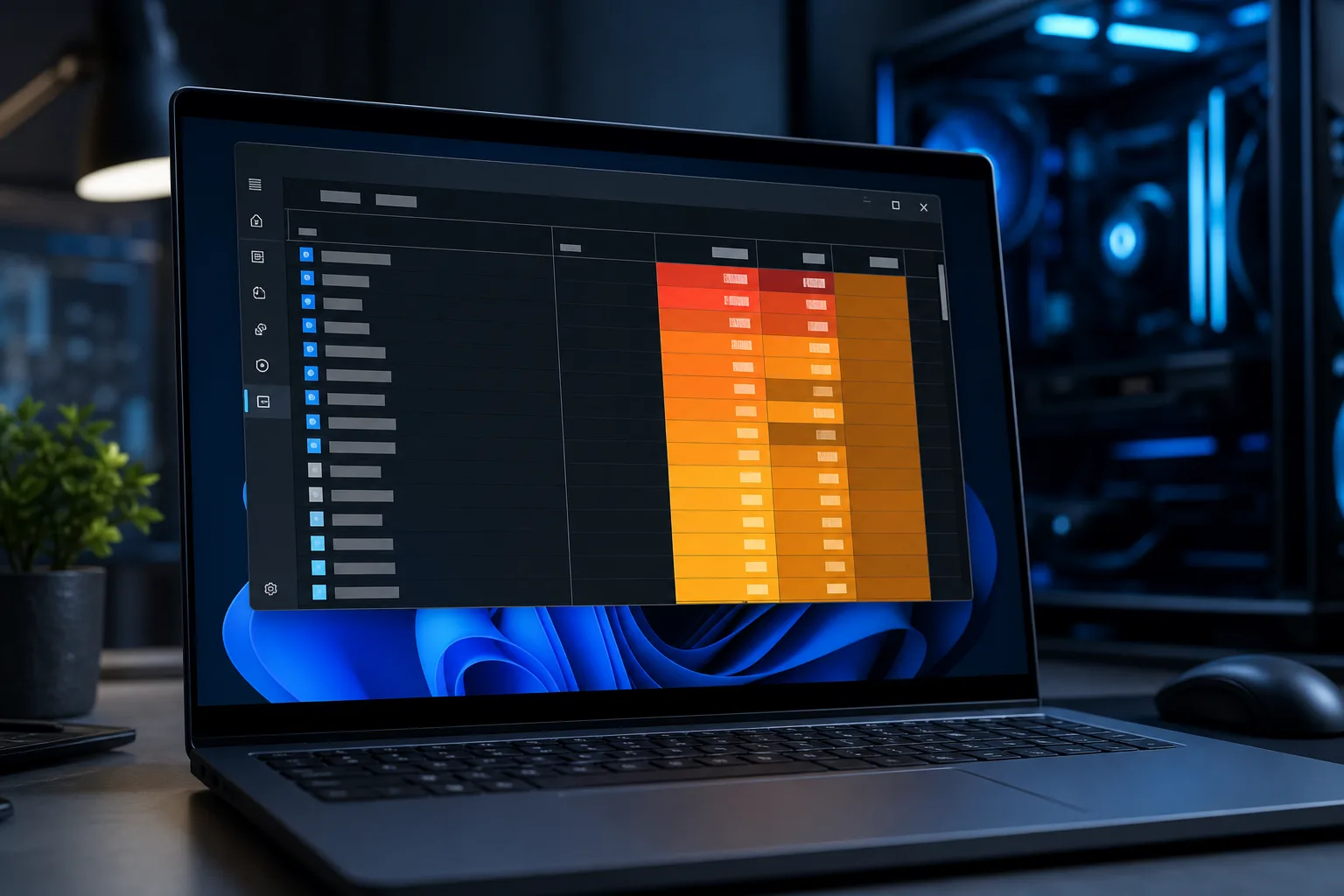
In Task Manager, click the Startup tab (or Startup apps in newer Windows versions). This shows every program set to launch automatically when Windows boots.
Look at the "Startup impact" column. Anything rated High is a prime suspect for slow boot times. It's shockingly common to find 15-20 programs in here, half of which you installed once and forgot about. Adobe updaters, game launchers, cloud backup tools, printer software, browser toolbars you didn't mean to install.
This is the boring, unglamorous truth about most "slow computer" complaints we see in the shop: it's not a virus, it's just clutter. Every one of those startup apps is fighting for CPU time and RAM the second you power on.
Write down anything you don't recognize. If a name means nothing to you and it's rated High impact, that's your next research target.
3. Run a real scan, not a pop-up scan
This is where people get tricked constantly. If a scary red popup tells you "Your PC is infected with 5 viruses, click here to scan now," close that tab. That's an ad, not a diagnosis, and clicking it can actually install the malware it's warning you about. Classic bait and switch.
Instead, open Windows Security (built into Windows 10 and 11, search for it in the Start menu) and run a full scan, not a quick scan. Quick scans check common infection spots and take a few minutes. Full scans check everything and can take an hour or more depending on how much is on your drive. Let it finish.
If you have a separate antivirus installed, use that instead, running two antivirus programs at once usually just slows things down further and causes conflicts.
Computer acting up? Get a real diagnosis. Book a diagnostic
4. Compare symptoms against the malware checklist
Startup bloat and malware can look similar on the surface, but malware usually brings friends. Watch for:
- Browser homepage or search engine changed without you doing it
- New toolbars or extensions you never installed
- Pop-ups appearing even when no browser is open
- Programs you don't recognize in your installed apps list
- Antivirus or Windows Update mysteriously disabled and you didn't touch it
- Unusual outbound network activity (your internet feels slow specifically, not just your PC)
- Files renamed, missing, or a ransom note (obviously, call for help immediately if you see this one)
If you're seeing two or more of these alongside the slowness, treat it as a likely infection, not just clutter. A single symptom on its own, like one extra toolbar, isn't automatically a five-alarm fire, but it's still worth removing.
5. Check Task Scheduler for hidden entries
Here's a step most people skip. Some malware doesn't bother with the normal Startup tab, it hides in Task Scheduler instead, so it can relaunch itself even after you think you've removed it.
Search "Task Scheduler" in the Start menu, then look under Task Scheduler Library. Scan for tasks with random names, no clear publisher, or ones set to run at odd intervals like every 10 minutes. Legitimate software (printer drivers, Adobe, OneDrive) usually has recognizable names and clear triggers tied to login or updates. Anything vague and frequent deserves a closer look, and a quick search of the exact task name online usually tells you fast whether it's known malware.
6. Trim the startup list and reboot
Once you've ruled out active malware, go back to that Startup tab and start disabling anything with High impact that you don't actually need running 24/7. Right-click, Disable. This doesn't uninstall the program, it just stops it from launching automatically.
Good candidates to disable: game launchers (Steam, Epic, etc. can be opened manually when you want to play), cloud storage apps you rarely use, printer utility software, and update-checker apps for programs you open maybe once a month.
Reboot after disabling a handful. If boot time and general responsiveness improve noticeably, you found your culprit, and it was never malware at all.
Common mistakes
Assuming slow equals infected. Most slow PCs we see in West Palm Beach have nothing to do with viruses. They're just old, full of startup junk, or running low on RAM for what people actually do with them now. Jumping straight to "I have a virus" usually means skipping the easy fixes.
Downloading a random "PC optimizer" to fix it. These tools promise miracle speed boosts and often install their own bloat or, worse, actual malware. If you want a legit cleanup, stick with what's built into Windows or get computer repair help from someone who isn't trying to upsell you a lifetime license.
Disabling everything in Startup without thinking. Some things genuinely need to run, like your antivirus, your audio drivers, or cloud backup software you rely on. Disable selectively, not in a panic-driven mass purge.
Ignoring RAM and storage limits. Sometimes it's not startup apps or malware at all, it's an aging laptop with 4GB of RAM trying to run modern Windows and a dozen browser tabs. No amount of cleanup fixes a hardware ceiling. That's a conversation about laptop repair or an upgrade, not a scan.
Not backing up before troubleshooting. If you're deep enough into this that you're considering a factory reset or a malware removal tool with system-level access, back up your files first. Ransomware and bad removal attempts have both ruined data for people who skipped this step.
Skipping professional help when things look genuinely bad. If you found ransom notes, missing files, or evidence your PC is talking to servers it shouldn't be, that's not a DIY afternoon project anymore. That's a call to someone who deals with cybersecurity incidents for a living.
Bottom line
Most of the time, a slow PC is guilty of nothing more than hoarding startup apps like a digital packrat. Task Manager and the Startup tab will usually tell that story fast. Malware is the less common but scarier answer, and it usually announces itself with more than just sluggishness: weird pop-ups, hijacked browsers, disabled security tools, files acting strange.
Work through the steps in order. Don't skip the full antivirus scan just because Task Manager looked clean, some malware is genuinely sneaky about resource usage. And don't assume the worst before checking the boring, obvious stuff first.
If you've gone through all six steps and you're still stuck, or you found something that looks like a real infection and you want a second opinion before it spreads to other devices on your network, bring it in. We diagnose these all day at the shop, and we'd rather look at it for fifteen minutes than have you lose a weekend to guesswork. You can schedule a repair or start with remote support if you'd rather not unplug anything and drive over. Businesses dealing with this across multiple machines should also look into managed IT so nobody's stuck playing detective solo next time.
Computer acting up? Get a real diagnosis.
Fix My PC Store has repaired thousands of machines across West Palm Beach. Honest pricing, no upsell games, and a free diagnostic for new customers with our email coupon.