Second Monitor Not Detected? Real Fixes That Work
TL;DR: Nine times out of ten a "missing" second monitor is a cable, port, or driver problem, not a dead monitor or a dying graphics card. Work through cables first, then ports, then drivers, then Windows display settings, in that order. Don't skip steps just because you're impatient (I know you will anyway).
What you need
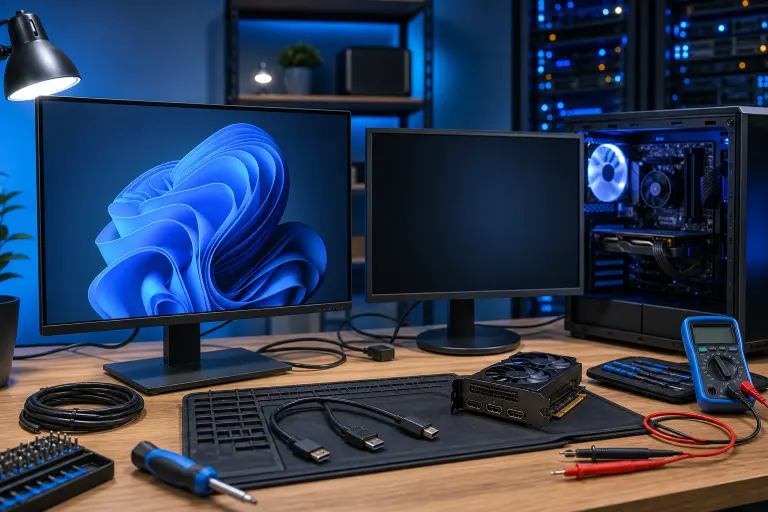
- The monitor's power cable and a video cable you know works (HDMI, DisplayPort, or whatever the ports support)
- Access to another computer or laptop to test the monitor, if you've got one lying around
- Five minutes of patience, which I realize is a big ask these days
- Admin access to your Windows account so you can actually change settings and update drivers
If you're on a laptop plugged into an external display through a dock, keep the dock in the mix too. Docks are a common failure point nobody thinks to blame.
1. Check the obvious stuff first (yes, really)
Before you touch a single setting, look at the physical connections. I've had people bring in a "broken" monitor that just had a cable half out of the port. Nobody wants to hear that, but it happens more than you'd think.
- Confirm the monitor is actually powered on. Sounds dumb until it's not.
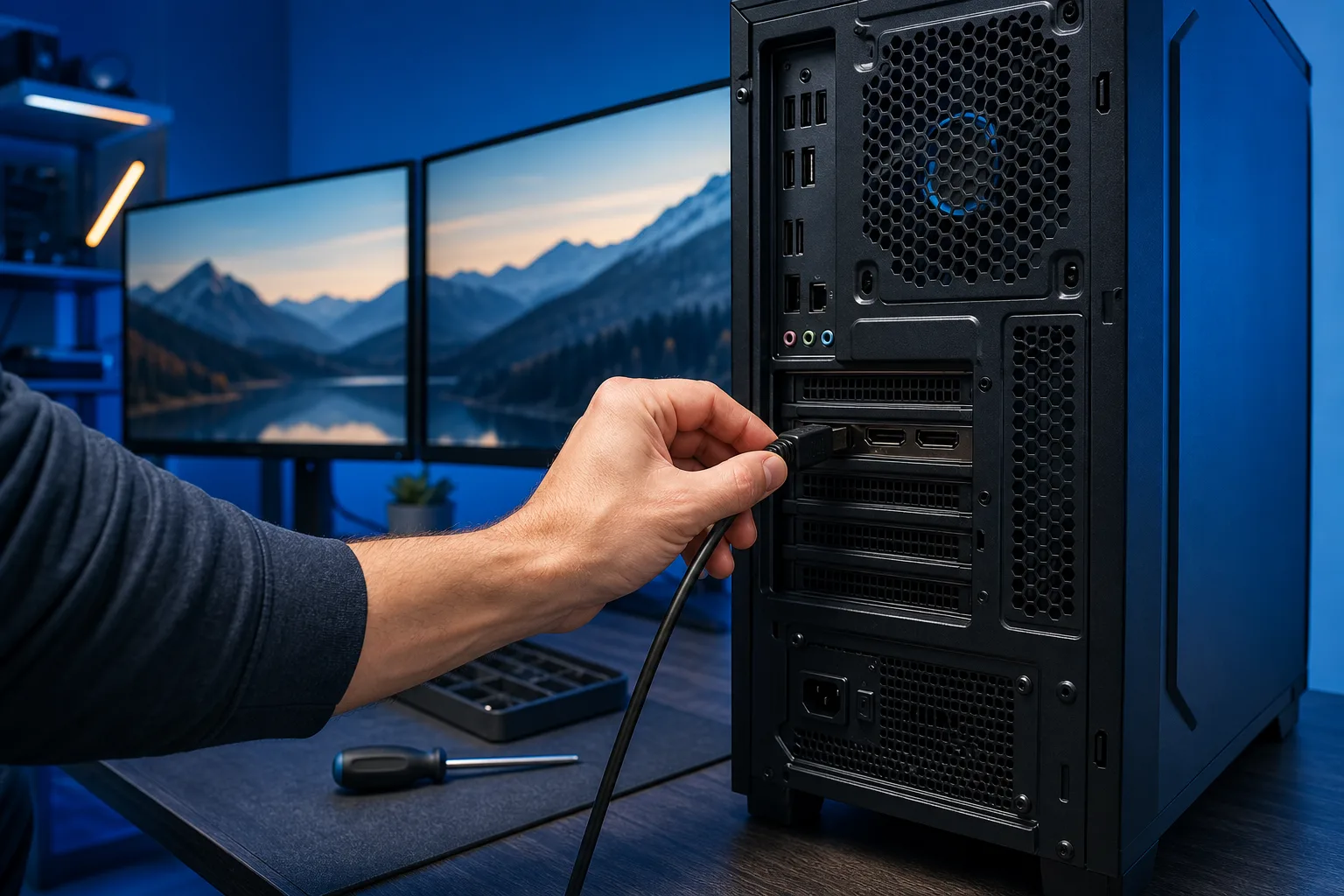
- Unplug and reseat the video cable at both ends, the monitor side and the PC side.
- Try a different video cable if you have one. Cables die quietly, they don't always announce it.
- Try a different port on the monitor and a different port on the PC or dock.
If the monitor has multiple inputs (HDMI 1, HDMI 2, DisplayPort), make sure the monitor's input selector actually matches the port you plugged into. Monitors love to sit there displaying "no signal" while pointed at the wrong input. This is the single dumbest reason a monitor "doesn't work," and it happens constantly.
2. Test the monitor on its own
Before you assume Windows or the graphics card is at fault, isolate the monitor. Plug it into a laptop, a different desktop, even a game console if that's what you've got handy. If it works fine elsewhere, the monitor's not the problem, which narrows things down fast.
If the monitor doesn't show anything on any device, you're probably dealing with a bad panel, bad power supply inside the monitor, or a dead port on the monitor itself. At that point it's a monitor repair or replacement situation, not a software fix, and no amount of driver updates will save it.
3. Check what port you're actually plugged into on the graphics card
Here's one that trips up more people than it should. Modern GPUs (and a lot of laptops) have multiple video outputs, but not all of them are wired the same way internally. Some ports are tied to the discrete GPU, others to the integrated graphics on the motherboard or CPU.
If you plug your second monitor into the wrong set of ports, say the motherboard's HDMI output when your discrete graphics card is doing all the work, Windows might not even see it, or you'll get a signal but terrible performance. Check your GPU's ports specifically (usually grouped together on the card itself) versus the motherboard's built-in ports (usually near the CPU socket area, lower on the case).
On a laptop with a dock, this same idea applies. Some docks only pass through a limited number of simultaneous displays depending on the laptop's GPU capabilities. Check your dock's specs against how many monitors you're trying to run.
4. Force Windows to detect the display
Assuming cables and ports check out, tell Windows to go looking again.
- Right-click the desktop and choose Display Settings.
- Scroll down and click "Detect" under the Multiple Displays section.
- If nothing happens, try pressing Windows key + P to open the project menu and cycle through Extend, Duplicate, and PC screen only.
Sometimes Windows just needs a nudge. It's lazy about re-scanning for hardware unless you ask nicely, or unless something dramatic happens like a full reboot.
Computer acting up? Get a real diagnosis. Book a diagnostic
5. Update or roll back your graphics driver
Outdated or corrupted graphics drivers are a classic cause of a monitor going invisible to Windows even though the hardware is fine. Head to Device Manager, expand Display Adapters, and check for a yellow warning icon. If you see one, that's your answer right there.
Even without a warning icon, it's worth updating the driver directly from the manufacturer's site (NVIDIA, AMD, or Intel) rather than relying solely on whatever Windows Update decides to install. Windows Update drivers are sometimes months behind and occasionally buggy for multi-monitor setups specifically.
If you just updated a driver right before this problem started, that's suspicious. Try rolling it back in Device Manager (right-click the adapter, Properties, Driver tab, Roll Back Driver) and see if the second monitor reappears. New drivers occasionally break multi-monitor configurations that worked fine before, which is infuriating but not rare.
6. Check Windows display scaling and refresh rate conflicts
Occasionally a second monitor technically gets detected but Windows sets it to a refresh rate or resolution the monitor can't actually handle, so it just shows a black screen or nothing at all even though Device Manager thinks everything's fine.
In Display Settings, click on the second monitor's icon (even if the screen itself is blank) and check the resolution and refresh rate dropdowns. If it's set to something aggressive like 144Hz on a monitor that only supports 60Hz, drop it down and see if the picture comes back. This is more common with older monitors paired with newer graphics cards that assume more capability than the monitor actually has.
7. Rule out a power or PSU issue
If you added a second monitor around the same time you added other hardware (a new GPU, extra drives, RGB everything), and now nothing's being detected reliably, it's worth considering whether your power supply is strained. This is less common but not rare, especially in older systems that were already running close to their PSU's limit.
Symptoms that point this direction: monitors flickering on and off, random detection that comes and goes, or the whole system randomly restarting under load. If that sounds familiar, this isn't really a monitor problem anymore, it's a system stability problem, and it's worth having someone look at the whole build rather than chasing display settings forever. This is the kind of thing we sort out during a proper computer repair diagnostic, since it usually needs actual load testing, not guesswork.
Common mistakes
Buying a new monitor before testing the old one elsewhere. I've seen people drop money on a replacement monitor only to find out the original one worked fine on a laptop. Test first, spend money second.
Assuming it's the graphics card without checking cables and ports. Graphics cards do fail, but it's way down the list of likely causes. Don't skip straight to the expensive assumption.
Ignoring the monitor's input selector. This alone accounts for an embarrassing number of "my monitor is broken" calls we get. Check the input source before anything else.
Updating drivers blindly without checking Device Manager first. Sometimes the fix is rolling back, not updating forward. Know which direction you actually need to go.
Running high-refresh monitors on cheap or old cables. Not every HDMI or DisplayPort cable is rated for high resolutions and refresh rates. A bargain-bin cable might work fine at 1080p 60Hz and completely fail to carry a signal at 4K 144Hz.
Forgetting the dock exists. If you're on a laptop with a docking station, the dock itself is a common point of failure, not just the laptop or the monitor. Test the monitor plugged directly into the laptop if you can, bypassing the dock entirely, to isolate where the real problem lives.
Bottom line
A second monitor that won't show up in Windows is almost always a connection, port, or driver issue, not a dead graphics card or a doomed monitor. Work through it in order: cables, ports, Windows detection, drivers, then resolution settings. Most people jump straight to "my GPU is dying" and skip the boring stuff that actually fixes it nine times out of ten.
If you've gone through all of this and the monitor still won't cooperate, or if this is happening on a work machine where downtime actually costs you money, it might be faster to have someone else sort it out. We handle this kind of diagnostic work regularly, whether it's a single home setup or a whole office full of them, and it's often quicker over remote support than you'd expect. For businesses dealing with recurring hardware weirdness across multiple machines, that's usually a sign it's time to look at managed IT instead of firefighting one monitor at a time.
Computer acting up? Get a real diagnosis.
Fix My PC Store has repaired thousands of machines across West Palm Beach. Honest pricing, no upsell games, and a free diagnostic for new customers with our email coupon.