Why Is My Second Monitor Blurry but the First One Is Sharp?
TL;DR: A blurry second monitor is almost always caused by a wrong resolution setting, a Windows DPI scaling mismatch, or a cable that limits the signal bandwidth. Work through the checklist below in order. Most people fix it before reaching step 4.
What You Need
- Access to your display settings (Windows or macOS)
- The cable connecting the second monitor (check the type: HDMI, DisplayPort, USB-C, DVI)
- The monitor's manual or model number so you can look up its native resolution
- About five to ten minutes
1. Set the Monitor to Its Native Resolution
This is the most common cause. Windows sometimes assigns a non-native resolution to a second display, especially after a driver update or a cold plug-in.
- Right-click the desktop and choose Display Settings.
- Click on the second monitor in the diagram at the top.
- Scroll to Display Resolution and confirm it matches the panel's native resolution (typically 1920x1080 for a 1080p screen, 2560x1440 for 1440p, or 3840x2160 for 4K).
- If it's wrong, select the correct resolution from the dropdown and click Keep Changes.
On macOS, go to System Settings > Displays, select the external display, and confirm it's set to the highest available resolution or the one labeled "default for display."
2. Fix Windows DPI Scaling Per Monitor
Windows applies a global or per-monitor DPI scale. If your primary and secondary monitors have different pixel densities (dots per inch), Windows can blur scaled content on the lower-density screen.
- Go to Display Settings and select the second monitor.
- Under Scale, check what percentage is set. 100% is a safe baseline for a 1080p screen at normal viewing distance. 125% or 150% is common for high-DPI screens.
- If the monitors have very different DPI ratings, try setting each to its own appropriate scale level.
- Open Advanced Scaling Settings (Windows 10/11) and turn on Let Windows try to fix apps so they're not blurry.
Some older apps ignore Windows scaling hints and render blurry regardless. Right-click the app's .exe, go to Properties > Compatibility > Change high DPI settings, and check Override high DPI scaling behavior, then choose Application from the dropdown.
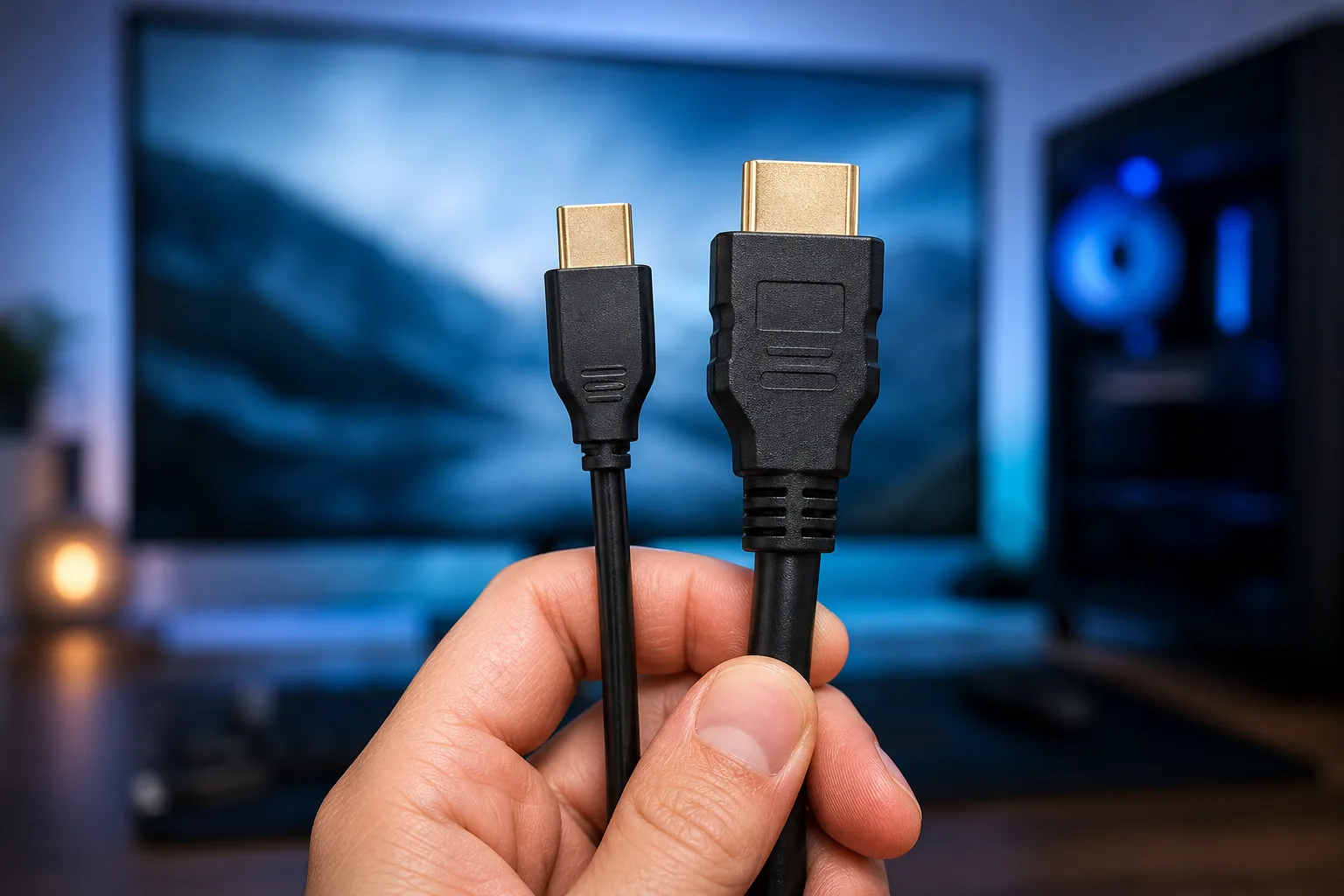
3. Check the Cable and Port Type
This is the step most guides bury at the end, but it belongs here.
| Cable type | Max practical resolution | Notes |
|---|---|---|
| HDMI 1.4 | 1080p @ 60 Hz or 4K @ 30 Hz | 4K @ 60 Hz needs HDMI 2.0+ |
| HDMI 2.0 | 4K @ 60 Hz | Common on monitors sold after 2016 |
| DisplayPort 1.2 | 4K @ 60 Hz | Better choice for high-refresh setups |
| DVI-D (single link) | 1920x1200 max | Cannot do 4K |
| USB-C (Alt Mode) | Depends on cable rating | Not all USB-C cables carry video at full bandwidth |
If you're running a 4K monitor through an HDMI 1.4 cable, the monitor may drop to a lower resolution or display a soft, upscaled image. Swap the cable and recheck the resolution in step 1.
Computer acting up? Get a real diagnosis. Book a diagnostic
4. Update or Reinstall the GPU Driver
A stale or corrupted graphics driver can misreport monitor capabilities, causing the OS to pick wrong settings.
- Open Device Manager > Display Adapters.
- Right-click your GPU and choose Update Driver > Search automatically.
- If that finds nothing, visit the manufacturer's site (NVIDIA, AMD, or Intel) and download the latest driver package.
- Install, reboot, then revisit your resolution and scaling settings from steps 1 and 2.
For AMD and NVIDIA cards, their respective control panels (AMD Software or NVIDIA Control Panel) let you force a specific resolution and refresh rate per display, which can override an incorrect Windows default.
5. Check the Monitor's Built-In Sharpness Setting
Some monitors apply software sharpening or smoothing through their OSD (On-Screen Display) menu. If someone adjusted these while the monitor was connected to a different source, the settings travel with the monitor.
- Use the physical buttons on the monitor to open the OSD.
- Look for Sharpness, Edge Enhance, or a similar control.
- Set sharpness to the midpoint or to the value recommended in the manual. Over-sharpening causes a harsh halo effect; under-sharpening causes softness.
6. Try a Different Port on Your GPU or Adapter
If your graphics card has multiple HDMI or DisplayPort outputs, try a different one. Occasionally one port has a bad contact or a firmware quirk that limits bandwidth. If you're using a DisplayPort to HDMI adapter or a USB-C hub, bypass it temporarily with a direct cable to rule out adapter quality as the variable.
Common Mistakes
- Setting a custom resolution instead of the native one. Custom resolutions can look soft even when the numbers are close. Use the exact native resolution.
- Assuming the cable is fine because it worked on another setup. Older HDMI cables that handled 1080p fine may not carry 4K reliably.
- Applying the same DPI scale to both monitors. Monitors with different pixel densities need different scale settings for crisp results.
- Ignoring the monitor OSD. If the hardware sharpness is set to zero, no software setting will compensate.
- Skipping a reboot after a driver update. Display settings sometimes don't fully apply until after a restart.
Bottom Line
Ninety percent of blurry second monitor cases come down to three things: wrong native resolution, mismatched DPI scaling, or an underpowered cable. Work through the steps in order and you'll almost certainly identify the problem before reaching step 5.
If you've run through all six steps and the second monitor is still soft, the issue may be a failing GPU port, a defective cable that tests fine but drops signal intermittently, or a monitor with a hardware problem. At that point, a hardware diagnostic makes sense. Bring it into Fix My PC Store or start with remote support if you'd rather not unplug everything and travel.
Computer acting up? Get a real diagnosis.
Fix My PC Store has repaired thousands of machines across West Palm Beach. Honest pricing, no upsell games, and a free diagnostic for new customers with our email coupon.