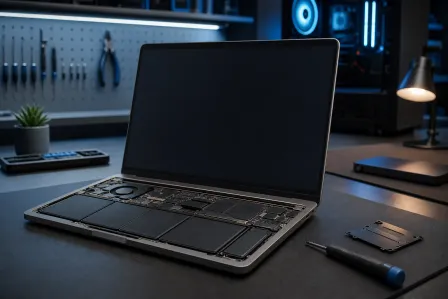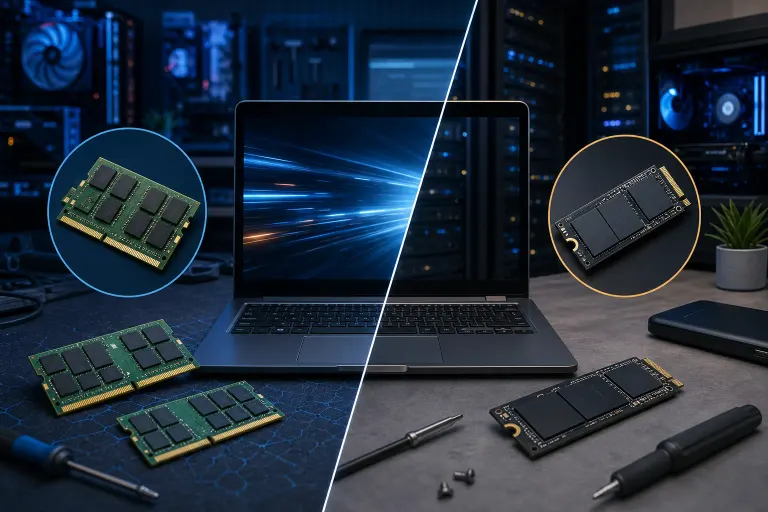
RAM Upgrade vs. SSD Upgrade: Which Fix Revives Your Laptop?
TL;DR: If your laptop takes forever to boot and open apps, an SSD is almost always the bigger win. If it bogs down while you have a dozen tabs open, more RAM is the move. When in doubt, the SSD usually has the higher impact per dollar, but both upgrades together is the sweet spot.
At a Glance
| SSD Upgrade | RAM Upgrade | |
|---|---|---|
| Best for | Slow boot, sluggish app launches | Multitasking, lots of tabs/apps open |
| Typical impact | Very high | Moderate to high |
| Cost range | Generally affordable, varies by size | Generally affordable, varies by capacity |
| DIY difficulty | Easy to moderate | Easy to moderate |
| Works on most laptops? | Usually yes | Sometimes, depends on model |
| Solves spinning HDD slowness? | Yes, completely | No |
Why Your Laptop Feels Slow in the First Place
Before you spend a dollar, it helps to understand what is actually causing the slowdown. Laptops get sluggish for a few distinct reasons, and RAM and SSD upgrades each target different ones.
A traditional spinning hard drive (HDD) is a mechanical device. It has physical platters that spin and a read/write head that moves around to find data. That process takes real, measurable time. Booting Windows off an HDD can take two to five minutes on an aging machine. That is not software bloat. That is physics.
RAM is your laptop's short-term memory. When you have Chrome open with 15 tabs, a spreadsheet, Spotify, and Slack running simultaneously, all of that lives in RAM. When you run out of RAM, your computer starts borrowing space from the hard drive as a substitute. That substitute is called a page file, and it is brutally slow, especially if you still have an HDD.
So: slow startup and slow app launches point to storage. Freezing and stuttering under load with multiple apps open points to RAM. Sometimes both are the culprit.
The Case for an SSD Upgrade
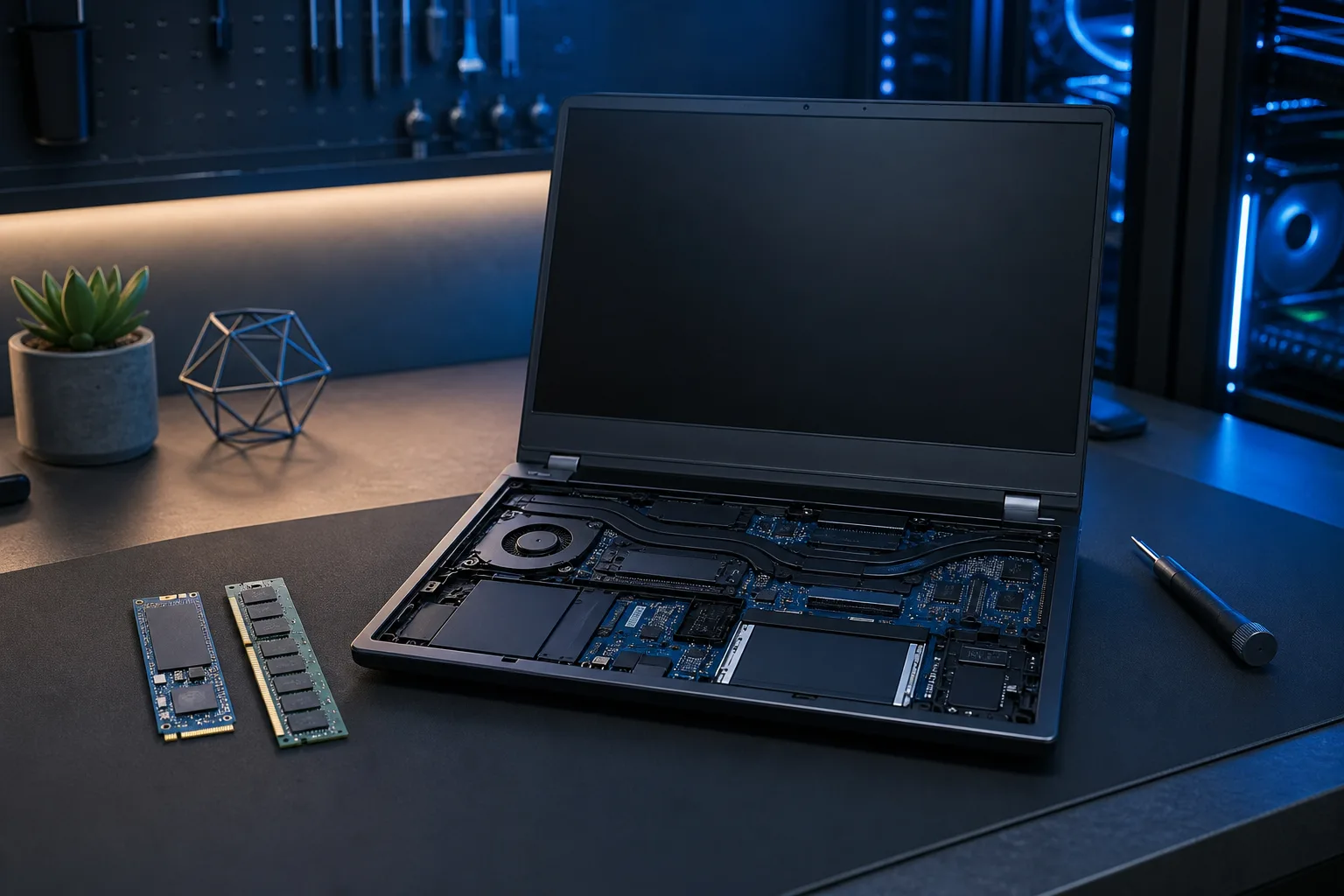
Replacing a spinning hard drive with a solid-state drive is one of the most dramatic improvements you can make to any older laptop. There are no moving parts. Data is read and written electronically, and the speed difference compared to a mechanical drive is not subtle.
Boots that took three minutes drop to under 20 seconds. Applications that felt like they were loading through mud open almost instantly. Even just navigating folders and saving files feels snappy.
If your laptop came with an HDD, this is almost always the upgrade you should do first. Full stop.
What to know before you buy:
- Check whether your laptop uses a 2.5-inch SATA drive, an M.2 SATA drive, or an M.2 NVMe drive. They are not interchangeable.
- You will need to either clone your existing drive or do a fresh Windows install. Both are manageable, but cloning requires extra steps.
- Some budget laptops have the storage soldered to the motherboard. Check your specific model before assuming you can swap it.
Even if your laptop already has an SSD but it is old and nearly full, a larger or faster SSD can still deliver a noticeable improvement. A drive that is more than 80-85 percent full slows down because SSDs need free space to manage data efficiently.
If you are not confident tearing into your laptop yourself, the team at Fix My PC Store handles SSD installs and data migrations regularly. Dropping it off is a lot less stressful than voiding a warranty with a stripped screw.
The Case for a RAM Upgrade
More RAM does not make your laptop boot faster. It does not make individual apps launch more quickly. What it does is let your laptop hold more things in memory at once without panicking.
The sweet spot for most Windows laptops right now is 16GB. If your machine shipped with 4GB or 8GB, and you regularly have multiple browser tabs, a video call, a document, and some background apps running, you are almost certainly hitting the ceiling. Your system is thrashing the page file constantly, and that is what causes the freezing and stuttering mid-task.
Upgrading from 8GB to 16GB on a machine that is actively RAM-limited can feel like a different computer, especially for students, remote workers, and anyone who lives in a browser.
What to know before you buy:
- Many modern laptops, especially ultrabooks and thin models, have RAM soldered directly to the motherboard. You cannot upgrade it at all. This is increasingly common and genuinely annoying.
- If your RAM slots are accessible, check the maximum supported RAM for your specific motherboard. Installing more than it supports does nothing.
- RAM comes in DDR3, DDR4, and DDR5 flavors and they are not interchangeable. Match the spec exactly.
- Dual-channel configuration (two matched sticks) generally outperforms a single stick of the same total capacity.
Not sure if your RAM is soldered or not? Tools like CPU-Z (free) can show you your current memory configuration. Your laptop's service manual, usually findable on the manufacturer's website, will tell you if the slots are upgradeable.
If you need someone to check and source the right parts, our laptop repair service can handle the diagnosis and the install.
Computer acting up? Get a real diagnosis. Book a diagnostic
When the Answer Is Both
Here is the honest reality: a lot of slow older laptops are suffering from both problems at once. They have a slow HDD and not enough RAM. Fixing only one of those leaves the other bottleneck intact.
If your budget allows it, doing both at the same time is almost always the right call. An SSD plus a RAM upgrade on a four or five year old laptop can genuinely extend its useful life by two or three more years. That is a much better return on investment than buying a new mid-range laptop.
The math usually works out. A 500GB SSD and a 16GB RAM kit together often cost less than a single month's payment on a new laptop, and you keep the machine you already know.
What About Macs?
Good question. MacBooks complicate this picture significantly.
If you have a MacBook from 2019 or older with a traditional spinning hard drive or a first-generation SSD, upgrading the storage can still help, though it is more involved than on a Windows laptop.
By the mid-2010s, most MacBook models had RAM soldered to the motherboard, and by 2016–2017, storage was increasingly soldered or non-user-replaceable as well. The exact cutoff varies by model, for example, some 2015 MacBook Pros still had replaceable (though proprietary) SSDs, while the 2016 MacBook Pro moved to soldered storage. Check your specific model before assuming anything is upgradeable. If you have an M1, M2, or M3 MacBook, nothing is upgradeable after purchase. Apple calls it Unified Memory, and it is baked into the chip.
For Mac users with upgradeable older models, the Mac repair team at Fix My PC Store knows these machines well. For newer Macs, the only path is buying the right configuration upfront.
How to Diagnose Your Specific Bottleneck
Do not just guess. Spend five minutes checking.
On Windows:
- Open Task Manager (Ctrl + Shift + Esc) and click the Performance tab.
- Watch CPU, Memory, and Disk usage while you do your normal work.
- If Disk usage is constantly at 100 percent, your storage is the bottleneck.
- If Memory is at 90 percent or more with your typical apps open, RAM is your problem.
Boot time test:
- Time your boot from pressing the power button to a usable desktop. More than 60 seconds on a machine without an SSD is normal and fixable. More than 30 seconds on a machine with an SSD suggests other issues worth investigating.
If you are seeing strange slowdowns that do not fit neatly into either category, it might be worth a remote support session to dig into software issues, startup programs, or malware before you spend money on hardware.
Verdict
Start with the SSD if your laptop has a spinning hard drive. It is the single highest-impact upgrade you can make, and almost nothing else comes close. The difference is immediate and dramatic.
Add RAM if you are multitasking heavily and your slots are accessible. Going from 8GB to 16GB matters a lot if your workflow involves many apps running at once.
Do both if your budget allows. Together they can buy a slow, aging laptop another two to three solid years of useful life.
If neither slot is upgradeable, especially on a newer Mac or a soldered Windows ultrabook, your options are limited to software optimization and eventually replacement. That is worth knowing before you start unscrewing anything.
Not sure where your laptop stands? Bring it into Fix My PC Store in West Palm Beach and we will take a look. No pressure, straight answers. We would rather tell you the upgrade is not worth it than sell you parts that will not help.
Computer acting up? Get a real diagnosis.
Fix My PC Store has repaired thousands of machines across West Palm Beach. Honest pricing, no upsell games, and a free diagnostic for new customers with our email coupon.