Plan a Small Office Wi-Fi Upgrade That Can Grow
TL;DR: A successful office Wi-Fi upgrade starts with a realistic count of every device, not just employee laptops. Plan for growth, separate business and guest traffic, place access points based on the building, and test the network during a normal workday. A little planning now can prevent a disruptive replacement later!
What you need
Before choosing any Wi-Fi equipment, collect a few basic details about your office and how people work in it. You do not need to be a network engineer to make a solid plan. You just need an honest picture of demand.
Have these items ready:
- A simple floor plan, even a hand-drawn one, showing offices, meeting rooms, reception, storage areas, and outdoor spaces where Wi-Fi may be needed.
- Your internet service details, including advertised download and upload speeds and the type of connection.
- A count of people, company-owned devices, personal devices, printers, phones, tablets, cameras, TVs, and smart office equipment.
- A list of cloud applications that matter to the business, such as Microsoft 365, video meetings, VoIP phones, accounting software, or line-of-business systems.
- Notes about current complaints. Slow video calls, dropped connections, weak reception, or unreliable guest Wi-Fi are useful clues.
- A rough growth forecast for the next two to five years.
If your office has recurring connection issues, it helps to first confirm whether Wi-Fi is really the cause. A wired device that also slows down may point to the internet connection, firewall, switch, or another part of the network. Professional business networking support can help separate those issues before you spend money in the wrong place.
1. Count devices, not employees
The most common planning mistake is assuming one employee equals one Wi-Fi device. In a real office, one person may bring a laptop, phone, headset, tablet, and smartwatch. Add shared devices, visitors, and smart equipment, and the total rises quickly.
Start with three columns:
- Business-critical devices. These include work laptops, desktops using Wi-Fi, VoIP handsets, point-of-sale terminals, scanners, tablets used for operations, and printers.
- Supporting devices. Think conference room displays, streaming devices, wireless presentation tools, security cameras, thermostats, door controllers, and smart TVs.
- Personal and guest devices. Employee phones, visitor phones, client laptops, and vendor devices belong here.
Count what connects now. Then add room for growth. A practical approach is to plan for the office you expect to have in a few years, not only the office you have this month.
For example, a 12-person office may already have 35 to 50 connected devices once phones, printers, meeting-room gear, and visitors are included. The exact count will vary, but the lesson is simple. Your Wi-Fi design needs capacity for concurrent connections, not just a headcount.
Also ask which devices are active at the same time. A printer that wakes up briefly is different from ten laptops on a video call while files sync to the cloud. Busy periods matter more than the total number of devices listed on paper.
2. Define what “good Wi-Fi” means for your office
“Fast Wi-Fi” is too vague to guide an upgrade. Set clear goals based on the work your team does.
Consider these questions:
- Can every employee join a video meeting without choppy audio or frozen video?
- Can staff move between offices or meeting rooms without losing important calls?
- Can visitors use guest Wi-Fi without reaching business systems?
- Can cloud backups, file syncing, and software updates run without disrupting daytime work?
- Do you need reliable coverage in a warehouse, lobby, patio, waiting room, or parking area?
- Are there devices that need extra stability, such as phones, payment terminals, or medical and operational equipment?
Write down the answers in plain language. This becomes your upgrade checklist.
Remember that internet speed and Wi-Fi quality are related but different. You can have a fast internet plan and still have poor wireless performance if the access points are overloaded, badly placed, or configured without regard for your office. On the other hand, excellent Wi-Fi cannot overcome an internet connection that is too slow for a team doing frequent video calls and cloud work.
If your team uses Microsoft 365 heavily, stable connections matter for more than browsing. Email, Teams meetings, OneDrive syncing, and shared documents all rely on a dependable network. Review your workflow alongside your Microsoft 365 setup and support plan so the network supports the tools staff use all day.
3. Map the office and identify materials that affect signal
Wi-Fi travels through open air much more easily than through dense building materials. Before choosing access point locations, look at the physical space.
Mark these on your floor plan:
- Concrete, brick, block, or plaster walls.
- Metal shelving, filing cabinets, elevator shafts, and utility rooms.
- Glass partitions and tinted or coated glass.
- Conference rooms where many people connect at once.
- Areas where staff report weak or inconsistent connections.
- Existing network closets, wiring routes, and available power.
South Florida buildings can create a mix of challenges. A modern open office may have glass walls and exposed ceilings. A converted suite may have concrete construction, older interior walls, or awkward utility spaces. Two offices with the same square footage may need very different Wi-Fi layouts.
Do not assume one centrally placed device will cover everything. Coverage is only one part of the design. A central access point may reach many rooms but still struggle when a conference room fills with active devices.
Plan access points around where people actually work and gather. Meeting rooms, training rooms, reception areas, and open workspaces often deserve special attention. Storage rooms and unused corners may not need the same level of service.
Avoid hiding access points inside cabinets, above dense metal fixtures, or behind large displays. Wi-Fi equipment needs a reasonably open path to the devices it serves. A clean-looking installation is important, but performance comes first.
4. Choose a scalable network design, not just a stronger router
For a very small, simple office, a single wireless router may be enough. But once more people, rooms, and devices enter the picture, an office generally benefits from separate business-grade components.
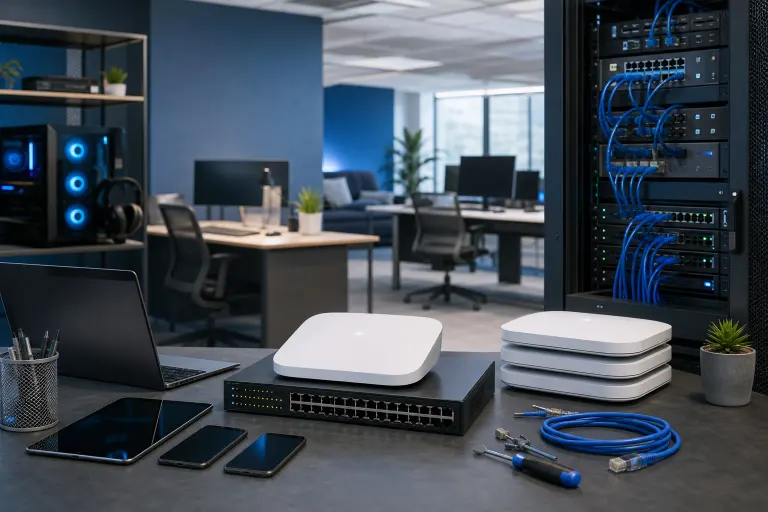
A scalable design often includes:
- A firewall or security gateway that manages the internet connection and network rules.
- A managed network switch, often with Power over Ethernet capability to power access points through network cables.
- One or more wired access points placed where coverage and capacity are needed.
- Centralized management for monitoring, updates, and configuration backups.
This approach gives you options when the office grows. You can add an access point, adjust a network segment, or replace one component without rebuilding the whole network.
The word “mesh” can be confusing here. Mesh Wi-Fi can be useful where running a cable is impossible, but wired access points are usually the better choice for a business when cabling is available. A wired connection gives each access point a stronger, more predictable path back to the network. It also avoids asking wireless devices to share airtime with the connection between access points.
This does not mean every device needs a cable. It means the infrastructure supporting your Wi-Fi should be designed for reliability.
Ask your installer or IT provider how the system can expand. Can another access point be added later? Can it support a separate guest network? Is configuration stored and backed up? Can the network be monitored remotely? These are practical questions that matter after installation day.
For offices without an in-house IT person, managed IT services can provide ongoing monitoring, updates, documentation, and a clear contact when something changes.
Tired of IT that breaks at the worst time? Talk to our business IT team
5. Plan capacity for busy moments
Wi-Fi capacity is about how many devices are actively sending and receiving data, and how demanding that data is. It is not just about the maximum speed printed on a product box.
Think through your busiest realistic moment:
- Most staff are on video calls.
- A meeting room has guests joining a presentation.
- Phones are connected and receiving calls.
- Laptops are syncing files.
- Software updates or cloud backups are running.
- A visitor is streaming or downloading on the guest network.
Now ask whether your proposed layout can handle that moment without everyone fighting for the same access point.
Conference rooms are an easy place to underestimate capacity. A room may sit empty most of the day, then host 15 people with laptops and phones. It may need an access point nearby even if a signal from the hallway technically reaches it.
Plan the network so you can control traffic priorities when needed. Voice and video communications may need more consistent performance than guest browsing. Business-critical devices may need a more reliable connection than a lobby television.
Your internet upload speed deserves attention too. Video meetings, cloud backups, sending large files, and remote access all use upload bandwidth. If people complain that meetings fail only when several staff members are online, check the upload side of the internet service as well as the wireless setup.
6. Build security into the Wi-Fi plan
A Wi-Fi upgrade is also a security project. Treating it that way protects your business, your clients, and your staff.
Start with separate networks for separate purposes:
- Business network: For authorized work devices and systems.
- Guest network: For visitors and personal devices that should not access internal business resources.
- Device or IoT network: For equipment such as cameras, displays, printers, thermostats, or door systems when appropriate.
Separating these groups reduces unnecessary exposure. A guest device should not be able to browse shared folders or communicate directly with office equipment.
Use strong, unique Wi-Fi passwords and modern security settings supported by your equipment. Avoid sharing one old password with everyone forever. Establish a process for changing credentials when staff leave, when a password has been shared too broadly, or when there is any concern about unauthorized access.
Disable features you do not use, especially remote administration options that are exposed unnecessarily. Keep access point, firewall, and switch software updated. Updates can address reliability issues and security vulnerabilities.
Wi-Fi is only one layer of protection. Staff training, device updates, multifactor authentication, backups, and endpoint security all matter too. Our business cybersecurity services can help turn these pieces into a practical plan rather than a pile of disconnected settings.
7. Plan installation with as little disruption as possible
Good equipment can still create a frustrating experience if installation is rushed. Schedule the work around your office operations.
Before installation, confirm:
- Where each access point will be mounted.
- Whether network cabling is needed at each location.
- Whether the switch has enough ports and power capacity.
- Which devices must stay online during the change.
- Who has administrator credentials for the internet service, firewall, Wi-Fi system, and important cloud applications.
- How staff will receive the new network name and password securely.
Decide whether to keep the existing Wi-Fi network name. Reusing it can reduce the need to reconnect every known device, but it can also carry over old password-sharing habits or confusing settings. A fresh name can be cleaner, especially when the current setup is poorly documented. The right choice depends on your environment.
Create a rollback plan. If an unexpected issue appears, staff should know how to reconnect, who to call, and how critical systems will remain available. This is especially important for offices with phones, payment systems, scheduling platforms, or customer-facing operations.
Document the final setup. Record equipment locations, network names, access point names, admin ownership, and support contacts. Documentation is not glamorous, but it saves time during future changes and troubleshooting.
8. Test the network like your team uses it
Do not call the project finished because a laptop connects near the front desk. Test across the office and during normal operations.
Walk through the space with a phone and laptop. Check workstations, conference rooms, reception, hallways, and any area promised coverage. Test both the business and guest networks.
Then test real tasks:
- Join a video meeting from multiple locations.
- Place and receive calls if your phones use Wi-Fi.
- Open cloud files and sync a normal-sized folder.
- Print from approved devices.
- Confirm guests cannot reach internal systems.
- Verify staff can move between coverage areas without repeated disconnects.
- Review whether any devices remain tied to the old network.
Testing should include busy periods whenever possible. An empty office is not a useful simulation of a full team on calls.
Set a follow-up date about two to four weeks after the upgrade. Ask staff what improved and what still feels unreliable. Check for devices that dropped off, areas that need adjustment, and applications with unusual behavior. Small configuration changes after real-world use are normal.
Common mistakes
Buying for square footage alone. Square footage does not tell you how walls, meeting rooms, construction materials, or device density affect Wi-Fi. Use a floor plan and work patterns too.
Counting only laptops. Phones, printers, tablets, displays, cameras, and guests all use capacity. Inventory everything that connects.
Using one network for everyone. Guests and personal devices should not automatically share the same network access as business systems.
Putting access points wherever a cable is easiest. Convenient placement may create weak capacity where staff actually work. Choose locations based on usage first, then plan the cabling.
Ignoring upload bandwidth. Video calls and cloud services need upload capacity. A high download number alone does not guarantee a good office experience.
Skipping documentation. When the person who set up the Wi-Fi is unavailable, undocumented passwords and equipment details can turn a small issue into downtime.
Treating Wi-Fi as a one-time purchase. Your office will gain devices, software, staff, and security needs. Review the network periodically and plan adjustments before users start complaining.
Bottom line
A small office Wi-Fi upgrade should be designed for the way your business works now and the way it is likely to grow. Count every device, identify busy areas, use wired access points where practical, separate networks for security, and test with real work instead of a quick speed check.
If you are planning an office move, adding staff, replacing aging equipment, or dealing with unreliable connections around West Palm Beach or the Treasure Coast, contact Fix My PC Store for help building a network plan that is clear, secure, and ready for the next stage of your business.
Tired of IT that breaks at the worst time?
We run managed IT, backups, and security for South Florida businesses so you can stop thinking about it.