Phone Touchscreen Not Responding? Find the Real Cause
TL;DR: A touchscreen that won't respond is usually one of five things: a software freeze, a dirty or wet screen, a case or screen protector interfering, a battery or charging issue confusing the system, or actual hardware damage to the digitizer. Work through the checks below in order. Most people find their answer in the first ten minutes.
What you need
- A microfiber cloth (not paper towels, they leave lint)
- A charging cable that you know works
- A few minutes without touching the screen
- Optional: rubbing alcohol wipes (isopropyl, unopened package)
- Optional: a friend's phone to test with, if you use a stylus or gloves regularly
You don't need any special tools for the diagnosis part. That's the good news. Let's figure out what's actually going on before anyone starts talking about replacing a screen.
Step 1: Rule out a simple software freeze first
Here's the thing most people skip, and it's the easiest one to check. Phones freeze sometimes. It happens to iPhones and Androids both, and it has nothing to do with your screen's hardware.
Try a forced restart. On iPhone 8 and later (which covers most modern iPhones), quickly press and release the Volume Up button, quickly press and release the Volume Down button, then press and hold the Side button until you see the Apple logo. On most Android phones, it's holding the power button for 10 to 20 seconds. Every model is slightly different, so if you're not sure, a quick search for your exact model plus "force restart" will get you the right combo in seconds.
Did the screen come back to life? Great, that was a software freeze. Nothing wrong with your hardware at all. If it's still unresponsive after a full restart, keep going. We're narrowing things down.
Step 2: Clean the screen properly, then dry your hands
This sounds too simple to matter, but it fixes more "dead touchscreen" cases than people expect.
Capacitive touchscreens, which is what's in basically every modern phone, read the tiny electrical signal from your finger. Oil, sweat, lotion, or a thin layer of grime can interfere with that signal enough to make certain spots stop registering. So can wet hands, wet screens, or a screen protector with a bubble or crack in it.
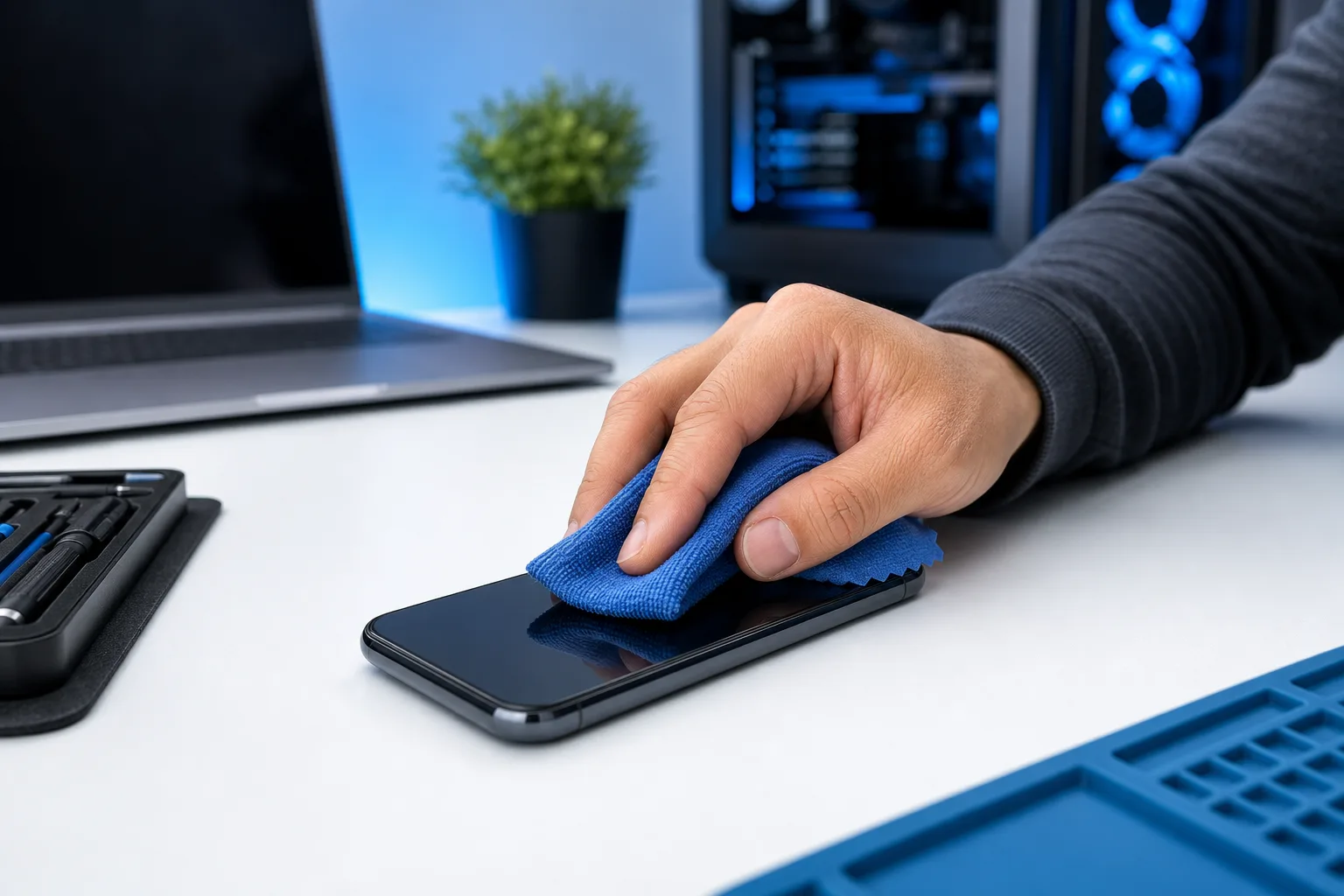
Wipe the screen down with a microfiber cloth. If it's still stubborn, use an isopropyl alcohol wipe and let it dry completely for a minute before testing again. Then dry your hands and try again with clean, dry fingers.
While you're at it, peel back or remove your screen protector if you have one. Cheap or damaged screen protectors are a surprisingly common cause of dead zones, especially near the edges or corners.
If the touchscreen responds normally now, you've found your answer. It was a contamination or protector issue, not a phone problem.
Step 3: Test for moisture, even if you don't remember getting the phone wet
Moisture is sneaky. It doesn't always mean you dropped your phone in a pool. Humidity, sweat while exercising, rain, condensation from a hot car, even a bathroom with the shower running can be enough in some cases.
If your phone has been anywhere damp in the last day or two, that's a real suspect. Symptoms that point to moisture:
- Touch registers in the wrong spot, or seems to "ghost touch" on its own
- Only part of the screen is unresponsive
- It got better, then worse, then better again
If you suspect moisture, power the phone off completely and let it sit somewhere dry and warm (not a hot car, not an oven, just room temperature or slightly warmer) for a few hours. Do not plug it in to charge while it's still possibly wet. That's when moisture and electricity combine to cause actual damage, as opposed to a temporary short.
If the phone dries out and works again, good news, no permanent harm. If it doesn't, or if you're seeing corrosion around the charging port, that's a sign of internal damage that needs a real repair, not a bag of rice.
Step 4: Check if it's actually a case or screen protector problem
We touched on screen protectors in Step 2, but cases deserve their own look too. A case that's slightly too tight, warped from heat, or has a raised edge can press against the screen's bezel and cause pressure-related dead zones, especially near where the case meets the glass.
Take the case off entirely. Test the touchscreen with nothing on it at all. If the dead spots disappear, it's the case, not the phone. Some people don't want to hear that answer because they love their case, but at least now you know it's a $15 problem and not a $150 one.
Cracked screen or a phone that won't hold a charge? Get a repair quote
Step 5: Watch for patterns tied to charging or battery health
This one surprises people. Sometimes a touchscreen acts unresponsive specifically while the phone is plugged in, or specifically when the battery is very low, or right after a charge. That's often not the screen at all. It can be a sign of a failing charging cable, a cheap or damaged wall adapter, or a battery that's aging and causing power fluctuations that confuse the touch sensor.
Try this test: unplug the phone completely and see if the screen behaves normally. Then plug in a different cable and adapter that you know are good quality, and test again while charging. If the touchscreen only misbehaves while connected to a specific cable or charger, that's your answer, and it's an easy fix. Stop using that cable.
If the phone is generally slow to charge, gets hot while charging, or the battery drains fast, and touch issues line up with those symptoms, the battery itself may be the root cause. Batteries don't last forever, and a swelling or failing battery can physically push against the screen from underneath, which absolutely can cause touch problems. That's not a DIY fix. That needs a professional look.
Step 6: Look closely for physical damage, even hairline cracks
Now we get into the hardware territory. Grab good lighting and look at your screen from multiple angles. You're checking for:
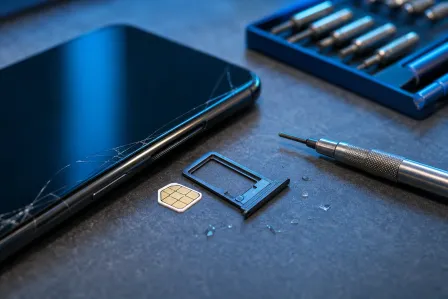
- Hairline cracks that aren't obvious head-on but catch the light at an angle
- A slightly raised or separated edge on the glass, which can mean the screen is lifting from the frame
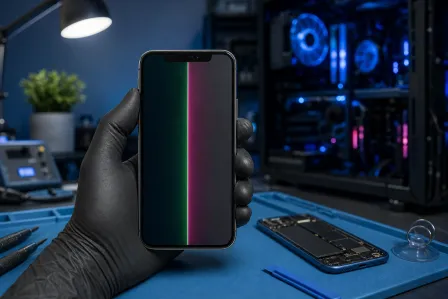
- Discoloration or dark spots, which can point to internal LCD damage
- Any spot where the glass feels slightly different in texture or has a tiny bit of give when you press gently
Here's why this matters. The glass on top and the digitizer (the actual sensor layer that reads your touch) are usually bonded together, but they're not the same thing. You can have a screen that looks basically fine but has a cracked digitizer underneath from a drop weeks ago. The damage doesn't always show up as an obvious spiderweb crack. Sometimes it's a small dead zone in one corner that slowly spreads.
If touch problems started right after a drop, even a small one, or after the phone got sat on, stepped on, or squeezed in a bag, physical digitizer damage is the most likely explanation. That's a hardware repair, not a settings fix.
Step 7: Try Safe Mode or a factory-reset test app (Android) or check for a stuck update (iPhone)
If you've made it this far and the screen still isn't behaving, and nothing above pointed to an obvious cause, it's worth ruling out a deeper software issue.
On Android, boot into Safe Mode (usually by holding the power menu's restart option and confirming Safe Mode when prompted). Safe Mode only loads core system apps, so if the touchscreen works fine in Safe Mode but not normally, a third-party app is the culprit. Uninstall whatever you installed most recently and see if that resolves it.
On iPhone, check Settings to see if there's a pending iOS update stuck mid-download, which can sometimes cause temporary display weirdness. Also check if the problem started right after installing a specific app, and if so, delete it.
If the touchscreen is unresponsive even in Safe Mode, or the problem exists system-wide with no app correlation, that points back toward hardware rather than software.
Common mistakes
Jumping straight to "I need a new screen" without testing software first. A huge number of unresponsive touchscreen complaints turn out to be a freeze, a dirty screen, or a bad screen protector. Rule those out before spending money.
Charging a wet phone to "see if it still works." This is how a temporary moisture issue becomes permanent corrosion damage. Dry it out fully, unplugged, before testing power.
Ignoring a pattern because it seems random. "It only happens sometimes" usually isn't actually random. It's tied to charging, temperature, a specific app, or a specific finger position. Pay attention to when it happens, not just that it happens.
Pressing harder when the screen doesn't respond. Capacitive screens don't need pressure, they need clean skin contact. Pressing harder can actually make things worse if there's already a hairline crack, since you're adding physical stress to compromised glass.
Putting a cracked phone in a drawer for months. A hairline crack in the digitizer tends to get worse over time as dust and moisture work their way in. What starts as a small dead zone in one corner can spread to the whole screen. If you know it's cracked, the sooner it's looked at, the better your odds of a clean, affordable fix.
Trying to fix water damage with rice or a hair dryer. Rice does very little, and a hair dryer's heat can actually push moisture deeper into the phone or damage the battery. Room temperature air drying, patience, and if you're worried, a professional inspection, are the safer route.
Bottom line
Most unresponsive touchscreens have a boring, fixable cause: a freeze that a restart clears up, a dirty screen, a bad screen protector, or a case that's pressing where it shouldn't. Moisture and charging accessories are the next most likely suspects, and both are worth checking before you assume the worst. The cases that genuinely need a repair shop are usually tied to a drop, visible cracking, or a battery that's clearly failing.
If you've worked through these steps and you're still stuck, or you found a crack and don't want to risk making it worse, that's exactly the kind of thing we sort out quickly. We handle mobile device repair for cracked screens, water damage, and charging port issues, and we'll tell you honestly if it's a quick fix or something bigger. You can book a repair or reach out with questions if you'd rather talk it through first.
Cracked screen or a phone that won't hold a charge?
Bring it in. Most phone and tablet repairs are same-day, with parts that actually last.