Phone Charging Slowly or Stuck at 80%? What's Actually Wrong
TL;DR
Slow charging and a hard stop near 80% are usually caused by one of five things: a worn cable or adapter, a dirty charging port, a background app fighting for power, an OS battery-optimization feature capping the charge on purpose, or a battery that's aged past efficient fast charging. Work through the checklist below in order, cheapest fix first, before assuming the battery itself is bad.
What you need
- The original or a certified charging cable and adapter, if you have one, for comparison.
- A flashlight or phone light to inspect the charging port.
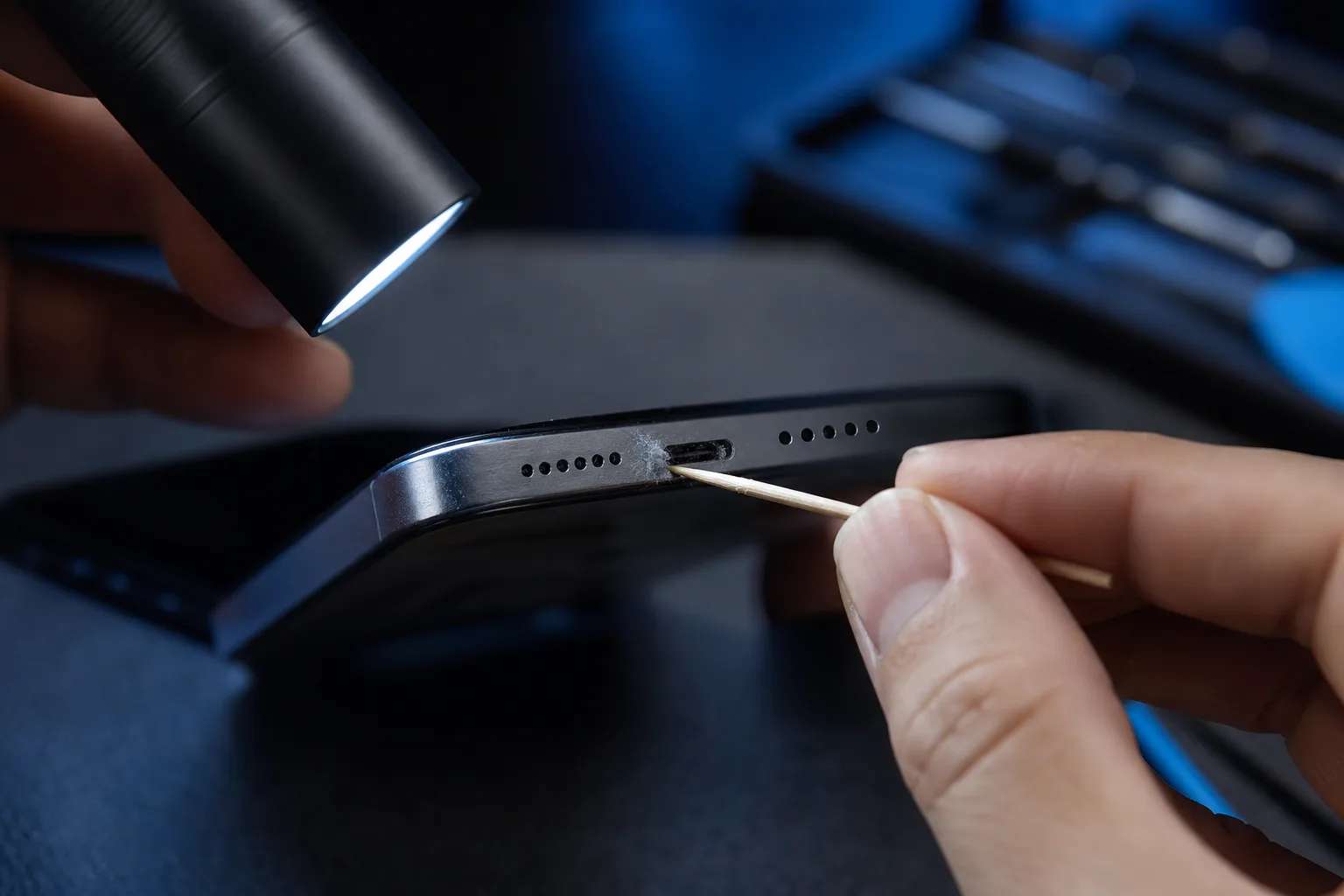
- A wooden toothpick or anti-static brush (never metal) for port cleaning.
- Access to your phone's battery settings menu.
- 15-20 minutes and a spot to let the phone charge undisturbed for testing.
Step 1: Rule out the cable and adapter first
Cables are the most common failure point because they flex and get stepped on. A damaged cable can still charge, just slowly, because internal wires are partially broken.
- Swap in a different cable with the same adapter. If charging speed improves, the cable was the problem.
- Swap the adapter with a different one rated for the same or higher wattage. Some phones silently downgrade to slow charging if the adapter can't deliver enough power.
- Avoid charging through a laptop USB port or a cheap multi-port hub for this test. Those often cap output well below what your phone can accept.
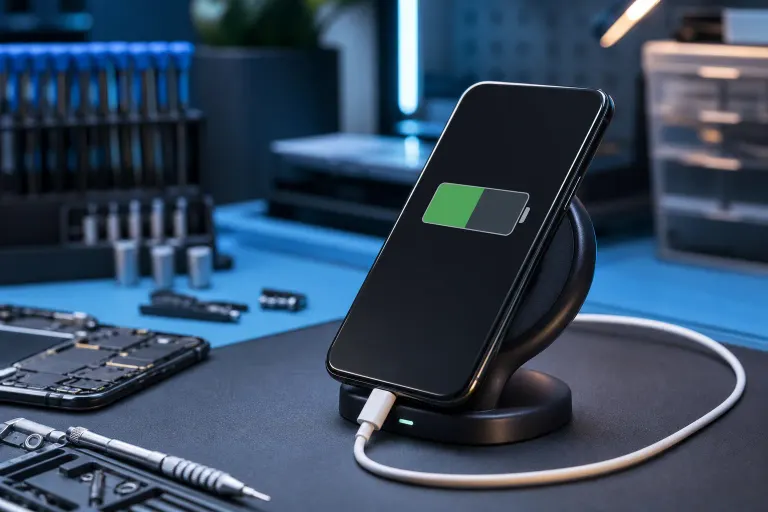
- If you're using a wireless charger, test with a wired cable instead. Wireless charging is inherently slower and more sensitive to phone case thickness and alignment.
- When buying a replacement cable, look for cables that carry a relevant certification mark for your connector type, such as USB-IF certification for USB-C cables. Uncertified cables may not communicate correct power delivery information to your phone, which can cause the phone to fall back to slower charging speeds even with a capable adapter.
Cracked screen or a phone that won't hold a charge? Get a repair quote
Step 2: Inspect and clean the charging port
Lint, pocket debris, and dust build up in charging ports and physically block the connector pins from making full contact.
- Shine a light into the port and look for fuzz, dust, or a metallic-looking shine that shouldn't be there.
- Power off the phone before cleaning.
- Gently scrape debris out with a wooden toothpick or soft anti-static brush. Never use a metal object, a needle, or compressed air at close range, since air can push debris deeper or damage internal components.
- Reconnect the cable and check if the connection feels snug rather than loose or wiggly. A loose-feeling connection often means bent or worn port pins, which usually needs professional repair rather than cleaning.
- If you clean the port and the cable still feels loose or the phone only charges at certain angles, that is a strong indicator the port itself is damaged. In that case, further DIY attempts risk making the damage worse, and a professional inspection is the better path forward.
Step 3: Check what's running while it charges
Apps and processes running in the background draw power at the same time the phone is trying to charge, which slows the net gain.
- Close GPS navigation, video streaming, or gaming apps before charging if you want the fastest possible speed.
- Check whether the phone is unusually warm. Heat forces the phone to throttle charging speed to protect the battery, and this is by design, not a malfunction.
- Move the phone off a pillow, blanket, or direct sunlight while charging. Trapped heat is a common and completely avoidable slowdown.
- If the screen is on and actively being used while charging, that alone can roughly cancel out a slow charger's output.
- Enabling airplane mode while charging can also meaningfully speed things up, because the cellular, Wi-Fi, and Bluetooth radios consume a measurable amount of power continuously. If you don't need connectivity during a charging session, switching to airplane mode is one of the easiest ways to improve net charge gain with no hardware changes required.
Step 4: Check for a battery-protection feature capping the charge
Many phones now include a setting that intentionally stops charging around 80% to reduce long-term battery wear. This is not a malfunction, it's a tradeoff between longevity and immediate full capacity.
- Search your battery settings for terms like "optimized charging," "battery care," "charge limit," or "protect battery."
- If found, you can usually disable it temporarily or set a schedule so the phone reaches 100% before you need it.
- Some phones also learn your charging habits and delay the final 20% until close to your usual wake time. If the phone reaches full right before an alarm you've set, this is working as intended.
- If no such setting exists on your phone model, a hard stop at 80% points more strongly toward Step 5.
- It is worth noting that this kind of charge-limiting behavior is intentional and increasingly common across major manufacturers. Keeping a lithium-ion battery routinely charged to 100% accelerates chemical aging inside the cells, so the feature exists to help the battery retain usable capacity over a longer ownership period. Disabling the limit is perfectly safe for occasional use, but doing so every day reduces the long-term benefit the feature is designed to provide.
Step 5: Assess battery health and wear
Lithium-ion batteries lose capacity and charging efficiency over time. This is normal chemistry, not a defect, but it does mean charging slows down and behaves less predictably as the battery ages.
- Check your phone's battery health setting if it has one. Anything reported well below its original capacity is a sign of normal aging, not necessarily a fault.
- Note whether the slowdown is gradual over months, which points to wear, versus sudden, which points to a cable, port, or software issue.
- A battery that ages unevenly can also cause the percentage readout to be inaccurate, which sometimes looks like a sudden jump or drop in charge level rather than a smooth progression.
- If your phone's battery health reading is significantly degraded and you are experiencing both slower charging and shorter usage time between charges, a battery replacement is usually the most cost-effective repair. In many cases, a new battery restores charging behavior close to what the phone delivered when it was new.
- Before concluding the battery needs replacement, make sure you have worked through Steps 1 through 4. A degraded battery reading combined with a dirty port or a failing cable can produce symptoms that look worse than either problem alone, and replacing the battery without addressing the other issues may not fully resolve the experience.
Cracked screen or a phone that won't hold a charge?
Bring it in. Most phone and tablet repairs are same-day, with parts that actually last.