Why Is My PC Screen Tearing Even With a High-End GPU?
TL;DR: Screen tearing is a sync mismatch between your GPU output and your monitor's refresh rate. A high-end GPU actually makes it MORE likely if sync is off, because the card blasts out frames faster than your display can handle. Enable adaptive sync (G-Sync or FreeSync), cap your frame rate, or troubleshoot your cable and driver stack to stop it.
What You Need
- A monitor with G-Sync, FreeSync, or HDMI 2.1 VRR support (helpful but not required)
- Your GPU's control panel open: NVIDIA Control Panel or AMD Software: Adrenalin Edition
- A known-good DisplayPort or HDMI cable
- Latest GPU drivers installed
- Windows display settings access
1. Understand Why Tearing Happens (Even With a Monster GPU)
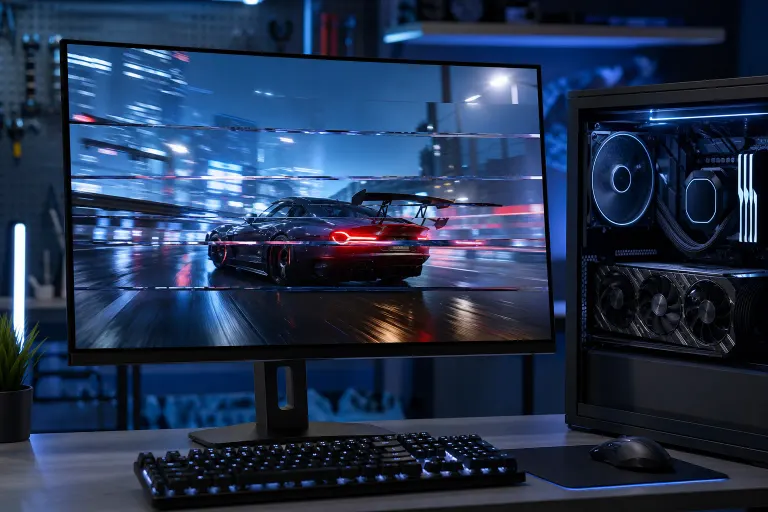
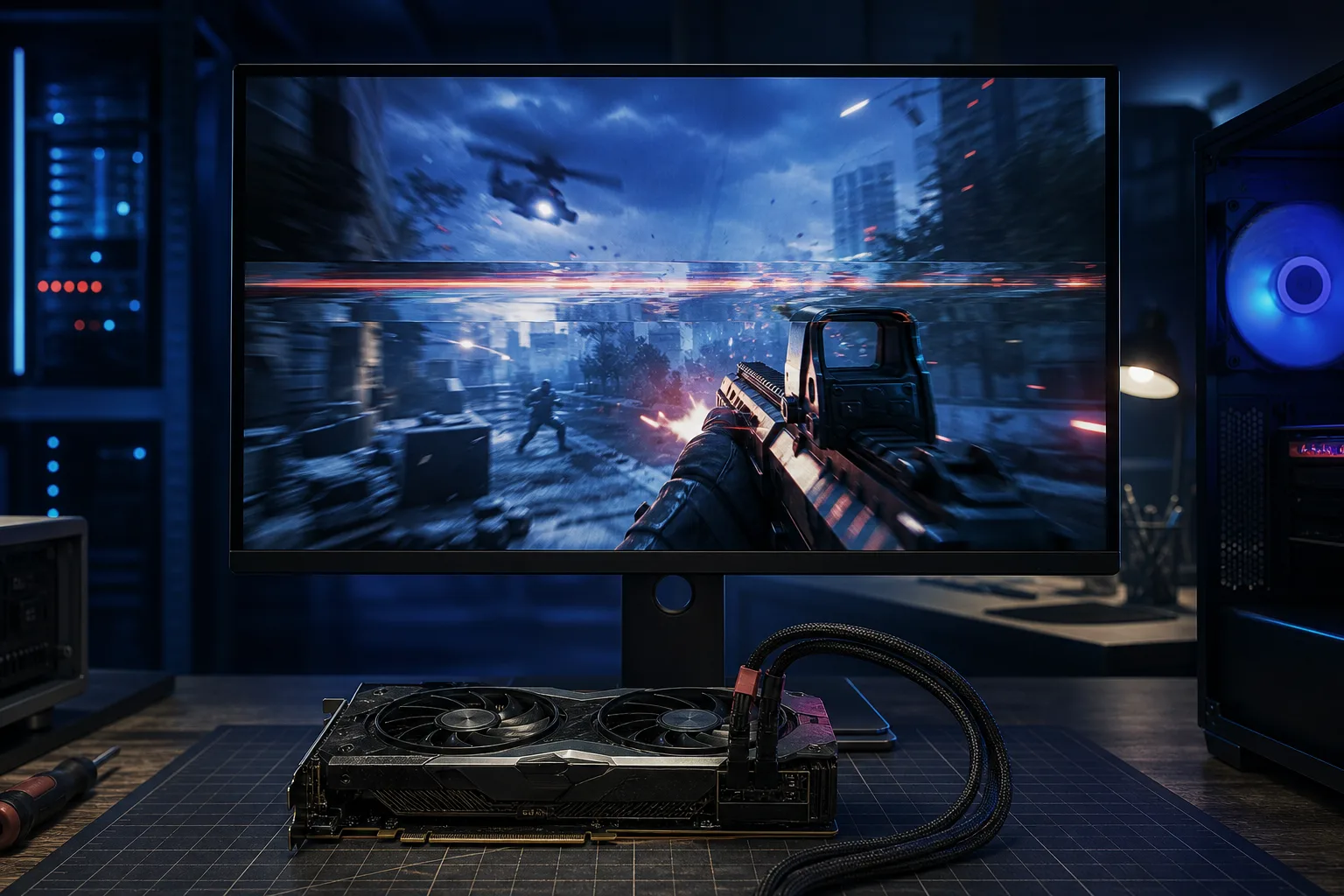
Your display refreshes at a fixed rate, say 144 Hz. Your GPU renders frames whenever it wants. When a new frame arrives mid-refresh, the monitor splices the old and new frame together on screen. That horizontal split is tearing.
A high-end GPU tears MORE in games it dominates. Running 400 FPS in a competitive shooter on a 144 Hz panel? You are sending almost three frames per refresh cycle. Every mismatch is a potential tear.
2. Check Whether Adaptive Sync Is Actually On
This is the most common miss. You bought a G-Sync or FreeSync monitor, but the feature might not be active.
NVIDIA users:
- Open NVIDIA Control Panel.
- Go to Display, then Set up G-SYNC.
- Check "Enable G-SYNC, G-SYNC Compatible" and confirm your monitor is listed.
- Apply and close.
AMD users:
- Open AMD Software: Adrenalin Edition.
- Click Display.
- Toggle AMD FreeSync to Enabled.
Also verify in your monitor's OSD (on-screen display) menu that FreeSync or G-Sync is enabled on the display side. Both ends must be on.
3. Cap Your Frame Rate Inside the Adaptive Sync Range
Adaptive sync only works within a range, typically something like 48-144 Hz. If your GPU sends 160 FPS on a 144 Hz panel, you exit the sync window and tearing returns.
Cap your frame rate slightly below your monitor's max refresh:
- NVIDIA: NVIDIA Control Panel, Manage 3D Settings, Max Frame Rate.
- AMD: Radeon Chill or the frame rate target control in AMD Software: Adrenalin Edition.
- In-game: Most engines have a frame cap setting in options.
A cap of 5-10 FPS below your panel's maximum keeps you inside the VRR range and eliminates tearing without any perceptible input lag penalty.
4. Enable VSync as a Fallback (With Caveats)
No adaptive sync monitor? Classic VSync locks the GPU output to your refresh rate. No sync mismatch, no tearing.
The tradeoff: if your frame rate dips below your refresh rate, VSync can drop to half speed (72 FPS on a 144 Hz panel) and add input lag. Use it in less competitive scenarios or pair it with a frame cap.
For NVIDIA users, "Fast Sync" is a middle ground. It sends the latest complete frame without blocking the GPU. Less input lag than VSync, no tearing, but only works when you are well above your refresh rate.
Ready to build a rig that actually rips? Start your build
5. Swap the Cable and Test the Port
Sometimes it is not software at all. A damaged or low-quality cable can corrupt the sync signal and produce artifacts that look exactly like tearing.
Diagnostic sequence:
- Replace your DisplayPort or HDMI cable with a known-good one rated for your resolution and refresh rate.
- Try a different port on the GPU if you have multiple outputs.
- Test on a different monitor if possible.
- If tearing disappears with a new cable, you found it.
6. Update or Clean-Install GPU Drivers
Stale or corrupted drivers cause all kinds of display weirdness including persistent tearing that ignores sync settings.
- Download DDU (Display Driver Uninstaller) and run it in Safe Mode to fully strip the old driver.
- Download the latest driver directly from NVIDIA or AMD.
- Install fresh, reboot, and retest.
7. Check Windows Fullscreen vs Borderless Window Mode
Borderless windowed mode routes through the Windows Desktop Window Manager (DWM), which adds a compositor layer. DWM has its own sync behavior that can conflict with in-game VSync or adaptive sync, causing tearing at the edges of fast motion.
Switch to exclusive fullscreen in your game settings and retest. If tearing stops, borderless windowed was the culprit. If you prefer borderless for alt-tabbing, enabling VSync in-game alongside it usually resolves the conflict.
Common Mistakes
- Enabling VSync in-game AND in the GPU control panel. Double VSync can introduce stutter. Pick one source.
- Ignoring the monitor OSD. G-Sync or FreeSync must be toggled on the monitor itself, not just in software.
- Using HDMI when DisplayPort is available. Some FreeSync implementations require DisplayPort. Check your monitor's manual.
- Assuming a faster GPU fixes tearing. Upgrading to a more powerful card with no sync solution active makes tearing worse, not better.
- Capping FPS at exactly max refresh. Cap it 5-10 FPS below to stay safely inside the VRR window.
Bottom Line
Screen tearing with a high-end GPU almost always comes down to a sync mismatch: adaptive sync not fully enabled, frame rate outside the VRR range, a bad cable, or a driver issue. Work through the steps above in order and tearing should disappear.
If you have gone through all of this and the image still tears or shows weird artifacts, there is a chance the GPU or monitor hardware itself has a fault. The team at Fix My PC Store can run diagnostics on your rig at the shop on Okeechobee Blvd. You can also hit up remote support if you want someone to walk through your driver and settings stack without leaving your desk. Or if you are thinking about a fresh build where everything is spec-matched from the start, check out the custom gaming PC builder.
Ready to build a rig that actually rips?
Custom gaming PCs built and tuned by people who game. Tell us your budget and target frame rate.