Why Does My PC Run Fine Alone but Slow on a Video Call?
TL;DR: Video calls combine camera, microphone, encoder, network, and display workloads simultaneously. Your PC may handle each one fine in isolation, but stack them together and a weak link, usually CPU encoding, RAM bandwidth, or upload speed, becomes the bottleneck. Identify which resource is spiking, then fix that specific thing.
What You Need
- Windows Task Manager open during a call (Ctrl + Shift + Esc)
- A speed test tool like Fast.com or Speedtest by Ookla that shows upload speed
- About 10 minutes to run through the diagnostic steps below
- Optionally, a second device to monitor while calling from the first
Step 1: Understand Why Video Calls Are Heavier Than They Look
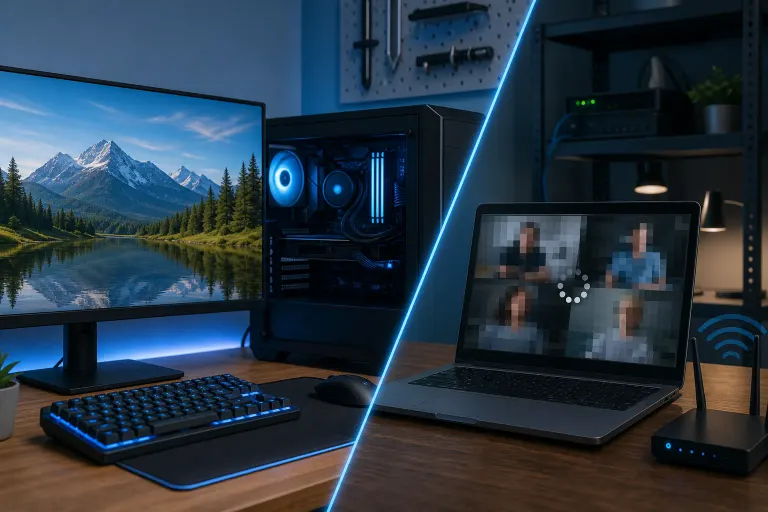
When you are just browsing or working in a document, your CPU, RAM, and network handle one job at a time. A video call forces all of them to sprint together.
Here is what is happening every second you are on that call:
- CPU encodes your outgoing video in real time (software encoding is brutal on older chips)
- RAM buffers incoming and outgoing audio and video streams
- Network uploads your encoded video while downloading everyone else's
- GPU (sometimes) handles decode on the receiving end
- Webcam driver adds a constant interrupt load
One weak link tanks the whole experience. That is why the PC that feels fast for everything else suddenly chokes the moment Zoom or Teams opens.
Step 2: Check CPU Usage During the Call
Open Task Manager (Ctrl + Shift + Esc), click the Performance tab, and watch the CPU graph while on a call.
- Above 80% sustained: CPU is your bottleneck. The video encoder is eating your headroom.
- Spikes to 100% on every keyframe: Same problem. Keyframes are full-image snapshots the encoder sends periodically, and they are expensive.
- Below 60%: CPU is probably not the issue. Move to the next step.
If CPU is the culprit, try lowering your video resolution inside the app settings. Dropping from 1080p to 720p can cut encoding load by roughly half. Closing background apps that use the CPU (browser tabs with video, Spotify, cloud sync) also helps immediately.
Step 3: Check RAM Usage
Still in Task Manager, click the Memory section. Look at the "In Use" bar.
- If you are at or near the top of your installed RAM, Windows is using the page file on your drive as overflow. That is dramatically slower than real RAM and will make everything feel sluggish.
- 8 GB is tight for a video call running alongside a browser, email, and Slack. 16 GB is the practical minimum for smooth multitasking in 2024 and beyond.
Short-term fix: close everything except the call app. Longer fix: add RAM. It is one of the cheapest performance upgrades available.
Computer acting up? Get a real diagnosis. Book a diagnostic
Step 4: Test Your Upload Speed
This one trips people up constantly. Most home internet packages are asymmetric: fast download, slow upload. Video calls primarily consume upload bandwidth because you are sending your video stream outbound.
Run a speed test at Fast.com and look at the upload number.
| Platform | Minimum Upload | Recommended Upload (HD) |
|---|---|---|
| Zoom | 1 Mbps | 3 Mbps |
| Microsoft Teams | 1.5 Mbps | 4 Mbps |
| Google Meet | 1 Mbps | 3.2 Mbps |
If you are on Wi-Fi, the problem may not be your plan at all. A congested 2.4 GHz channel or distance from the router can cut effective upload speed significantly. Try an ethernet cable and re-test. The difference is often dramatic.
Step 5: Check What the GPU Is Doing
In Task Manager, find the GPU section. Look at "Video Encode" and "Video Decode" usage specifically, not just the overall GPU load.
Modern apps like Teams and Zoom can offload encoding to the GPU hardware encoder (NVENC on NVIDIA, Quick Sync on Intel, AMF on AMD). If this is working, your CPU will be noticeably more free.
If your GPU encode usage is near zero and CPU is spiking, hardware encoding may be disabled or unsupported by your hardware. Check the app's advanced video settings and look for a hardware acceleration toggle. Enabling it can be a big win on systems with a dedicated GPU.
Step 6: Check Your Webcam and Driver Load
Some webcams, especially cheaper models, run uncompressed video over USB and force the CPU to compress that raw stream entirely in software. Higher-end webcams compress video onboard and send a smaller data stream.
Also check that your webcam driver is current. An outdated driver can cause repeated USB interrupts that spike CPU usage unpredictably. Device Manager, right-click the camera, update driver.
Common Mistakes
Running too many browser tabs during a call. Browser tabs with video embeds or live widgets consume CPU even when minimized. Close them.
Assuming Wi-Fi is as fast as ethernet. Wi-Fi speed tests in ideal conditions look fine. Under real call conditions, interference and packet loss make it worse. Always test upload while on Wi-Fi at your actual calling location.
Blaming the app when the hardware is the issue. Reinstalling Zoom will not fix a 4-core laptop from 2015 trying to encode 1080p video.
Ignoring background updates. Windows Update, antivirus scans, and cloud backup jobs frequently kick off during business hours and fight the call for CPU time. Schedule these for off-hours.
Using a USB hub for the webcam. Shared USB bandwidth on a passive hub can throttle the camera feed. Plug the webcam directly into a rear USB port on the motherboard if possible.
Bottom Line
Your PC is not randomly slow during video calls. It is hitting a specific ceiling, CPU encoding, RAM capacity, upload speed, or a driver issue, and the diagnostic steps above will tell you exactly which one. Fix that one thing and the experience changes immediately.
If you run through all of this and the PC is still struggling, the hardware may genuinely be at its limit. A RAM upgrade, a faster router connection, or in some cases a CPU or full machine refresh is the real answer. The team at Fix My PC Store on Okeechobee Boulevard can run a full performance check and tell you whether an upgrade fixes it or whether it is something else. Remote support is also available if you want someone to look at what is happening inside the machine without bringing it in.
Computer acting up? Get a real diagnosis.
Fix My PC Store has repaired thousands of machines across West Palm Beach. Honest pricing, no upsell games, and a free diagnostic for new customers with our email coupon.