Why Is My PC Randomly Restarting Without a Blue Screen?
TL;DR: Random restarts without a blue screen usually point to overheating, a failing power supply, or unstable RAM. Windows is skipping the error screen because the system cuts power before it can write one. Work through the steps below in order before assuming the worst.
What You Need
- A can of compressed air
- Free tools: HWiNFO64 for temperatures, MemTest86 for RAM testing (bootable USB), and Windows Event Viewer (built in)
- About 30-60 minutes for initial checks, longer if RAM testing is needed
- A spare known-good power supply if you can borrow one (optional but helpful)
Step 1: Check Whether Windows Is Hiding the Blue Screen
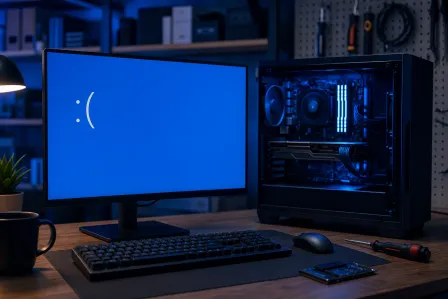
Windows has a setting called "Automatically restart" that reboots the PC the moment a critical error hits. When that's on, you never see the blue screen. Check this first because it costs you nothing.
- Press Win + R, type
sysdm.cpl, hit Enter. - Click Advanced, then Settings under Startup and Recovery.
- Uncheck Automatically restart under System failure.
- Click OK.
If your next restart produces an actual blue screen with a stop code, you now have a real lead. If the PC still restarts cleanly with no error, the problem is almost certainly hardware cutting power, not a software crash.
Step 2: Rule Out Overheating
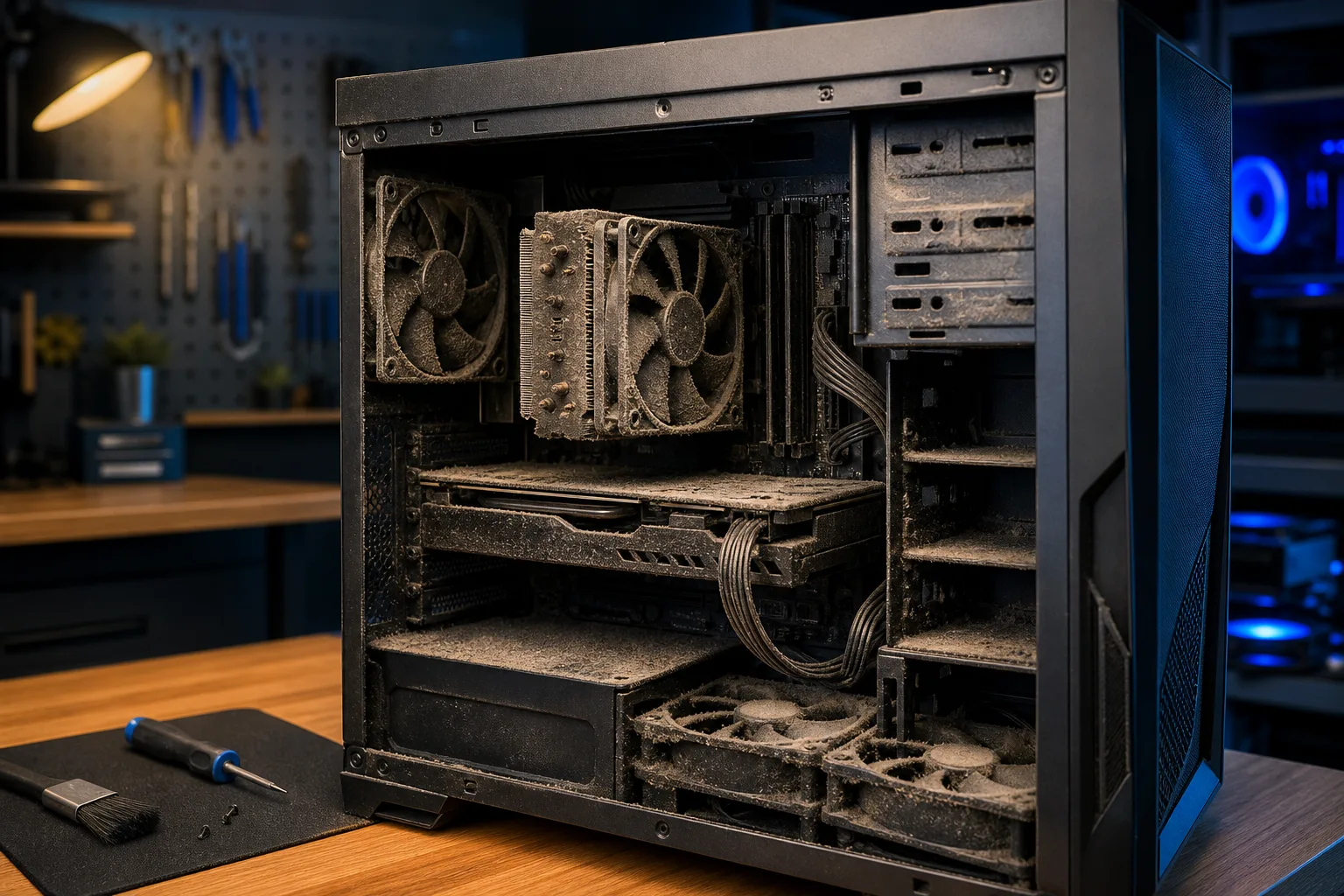
Heat is the most common culprit. Modern CPUs and GPUs will shut the system down instantly, with no warning, when they hit their thermal limit. No blue screen. No goodbye.
Download HWiNFO64 and watch your CPU and GPU temperatures under load. General warning zones:
| Component | Watch Out Above |
|---|---|
| CPU (most desktop) | 90°C under load |
| GPU | 85-90°C under load |
| Motherboard VRMs | 90°C |
If temps are spiking before the restart, the fix is usually:
- Cleaning dust from heatsinks and fans with compressed air
- Reapplying thermal paste on the CPU (typically needed every 3-5 years)
- Making sure all case fans are spinning and airflow isn't blocked
This is especially common in South Florida. Humidity and heat accelerate dust buildup and paste degradation. If the last time you cleaned inside the case was "never," start here.
Step 3: Stress-Test the Power Supply
A power supply that can't deliver stable voltage under load will kill power to the whole system instantly. No error code. No BSOD. Just off, then back on.
Signs that point to the PSU:
- Restarts happen under heavy load (gaming, rendering, large file copies) but not during light use
- Restarts correlate with adding a new high-power component like a GPU
- The PSU is more than 5-6 years old or is a cheap no-name unit
There is no safe DIY voltage test for a PSU while it is in a running system. Your two real options:
- Swap in a known-good PSU and see if restarts stop. This is the definitive test.
- Bring it in for diagnosis. At Fix My PC Store we can bench-test power supplies properly. Book a repair appointment if you'd rather not guess.
Computer acting up? Get a real diagnosis. Book a diagnostic
Step 4: Test Your RAM
Faulty RAM can cause instant reboots without producing a blue screen, especially if the failure is in a memory address Windows never gets to log.
Run MemTest86:
- Download MemTest86 and flash it to a USB drive.
- Boot from the USB (change boot order in BIOS/UEFI).
- Let it run at least two full passes, ideally overnight.
- Any errors at all mean at least one stick of RAM is bad.
If you have two sticks, test them one at a time to identify which one is failing.
Step 5: Check Windows Event Viewer for Clues
Even if Windows doesn't show a blue screen, it often logs something right before a restart.
- Press Win + X and open Event Viewer.
- Go to Windows Logs > System.
- Look for Critical or Error events timestamped at or just before each restart.
- Common IDs to look up: 41 (Kernel-Power) means unexpected shutdown, often hardware. 1001 (BugCheck) means there was a crash that may have a stop code buried in the details.
Event ID 41 with no accompanying BugCheck is a strong signal that power was cut abruptly, pointing back to PSU or overheating.
Step 6: Check for Driver or Software Triggers
If all hardware checks out, look at software. A bad driver can pull the plug in rare cases, especially GPU drivers.
- Roll back a recent GPU driver if restarts started after a driver update. Use DDU (Display Driver Uninstaller) in safe mode to cleanly remove and reinstall.
- Check for Windows updates that may have introduced an unstable driver.
- Look at recently installed software, especially system-level tools like overclocking utilities or antivirus.
This is the last step, not the first. Most random-restart-no-BSOD cases are hardware.
Common Mistakes
- Reinstalling Windows first. It rarely fixes random hardware-caused restarts and wastes a few hours.
- Ignoring the PSU because it's "not that old." Cheap PSUs fail well before their rated lifespan, especially if they're undersized for the system.
- Running MemTest86 for only one pass. Some RAM errors only appear after multiple passes.
- Assuming it's a virus. Malware almost never causes clean, instant reboots with no other symptoms.
- Skipping Event Viewer. It's not glamorous, but Event ID 41 will save you hours of guessing.
Bottom Line
Work through the steps in order: disable auto-restart, check temperatures, suspect the PSU under load, test RAM, then check Event Viewer. Most random no-BSOD restarts resolve at step two or three.
If you've been through this list and the machine is still rebooting, or if you'd rather not spend a Saturday chasing it, Fix My PC Store on Okeechobee Boulevard can run a full hardware diagnostic and bench-test your PSU. We serve West Palm Beach, Royal Palm Beach, and Wellington. Remote support is also available if you want a second set of eyes on Event Viewer logs first.
Computer acting up? Get a real diagnosis.
Fix My PC Store has repaired thousands of machines across West Palm Beach. Honest pricing, no upsell games, and a free diagnostic for new customers with our email coupon.