Why Is My Desktop PC Running Hot With the Side Panel Off?
TL;DR: Removing your PC's side panel disrupts the engineered airflow path your case was designed to maintain. Without that structure, hot air can linger around components instead of being pushed out. Dust buildup, failing fans, and dried thermal paste are usually the real culprits.
What Happened
Your desktop is running hot. Someone, maybe you, suggested pulling the side panel off to "let it breathe." Temperatures went sideways, or barely changed. Now you're confused.
This is one of the most common PC cooling myths. Open air feels cooler to us. To a PC, it's chaos.
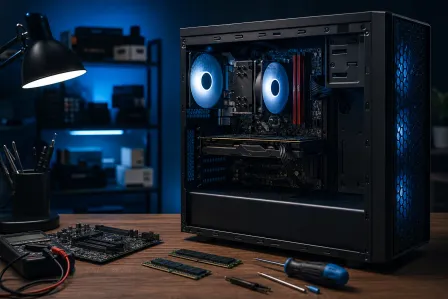
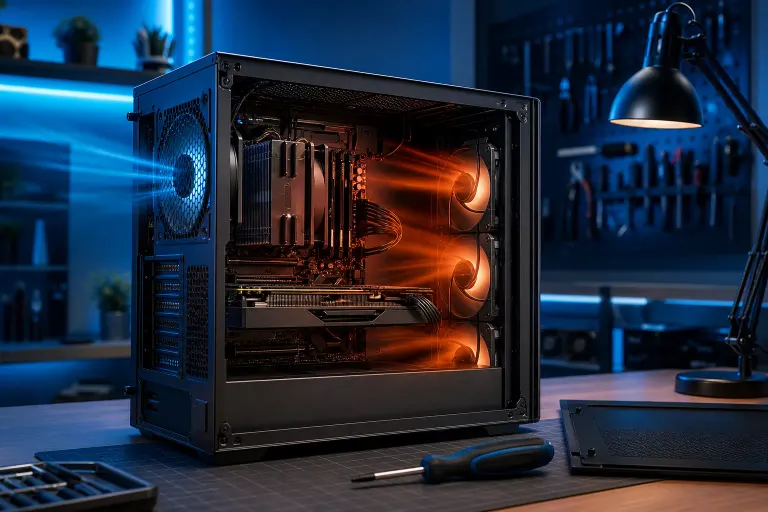
Modern PC cases are engineered as wind tunnels. Intake fans pull cool air in from the front or bottom. Exhaust fans push hot air out the back or top. That directed flow moves heat away from the CPU, GPU, and VRMs efficiently.
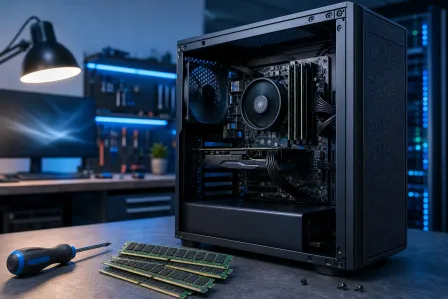
Pull the side panel off and that tunnel collapses. Air wanders. Hot exhaust from the GPU can drift back over the CPU. The deliberate pressure differential disappears. Some systems actually run hotter open than closed.
Why It Matters
Sustained high temps shorten component life. CPUs and GPUs throttle performance to protect themselves, which is why a hot PC also feels sluggish.
South Florida makes this worse. West Palm Beach summers push ambient temps well above what most PC cooling guides assume. A case that runs fine in a 68°F office can struggle in a 78°F Florida room, even with the panel on.
Here are the most common root causes when a PC runs hot regardless of panel status:
Dust clogging: Fine Florida dust and pet hair are relentless. Radiator fins, fan blades, and heatsink fins clog up and lose efficiency. This is the number one cause of gradual overheating.
Dried thermal paste: The paste between your CPU and its heatsink conducts heat. It can dry out or pump out over several years, which leaves gaps that move heat much less effectively. Temps climb steadily as a result.
Fan failure: A fan that spins slowly or not at all creates a dead zone in your airflow path. One failed case fan can stack heat onto everything downstream.
Inadequate case airflow from the start: Some budget cases ship with one exhaust fan and no intake. The system was always marginal. Florida ambient temps push it over the edge.
GPU or CPU running harder than expected: Background processes, crypto miners embedded in browser extensions, and poorly optimized software can peg your hardware without obvious signs.
Computer acting up? Get a real diagnosis. Book a diagnostic
What We Don't Know Yet
Without monitoring data, it's hard to say which component is the actual heat source. "Running hot" could mean the CPU is spiking, the GPU is sustained at 90°C+, or a drive is throttling quietly in the background.
It also matters whether temps are high at idle, under load, or both. An idle PC hitting 80°C on the CPU points straight at thermal paste or a dead cooler fan. A GPU hitting 85°C only during gaming is often within spec for certain card designs, though worth watching.
Free tools like HWiNFO64 or MSI Afterburner can log temps per component over time. That data tells you exactly where the problem is before you do anything else.
What to Do About It
Work through this in order before spending money.
- Check temps with monitoring software. Identify which component is hot and when. Note the idle and load temps separately.
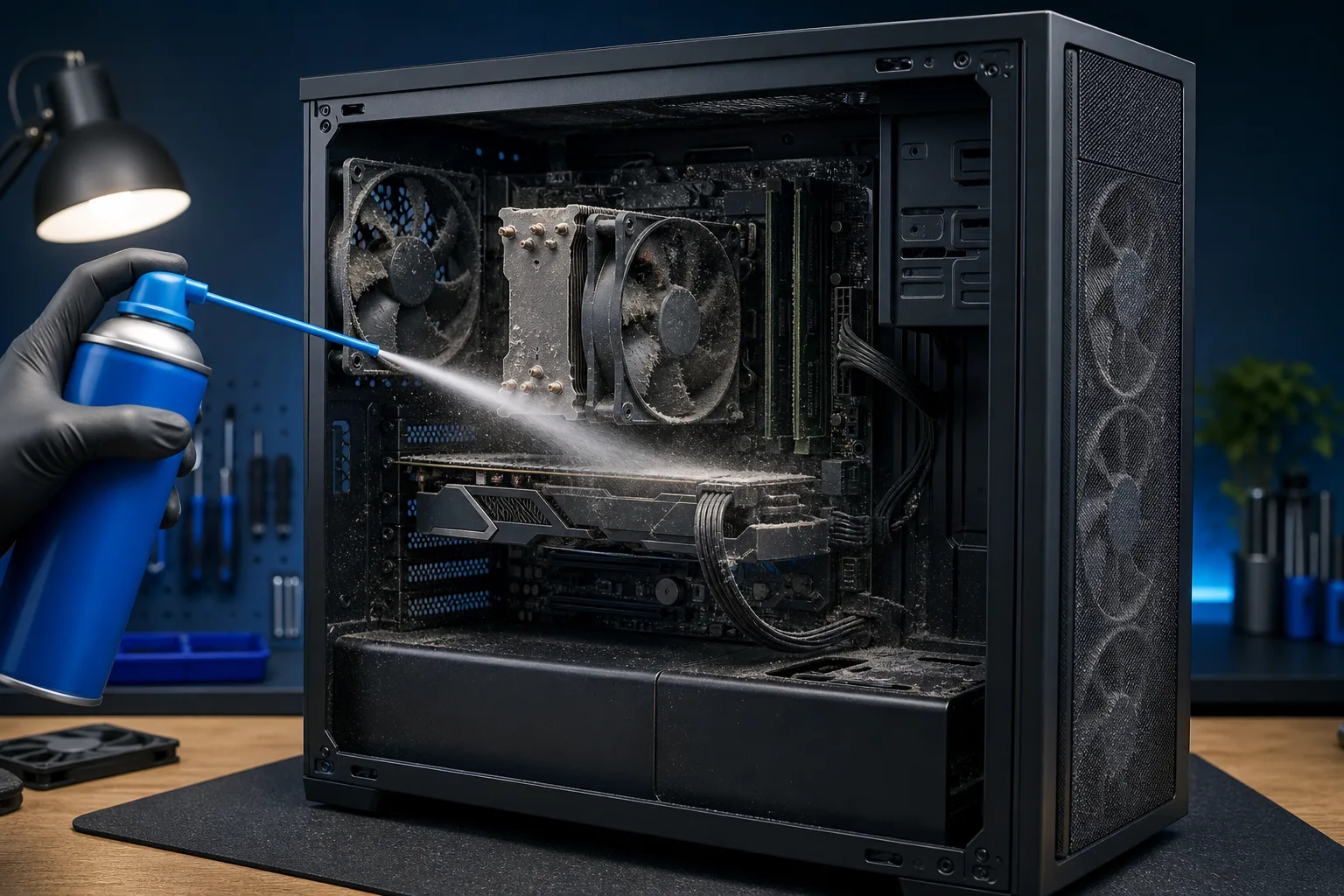
- Power down and inspect for dust. Compressed air, outdoors if possible, with the PC unplugged. Hold each fan blade still while you spray and keep the can upright. Clear the CPU heatsink, GPU fins, and all case fans.
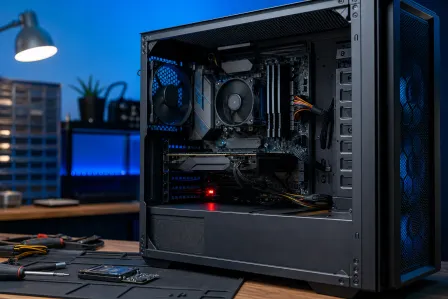
- Verify all fans are spinning. Boot up with the side panel off temporarily, just long enough to watch each fan. Replace any that are dead or slow.
- Put the side panel back on. Seriously. If your case has proper intake and exhaust fans, closed is almost always cooler.
- Check case fan direction and count. You want more intake than exhaust, or at least balanced. Flip any fans blowing the wrong way.
- Consider thermal paste replacement if the system is 3+ years old and the CPU is running consistently hot even at idle.
If you've done all that and temps are still alarming, the problem may be a failing cooler, a blocked heatsink that needs disassembly to clear, or hardware running outside spec. That's a good time to bring it in.
For West Palm Beach residents, Fix My PC Store charges $60 for a diagnostic, credited toward the repair, or it is free with the coupon our website emails when you join the list. Bring the machine to 10140 Okeechobee Blvd, Suite B, or call 561-819-9999 during shop hours (Mon-Fri 9am-6pm, Sat 9am-5pm). If you'd rather not carry a tower, remote support can help you run diagnostics and identify the culprit before you decide on next steps.
If you're building something new and want airflow engineered in from the start, the custom gaming PC builder is worth a look.
Computer acting up? Get a real diagnosis.
Fix My PC Store has repaired thousands of machines across West Palm Beach. Honest pricing, no upsell games, and a free diagnostic for new customers with our email coupon.