Why Is My PC Clock Wrong After Every Restart?
TL;DR: A PC clock that resets after every restart almost always means the CMOS battery on your motherboard is dead or dying. Replacing it is a quick, cheap fix most people can do at home. If the battery swap does not help, a deeper motherboard issue or a Windows time-sync problem may be involved.
What you need
- A CR2032 coin-cell battery (available at any pharmacy or hardware store, usually under $5)
- A small Phillips-head screwdriver
- An anti-static wrist strap (optional but good practice)
- About 15 minutes
Step 1: Confirm the clock actually resets on restart
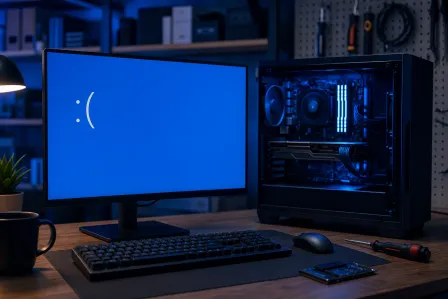
Before cracking open your case, make sure the clock is wrong specifically after a full shutdown and power-up, not just after sleep or hibernate. Sleep keeps RAM powered and the clock ticking. A reset after a full cold boot points clearly to the CMOS battery.
Write down the wrong time the PC shows on boot, then check if it is the same wrong date each time. A common signature: the clock resets to January 1, 2000 or to the motherboard's factory date. That is almost certainly the CMOS battery.
Step 2: Check Windows Time Sync first
Before opening the case, rule out a Windows configuration problem. It takes 60 seconds.
- Press Win + R, type
services.msc, and press Enter. - Scroll to Windows Time and confirm it is set to Automatic and is Running.
- Open Settings > Time & Language > Date & Time and make sure Set time automatically is on.
- Click Sync now. If the time corrects but resets again on the next restart, the issue is hardware, not software.
If Windows Time is disabled or the PC has no internet connection at boot, that alone can cause a drifting clock, but it usually does not reset to a specific wrong date. If you see a specific wrong date every time, move to Step 3.
Computer acting up? Get a real diagnosis. Book a diagnostic
Step 3: Replace the CMOS battery
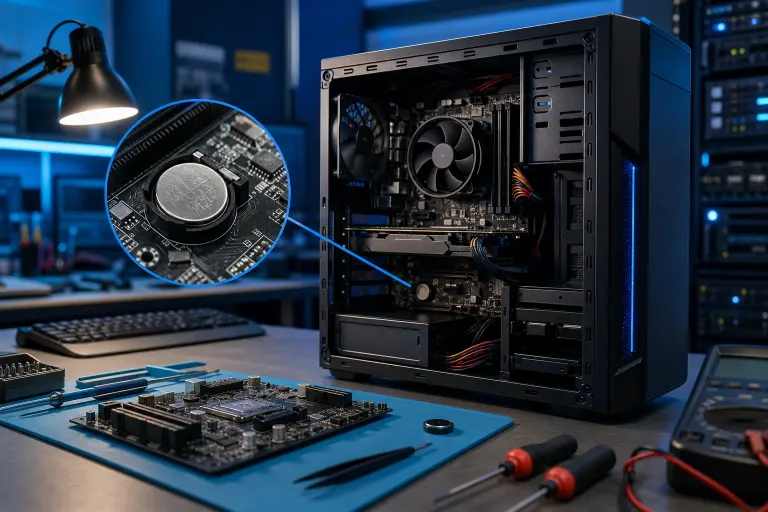
The CMOS battery is a small coin cell, almost always a CR2032, seated in a clip or socket on the motherboard. It holds the clock and BIOS settings when the PC is unplugged.
- Shut down and unplug the PC from the wall. Do not just switch off the power strip. Unplug the power cable.
- Ground yourself by touching the metal chassis of the case before touching any components.
- Open the side panel and locate the coin cell. It is usually near the center or lower-right of the motherboard, in a round silver holder.
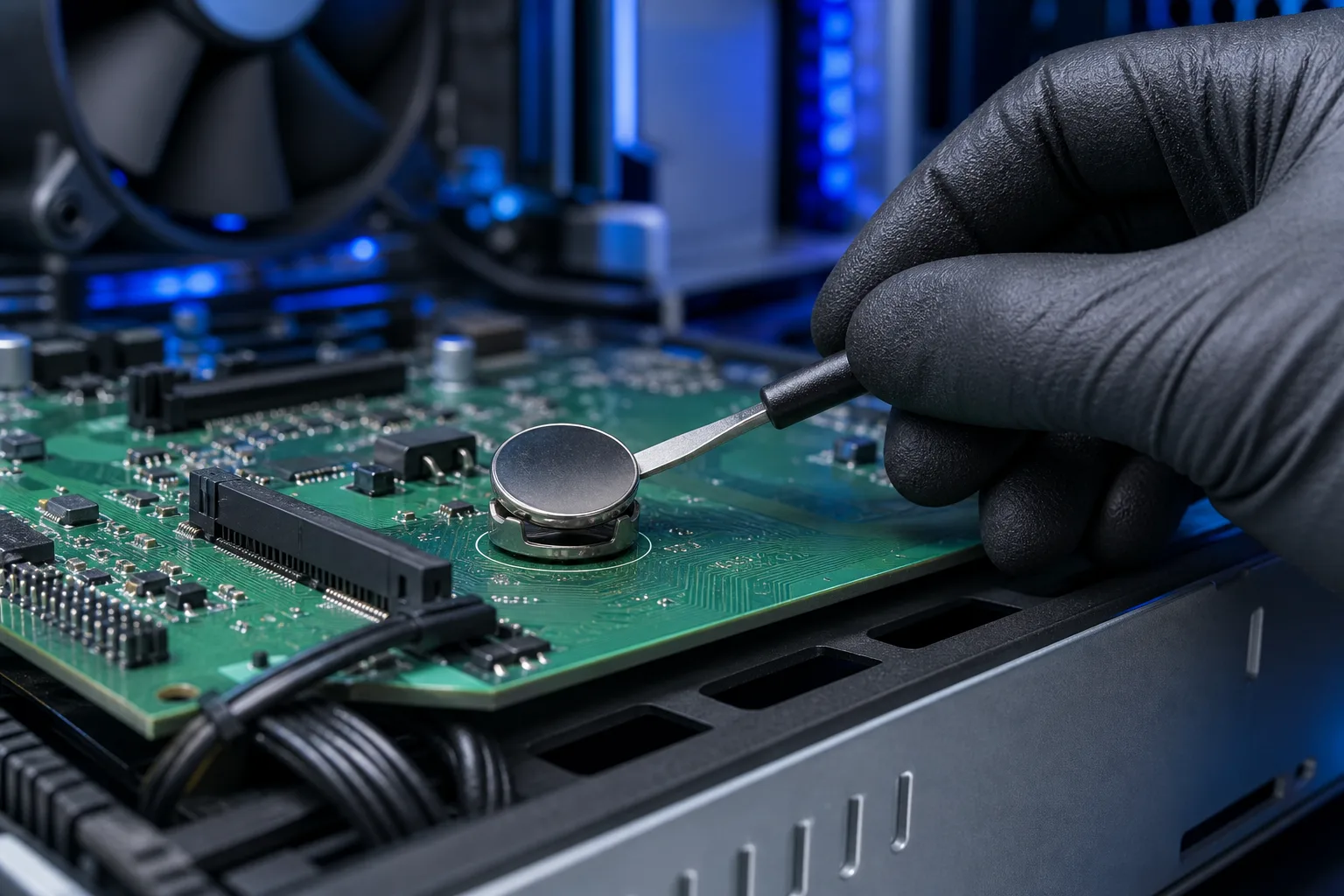
- Pop out the old battery. Most holders have a small clip you press to release it.
- Insert the new CR2032 positive side up (the side printed with the plus sign faces you).
- Reassemble and boot. Enter the BIOS by pressing Delete, F2, or F10 (varies by motherboard) and set the correct date and time there, not just in Windows.
- Restart once more and check whether the time held.
If the time is correct after the next restart, you are done.
Step 4: If replacing the battery does not fix it
A new battery that still drains quickly, or a clock that still resets, can point to a few less common problems.
| Cause | Clue | Next step |
|---|---|---|
| Motherboard leaking current | New battery dies within days | Professional diagnosis |
| Corrupted BIOS settings | Other BIOS settings also reset | Flash BIOS to latest version |
| No network at boot (NTP sync too late) | Clock is slightly off, not wildly wrong | Fix Windows Time service settings |
| Power outage with no UPS | Resets only after outages | Consider a UPS for desktop |
A motherboard that drains batteries fast is a sign of a component failure on the board itself. That is worth having looked at by a technician rather than chasing the symptom.
Common mistakes
Setting the time only in Windows, not in BIOS. Windows syncs to the internet after boot, which can mask the problem temporarily. Always set the time in the BIOS first after replacing the battery.
Buying the wrong battery size. Most modern motherboards use CR2032, but a few use CR2016 or CR2025. Pull the old battery out and read the number printed on it before buying a replacement.
Forgetting to update BIOS settings after the swap. Replacing the CMOS battery may reset BIOS customizations on some motherboards, including boot order. Check your boot device order after the swap before you assume the PC will start normally.
Skipping the time-sync check. If Windows Time is disabled, the clock will drift even with a healthy battery. Always check the software side first.
Bottom line
A PC clock that resets to the same wrong date after every cold boot is almost always a dead CMOS battery. A CR2032, a screwdriver, and 15 minutes will fix it in most cases. If the problem returns after a battery swap, the motherboard may need professional attention.
If you would rather not open the case yourself, or the issue turns out to be more involved, the team at Fix My PC Store can diagnose and repair it at our West Palm Beach shop. Book a repair visit or use remote support if you just want someone to walk you through the Windows side.
Computer acting up? Get a real diagnosis.
Fix My PC Store has repaired thousands of machines across West Palm Beach. Honest pricing, no upsell games, and a free diagnostic for new customers with our email coupon.