Why Is My PC Showing a Blue Screen Only During Certain Apps?
TL;DR: An app-specific blue screen usually means the app is pushing a failing driver, unstable RAM, an overheating GPU or CPU, or a corrupted system file. The app itself is rarely the root cause. Work through the steps below to isolate the problem before it gets worse.
What you need
- A Windows PC that can at least boot to the desktop
- About 30-60 minutes for the first round of checks
- Free tools: Windows Event Viewer (built in), WhoCrashed or BlueScreenView (both free), and Windows Memory Diagnostic (built in)
- Optional: HWiNFO64 or HWMonitor for temperature readings
Step 1: Read the blue screen stop code
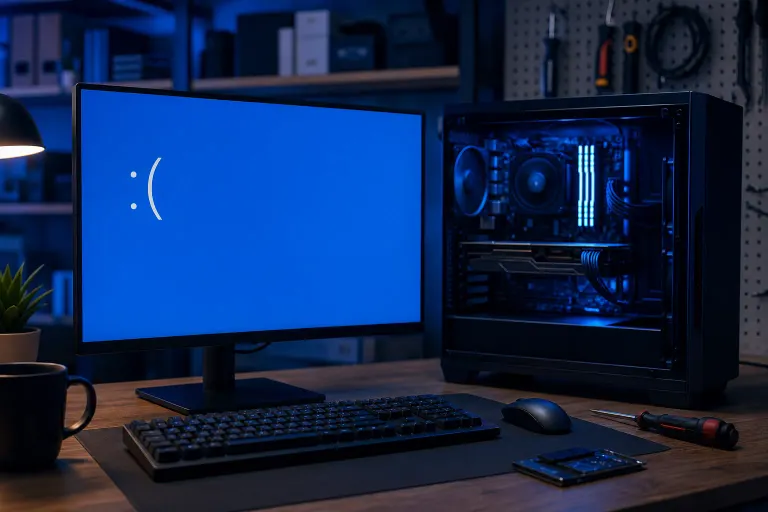
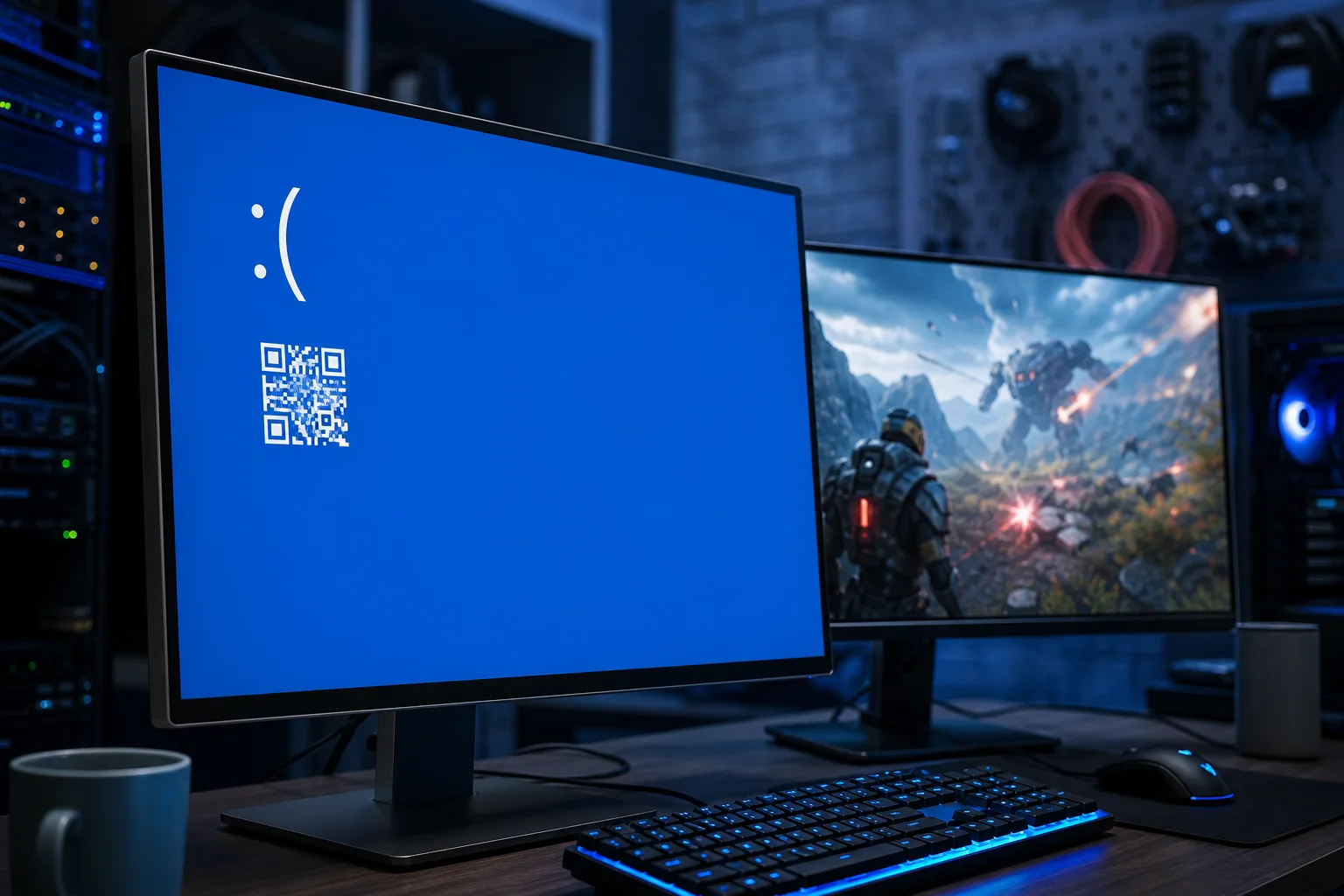
Every blue screen shows a stop code, such as SYSTEM_SERVICE_EXCEPTION or PAGE_FAULT_IN_NONPAGED_AREA. Write it down exactly.
If the screen disappears too fast, go to Settings > System > About > Advanced System Settings > Startup and Recovery and uncheck "Automatically restart." The next crash will pause on the blue screen so you can read it.
The stop code narrows the category of problem immediately. Memory errors, driver faults, and hardware failures each produce different codes.
Step 2: Check the crash dump with a free analyzer
Windows saves a crash log called a minidump every time it blue screens.
- Download and run WhoCrashed or BlueScreenView.
- Open the most recent crash report.
- Look for a specific driver file name, usually ending in
.sys.
If you see a third-party driver listed (a GPU driver, audio driver, or a driver from the app's own installer), that is your first strong lead. If you see ntoskrnl.exe listed without a supporting driver, RAM or hardware is the more likely cause.
Step 3: Match the app to what it stresses
Different apps stress different components. Use this decision table to guide your next step.
| App type | Component most stressed | Where to look next |
|---|---|---|
| Game or 3D renderer | GPU and VRAM | GPU driver, GPU temperature |
| Video editor or encoder | CPU and RAM | RAM test, CPU temperature |
| Browser with many tabs | RAM | RAM test, page file settings |
| Security or VPN software | Kernel and drivers | Driver conflict, software uninstall |
| External device software | USB or chipset drivers | Device driver update or rollback |
This does not give you a definitive answer, but it tells you where to focus first.
Step 4: Update or roll back the suspected driver
If Step 2 named a driver, open Device Manager, find the matching device, right-click, and choose Update driver. If a Windows update recently installed a new driver and the crashes started after that, choose Properties > Driver > Roll Back Driver instead.
For GPU drivers specifically, use the manufacturer's tool rather than Windows Update. NVIDIA has GeForce Experience and AMD has Adrenalin. A clean install option is available in both and removes leftover files that can cause conflicts.
Computer acting up? Get a real diagnosis. Book a diagnostic
Step 5: Run Windows Memory Diagnostic
Search for Windows Memory Diagnostic in the Start menu. Choose "Restart now and check for problems." The test runs on reboot and takes 10-20 minutes.
If errors appear, you have a failing RAM stick. Try removing one stick at a time and retesting if you have more than one module installed. A single bad stick is a common cause of crashes that only happen under memory-heavy apps.
Step 6: Check temperatures while the app runs
Install HWiNFO64 and watch the sensor readings while you open the problem app. General warning thresholds to watch:
- CPU: sustained readings above roughly 90-95°C are a concern
- GPU: sustained readings above roughly 90°C are a concern
If temperatures spike right before the crash, the component may be throttling or shutting down to protect itself. Common causes are dried-out thermal paste, blocked vents, or a failing fan. In South Florida's heat and humidity, dust buildup inside a PC can accelerate this significantly.
Step 7: Run System File Checker
Open Command Prompt as Administrator and run:
sfc /scannow
This scans Windows system files and replaces corrupted ones automatically. If it finds and fixes problems, restart and test again. If it reports that it could not fix everything, follow up with:
DISM /Online /Cleanup-Image /RestoreHealth
Then run sfc /scannow a second time.
Common mistakes
Blaming the app and reinstalling it. The app is almost never the direct cause. Reinstalling it usually changes nothing because the driver, RAM, or hardware problem remains.
Ignoring the stop code. Searching the exact stop code takes two minutes and cuts diagnosis time in half. Skipping it means guessing.
Running only one pass of memory diagnostic. The built-in Windows test is good for obvious failures but can miss subtle errors. If you still suspect RAM after a clean result, MemTest86 run overnight catches more.
Updating all drivers at once. If you update five drivers and the crash stops, you do not know which one fixed it. Update one at a time and test after each.
Skipping temperature checks in a warm environment. Florida homes and offices without strong airflow can push a PC over its thermal limit faster than in cooler climates. A tower shoved against a wall or inside a cabinet is a real risk.
Bottom line
App-specific blue screens are a signal that one component or driver is already under stress. The app just happens to be the trigger. Work through the stop code, crash dump, driver check, RAM test, and temperature readings in that order. Most people find the answer by Step 4 or 5.
If you have run through these steps and the crashes keep happening, or if the minidump points to hardware you are not comfortable testing yourself, the team at Fix My PC Store on Okeechobee Blvd offers free initial checks on most in-store repairs. You can also start with remote support if the PC is still usable. For anything that might involve hardware replacement, book a visit and bring the PC in.
Computer acting up? Get a real diagnosis.
Fix My PC Store has repaired thousands of machines across West Palm Beach. Honest pricing, no upsell games, and a free diagnostic for new customers with our email coupon.