5 Office Wi-Fi Habits That Quietly Kill Productivity
TL;DR: Most office Wi-Fi slowdowns come from a handful of repeat offenders: one overworked router, guest devices mixed with business traffic, outdated firmware, bad router placement, and too many devices competing for the same channel. Fix these five habits and your team gets faster, steadier internet without buying anything fancy.
Have you ever sat there watching a page spin while a video call freezes mid-sentence? You blame the internet provider. Sometimes that's fair. But often the real problem is sitting quietly inside your own office, in habits nobody thinks to question.
Good news: none of these are mysterious. Let's walk through the five habits that sneak up on small offices across West Palm Beach and the Treasure Coast, and what to do about each one.
1. Running Everything Through a Single Consumer Router
Here's a question worth asking: is your office Wi-Fi coming from the same little box you'd use at home?
Consumer routers are built for a handful of devices streaming Netflix, not a full office running video calls, cloud apps, point-of-sale systems, and a dozen phones at once. Most consumer-grade hardware is rated for somewhere between 10 and 20 devices under ideal conditions, but those conditions almost never exist in a real office. Add the constant churn of devices connecting and disconnecting, background app syncing, and the occasional video call that doesn't hang up cleanly, and you're asking a living-room appliance to do a professional job.
The symptoms are easy to recognize in hindsight: the connection seems fine in the morning but bogs down after 9 a.m. when everyone arrives, or video calls are crisp for the first participant but choppy by the time the third or fourth person joins. That's not a bandwidth problem, that's a routing problem. The box in the corner simply can't process that many simultaneous requests fast enough.
When too many devices ask for too much at the same time, the router simply can't juggle it all. You get lag, dropped calls, and random disconnects that seem to happen for no reason.
The fix is usually a proper business-grade setup with access points designed to handle simultaneous connections and prioritize traffic that actually matters, like your phone system or point-of-sale terminal. Business-grade access points can typically handle 50 or more active devices and include features like Quality of Service (QoS) controls, which let you tell the network that your VoIP calls should always get priority over someone's Spotify playlist. If your office has grown past 8 or 10 connected devices, it's probably time to look at business networking built for real workloads instead of a router meant for a living room.
2. Letting Guest and Business Traffic Share One Network
Think about everyone who connects to your Wi-Fi in a normal week. Employees, sure. But also customers, vendors, delivery drivers, maybe a landlord's maintenance crew. If they're all on the same network as your point-of-sale system and your accounting software, that's a problem waiting to happen.
Here's a concrete example: a vendor visits for a meeting and connects their laptop to your Wi-Fi. They don't know, and wouldn't necessarily tell you, that their machine picked up malware from a client site last week. That laptop is now sitting on the same network segment as your customer database and your file server. In the time it takes to have the meeting, automated scanning tools on that infected machine may have already catalogued every device on your network.
Bandwidth is the more visible problem. A customer streaming a movie or a delivery driver updating their app while they wait for a signature can quietly eat a meaningful chunk of your available bandwidth. When that happens during a busy period, your staff feels it as sluggishness, and they rarely connect it to the visitor sitting in the waiting area.
A guest's infected phone can quietly probe your network. A customer streaming video during their visit can eat bandwidth your staff needs for work. And if something goes wrong, it's much harder to tell what happened when everyone's traffic is tangled together.
The habit to break here is simple: separate networks. One for guests, completely isolated from your internal systems. One for staff and business devices. Most business-grade routers and access points support this out of the box through VLAN configuration, it's not expensive or complicated to set up, it just needs to be done intentionally. This is basic hygiene, and it pairs naturally with broader business cybersecurity practices, since network segmentation is one of the easiest ways to limit how far a problem can spread if a device does get compromised.
3. Ignoring Router and Firmware Updates
Quick gut check: when's the last time your router firmware was updated?
If you're not sure, you're not alone. Firmware is the software that runs inside your networking hardware, and manufacturers release updates for the same reasons software companies push patches to your computer: to fix bugs, close security vulnerabilities, and sometimes add stability improvements that directly affect performance.
Skipping updates for months or years is more consequential than most people realize. Security researchers regularly publish details of vulnerabilities in common router models, and once those details are public, anyone with basic technical skills can exploit them. A router running 18-month-old firmware is a known quantity to anyone looking for a way in. Beyond security, some of the most frustrating performance bugs, random reboots, devices dropping off and refusing to reconnect, intermittent slowdowns at peak hours, have been quietly fixed in firmware versions that simply haven't been installed.
Firmware updates fix bugs, patch security holes, and often improve performance and stability. Skipping them for months or years means you're running hardware with known weaknesses, and sometimes with the exact bugs causing your slowdowns already fixed in a version you haven't installed.
This is one of those habits that's easy to fix once you know it's a habit. Set a recurring monthly reminder to log into your router's admin panel and check for updates. Or better yet, let it be handled automatically as part of ongoing managed IT support. Updates that happen quietly in the background, verified, tested, and applied during off-hours, beat the alternative: finding out the hard way when something breaks during business hours.
Tired of IT that breaks at the worst time? Talk to our business IT team
4. Placing the Router Wherever It's Convenient
This one sounds almost too simple, but router placement has an outsized effect on Wi-Fi performance, and most offices get it wrong for the most understandable reason: the router goes wherever the cable comes out of the wall.
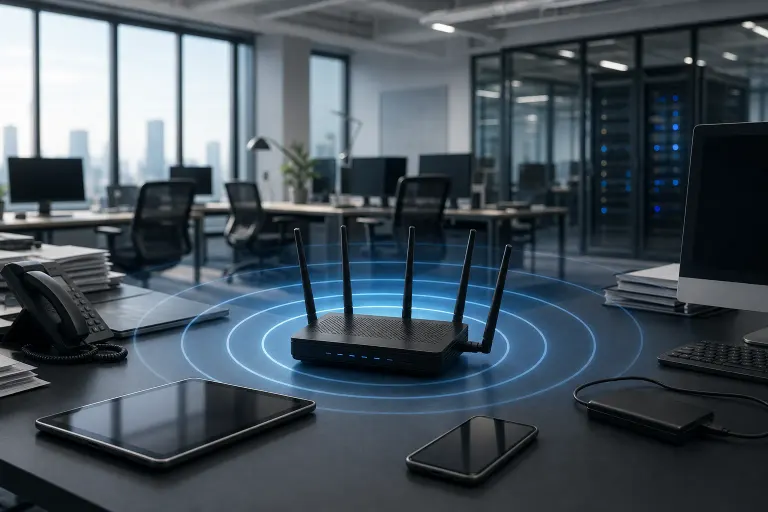
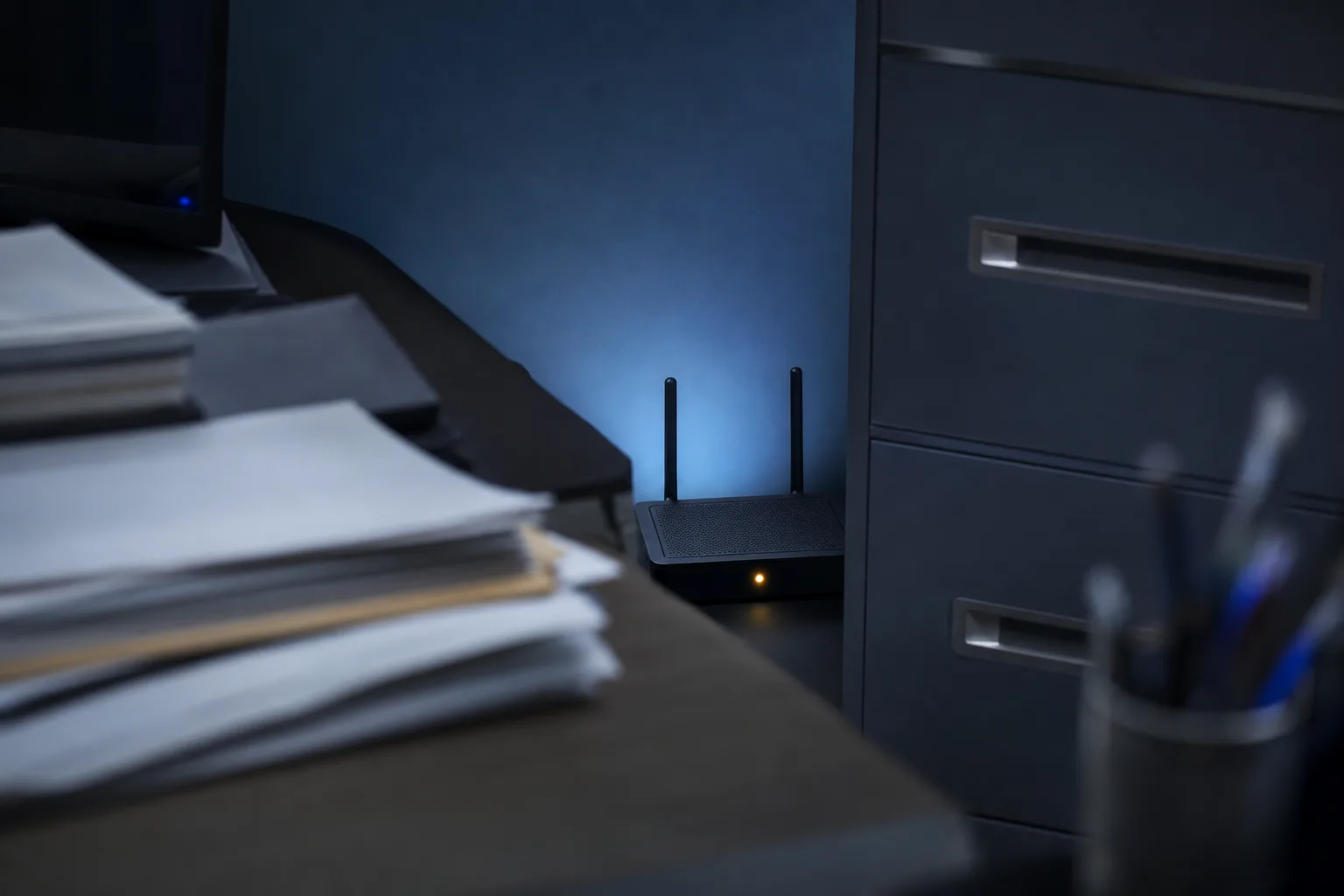
That usually means a back corner, a utility closet, or a spot behind a desk where it's out of the way. The problem is that Wi-Fi signals radiate outward in all directions, and they degrade quickly when they pass through walls, metal filing cabinets, concrete pillars, or even large appliances. A router sitting in a back corner is wasting half its signal pushing through an exterior wall to the parking lot.
The physics are straightforward: every wall a Wi-Fi signal passes through costs you signal strength. A standard interior drywall partition can cut signal strength noticeably; a concrete or brick wall can reduce it dramatically. That means an employee working two rooms away from a corner-mounted router might have a technically connected device that's struggling to maintain a reliable stream of data, producing exactly the symptoms that look like an internet problem but are actually a placement problem.
For offices larger than a single open room, a single router in any location usually isn't enough regardless of placement. This is where a properly designed access point system, with multiple units positioned to provide overlapping coverage, makes a significant difference. Central placement matters for each unit, and so does keeping access points away from interference sources like microwaves, cordless phones, and dense clusters of other electronics.
If you've noticed that Wi-Fi works great at some desks and poorly at others, or that a specific conference room always seems to have connection problems, placement is usually the first thing worth examining.
5. Overlooking Channel Congestion
Wi-Fi operates on radio frequencies, and those frequencies are shared, not just within your office, but with every other business and home network in range. In a dense office building, your router might be competing with a dozen or more neighboring networks all broadcasting on the same channel. The result is interference that slows everyone down, even when your own setup is perfectly configured.
Most routers default to automatic channel selection, which sounds sensible but often isn't. The auto-selection algorithm typically runs once when the router starts up and then locks in a channel, even if that channel becomes congested later in the day as neighboring businesses open and their own networks come online.
The solution involves two steps. First, use a Wi-Fi analyzer tool, there are free apps for both phones and laptops, to see which channels are crowded in your specific environment and which ones have room to breathe. Second, manually set your router to a less congested channel rather than relying on automatic selection to get it right.
For the 2.4 GHz band, channels 1, 6, and 11 are the only non-overlapping options, so the analysis is relatively simple. The 5 GHz band offers significantly more non-overlapping channels and generally less neighborhood congestion, which is one more reason to push capable devices onto 5 GHz whenever possible and reserve 2.4 GHz for older hardware that needs it.
If your office building houses multiple tenants, it's worth knowing that this congestion problem compounds over time as more businesses move in and add their own equipment. Periodic channel reviews, at least a couple of times a year, keep you from quietly losing ground as the radio environment around you changes.
The Bigger Picture
None of these five problems require expensive solutions or a full network overhaul. They require attention, the kind of regular, deliberate review that most small offices never apply to their networking setup because it runs in the background and feels invisible until it breaks.
The pattern behind all five habits is the same: infrastructure set up once and then left alone to quietly drift out of optimal condition. A consumer router that made sense when the office had five devices becomes the bottleneck when it has twenty-five. A firmware version that was current two years ago is now full of known holes. A channel that was clear when the router was configured is now crowded with a half-dozen neighbors.
Start with a walkthrough of your own office using these five as a checklist. Chances are at least two or three apply, and fixing them costs nothing but time. If you'd rather have someone map out exactly what's happening on your network and put together a plan to address it, that conversation is straightforward to start, and the difference in day-to-day reliability for your team is usually noticeable within hours of making changes.
Tired of IT that breaks at the worst time?
We run managed IT, backups, and security for South Florida businesses so you can stop thinking about it.