Office Printer Offline for Everyone? Here's the Fix
TL;DR
A printer that goes offline for a single user is usually a driver or connection problem on that machine. A printer that goes offline for the entire office at once is almost always the network, the print server, or the printer's own network interface. Work through the causes in order of likelihood, not the order that's easiest to try first.
What you need
- Admin access to at least one affected workstation
- The printer's IP address (check the printer's touch panel or network settings menu)
- Access to your router or switch admin panel, or someone who has it
- Five minutes before you start restarting things randomly
- A second device on the same network to test from (phone on Wi-Fi works)
1. Confirm it's actually everyone
Before troubleshooting a network-wide issue, verify the scope. Ask two or three people on different floors or different Wi-Fi access points if they're seeing the same "offline" status. This matters because:
- If it's only people on one switch or one Wi-Fi access point, the problem is that specific network segment, not the printer
- If it's only people using one specific app (like a point-of-sale system) to print, the problem is that app's print path, not the printer itself
- If it's genuinely everyone, everywhere, on every device, you've narrowed it to the printer, the print server, or core network gear
Don't skip this step. Half the "printer is down for everyone" calls I get turn out to be a subset of users, which points to a completely different fix.
2. Check the printer's own network connection first
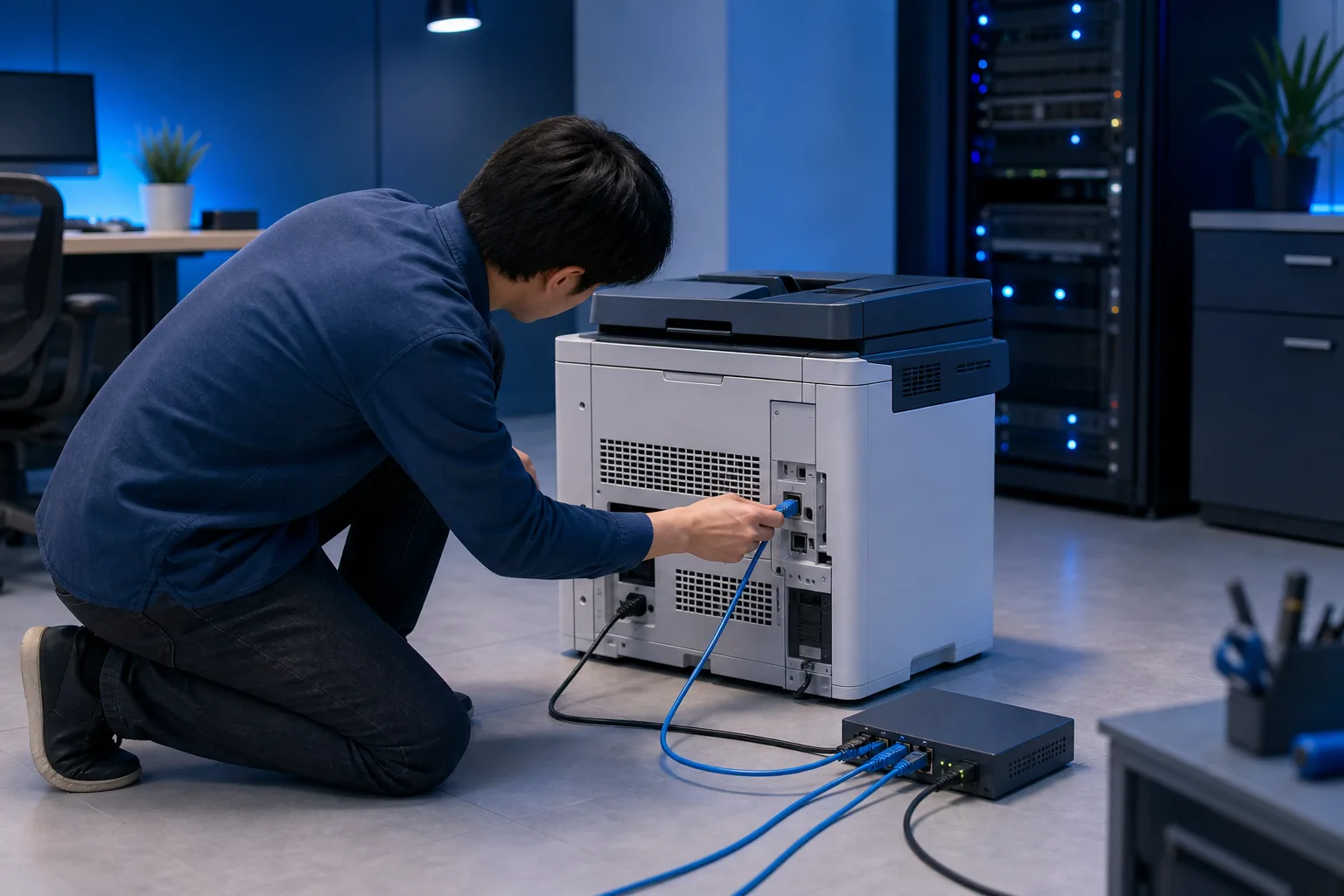
Go physically look at the printer. Most office printers have a small screen or status light that shows network state.
- Look for a wired or Wi-Fi connection indicator on the printer panel
- If it shows no network connection, check the ethernet cable at both ends, the printer side and the switch side
- If it's on Wi-Fi, check whether the printer's signal strength indicator shows a connection at all
- Print a network configuration page directly from the printer's menu (every business printer has this option) and note the IP address shown
If the printer itself has no IP address or shows "no network," you've found it. Nobody's computer can see a printer that isn't on the network. Skip ahead to step 5.
3. Ping the printer from a working device
This is the fastest way to tell whether the printer is reachable on the network at all, independent of any print queue or driver.
- On a Windows PC, open Command Prompt and type
pingfollowed by the printer's IP address - On a Mac, open Terminal and do the same
- If you get replies back, the printer is alive on the network and the problem is likely software (print spooler, driver, or print server), covered in step 4
- If you get "request timed out" or "destination host unreachable," the printer has dropped off the network, which points back to step 2 or a DHCP issue covered in step 5
A printer that responds to ping but still shows offline in Windows or macOS almost always points to a stuck print spooler or a stale driver port, not a hardware fault.
Tired of IT that breaks at the worst time? Talk to our business IT team
4. Restart the print spooler service
When a large print job jams or a corrupted file gets stuck in the queue, the Windows print spooler service can lock up and report every printer as offline, even ones that are working fine. If your office prints through a shared print server or a designated print server PC, this is a common culprit.
- On the machine acting as the print server, search for "Services" in the Start menu
- Find "Print Spooler" in the list
- Right-click and choose Restart
- If it's stuck and won't restart, stop it first, wait ten seconds, then start it again
- Check the print queue folder for any jobs stuck at 0% or showing an error, and delete them before they jam things up again
If every workstation prints through one central server rather than connecting to the printer directly, this single restart often fixes the whole office at once. This is also a strong argument for managed IT that monitors print servers proactively instead of waiting for the whole floor to call in.
5. Check for an IP address change
This is the single most common cause of an office-wide printer outage, and it's almost always avoidable. Here's what happens:
- The printer was set up months or years ago with a specific IP address
- Everyone's computer has that specific IP address saved in their printer driver
- A router reboot, firmware update, or DHCP lease expiration hands the printer a new IP address
- Every computer is now trying to talk to the old, no-longer-valid address
- Every computer shows the printer as offline, at the exact same time, for no apparent reason
To confirm this is what happened, compare the IP address on the printer's own network configuration printout (from step 2) against the IP address configured in the printer driver on any workstation. If they don't match, you've found the cause.
The permanent fix is assigning the printer a static IP address, or a DHCP reservation tied to its MAC address, so it never changes again. This is a five-minute job on most business routers and it eliminates this entire category of problem going forward. If your office network setup doesn't currently reserve addresses for shared devices like printers, it's worth having someone review your business networking so this doesn't keep happening.
6. Check the switch, access point, or router the printer depends on
If the printer's IP address is correct and stable but it still won't respond to a ping, the problem may be upstream of the printer.
- Check whether other wired devices on the same switch are also having connectivity issues
- Power cycle the specific switch or access point the printer connects through, not the whole network if you can help it
- Check for a loose or damaged ethernet cable, especially if the printer has been moved recently
- If the printer is on Wi-Fi, weak signal from being placed in a back room or behind a filing cabinet is a legitimate and common cause of intermittent drops
Printers on Wi-Fi are more failure-prone than wired printers in an office setting. If this keeps happening, running a cable is usually the permanent fix rather than repeatedly troubleshooting a flaky wireless connection.
7. Rule out a Windows or macOS update side effect
Occasionally a Windows or macOS update changes default printing protocols or security settings and every machine that recently updated starts failing to reach the printer, even though the printer hasn't changed at all.
- Check whether the offline reports started right after a patch Tuesday or a macOS update rolled out across the office
- Check the printer manufacturer's site for a known compatibility note or updated driver for the OS version in question
- Update the printer driver on one test machine and confirm it resolves the issue before pushing it to everyone
This is less common than the IP address issue but worth ruling out, especially if the printer worked fine the day before with zero physical changes.
Common mistakes
- Restarting the printer repeatedly instead of checking the network first. A hard power cycle can temporarily mask an IP address conflict without fixing the underlying cause, so it comes back a week later.
- Fixing it on one computer and calling it done. If the root cause is a stale IP address or a dead print server, you need to fix it at the source, not reinstall the printer on each of fifteen machines one at a time.
- Assuming it's the printer's fault when it's the switch or router. Printers get blamed constantly because they're the visible symptom, but the actual failure is often upstream network gear.
- Not documenting the fix. If you found a stale IP address, write down the correct static IP and where it's configured so the next person (or you, in six months) doesn't start from zero.
- Ignoring the pattern. If this is the third time this quarter the office printer has gone offline for everyone, that's not bad luck, that's a network configuration problem that needs a permanent fix, not another temporary restart.
Bottom line
An office-wide printer outage is a network problem wearing a printer costume almost every time. Confirm the scope, check the printer's own connection, ping it, restart the spooler if you run one, and check for an IP address mismatch before you touch anything else. The fifteen minutes you spend finding the real cause saves you from doing this exact same troubleshooting again next month. If your office keeps hitting this wall, it's usually a sign your network could use a proper review rather than another round of unplugging things. Our team handles this kind of business IT work regularly for offices across West Palm Beach and the Treasure Coast, and if you'd rather not spend your afternoon pinging printers, you can book a visit or start with remote support to get eyes on it fast.
Tired of IT that breaks at the worst time?
We run managed IT, backups, and security for South Florida businesses so you can stop thinking about it.