Why Does My Monitor Go Black for a Second Then Come Back?
TL;DR: A brief black screen that self-recovers points to a lost signal, not a dead display. The most common culprits are a loose or failing cable, a bad port on the GPU or monitor, a driver crash-and-reload, or a failing graphics card. Work through the steps below in order before spending money.
What You Need
- A spare display cable (HDMI, DisplayPort, or DVI, matching your current connection)
- A second monitor or TV to test with, if possible
- Access to Device Manager and Display Settings in Windows (or System Information on macOS)
- About 20 to 30 minutes
1. Rule Out the Cable First
Cables are cheap and fail more often than people expect. A DisplayPort or HDMI cable with a damaged connector, a bent pin, or a frayed shield will drop the signal intermittently, and the monitor recovers as soon as the signal returns. This looks identical to a driver crash or GPU fault.
Swap the cable with a known-good spare. If you do not have one, a basic HDMI cable from any electronics store costs a few dollars. Run your normal workload for an hour. If the black flashes stop, you are done.
Decision table: cable vs. port vs. card
| Symptom | Most likely cause |
|---|---|
| Flashing stops with new cable | Faulty cable |
| Flashing continues but stops on different port | Bad port on GPU or monitor |
| Flashing continues on all ports and cables | Driver, GPU, or power issue |
| Second monitor also flashes simultaneously | GPU or driver, not the display |
2. Try a Different Port
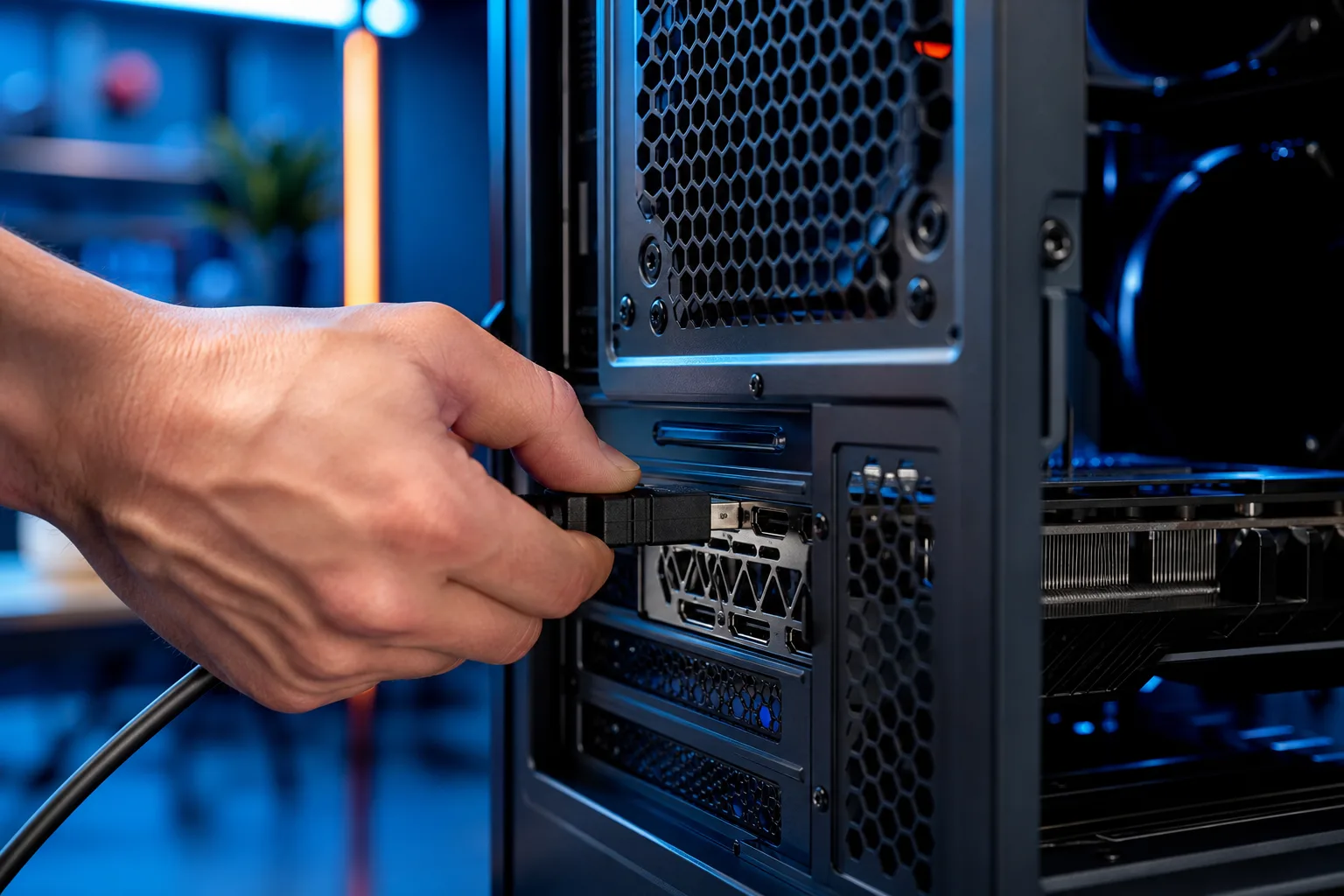
If the new cable does not help, move the cable to a different output on your graphics card, or a different input on the monitor. A single damaged port can cause exactly this symptom.
If you have a discrete GPU with multiple outputs, try switching from HDMI to DisplayPort or vice versa. If the problem disappears, the original port is faulty. A damaged GPU port is not DIY-repairable but the card may still be usable on other outputs.
3. Check the Display Driver
Windows recovers from a driver crash by reloading the graphics driver. You will typically see a brief black screen, then a notification: "Display driver stopped responding and has recovered." That message confirms a driver event rather than a hardware signal drop.
- Right-click the desktop, open Display Settings, then Device Manager.
- Expand Display Adapters, right-click your GPU, and select Update Driver.
- If you have a dedicated GPU (NVIDIA or AMD), uninstall the current driver using DDU (Display Driver Uninstaller) in safe mode, then install the latest driver from the manufacturer's site directly.
- After reinstalling, monitor for recurrence over 24 hours.
An outdated or corrupted driver is a common cause on systems that have not been updated in months, or after a Windows feature update.
Computer acting up? Get a real diagnosis. Book a diagnostic
4. Check Refresh Rate and Resolution Settings
A mismatch between the output resolution or refresh rate and what the monitor supports can cause the display to drop signal while it tries to negotiate a valid mode.
- Right-click the desktop and open Display Settings.
- Scroll to Advanced Display Settings.
- Confirm the refresh rate matches what your monitor supports (typically 60 Hz, 75 Hz, 144 Hz, or similar).
- If it is set higher than the monitor's rated maximum, drop it to the correct value.
This is especially worth checking after a driver update or after connecting via a new cable type, since Windows sometimes resets these values.
5. Investigate Power and GPU Load
If the flash happens during demanding tasks (launching a game, a video call, exporting a file), the GPU may be drawing more power than the power supply can deliver cleanly. Voltage sags cause the GPU to drop output momentarily.
Check:
- Is the PSU rated for your GPU? NVIDIA and AMD both publish minimum PSU recommendations for each card.
- Are all PCIe power connectors seated firmly on the GPU?
- Is the PSU more than five years old? Capacitor degradation reduces reliable output over time.
A free tool like HWiNFO64 can log GPU power and voltage while you reproduce the problem.
6. Test With a Second Monitor
Connect a second display (a TV works fine). If both screens flash at the same moment, the problem is upstream of the monitors: GPU, driver, or PSU. If only the original monitor flashes while the second stays stable, the problem is in the original monitor or the cable/port serving it.
This single test is one of the fastest ways to separate a display fault from a GPU fault.
Common Mistakes
- Replacing the monitor first. The display is rarely the cause of a brief black flash. Panels fail in other ways: dead backlights, lines across the screen, or a display that simply will not turn on.
- Ignoring the cable. DisplayPort cables in particular are sensitive to quality and length. Long or cheap cables drop signal under load more often than short, well-shielded ones.
- Skipping the driver uninstall. Updating over a corrupted driver sometimes leaves the underlying problem in place. A clean DDU uninstall and fresh install is more reliable.
- Overlooking Windows power settings. The display power-off timer or a third-party screen management app can produce a brief blank that looks like a signal drop. Check Settings > System > Power and rule this out early.
Bottom Line
A monitor that goes black for a second and returns is almost always a recoverable signal or driver event. Start with the cable, move to the port, then the driver, then investigate power under load. Most cases resolve at step one or three. If the problem persists after all of the above, the GPU itself may be developing a fault.
If you are in West Palm Beach or South Florida and have worked through these steps without a resolution, Fix My PC Store can run a full hardware diagnostic on your GPU, PSU, and display chain. Remote diagnosis is also available at /remote-support if the issue is more likely driver or software related.
Computer acting up? Get a real diagnosis.
Fix My PC Store has repaired thousands of machines across West Palm Beach. Honest pricing, no upsell games, and a free diagnostic for new customers with our email coupon.