Mac Won’t Connect to Wi-Fi? Find the Real Cause
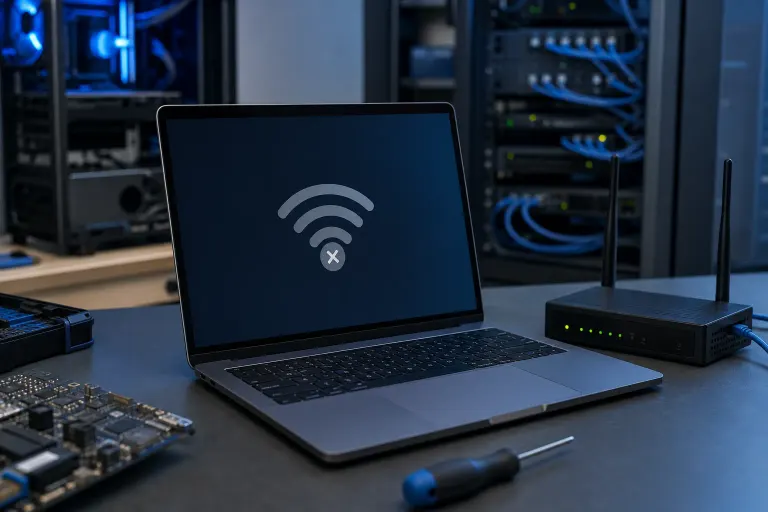
TL;DR: Start by determining whether the problem is your Mac, your Wi-Fi network, or the internet connection itself. Test another network, forget and rejoin the troublesome one, check macOS network details, then reset only what needs resetting. Do not leap straight to factory resets. That is the tech equivalent of replacing a car because the gas cap was loose.
If every network fails, or Wi-Fi disappears completely from your Mac, the wireless hardware may be the culprit. If only one network fails, look at the router, its settings, or the local network before blaming the Mac.
What you need
You need your Mac, the Wi-Fi password, and access to the router if it is your home or office network. A phone or another computer connected to the same Wi-Fi is useful for comparison. If the problem is at work, speak with whoever manages the network before changing settings. Office Wi-Fi is not a public playground, despite what some folks seem to believe.
Before making changes, note what you see:
- Does the Wi-Fi icon appear in the menu bar or Control Center?
- Can the Mac see your network name?
- Does it reject the password, connect with no internet, or disconnect repeatedly?
- Do phones and other computers work on the same network?
- Does the Mac work on a phone hotspot or another trusted Wi-Fi network?
Those answers narrow the fault down fast. “My Wi-Fi is broken” is not a diagnosis. It is a cry for help, usually made after rebooting the same thing six times.
1. Identify what kind of Wi-Fi failure you have
Click the Wi-Fi icon in the macOS menu bar or open Control Center > Wi-Fi. Confirm Wi-Fi is turned on and look for your normal network.
If your network is visible but will not connect, the Mac may have a saved password problem, an address assignment issue, or an authentication conflict. If it connects but websites will not load, the Wi-Fi link may be fine while the internet service, DNS, login page, or router is not.
If Wi-Fi is on but no networks appear, move close to the router and check whether your phone can see the network. A hidden network is possible, but it is not a security force field. It mainly makes setup more annoying. If nearby networks appear but yours does not, focus on the router or its Wi-Fi band settings.
If the Wi-Fi option itself is missing, greyed out, or repeatedly switches off, skip ahead to the hardware checks. That is not normal behavior, and no amount of inspirational clicking will improve it.
2. Rule out the internet connection and router first
Test another device on the same Wi-Fi. Open several ordinary websites, not just one app. If nothing else gets online, your Mac is innocent for the moment. Check whether the router has power and whether its internet or WAN indicator shows an error. If your internet service is down, restarting the Mac only gives you something to do while you wait.
Restart the network equipment in the proper order:
- Unplug the modem or gateway and the separate router, if you have both.
- Wait about 60 seconds.
- Plug in the modem or gateway first and wait until it finishes reconnecting.
- Plug in the router and allow a few minutes for Wi-Fi and internet service to return.
- Try the Mac again.
Do not press the tiny reset pinhole unless you intend to erase the router’s configuration. That button is not a friendly restart button. It is a factory-reset button disguised as a bad afternoon.
If other devices work normally but the Mac does not, test the Mac on a phone hotspot or another trusted network. A Mac that works elsewhere points toward your usual router, its security settings, access controls, or a corrupted saved network profile. A Mac that fails everywhere points back toward macOS configuration or the Mac’s Wi-Fi hardware.
For a small office with several devices dropping or unable to join, this is usually a network-management issue rather than a stack of individually broken laptops. Our business networking support team can sort out coverage, access points, guest networks, and the other things that get installed once and ignored until Monday morning.
3. Forget the troublesome network and join it cleanly
A saved Wi-Fi profile can retain an old password or bad connection details. Forgetting the network removes that saved relationship. It does not erase your files or harm the router.
On current macOS versions, open Apple menu > System Settings > Wi-Fi. Find the known networks section, locate the problem network, click the details or more-options button, and choose Forget This Network. The exact label may vary a little by macOS version, because Apple does enjoy moving furniture while you are still sitting in it.
Then turn Wi-Fi off and back on. Select the network from the available list and enter the password carefully. Pay attention to capital letters and punctuation. If you recently changed the router password, every device using the old saved password will need the new one.
If the Mac says the password is incorrect but you are certain it is right, verify it by connecting another device using that same password. If the other device cannot connect either, the password may have changed, the router may be rejecting new clients, or the Wi-Fi security configuration may need attention.
Avoid changing router encryption settings at random. Older security modes can create compatibility trouble, but weakening security just to make one old device happy is a poor long-term fix. Especially in a business. That is how “temporary” bad decisions become permanent security holes.
4. Check whether the Mac got a usable network address
A Mac can show as connected to Wi-Fi while receiving no usable network connection. In System Settings > Wi-Fi, click Details beside the connected network. Review the TCP/IP and DNS information.
Under TCP/IP, the Mac should normally have an IPv4 address from your local network and a router address. A self-assigned address, often beginning with 169.254, usually means the Mac did not get an address from the router’s DHCP service. In plain English, the Mac asked for a seat at the table and the router did not answer.
Try these steps:
- Click Renew DHCP Lease in the TCP/IP section.
- Disconnect and reconnect to Wi-Fi.
- Restart the router if other devices also have connection trouble.
- Check whether the router has run out of available addresses or has an access-control rule blocking the Mac.
If the Mac has a normal address and router entry but cannot reach websites, check DNS. In the Wi-Fi details screen, look at the DNS section. Do not start adding random public DNS addresses because a forum told you to. That can bypass filtering, break internal business resources, or mask the actual problem.
A better test is to try a few sites and see whether the issue affects all browsing or only one service. If secure websites report certificate warnings, stop and investigate. Incorrect date and time, captive portals, public Wi-Fi interception, or a security issue can all cause trouble. Never click through a certificate warning on a bank, email provider, or business login page just to “see if it works.” That is how phishing earns its rent.
Computer acting up? Get a real diagnosis. Book a diagnostic
5. Deal with captive portals, VPNs, and privacy features
Hotel, airport, condo, café, and guest Wi-Fi often requires a browser sign-in page called a captive portal. Your Mac may connect but have no real internet access until you accept terms or enter credentials.
Open a browser and visit a plain, non-secure page such as http://captive.apple.com. That can trigger the sign-in page. If it does not, disconnect and reconnect, then try again. Make sure the Mac’s date and time are set automatically, since a badly wrong clock can interfere with secure connections.
Next, temporarily disable a VPN and test Wi-Fi again. A VPN can make it look like Wi-Fi is broken when the Wi-Fi link is fine and the VPN cannot establish its tunnel. The same goes for third-party security software, web filters, and network-monitoring tools. Disable one thing at a time, test, and turn it back on if it was not the cause. Do not uninstall half the Mac in a panic. We have seen that movie. The ending is paperwork.
Modern macOS versions may use a private Wi-Fi address for each network. This is generally useful for privacy, but some older routers, device-registration systems, or business access controls can get confused when the address changes. In the network’s Wi-Fi details, look for Private Wi-Fi Address. If a managed network expects a registered device address, ask the network administrator before changing it.
At a business, do not work around a blocked connection by joining an unknown guest network or using a personal hotspot for sensitive work. That can bypass security controls and leave company data exposed. If your organization needs reliable remote access, sensible network segmentation, and proper oversight, managed IT services are considerably better than hoping the office router behaves this week.
6. Restart the Mac and update macOS carefully
Restart the Mac after the basic network tests. A genuine restart clears temporary network processes and is more useful than closing the lid for ten seconds. Choose Apple menu > Restart and do not reopen applications automatically if one particular app or VPN has been involved in the problem.
Once you have a working connection, check System Settings > General > Software Update. Install available macOS updates when the Mac is backed up and you have time for the update to finish. Updates can resolve known network bugs, but they are not magic dust. If Wi-Fi vanished immediately after an update, document the timing and symptoms before making broader changes.
Back up first if the Mac contains important work, family photos, or business files. “It should be fine” is not a backup plan. For businesses, backup and disaster recovery planning should cover device loss, failed updates, ransomware, and the very human habit of discovering that the only copy was on one laptop.
7. Test in Safe Mode or a separate user account
If Wi-Fi works briefly after restart but fails once you sign in, a login item, VPN client, security tool, or user-level configuration may be interfering. Safe Mode can help isolate software involvement.
The Safe Mode process differs between Apple silicon and Intel Macs. Apple maintains current instructions for starting your Mac in Safe Mode. Start there rather than following a six-year-old video with three different keyboard shortcuts and a suspiciously cheerful narrator.
Once in Safe Mode, connect to Wi-Fi and test browsing. If Wi-Fi behaves there but not during a normal startup, review login items under System Settings > General > Login Items & Extensions. Remove or disable nonessential items one at a time, restart normally, and retest.
A separate test user can also help. Create one only if you are comfortable doing so, then sign into that account and test Wi-Fi. If the new account works, the issue may be isolated to your original user profile. If neither account works on any network, the cause is more likely system-wide or hardware-related.
8. Run built-in diagnostics and check for hardware trouble
Mac Wi-Fi hardware can fail. It is less common than a router or settings problem, but it happens, especially after liquid exposure, a hard drop, corrosion, an unsuccessful repair, or plain old age. South Florida humidity does not repair electronics either, despite its impressive commitment to getting into everything.
Signs that point toward hardware include:
- Wi-Fi is missing entirely from System Settings.
- The Mac cannot see any nearby networks while other devices can.
- Wi-Fi repeatedly turns itself off or reports unavailable hardware.
- Bluetooth and Wi-Fi both act strangely, since they may share related components or antennas.
- The problem follows the Mac across several known-good networks.
Run Apple Diagnostics to check for hardware errors. Apple’s instructions for using Apple Diagnostics cover both Apple silicon and Intel models. Write down any reference code it gives you. A clean result does not prove hardware is perfect, but an error code is useful evidence.
Do not open a MacBook and start reseating antennas because a social-media video made it look easy. Modern Macs are compact, adhesive-heavy, and not forgiving of improvised surgery. A torn antenna lead, damaged display cable, or punctured battery turns a Wi-Fi problem into an expensive lesson.
If the evidence points to hardware, get it inspected by people who work on Macs regularly. Our Mac repair service can determine whether the issue is an antenna, wireless module, logic-board fault, liquid damage, or something less dramatic. If you need help sorting software and network causes first, you can also book a repair visit in West Palm Beach.
Common mistakes
Resetting the router with the pinhole button. This can erase your network name, password, ISP settings, and custom configuration. Restart it by removing power first.
Forgetting every saved network immediately. Start with the one that fails. Wiping all network profiles creates extra work and can disconnect you from networks you actually need.
Changing DNS, security mode, channel width, and router firmware all at once. Then nobody knows what fixed or broke the connection. Make one change, test it, and document it.
Ignoring a captive portal. “Connected, no internet” at a hotel or guest network frequently means you have not completed the browser sign-in page.
Leaving a VPN connected while troubleshooting. The VPN may be the failure point. Test the basic Wi-Fi connection without it, then test the VPN separately.
Clicking through certificate warnings. That warning may be a clock problem or a captive portal, but it can also signal interception. Treat it seriously.
Assuming a strong signal means good internet. Full Wi-Fi bars only show the Mac can hear the access point. They do not guarantee the router has internet, DNS works, or the connection is stable.
Installing “Mac cleaner” or “driver updater” junk. macOS does not need a mystery utility to refresh its Wi-Fi driver. These programs often create more trouble than they solve. Scamware with a nice icon is still scamware.
Bottom line
A Mac that will not connect to Wi-Fi is usually telling you something specific. If other devices fail too, start with the modem, router, or internet provider. If only your Mac fails on one network, forget and rejoin it, renew its DHCP lease, and check sign-in pages, VPNs, and access restrictions. If the Mac fails everywhere or cannot see Wi-Fi at all, investigate macOS configuration and possible hardware failure.
Work in order, change one variable at a time, and do not factory-reset your life because the router had a bad morning. For persistent Mac Wi-Fi trouble in West Palm Beach, Palm Beach County, or the Treasure Coast, a proper diagnosis beats buying a new router, a new Mac, and three more headaches.
Computer acting up? Get a real diagnosis.
Fix My PC Store has repaired thousands of machines across West Palm Beach. Honest pricing, no upsell games, and a free diagnostic for new customers with our email coupon.