Mac Trackpad Clicking on Its Own: Causes and Safe Fixes
TL;DR: Phantom trackpad clicks on a Mac usually come from one of two places: a swollen battery physically pressing the trackpad from below, or a sensitivity/accessibility setting that's misfiring. Check software first since it's free and takes two minutes. If adjusting settings does nothing, suspect the battery and stop using the laptop until you can get it inspected.
What You Need
- A MacBook (any model showing ghost clicks)
- Access to System Settings (macOS Ventura or later) or System Preferences (older macOS)
- A flat, well-lit surface to visually inspect the trackpad
- About five minutes for the software checks
Step 1: Rule Out Software Causes First
Open System Settings > Trackpad (or System Preferences > Trackpad on older macOS).
Check these three things:
- Click threshold. If "Click" pressure is set to "Light," even a brush of a finger registers as a click. Bump it to "Medium" or "Firm" and test.
- Tap to Click. If this is on, resting a finger on the trackpad registers as a click. Turn it off and see if the ghost clicks stop.
- Force Click and haptic feedback. Disable "Force Click" temporarily. Some users find this setting interacts badly with worn trackpad surfaces.
Next, check Accessibility > Pointer Control > Trackpad Options. Make sure "Enable dragging" is not set in a way that mimics unwanted clicks.
If the phantom clicks stop after any of these changes, you're done. Great. Annoying mystery solved.
Step 2: Check for Third-Party Software Conflicts
Some utilities, remote desktop apps, or accessibility tools inject pointer events that look like ghost clicks. Think BetterTouchTool, Synergy, or any remote access software you may have running in the background.
- Open Activity Monitor and look for anything related to input or pointer control.
- Try a quick test: boot into Safe Mode (hold Shift at startup on Intel Macs; on Apple Silicon, shut down, then hold the power button until startup options appear, then Shift-click Continue in Safe Mode). If clicks stop in Safe Mode, a third-party app is the culprit.
Step 3: Visually Inspect the Trackpad
Set the MacBook on a flat table and look at the trackpad surface straight on.
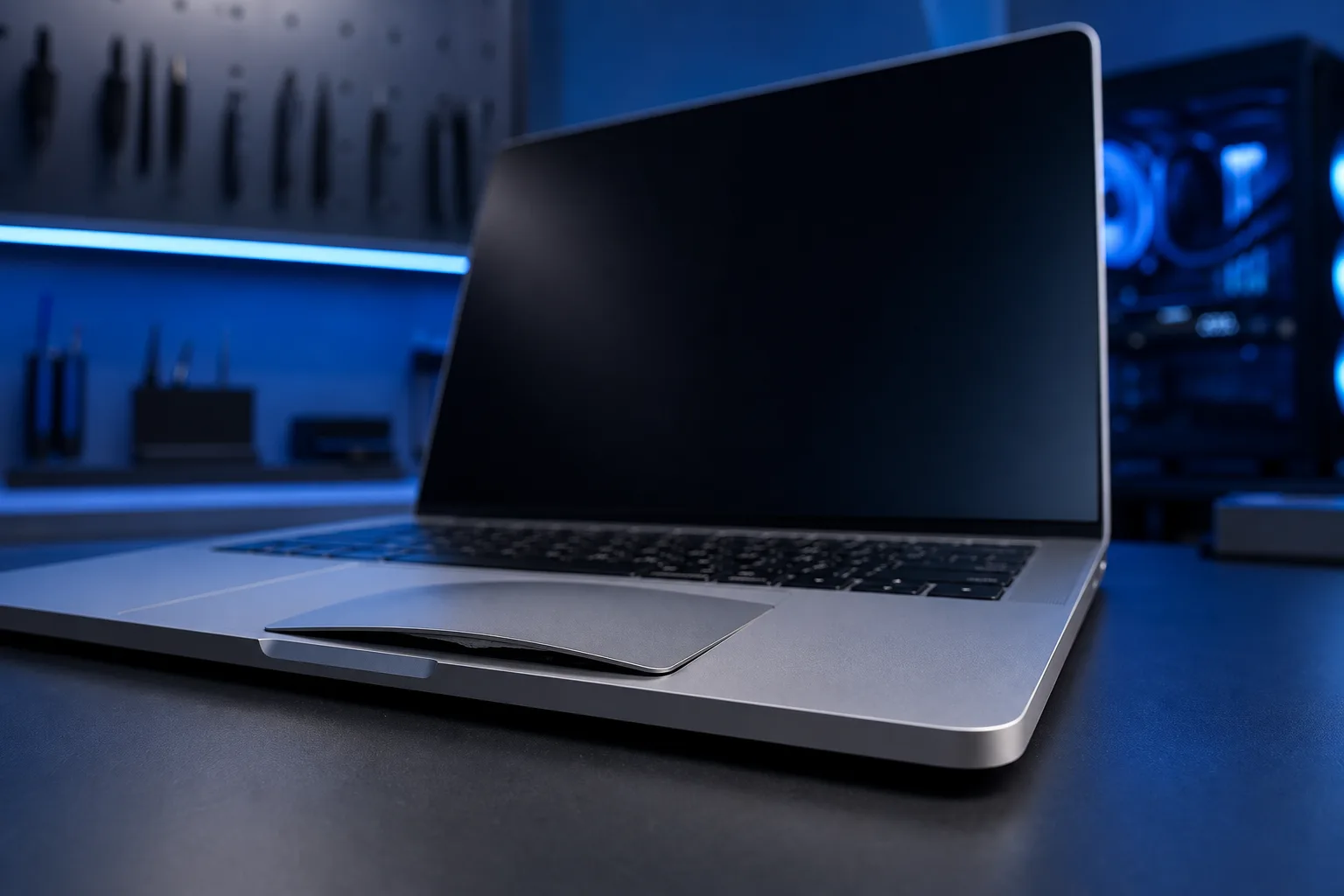
- Does it look raised, domed, or uneven compared to the surrounding palm rest?
- Press gently on the corners of the trackpad. Does it flex or feel spongy in a way it shouldn't?
- Look at the bottom of the laptop. Is the case bowing outward near the battery area (typically under the trackpad on most MacBook models)?
A swollen lithium-ion battery expands as it degrades, and on MacBooks the battery sits directly beneath the trackpad. Even a millimeter of swelling creates constant upward pressure that the trackpad interprets as a click. This is a hardware problem, not a software one, and it will not fix itself.
Do not continue using a MacBook with a visually swollen battery. Swollen lithium-ion cells can vent or, in rare cases, cause fires. This is not drama, it's basic battery chemistry.
Computer acting up? Get a real diagnosis. Book a diagnostic
Step 4: Try Resetting System-Level Settings
If the trackpad looks physically fine but software tweaks in Step 1 didn't help, try these resets.
Reset NVRAM/PRAM (Intel Macs only): Shut down. Power on and immediately hold Option + Command + P + R for about 20 seconds. This resets stored hardware preferences that can occasionally corrupt trackpad behavior.
Reset SMC (Intel Macs only): The System Management Controller handles power and input. On MacBooks with a T2 chip or non-removable battery: shut down, hold Shift + Control + Option + Power for 10 seconds, then start normally.
Apple Silicon Macs (M1, M2, M3, M4) don't have a traditional SMC reset. Simply shutting down for 30 seconds achieves the same result.
Create a new user account:
Log in to a fresh account and test. If clicks stop, the issue is buried in your user profile preferences, and you can fix it by deleting trackpad-related preference files from ~/Library/Preferences/ (look for files with "trackpad" in the name).
Step 5: Know When to Stop DIY
Here's a simple decision guide:
| Symptom | Likely Cause | What to Do |
|---|---|---|
| Clicks stop in Safe Mode | Third-party software | Isolate and remove the app |
| Clicks stop after Tap to Click off | Software setting | Keep it off or adjust threshold |
| Trackpad surface looks raised | Swollen battery | Stop using, get professional help |
| Clicks random, no pattern, hardware looks fine | Logic board or trackpad cable | Professional diagnosis needed |
| Clicks only near one corner | Debris or trackpad mounting screw | Cleaning or hardware adjustment |
A loose or over-tightened trackpad mounting screw can also cause intermittent phantom clicks. This is a real thing on older MacBook Pros. Technically you can adjust it yourself if you're comfortable with pentalobe screwdrivers, but you can easily make it worse. It's a five-minute fix for a tech, not worth the risk of stripping a screw.
Common Mistakes
Ignoring it and hoping it stops. If the cause is a swollen battery, ignoring it makes the battery more swollen. The trackpad damage gets worse. The repair cost goes up.
Blaming macOS and doing a full reinstall. A clean install will not fix a hardware problem. It wastes hours and leaves you exactly where you started, except now you have to reinstall everything.
Using compressed air aggressively into the trackpad gap. Mild compressed air around the edges to clear debris is fine. Blasting at pressure can push debris further in or damage the flex cable underneath.
Assuming AppleCare covers swollen batteries automatically. It often does, but check your coverage status at checkcoverage.apple.com before assuming. Out-of-warranty battery replacements have a set cost through Apple or an authorized shop.
Bottom Line
Start with the two-minute software checks. Tap to Click and click threshold settings cause a surprising number of "haunted trackpad" complaints. If those don't help, look at the trackpad surface. A raised or domed trackpad almost always means a swollen battery, and that's a stop-what-you're-doing situation.
For anything hardware-related, a local shop beats mailing your laptop anywhere. If you're in West Palm Beach or anywhere in Palm Beach County, the team at Fix My PC Store on Okeechobee Boulevard handles Mac repair including trackpad and battery issues. You can also start with remote support if you want a second opinion on whether the problem is software before bringing it in.
Computer acting up? Get a real diagnosis.
Fix My PC Store has repaired thousands of machines across West Palm Beach. Honest pricing, no upsell games, and a free diagnostic for new customers with our email coupon.