Why Is My Mac Not Waking From Sleep When I Press a Key?
TL;DR: A Mac that won't wake from sleep on a keypress is almost always caused by a USB or Bluetooth peripheral losing its wake permission, a corrupted power management state, or a setting macOS reset after an update. Work through the steps below in order. If the machine is completely unresponsive after multiple attempts, that points to a hardware fault worth getting checked.
What You Need
- Your Mac (MacBook, iMac, Mac mini, or Mac Studio)
- Access to System Settings (macOS Ventura or later) or System Preferences (Monterey and earlier)
- A minute to restart if needed
- Admin password for terminal commands
Step 1: Try the Right Wake Inputs First
Not every input wakes a Mac from every sleep state. A single keystroke on an external keyboard does not always do it, especially if the Mac entered a deeper sleep mode.
Try these in order:
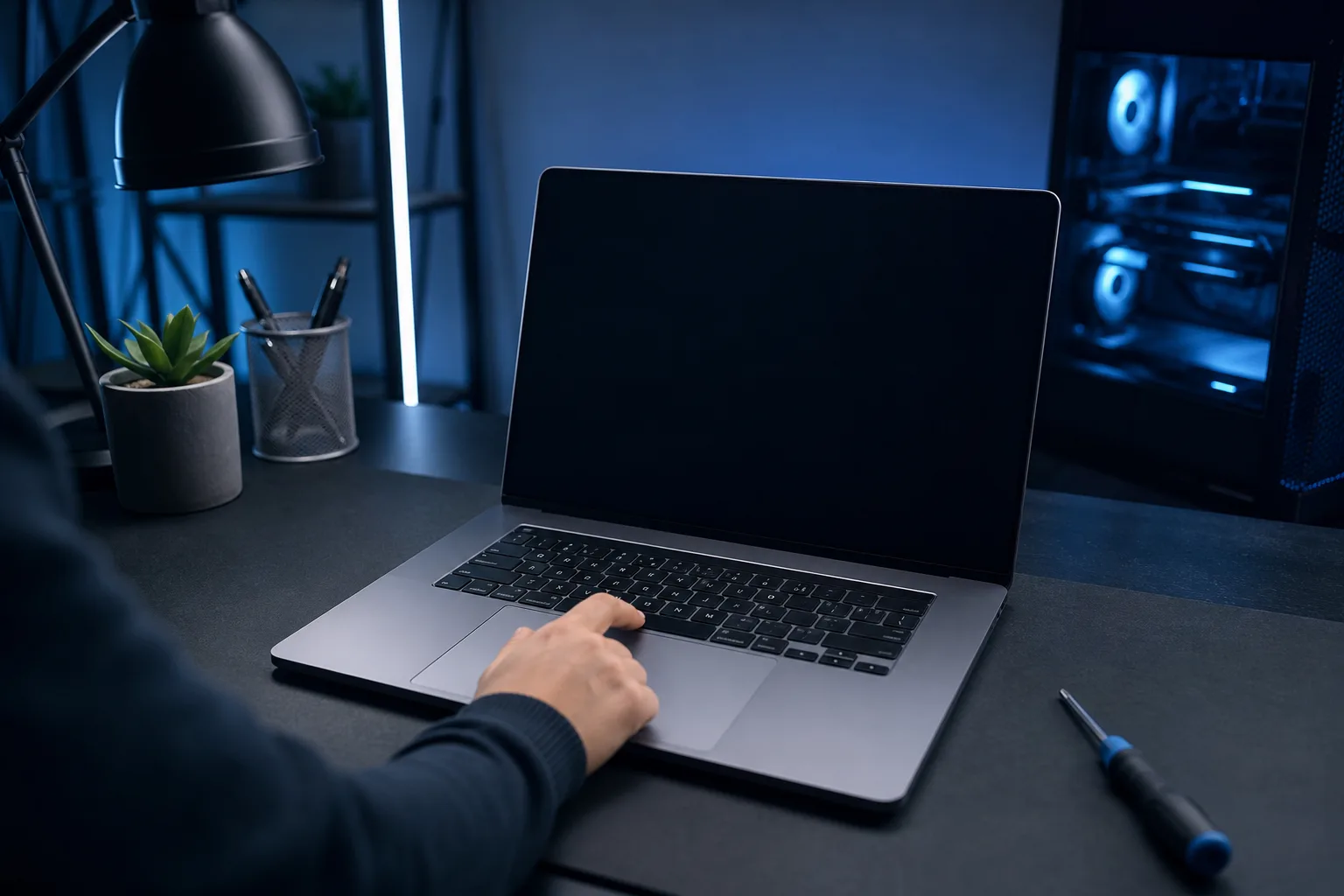
- Press the Space bar or Return on the built-in keyboard first.
- Move and click the built-in trackpad (or a wired mouse connected directly, not through a hub).
- If nothing happens after ten seconds, press and hold the power button for one to two seconds (not long enough to force shutdown).
- On an iMac or Mac mini, tap the power button briefly once.
If the display comes on after any of those, the Mac was just ignoring the external keyboard or mouse. That is a permissions or peripheral problem. Move to Step 2.
If nothing at all happens, skip to Step 4.
Step 2: Check Peripheral Wake Permissions
macOS controls which devices are allowed to wake the machine. An update or a new device can quietly change this.
For a USB keyboard or mouse:
- Open System Settings > General > Login Items & Extensions (Ventura+) or Energy Saver (older macOS).
- On Monterey or earlier, go to System Preferences > Energy Saver and check "Allow Bluetooth devices to wake this computer" and "Allow power button to wake this computer."
- On Ventura or later, check System Settings > Battery > Options (on MacBooks) or System Settings > Energy Saver (on desktops) for similar toggles.
For Bluetooth keyboards and mice:
- Open System Settings > Bluetooth.
- Click the Info (i) button next to your device.
- Enable "Allow this device to wake the computer" if the option is present.
(Apple quietly removed this toggle from some macOS versions. If you don't see it, that is not the problem.)
Step 3: Disconnect Hubs and Third-Party Peripherals
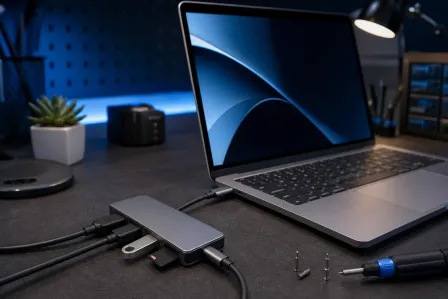
USB hubs, docks, and KVM switches are notorious for blocking wake signals. The Mac sees the hub, not the keyboard plugged into the hub.
- Unplug everything from USB-C or USB-A ports except a single wired keyboard or mouse.
- Let the Mac sleep naturally, then try waking it with that directly connected keyboard.
- If it wakes, add devices back one at a time to find the offender.
This is the fix about half the time. (A cheap hub that worked fine for months can start misbehaving after a macOS update changes how USB power is managed.)
Step 4: Reset SMC or PMC
The System Management Controller (SMC) on Intel Macs, and power management handled by the T2 chip or Apple Silicon, governs sleep and wake behavior. Corrupted state here causes exactly this symptom.
Apple Silicon Macs (M1, M2, M3, M4):
Apple Silicon does not have a user-accessible SMC reset. Instead:
- Shut down the Mac fully.
- Wait 30 seconds.
- Power it back on.
That clears the equivalent power management state on most Apple Silicon machines.
Intel Macs with T2 chip (most 2018 and later Intel models):
- Shut down.
- Hold Control + Option + Shift on the built-in keyboard for seven seconds.
- While still holding those keys, also press and hold the power button for another seven seconds.
- Release all keys, wait a few seconds, then power on normally.
Intel Macs without T2 (2017 and earlier MacBook Pro/Air):
- Shut down.
- Hold Shift + Control + Option on the left side of the keyboard plus the power button for ten seconds.
- Release all, then power on.
Mac mini, iMac, Mac Pro (Intel, any year):
- Shut down and unplug the power cord.
- Wait 15 seconds.
- Plug back in, wait five seconds, then power on.
Computer acting up? Get a real diagnosis. Book a diagnostic
Step 5: Reset NVRAM
NVRAM stores sleep-related settings. Worth clearing if SMC reset did not help.
Intel Macs only (Apple Silicon handles this automatically at boot):
- Shut down.
- Power on and immediately hold Option + Command + P + R for about 20 seconds.
- Release and let it boot normally.
Step 6: Check for Problem macOS Updates or Third-Party Software
macOS updates occasionally introduce sleep regressions, especially in the first few weeks after a major release. Check Apple's support discussions or MacRumors forums to see if others with your exact Mac model report the same issue after the same update.
Also check for third-party software that hooks into power management: backup agents, VPN clients, and display management apps are common culprits. Try disabling them one at a time and testing sleep-wake cycles.
Step 7: Run Apple Diagnostics
If none of the above helped, run Apple's built-in hardware check.
Apple Silicon:
- Shut down.
- Press and hold the power button until you see startup options.
- Hold Command + D to start diagnostics.
Intel Macs:
- Shut down.
- Power on and immediately hold the D key.
- Follow prompts.
Note any error codes. They help narrow down whether this is a logic board, RAM, or sensor fault.
Common Mistakes
Holding the power button too long. A two-second tap nudges the Mac awake. Holding it for five or more seconds forces a hard shutdown. Don't do that every time the Mac won't wake, or you risk corrupting the filesystem.
Blaming the keyboard first. Nine times out of ten, the keyboard is fine. The Mac just isn't listening to it for wake events. Check permissions before buying a new keyboard.
Ignoring a hub. People forget the keyboard is plugged into a hub. Hubs filter or drop the wake signal constantly. Direct connection is always more reliable.
Skipping the SMC reset because it sounds scary. It isn't. It resets a chip, not your data. Nothing is erased.
Assuming a macOS update fixed it permanently. Updates that introduce sleep bugs also sometimes ship mid-cycle fixes. Keep macOS current, but check forums before updating if your Mac is currently stable.
Bottom Line
A Mac ignoring a keypress to wake from sleep is almost always a software or configuration problem, not a dead machine. Work through peripherals, wake permissions, and SMC reset before panicking. Apple Diagnostics will tell you if there's real hardware trouble.
If you've run through all of this and the Mac still won't wake reliably, or if Apple Diagnostics throws error codes, that's worth a professional look. You can bring it in to Fix My PC Store at 10140 Okeechobee Blvd, West Palm Beach, or reach us at 561-819-9999. Initial checks don't cost anything for most standard in-store repairs. Remote support is also available if you want a tech to walk through software-side fixes without leaving the house.
Computer acting up? Get a real diagnosis.
Fix My PC Store has repaired thousands of machines across West Palm Beach. Honest pricing, no upsell games, and a free diagnostic for new customers with our email coupon.