Mac Startup Sound Then Black Screen: What It Usually Means
TL;DR: A startup chime followed by a black screen almost always means the Mac is booting but the display is not showing the result. The most common culprits are a display connection problem, a failed external monitor handshake, a stuck boot process, or a GPU fault. Work through the steps below in order before assuming the worst.
What you need
- A known-good power source and the Mac's original charger
- A external monitor and a compatible cable (HDMI, USB-C to HDMI, or Mini DisplayPort)
- About 10 to 15 minutes and a bit of patience
Step 1: Rule out a simple display brightness issue
Before anything else, try pressing the brightness-up key (F2 on most keyboards, or the sun icon) several times after the chime plays.
Sometimes macOS wakes from sleep with the brightness slider at zero. It sounds silly, but it fixes the problem more often than you'd expect.
Also check: is there a faint Apple logo or desktop visible if you shine a flashlight at the screen at an angle? A faint image means the backlight has failed, not the whole display.
Step 2: Force a restart
Hold the power button for 10 seconds until the Mac powers off completely. Wait 10 seconds, then press power again.
Sometimes a previous session crashed mid-boot and left the GPU in a bad state. A clean cold boot clears that.
If you hear the chime again and still see black, continue to the next step.
Step 3: Test with an external monitor
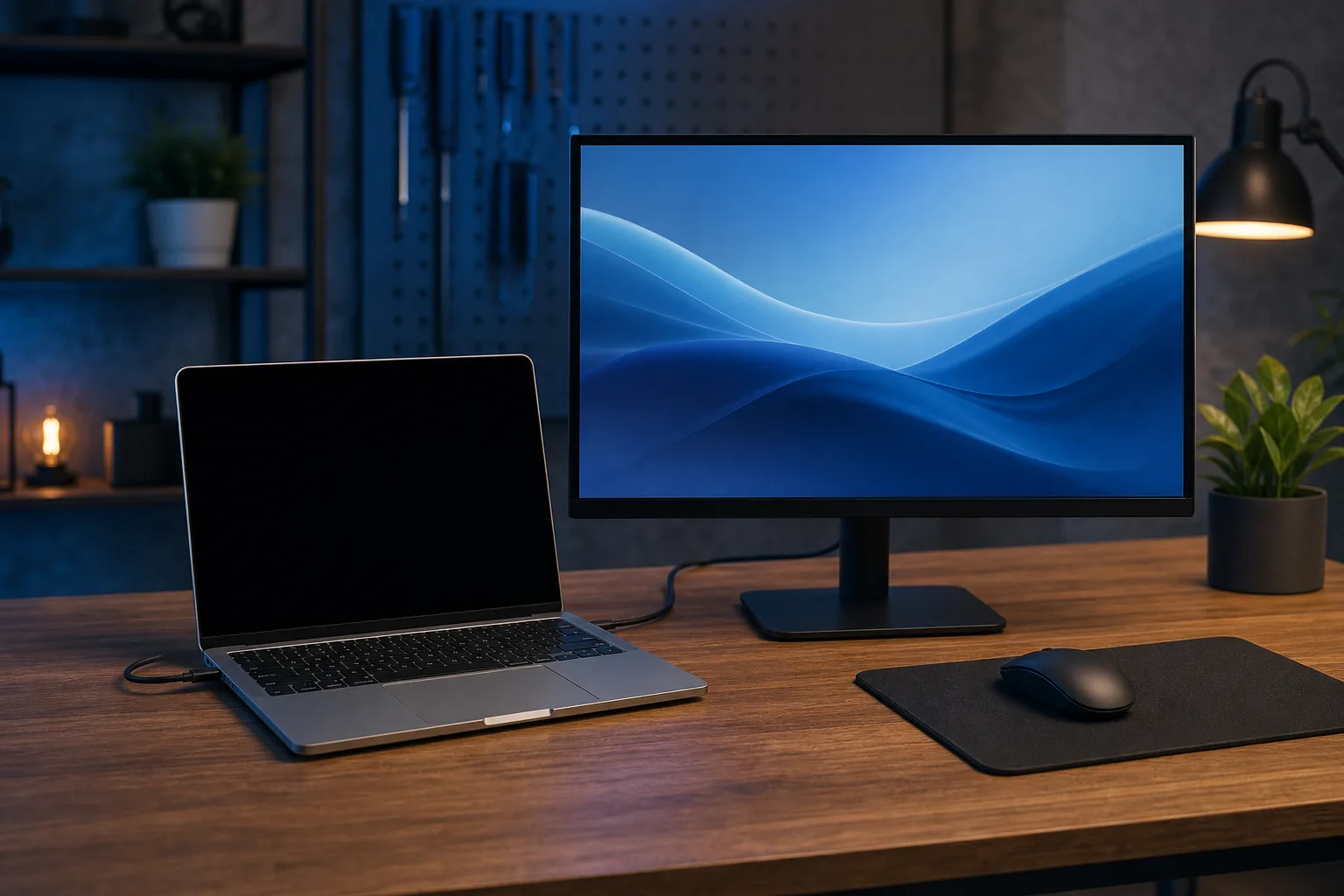
Connect a TV or external monitor via HDMI or a USB-C adapter. Power on the Mac and watch the external display.
- If the external monitor shows a picture: The built-in display or its connection to the logic board is the problem. This is a hardware repair.
- If the external monitor is also black: The GPU or the boot process itself is the issue. Keep going.
This single test tells you whether you have a display problem or a deeper system problem. It is the most useful diagnostic step you can take at home.
Step 4: Try Safe Mode
Safe Mode forces macOS to load only essential drivers and can bypass a bad graphics driver or corrupted cache that is blocking the display.
Intel Mac:
- Shut down the Mac fully.
- Press the power button, then immediately hold Shift.
- Release Shift when you see the login screen or a progress bar.
Apple Silicon Mac (M1, M2, M3, M4):
- Shut down the Mac fully.
- Press and hold the power button until you see startup options.
- Select your startup disk, hold Shift, then click "Continue in Safe Mode."
If the screen appears in Safe Mode, a third-party extension or a corrupted font/cache file is likely to blame. You can try restarting normally to see if Safe Mode cleared it, or investigate recently installed software.
Computer acting up? Get a real diagnosis. Book a diagnostic
Step 5: Reset NVRAM and SMC
NVRAM stores display-related settings like resolution and refresh rate. A corrupted NVRAM value can stop the display from initializing.
Reset NVRAM (Intel Mac only):
- Shut down.
- Press power, then immediately hold Option + Command + P + R for about 20 seconds.
- Release when you hear the startup chime a second time (on older models) or after 20 seconds on newer ones.
Apple Silicon Macs manage equivalent settings differently. Shutting down fully for 30 seconds and restarting is Apple's recommended equivalent.
Reset SMC (Intel MacBook with T2 chip only , desktop Intel Macs with T2, such as the iMac Pro, follow a different procedure; consult Apple's support documentation for those models):
- Shut down.
- Hold Control (left side) + Option (left side) + Shift (right side) for 7 seconds.
- While still holding those keys, also press the power button for another 7 seconds.
- Release all keys, wait a few seconds, then press power normally.
Apple Silicon Macs do not have a traditional SMC. A full shutdown for 30 seconds handles this.
Step 6: Check for a macOS update loop or failed update
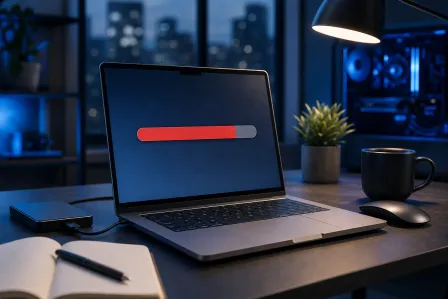
If macOS was updating when the problem started, the installer may have stalled.
Boot into macOS Recovery:
- Intel Mac: Hold Command + R at startup.
- Apple Silicon: Hold the power button until startup options appear, then click Options.
From Recovery you can:
- Run Disk Utility to check your startup disk for errors.
- Reinstall macOS without erasing your data.
- Restore from a Time Machine backup if you have one.
A failed macOS update is a common cause of the chime-then-black pattern, especially after a major version upgrade.
Common mistakes to avoid
- Skipping the external monitor test. It is the fastest way to split a display problem from a GPU or software problem. Do not skip it.
- Assuming the Mac is dead. A chime means the logic board, RAM, and speaker are all working. That is actually a good sign.
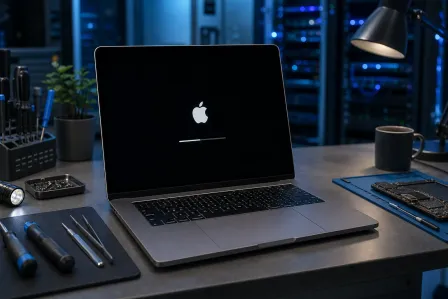
- Repeatedly forcing power-offs during a macOS update. If a progress bar was visible before the screen went black, give it 30 to 45 minutes before intervening. Interrupting an update mid-write can corrupt the installer.
- Ignoring a faint image. A backlight failure looks like a dead screen, but it is a different and usually more affordable repair than a full panel replacement.
Decision table: What your results point to
| What you observed | Most likely cause | Next step |
|---|---|---|
| Brightness key fixed it | Brightness reset to zero | Done |
| Faint image with flashlight | Failed backlight | Hardware repair |
| External monitor works | Built-in display or cable fault | Hardware repair |
| Safe Mode shows screen | Bad driver or cache | Software fix or clean reinstall |
| NVRAM reset fixed it | Corrupted display setting | Monitor for recurrence |
| Nothing works, external also black | GPU or logic board fault | Professional diagnosis |
Bottom line
The startup chime is your Mac telling you the core hardware is alive. Work through display brightness, an external monitor test, Safe Mode, and NVRAM/SMC resets in that order. Most software-related causes resolve with one of those steps.
If the external monitor is also black, or if nothing in this guide brings the screen back, the problem is likely hardware: a failing GPU, a display cable that has come loose internally, or in rare cases a logic board issue. Those are not fixes to attempt at home.
You can bring your Mac into Fix My PC Store's Mac repair service on Okeechobee Blvd in West Palm Beach for a free initial check. If you are not nearby, remote support can help with software-side causes like update loops and Safe Mode troubleshooting.
Computer acting up? Get a real diagnosis.
Fix My PC Store has repaired thousands of machines across West Palm Beach. Honest pricing, no upsell games, and a free diagnostic for new customers with our email coupon.