
Why Does My Mac Show a Spinning Wheel on Only One App?
TL;DR: A spinning wheel on a single Mac app means that app is frozen or starved of resources, not your whole machine. Force-quitting and relaunching fixes it most of the time. Recurring freezes on the same app point to a deeper problem worth investigating.
What Happened
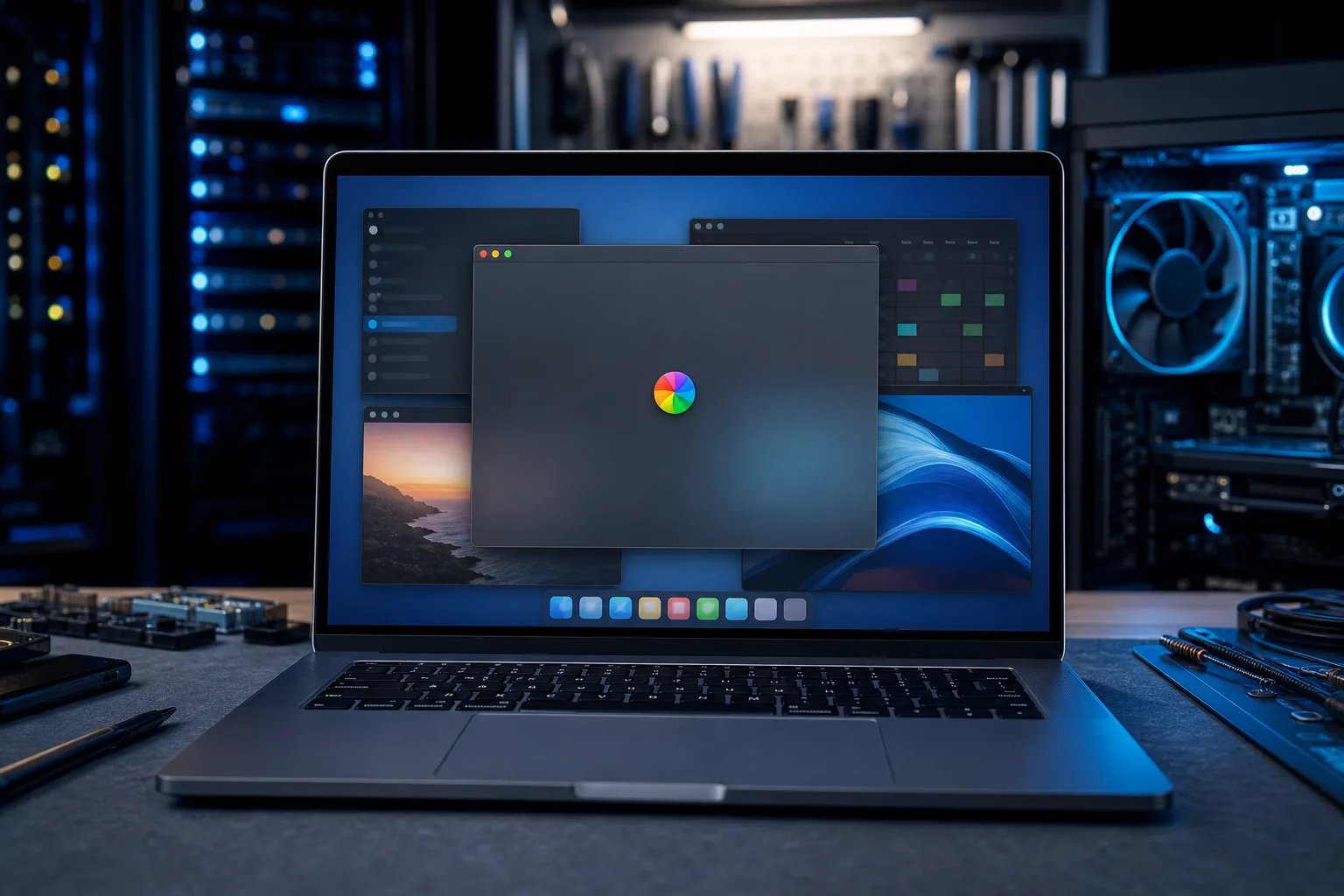
Apple calls it the Spinning Wait Cursor. Most people call it the spinning beach ball. When it shows up on only one app, macOS is telling you that app stopped responding to user input. The rest of your system kept moving.
The most common triggers:
- The app ran out of memory. A process inside the app requested more RAM than macOS could hand it at that moment.
- A file operation stalled. The app is waiting on a read or write, often to a slow external drive, a network share, or a cloud-synced folder like iCloud Drive or Dropbox.
- A background thread deadlocked. Two processes inside the app are each waiting for the other to finish. Neither ever does.
- A plugin or extension crashed. Especially common in creative apps like Photoshop, Final Cut Pro, or browser extensions inside Safari or Chrome.
- The app has a memory leak. It has been open for hours or days and slowly consumed more RAM until something gave out.
Why It Matters
A one-time freeze is almost always harmless. Dismiss it, move on. But the pattern matters.
If the same app freezes repeatedly, it can corrupt your preference files, leave behind incomplete autosave documents, or, in worst cases, interrupt a write operation mid-stream and damage the file you had open. On older Macs with a spinning hard drive instead of an SSD, repeated stalls on file operations can also be an early warning sign of drive health problems.
The app is not the only thing at risk. If the freezing app is something like your accounting software or a project file you cannot recreate, a crash at the wrong moment matters a lot.
Computer acting up? Get a real diagnosis. Book a diagnostic
What We Don't Know Yet
A spinning beach ball alone does not tell you why the app froze. You have to dig one level deeper.
The two tools that show you the actual cause:
- Activity Monitor (Applications > Utilities > Activity Monitor). While the app is frozen, find it in the list. If it shows "Not Responding" in red, click it, then click the info button (i) and choose "Sample Process." This creates a readable log of what the app was doing when it locked up. You can also check the Memory tab to see if that app is consuming an unusual share of RAM.
- Console (Applications > Utilities > Console). Filter by the app name to see crash reports and error messages from recent sessions. These often name the exact plugin, framework, or file path that caused the problem.
Without checking these, you are guessing. And guessing usually leads to reinstalling the app when the real culprit was a corrupted preference file or a bad font.
What to Do About It
For a one-time freeze, the diagnostic sequence is simple:
- Wait 30 seconds. Some operations genuinely take time, especially on large files.
- If it stays frozen, press Command + Option + Escape, select the app, and click Force Quit.
- Relaunch the app. Check if whatever you were working on autosaved.
- If it was reading from an external drive or network share, check that the connection is healthy.
If it keeps happening, work through this checklist:
- Quit and relaunch the app after a full Mac restart. Fresh RAM state often fixes a leak.
- Check for app updates. Many recurring freeze bugs are fixed in the next minor version.
- Delete the app's preference file. Find it in
~/Library/Preferences/using the filename patterncom.developer.appname.plist. Move it to the Desktop (don't delete it yet), relaunch, and see if behavior improves. - Disable plugins or extensions one at a time. For browsers, go to the extensions settings. For creative apps, check the app's own plugin manager.
- Open Activity Monitor during normal use and watch whether the app's memory climbs without coming back down. If it does, that's a leak.
- Run Disk Utility > First Aid on your startup volume. A permissions or volume structure error can make file operations stall in unexpected apps.
Decision table: self-fix or get help?
| Situation | What to do |
|---|---|
| Froze once, works now | Ignore it, keep an eye out |
| Same app freezes every session | Work through the checklist above |
| Multiple apps freezing | Likely a system-level issue, not the apps |
| Freeze corrupted an important file | Stop using the drive; get professional help |
| Drive makes noise or shows errors in Disk Utility | Treat as urgent; back up immediately |
If you're in the "multiple apps freezing" row, the problem is probably RAM, storage health, or macOS itself, not the individual apps. That warrants a proper diagnostic.
For anything in that last category, or if you just want a second opinion from someone who works on Macs regularly, Mac repair at Fix My PC Store is available at our West Palm Beach shop on Okeechobee Blvd. Initial checks for standard in-store repairs are free. You can also start with remote support if you want someone to look at Activity Monitor and Console logs with you without leaving home.
One more thing: if the freezing app handles business-critical data, and you haven't thought about what happens if it crashes mid-save, now is a good time to sort out a proper backup routine. That's a different conversation, but an important one.
Computer acting up? Get a real diagnosis.
Fix My PC Store has repaired thousands of machines across West Palm Beach. Honest pricing, no upsell games, and a free diagnostic for new customers with our email coupon.