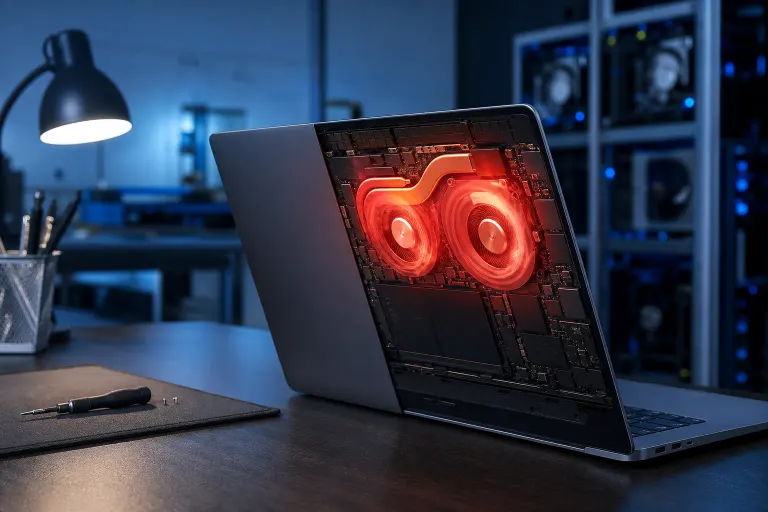
Mac Suddenly Running Hot After an Update? Here Is Why
TL;DR
After a macOS update, background processes like Spotlight re-indexing and kernel extension recompilation push CPU usage high for 30 minutes to a few hours. That heat is normal and typically resolves on its own. If the Mac is still running hot after 24 hours, something else needs attention.
What You Need
- Your Mac powered on and logged in
- Activity Monitor (built into macOS, found in Applications > Utilities)
- A few minutes of patience while background tasks finish
- A flat, ventilated surface to set the Mac on during this period
1. Identify Whether the Heat Is Post-Update Normal
Right after a macOS update, the system starts several background jobs before you even open an app.
Common culprits:
- Spotlight re-indexing. macOS rebuilds its search index after major updates.
mds_storesandmdworkerin Activity Monitor will show high CPU use. - Photos library re-analysis. Photos re-scans your library for faces and scene recognition when the ML models update.
- Rosetta 2 or dyld recompilation. On Apple Silicon, the system may recompile app caches. You will see
oahdordyld_shared_cache_builderactive. - iCloud sync catch-up. If files changed on another device while your Mac was updating, iCloud Drive pushes them all at once.
- Time Machine or third-party backup. Some backup apps trigger a full snapshot after detecting a system change.
Open Activity Monitor, click the CPU column to sort by usage, and watch for two minutes. If one of the processes above is near the top and CPU use drops when you leave the Mac idle, this is normal post-update behavior.
2. Give It Time Before Diagnosing Further
For minor point releases (e.g., 14.3 to 14.4), most background tasks finish within 30 to 90 minutes on an SSD-based Mac.
For major version upgrades (e.g., Ventura to Sonoma), allow up to 4 to 6 hours, especially if you have a large Photos library or a full iCloud Drive.
What to do during this window:
- Place the Mac on a hard, flat surface, not on a bed, couch, or your lap. Bottom vents and side vents need airflow.
- Close unused browser tabs and apps to free CPU headroom.
- Plug in the power adapter if you are on a laptop. Thermal throttling under battery can make tasks take longer.
- Do not force-restart. Interrupting index jobs extends the total time.
3. Check for Runaway Processes After the Window Closes
If the Mac is still hot 6 to 12 hours after the update and Activity Monitor still shows one process pinning CPU above 80 percent, the process has stalled.
Decision table: what to do by process
| Process stuck high | Action |
|---|---|
mds_stores |
Disable and re-enable Spotlight indexing in System Settings > Siri & Spotlight |
PhotosLibraryWorker |
Quit Photos app, reopen it, and let it resume |
backupd (Time Machine) |
Skip the current backup in Time Machine menu, let it start fresh |
kernel_task |
See Step 4 below, this is a throttling signal not a bug |
| Any third-party app | Force quit, then relaunch or update the app |
Computer acting up? Get a real diagnosis. Book a diagnostic
4. Understand kernel_task High CPU
kernel_task appearing at the top of Activity Monitor with very high CPU use is not a runaway process. It is macOS deliberately consuming CPU cycles to slow down other processes and reduce heat. It is a symptom, not the cause.
If kernel_task is spiking:
- Check what is actually generating heat by sorting Activity Monitor by Energy Impact instead of CPU.
- The process with the highest Energy Impact is the real driver.
- Quit or restart that process first.
Apple's own documentation confirms this behavior. The Apple Support article on kernel_task explains the thermal management role in detail.
5. Reset SMC or NVRAM If Heat Persists on Intel Macs
On Intel-based Macs, the System Management Controller (SMC) handles fan speed and thermal response. A corrupted SMC state after an update can cause fans to run too slow even when the system is hot.
SMC reset steps for Intel MacBooks (non-removable battery):
- Shut down the Mac.
- Hold Shift + Control + Option and the power button for 10 seconds.
- Release all keys at the same time.
- Power on normally.
For Intel Mac desktops, unplug the power cord for 15 seconds, then reconnect.
Apple Silicon Macs (M1 and later) do not have an SMC. Restarting the Mac achieves a similar reset automatically.
Resetting NVRAM (Option + Command + P + R at boot on Intel) can also resolve fan control anomalies tied to display or sensor settings.
6. Check for a Bad Update or Incompatible Extension
Rarely, a macOS update ships with a bug affecting a specific Mac model. Check the MacRumors forums or Apple Support Communities for your exact model and update version. If other users report the same overheating pattern, Apple typically issues a supplemental update within days to weeks.
Third-party kernel extensions (kexts) from older security software or utility apps can conflict with a new kernel version and drive abnormal CPU use. Check System Settings > Privacy & Security > Security for any extensions flagged as needing review after the update.
Common Mistakes
- Restarting repeatedly. Each restart restarts the indexing job from scratch, extending the total time the Mac runs hot.
- Using a cooling pad with no airflow path. A fan pad under a MacBook helps slightly, but if the intake vents are blocked by the pad's surface, it makes things worse.
- Killing
mds_storesvia Terminal without disabling Spotlight first. The process respawns immediately and the index never completes. - Assuming heat means hardware failure. Post-update heat almost never signals a failing fan or thermal paste issue on its own. Give the software process time to finish before drawing that conclusion.
- Skipping the update because of heat fear. Security patches in macOS updates matter. Staying on an older version to avoid temporary heat is the wrong tradeoff.
Bottom Line
A hot Mac right after an update is almost always the operating system doing legitimate background work. Open Activity Monitor, identify the top CPU process, and let it finish. If heat continues past 24 hours, a stalled process, SMC issue, or incompatible extension is the likely cause, and the steps above address each scenario.
If you have worked through every step and the Mac is still running abnormally hot, it may be time for a hardware check. Fan failure, dried thermal paste, or a blocked heatsink are physical issues that software cannot fix. The team at Fix My PC Store can diagnose and repair Mac thermal problems at the shop on Okeechobee Blvd. Book a Mac repair appointment or reach out through the contact page if you want a second opinion before spending more time troubleshooting.
Computer acting up? Get a real diagnosis.
Fix My PC Store has repaired thousands of machines across West Palm Beach. Honest pricing, no upsell games, and a free diagnostic for new customers with our email coupon.