Why Is My Mac Showing a Different Resolution After Connecting to a TV?
TL;DR: When you connect a Mac to a TV, macOS hands off display control to the TV's reported specs. The TV often asks for a lower or non-native resolution, causing a blurry or mismatched picture. You can override this in System Settings, but a few gotchas can get in the way.
What Happened
Your Mac didn't break. It did exactly what it was told.
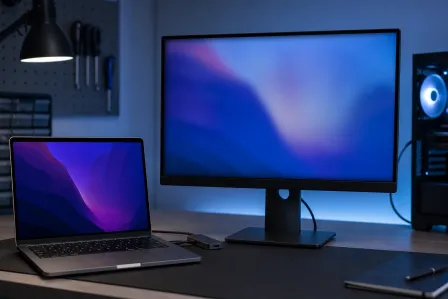
When you plug in via HDMI or a USB-C adapter, macOS reads the TV's EDID data, which is a small block of information the TV broadcasts about what resolutions and refresh rates it supports. macOS then picks what it considers the best match from that list.
The problem is "best match" and "sharpest picture" are not the same thing. TVs are built around 1080p or 4K video, not pixel-perfect desktop rendering. So macOS might land on 1080p at 30 Hz instead of your Retina-equivalent setting, or it might apply overscan that chops off the edges of your screen.
A cheap or generic HDMI adapter makes this worse. Passive adapters sometimes misreport EDID data, feeding your Mac bad information from the start.
Why It Matters
This isn't just a cosmetic annoyance. A lower resolution means smaller text becomes unreadable, fine interface details blur, and anything you're presenting or working on looks unprofessional.
Overscan, the old TV behavior of zooming the picture slightly to hide edge artifacts, is a particular villain here. It was designed for broadcast television, not computer output. When a TV applies overscan to your Mac's desktop, you lose the edges of windows and the menu bar gets clipped.
Refresh rate mismatches matter too. 60 Hz to 30 Hz drops feel like input lag when you're moving windows or scrolling, even if you can't name exactly what feels off.
Computer acting up? Get a real diagnosis. Book a diagnostic
What We Don't Know Yet
Apple keeps some resolution-negotiation behavior inside macOS internals and doesn't publish a full spec for how it prioritizes EDID responses. So there's no official documented list of exactly which TVs will cause trouble.
It's also unclear whether Apple Silicon Macs and Intel Macs handle edge-case EDID responses identically. User reports suggest minor differences, but no controlled comparison exists publicly.
And if you're using a USB-C hub rather than a direct connection, the hub's chipset adds another variable. Some hubs pass EDID data cleanly; others quietly modify it.
What to Do About It
Start with the cable and adapter. A direct HDMI cable beats a hub chain every time. If you're using a USB-C to HDMI adapter, try a different one, preferably one from a known brand that specifies active signal conversion.
Then adjust the resolution manually in macOS:
- Go to System Settings > Displays (macOS Ventura or later) or System Preferences > Displays on older versions.
- Hold the Option key and click Scaled to reveal the full list of available resolutions, not just the "recommended" ones.
- Pick the native resolution of your TV (1920x1080 for 1080p TVs, 3840x2160 for 4K).
- If the image is cropped, look for an Overscan slider in the display settings or, better, turn off overscan directly in your TV's picture menu. It's often labeled "Just Scan," "Screen Fit," or "Full Pixel" depending on the brand.
Check the refresh rate too. In the same display panel, look for a refresh rate option. Set it to 60 Hz if your TV and cable support it. HDMI 1.4 cables support 4K only at 30 Hz; HDMI 2.0 or later handles 4K at 60 Hz.
Decision table: which fix applies to you?
| Symptom | Most Likely Cause | First Fix |
|---|---|---|
| Blurry, soft image | Resolution too low | Option-click Scaled, pick native res |
| Edges of screen cut off | TV overscan enabled | Disable overscan in TV picture menu |
| Sluggish, laggy cursor | Refresh rate dropped to 30 Hz | Set 60 Hz in Display settings; check cable spec |
| Wrong resolution after every reboot | macOS forgetting preference | Delete display prefs plist (see below) |
| No resolution options at all | Bad adapter or EDID misread | Replace cable or adapter |
If macOS forgets your setting after every restart, the display preferences file may be corrupted. You can delete it by navigating in Finder to ~/Library/Preferences/ByHost/ and removing any file starting with com.apple.windowserver. macOS will recreate it on reboot. Back up first.
When to get help: If you've swapped cables, turned off overscan, and manually set the resolution but the display still looks wrong or macOS shows no usable resolution options, the issue may be with the Mac's display output hardware, the adapter port, or a firmware-level EDID conflict that needs deeper diagnosis. That's a good time to bring it in for a free initial check at Fix My PC Store, or start with Mac repair if you suspect a hardware issue. Remote support is also an option if the display works well enough to use: remote support.
Computer acting up? Get a real diagnosis.
Fix My PC Store has repaired thousands of machines across West Palm Beach. Honest pricing, no upsell games, and a free diagnostic for new customers with our email coupon.