Mac Mouse Cursor Jumping or Freezing? Find the Cause
TL;DR: A Mac cursor that jumps or freezes is almost always caused by a dirty tracking surface, a dying battery in a wireless mouse, a software conflict, or a hardware fault in the mouse or trackpad itself. Work through the checks below in order, from easiest to hardest. Most people fix it in under five minutes.
What you need
- A clean, lint-free cloth
- A solid-colored, non-reflective mouse pad (or a sheet of plain paper)
- Fresh batteries or a charging cable for a wireless mouse
- A second known-good mouse (useful for isolating hardware faults)
- Access to System Settings on macOS
1. Rule out the surface first
This is the most common cause and the easiest fix. Optical and laser sensors struggle on glossy desks, glass, and highly patterned surfaces.
Swap your mouse onto a plain sheet of white printer paper. If the cursor moves smoothly, your surface is the problem. Get a matte mouse pad and you're done.
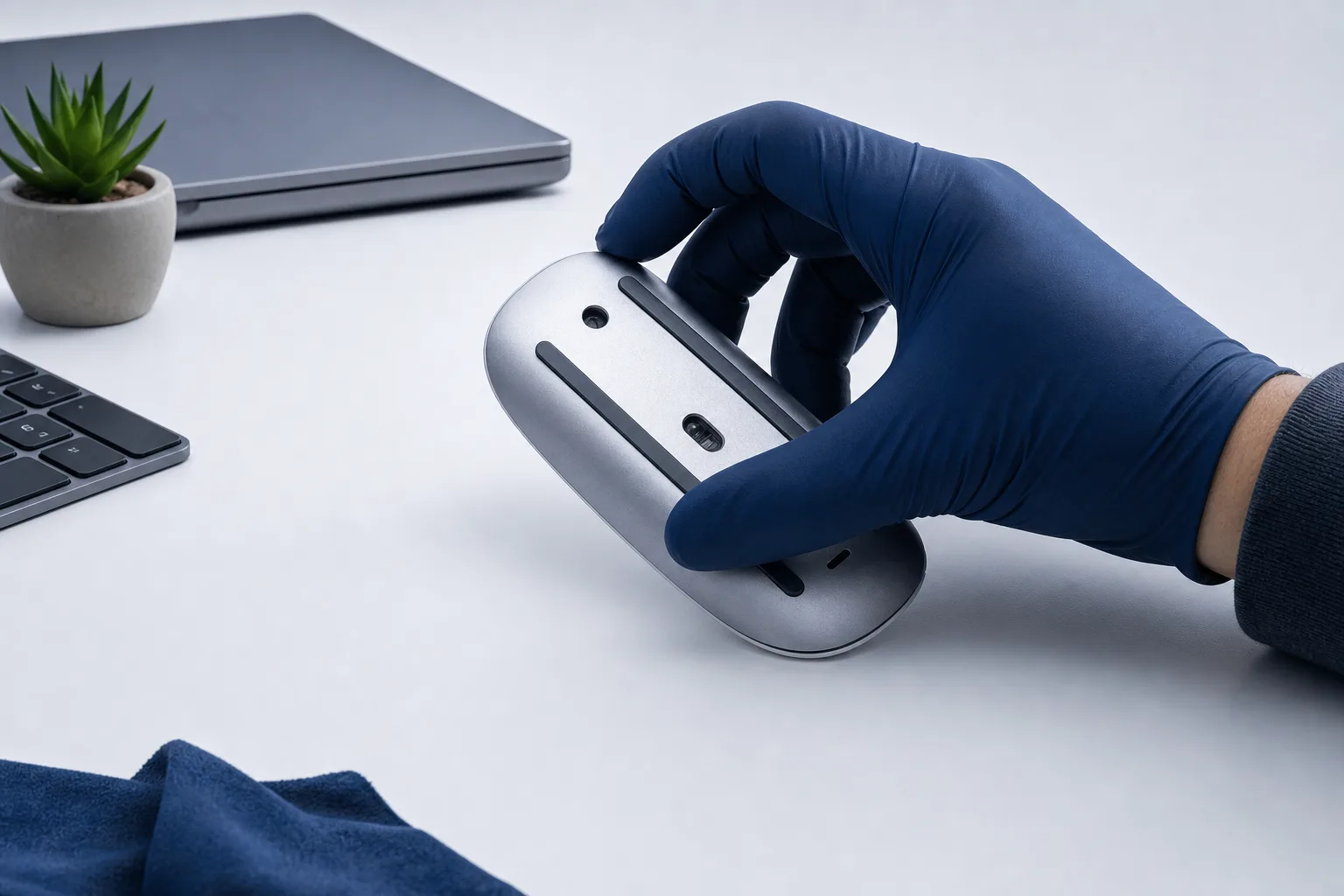
Also flip the mouse over and check the sensor window. Dust and hair caught around the sensor cause erratic tracking even on a good surface. A quick blast of compressed air or a cotton swab clears it out.
2. Check battery level for wireless mice
A wireless mouse running low on battery is a notorious cursor-jumper. Apple mice and most Bluetooth mice start dropping tracking accuracy well before they actually die.
On a Mac, open System Settings > Bluetooth and tap the info icon next to your mouse. Battery percentage is listed there. Anything below 20% is suspect. Charge it or swap the batteries and retest.
If you use a Magic Mouse, remember it cannot be used while charging, so plug it in overnight and test fresh in the morning.
3. Test the Bluetooth or USB connection
For wireless mice:
- Turn Bluetooth off, wait 10 seconds, turn it back on.
- Unpair the mouse completely, then re-pair it from scratch.
- If other wireless devices are in use nearby, be aware that interference from 2.4 GHz Wi-Fi networks or other 2.4 GHz wireless devices sharing the band can affect Bluetooth performance. Temporarily moving away from Wi-Fi routers or other 2.4 GHz sources can help isolate this.
For wired USB mice:
- Try a different USB port, preferably directly on the Mac rather than through a hub.
- Swap the cable if possible. USB cables develop intermittent faults more often than people expect.
USB hubs, especially cheap unpowered ones, can cause signal dropouts that look exactly like cursor freezes.
Computer acting up? Get a real diagnosis. Book a diagnostic
4. Isolate software conflicts
Some apps actively intercept mouse input: accessibility tools, display managers, gaming software, and certain VPN clients have all been known to cause cursor weirdness on macOS.
Quick diagnostic sequence:
- Quit every non-essential app.
- Open Activity Monitor and sort by CPU. Anything pegged high while the cursor misbehaves is a suspect.
- Boot into Safe Mode. On Intel Macs, shut the Mac down completely, then press the power button and immediately hold Shift until the login window appears. On Apple Silicon, hold the power button until the startup options screen appears, then Shift-click Continue in Safe Mode. Safe Mode disables third-party login items and kernel extensions. If the cursor behaves normally in Safe Mode, a third-party app or extension is causing it.
- Re-enable apps one at a time to find the culprit.
Also check System Settings > Accessibility > Pointer Control. The Ignore built-in trackpad when mouse or wireless trackpad is present checkbox can cause unexpected behavior if it's toggled the wrong way for your setup.
5. Test with a known-good mouse
If everything above checks out, borrow or plug in a second mouse. If the second mouse is smooth and your original is not, the original mouse hardware is failing. Optical sensors and scroll wheels wear out.
If the second mouse also jumps, the problem is the Mac itself, not the mouse. That points toward a trackpad hardware fault (on a MacBook, the trackpad can interfere with cursor movement even when you're using an external mouse), a macOS bug, or a deeper hardware issue.
6. Check for trackpad interference on MacBooks
On MacBooks, the built-in trackpad stays active even when an external mouse is plugged in, unless you disable it. A palm resting lightly near the trackpad, or a failing trackpad, can inject phantom cursor movements.
Go to System Settings > Trackpad and enable the option to ignore the built-in trackpad when a mouse is connected. If the jumping stops, your trackpad hardware may need attention.
A swollen battery can physically press against the trackpad from underneath, causing it to register phantom touches constantly. If your MacBook bottom case looks slightly bowed, treat that as urgent: a swollen battery is a safety issue, not just a cursor annoyance.
Common mistakes
- Replacing the mouse immediately. Most people buy a new mouse before testing the surface or battery. Cheap fix first, always.
- Ignoring Safe Mode. It feels like extra work, but it instantly tells you whether a third-party app is involved.
- Forgetting the trackpad. MacBook users often only think about the external mouse and miss the trackpad interference angle entirely.
- Using a USB hub. Plugging a wired mouse through a bus-powered USB hub and blaming the mouse for dropouts is extremely common.
Bottom line
Start with the surface and battery. If those are fine, move to connection quality, then software, then hardware. Following that order saves you from replacing something that wasn't broken.
If you've worked through all of this and the cursor is still misbehaving, especially if you suspect a trackpad fault or a swollen battery, it's worth getting the Mac looked at in person. The team at Fix My PC Store handles Mac repair out of the Okeechobee Boulevard shop in West Palm Beach and can run a proper hardware diagnostic. You can also start with remote support if the issue looks more like a software problem.
Computer acting up? Get a real diagnosis.
Fix My PC Store has repaired thousands of machines across West Palm Beach. Honest pricing, no upsell games, and a free diagnostic for new customers with our email coupon.