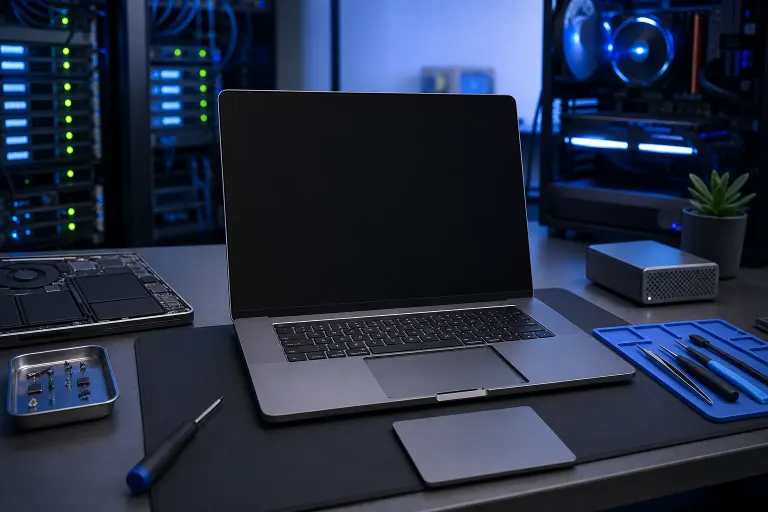
Mac Keyboard and Trackpad Both Stopped Working? Here's Why
TL;DR: When your Mac's built-in keyboard and trackpad die together, it's almost always one shared cause: a software glitch, a battery swelling under the logic board, a bad SMC state, or liquid damage that hit the connector they both plug into. Work through the software fixes first, then check the physical stuff. If nothing brings them back, it's time for an actual diagnosis instead of more guessing.
Why This Happens (And Why It's Not a Coincidence)
Here's the thing that trips people up: the keyboard and trackpad on a MacBook feel like two separate parts, so it seems weird when they both quit at once. But they're not as separate as they look.
On most MacBooks, both the keyboard and trackpad connect to the logic board through the same general area, sometimes even the same cable assembly or a shared controller. That means whatever breaks the connection for one often breaks it for the other too. Same story with software. macOS treats both as part of one "internal input devices" system, so a driver hiccup or corrupted preference file can knock out both simultaneously.
Think of it like a power strip. If two lamps plug into the same strip and the strip loses power, both lamps go dark at the same time. That doesn't mean both lamps broke. It means the thing feeding them broke. Same idea here.
The most common causes we see on Mac repairs in West Palm Beach:
- A macOS glitch or corrupted system settings (most common, easiest fix)
- A swollen battery pressing up against the trackpad and its ribbon cable
- A liquid spill that got into the keyboard deck and shorted the shared connector
- A failed SMC (System Management Controller) state
- A loose or damaged internal cable after a drop
- Actual logic board failure (least common, but it happens)
Good news: most of these have a real chance of getting fixed without opening the machine. Let's go through them in order, easiest first.
What You Need
- A USB or Bluetooth mouse and external keyboard (this lets you keep using the Mac while you troubleshoot)
- A charger, plugged in and connected
- 15 to 30 minutes
- Admin password for your Mac, if you remember it
- Good lighting, so you can check the keyboard deck for any swelling or moisture
If you don't have a spare mouse or keyboard lying around, that's okay. Some of the steps below don't need one. But having them handy will save you a headache, so grab them if you can.
Step 1: Rule Out a Frozen App or macOS, Not a Hardware Failure
Before you panic, check if your whole Mac is just frozen. A total freeze can look exactly like "keyboard and trackpad stopped working" because nothing responds either way.
Here's how to tell the difference:
- Look at the screen. Is the cursor visibly stuck, or is anything animating (like a clock, a video, a spinning progress bar)?
- If literally nothing on screen is moving, your Mac may be frozen rather than the inputs being broken.
- Press and hold the power button for about 10 seconds to force a shutdown, then power back on.
If the keyboard and trackpad work fine right after restart, this was a one-time freeze, not a hardware issue. Worth noting if it keeps happening though, since repeat freezes can be a sign of something deeper. We've covered a related issue in our guide on Mac spinning beachballs if slowdowns and freezes are becoming a pattern for you.
Step 2: Check If It's Bluetooth Devices Confusing the System
This sounds unrelated, but it trips up more people than you'd expect. If you've ever paired a Bluetooth keyboard or trackpad with this Mac, even once, macOS can sometimes get confused about which device it should be listening to.
- Plug in a USB keyboard and mouse if you have them.
- Go to the Apple menu, then System Settings, then Bluetooth.
- Look for any old paired keyboards, trackpads, or mice you don't currently use.
- Remove ones you don't recognize or don't need anymore.
- Restart the Mac.
Did that bring things back? Great, you just saved yourself a repair visit. If not, keep going, we've got more to try.
Step 3: Reset the SMC (System Management Controller)
The SMC handles a lot of low-level hardware behavior on your Mac, including power management and some input handling. Resetting it is safe and doesn't erase any data. Think of it as a soft reboot for the parts of your Mac that live below macOS itself.
The steps are different depending on your Mac's chip:
On Apple Silicon Macs (M1, M2, M3, and newer): There's technically no manual SMC reset. Just shut the Mac down completely, wait about 30 seconds, then turn it back on. Apple Silicon Macs manage this automatically.
On Intel Macs with a battery you can't remove (most modern Intel MacBooks):
- Shut down the Mac completely.
- Press and hold Shift + Control + Option on the left side of the keyboard, plus the power button, all at once.
- Hold for about 10 seconds.
- Release everything, then press the power button normally to turn the Mac back on.
If your MacBook is quite old and has a removable battery, the process is different again. Apple's own support pages walk through model-specific steps if you're not sure which category yours falls into. Apple's official SMC reset guide has the specifics broken down by model.
Step 4: Check for a Swollen Battery
This one matters, and it's not something to brush off. If your Mac's battery has started to swell, even slightly, it can physically push against the trackpad and the ribbon cables that connect to it. That pressure alone can be enough to disable both the trackpad and keyboard, since they often share wiring paths near the same area.
Signs your battery might be swelling:
- The trackpad feels like it's bulging up on one or both sides, or doesn't click evenly anymore
- The bottom case doesn't sit flat on a table anymore, it rocks slightly
- You notice a gap between the keyboard deck and the case around the trackpad area
If you notice any of this, stop trying to force the trackpad or keyboard to work. A swollen lithium battery is a genuine safety concern, not just an inconvenience. Don't press hard on it, don't try to pop the case open yourself, and don't puncture anything. Power the Mac down and get it to someone who can safely remove and replace the battery. This is exactly the kind of job we handle through Mac repair here in West Palm Beach, and it's not a DIY fix once swelling is visible.
Step 5: Check for Liquid Damage
Spilled coffee, water, juice, even humidity from a beach day here in South Florida, liquid is one of the top reasons keyboards and trackpads die together. Both components often route through connectors near the same part of the logic board, so a spill in one spot can knock out both at once, sometimes with a delay of hours or even days before symptoms show up.
- Flip the Mac over and look closely around the keyboard deck for any discoloration, stickiness, or corrosion near the ports.
- Check if any keys feel sticky or respond inconsistently when you plug in an external keyboard temporarily to compare.
- If you know there was a spill, even a small one, stop using the Mac immediately and don't try to power it on repeatedly. That can push moisture further into the board and cause a short.
Liquid damage almost always needs a professional look, since corrosion can spread slowly under the board if it's not cleaned properly right away. The sooner it gets checked after a spill, the better the odds of a full recovery.
Step 6: Boot Into Safe Mode to Rule Out Software Conflicts
If the hardware seems physically fine (no swelling, no spill signs), a corrupted system extension or startup process could be the culprit. Safe Mode strips things down to bare essentials, which helps you tell software and hardware problems apart.
On Apple Silicon Macs:
- Shut down completely.
- Press and hold the power button until you see "Loading startup options."
- Select your startup disk, then hold Shift and click "Continue in Safe Mode."
On Intel Macs:
- Shut down completely.
- Turn it on and immediately press and hold Shift.
- Release when you see the login window.
Once in Safe Mode, test the keyboard and trackpad. If they work fine here but not in normal mode, something in your regular startup items or a third-party app is likely the cause. If they're still dead even in Safe Mode, that's a strong sign this is hardware, not software.
Step 7: Get a Professional Diagnosis
If you've made it this far and nothing's worked, it's genuinely time to stop guessing. At this point you're looking at one of a few things: a failed internal cable, logic board damage, or a battery issue that isn't visibly obvious yet. None of these are things to chase further on your own, since opening a MacBook without the right tools can turn a fixable problem into an expensive one.
Bring it in, or if you're not near West Palm Beach, our remote support options can at least help rule out software causes before you travel anywhere. For anything involving the keyboard deck, trackpad cable, or battery, Mac repair is the right next step, and a proper diagnostic will tell you exactly what's going on instead of leaving you guessing.
Common Mistakes
Pressing harder on the trackpad, hoping it'll respond. If there's a swollen battery underneath, pressing down is the last thing you want to do.
Repeatedly restarting a Mac with suspected liquid damage. Each power cycle risks pushing moisture deeper or causing a short that wasn't there before. Power off and get it looked at instead.
Assuming it's "just old" and giving up. Plenty of these issues are simple fixes, a Bluetooth conflict, an SMC reset, a corrupted preference. Age alone doesn't explain both inputs dying at once.
Opening the case without experience. MacBook keyboards and trackpads use fragile ribbon cables that tear easily. A well-meaning DIY attempt can turn a $150 fix into a full logic board replacement.
Ignoring a visibly bulging trackpad. This isn't cosmetic. A swelling battery is a safety issue and it only gets worse with time, never better on its own.
Bottom Line
When a Mac's keyboard and trackpad quit together, it's a clue, not a coincidence. They share pathways, whether that's software, cabling, or proximity to the battery, so one root cause usually explains both. Start with the free software fixes: Bluetooth cleanup, an SMC reset, Safe Mode. If those don't work, check carefully for swelling or spill signs, and don't push through those warning signs hoping it'll resolve itself.
If you're still stuck, a proper diagnosis beats more guesswork every time. Our team handles this exact issue regularly for Mac users across West Palm Beach and the Treasure Coast. Schedule a repair or reach out with your questions if you want a second opinion before doing anything drastic.
Computer acting up? Get a real diagnosis.
Fix My PC Store has repaired thousands of machines across West Palm Beach. Honest pricing, no upsell games, and a free diagnostic for new customers with our email coupon.