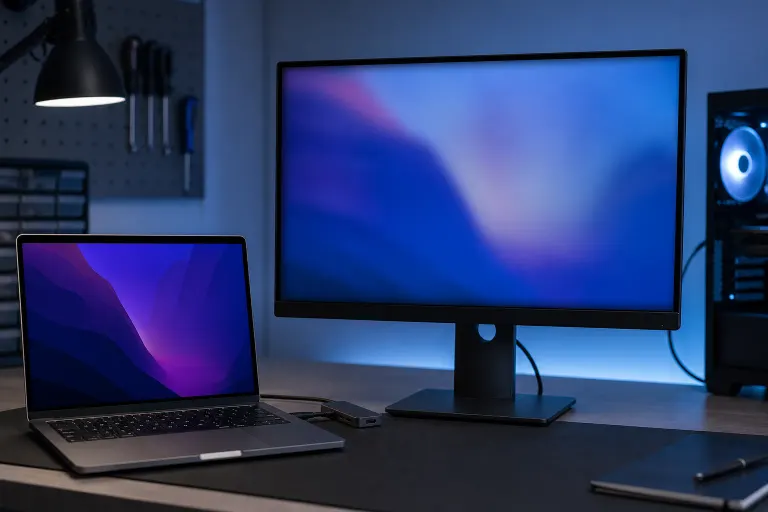
Why Is My Mac Displaying Blurry Text on an External Monitor?
TL;DR: Blurry text on a Mac external monitor is almost always caused by macOS defaulting to the wrong resolution or skipping HiDPI rendering on a non-Apple display. Check System Settings first, try a forced HiDPI workaround if needed, and rule out the cable last. Hardware failure is rarely the cause.
What Happened
Apple built macOS around Retina displays. When you plug in a third-party external monitor, macOS does not always know how to handle the pixel density correctly. It may pick a resolution that looks fine on paper but renders text without HiDPI smoothing, which makes everything look like you smeared Vaseline on the screen.
(This has been a quiet annoyance since Apple moved to Retina MacBooks years ago. It did not fix itself.)
The other common trigger is a cable or adapter that cannot carry the full bandwidth the monitor needs, so the Mac downgrades signal quality. A cheap USB-C hub is a frequent offender, though that is a separate topic.
Why It Matters
Blurry text is not cosmetic. Reading blurry text for hours causes real eye strain. If you are doing design, photo editing, or document work on that external screen, inaccurate rendering also means you cannot trust what you are looking at.
The frustrating part is that the fix is usually free and takes under ten minutes. But most people do not know where to look because Apple buried the relevant controls.
Computer acting up? Get a real diagnosis. Book a diagnostic
What We Do Not Know Yet
Apple has changed how resolution scaling is exposed across macOS versions. A workaround that worked on Ventura may behave differently on Sonoma or whatever ships next. Third-party utilities that force HiDPI mode also change between releases, so instructions you find from two years ago may be stale.
Also, monitor firmware and EDID data affect what resolutions macOS offers. Two monitors with the same advertised specs can behave differently with the same Mac.
What To Do About It
Work through this sequence in order. Stop when the text sharpens.
Step 1: Check the resolution setting
Go to System Settings > Displays. Select the external monitor. If you see a slider with "Larger Text" on one end and "More Space" on the other, macOS is already offering scaled options. Move it one step toward "More Space," then one step back, and see if text sharpens. Sometimes macOS just needs a nudge to re-render.
If you see individual resolution numbers instead of the slider, pick the one labeled with your monitor's native resolution. Running a 1920x1080 panel at 1600x900 will always look soft.
Step 2: Enable HiDPI mode (macOS Ventura and later)
Hold Option while clicking "Scaled" in Display Settings. This reveals a list of HiDPI resolutions marked with a small icon. If your monitor is 1080p, look for "1920x1080 (HiDPI)." Selecting it tells macOS to render at double resolution and downsample, producing sharper text.
(Not all monitors will show HiDPI options. A 1080p panel on a non-Retina Mac may have nothing there. That is not a bug, it is math.)
Step 3: Try a third-party scaling utility
If the built-in options are limited, tools like BetterDisplay can force HiDPI modes that macOS hides. These work by creating a virtual display and mirroring it to your monitor at a higher internal resolution. Text gets noticeably sharper on most panels.
This is a legitimate workaround, not a hack. Plenty of professionals use it daily.
Step 4: Rule out the cable and adapter
A bad or underpowered cable can cause signal degradation that looks like a resolution problem. Try a different cable, preferably a direct USB-C to DisplayPort or HDMI 2.0 cable rather than a hub or dongle chain. If the blurriness changes or disappears, the cable was the issue.
Step 5: Check the monitor's own settings
Some monitors have sharpness controls in their on-screen display menu that operate independently of what the Mac sends. An over-sharpened or under-sharpened monitor setting can make even a perfect signal look wrong. Reset the monitor to factory defaults and see if that changes anything.
Quick decision table
| Symptom | Most likely cause | First thing to try |
|---|---|---|
| Blurry everywhere, all text | Wrong resolution or no HiDPI | System Settings > Displays, Option-click Scaled |
| Blurry only at edges | Monitor sharpness setting | Reset monitor to factory defaults |
| Blurry and occasional flicker | Cable or adapter bandwidth | Swap cable, remove hubs |
| Sharp in one app, blurry in another | App not optimized for scaling | Check app display settings or update the app |
When to get help
If you have worked through all of the above and text is still blurry, there may be a GPU issue, a failing display port on the Mac, or a deeper macOS display preference corruption. At that point, bring it in for a proper look. Mac repair at Fix My PC Store starts with a free initial check, and we can tell you quickly whether this is a settings problem or something in the hardware. You can also reach us at /contact or call 561-819-9999. Shop hours are Monday through Friday 9 a.m. to 6 p.m. and Saturday 9 a.m. to 5 p.m.
Computer acting up? Get a real diagnosis.
Fix My PC Store has repaired thousands of machines across West Palm Beach. Honest pricing, no upsell games, and a free diagnostic for new customers with our email coupon.