Mac Keeps Asking to Sign Into iCloud Over and Over: What It Means
TL;DR: Repeated iCloud sign-in prompts almost always mean your Mac's authentication token expired, Apple's servers had a hiccup, or a system setting got out of sync. Walk through the steps below in order and most cases resolve in under ten minutes. If the loop keeps going after all steps, a deeper account or hardware issue may be at play.
What you need
- Your Apple ID email address and password (have them ready before you start)
- A stable Wi-Fi or Ethernet connection
- About 10-15 minutes
- macOS updated to at least the current minor release (check System Settings, then General, then Software Update)
Step 1: Check Apple's system status first
Before changing anything on your Mac, visit Apple's System Status page. If iCloud Account & Sign In shows a yellow or red indicator, the problem is on Apple's end. Wait it out. No settings change will fix a server-side outage.
If everything shows green, move to the next step.
Step 2: Dismiss the prompt, then check your network
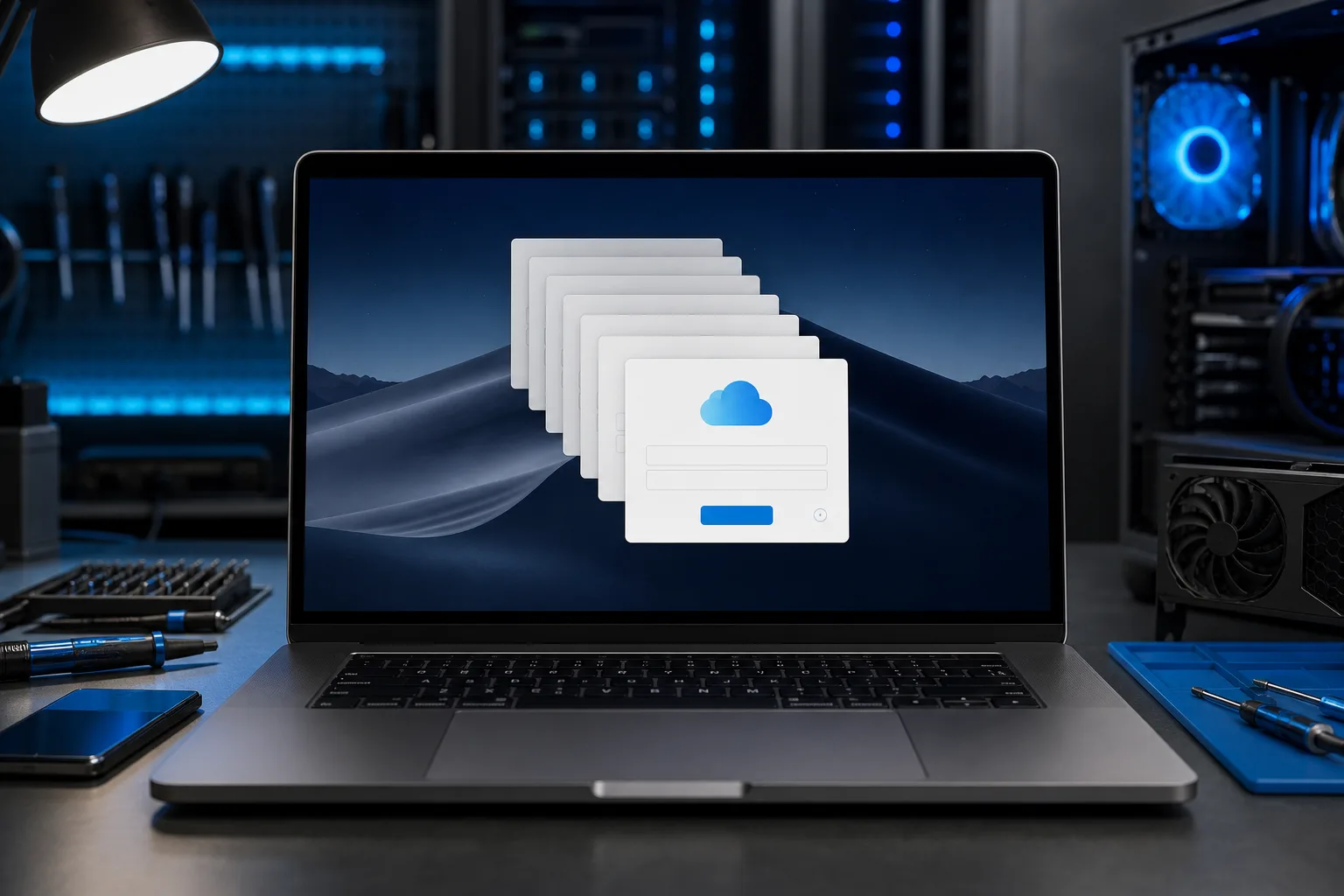
Click "Not Now" on the pop-up. Do not keep entering your password in a broken loop, because repeated failed attempts can temporarily lock your Apple ID.
Then confirm your internet connection is solid. Open Safari and load any webpage. If it fails, fix your connection first. iCloud requires a working connection to validate your session.
Step 3: Sign out of iCloud, then sign back in
This refreshes your authentication token, which is the most common fix.
- Open System Settings (or System Preferences on older macOS).
- Click your name at the top of the sidebar.
- Scroll to the bottom and click Sign Out.
- macOS will ask what local copies to keep. Choose what you need, then confirm.
- Wait 60 seconds.
- Sign back in with your Apple ID and password.
After signing back in, watch for a few minutes. If the prompt does not return, you are done.
Step 4: Check for a duplicate or conflicting Apple ID
Sometimes an old Apple ID is still linked to iCloud Drive, Messages, or FaceTime while a newer one is set as the primary. That conflict triggers repeated prompts.
- Go to System Settings, then click your name.
- Scroll through the iCloud apps list. Look for any service showing a different account name or an alert badge.
- Toggle off and back on any service showing a warning. Re-enter credentials when prompted.
Also open Messages and FaceTime directly. Under Settings (or Preferences) in each app, confirm the signed-in Apple ID matches your primary one.
Computer acting up? Get a real diagnosis. Book a diagnostic
Step 5: Delete the iCloud keychain entries and re-authenticate
If the sign-in loop continues, a corrupted keychain entry is likely the culprit.
- Open Keychain Access (find it in Applications, then Utilities).
- In the search bar, type iCloud.
- Look for entries labeled something like
iCloudorcom.apple.iCloudHelper. Right-click each and choose Delete. - Restart your Mac.
- When macOS prompts for your iCloud credentials, sign in normally.
Deleting these entries is safe. macOS rebuilds them fresh on the next sign-in.
Step 6: Check for a macOS software conflict
An incomplete macOS update or a corrupted preference file can break iCloud's background authentication.
- Go to System Settings, then General, then Software Update. Install any pending updates.
- After updating, restart your Mac and see if the prompt returns.
- If it does, reset the iCloud preference files. Open Finder, press Command-Shift-G, and type
~/Library/Preferences/. Find any file that begins withcom.apple.iCloudand move it to the Desktop (do not delete yet). Restart. macOS recreates them fresh.
Decision table: Which cause fits your situation?
| Symptom | Most likely cause | Best fix |
|---|---|---|
| Prompt appeared after a macOS update | Incomplete update or pref conflict | Step 6 |
| Prompt appeared after a password change | Expired token | Step 3 |
| Prompt targets only one app (Mail, Messages) | Per-app account conflict | Step 4 |
| Prompt appeared after new Wi-Fi or VPN | Network blocked Apple servers | Step 2 |
| Prompt appeared on its own, nothing changed | Keychain corruption | Step 5 |
| Apple Status page shows an outage | Server-side issue | Wait it out |
Common mistakes
Entering your password repeatedly into a broken loop. Each failed attempt risks triggering an Apple ID lockout. Dismiss and diagnose instead.
Skipping the server status check. If Apple's servers are down, nothing you do locally will help. Always check this first.
Deleting Keychain entries without restarting. The old cached credentials can still interfere until macOS restarts. Always reboot after deleting iCloud keychain entries.
Signing out of iCloud without noting what you want kept locally. When you sign out, macOS offers to keep local copies of contacts, calendars, and other data. Read that screen carefully before confirming.
Ignoring a software update. Older macOS minor versions sometimes have known iCloud authentication bugs that Apple patches quietly. Staying current prevents many prompt loops.
Bottom line
A Mac that keeps asking for your iCloud login is almost always dealing with an expired token, a keychain conflict, or a software hiccup, not something catastrophic. Work through the steps above in order and you will resolve the majority of cases yourself.
If you have been through all six steps and the loop still will not stop, something deeper may be going on: a failing drive affecting preference writes, a managed device policy conflict, or a more serious account issue. At that point, bring it in for a closer look. You can book a Mac repair visit or reach us through remote support if you would rather not make the trip. Fix My PC Store is at 10140 Okeechobee Blvd, Suite B, West Palm Beach, and reachable at 561-819-9999 during shop hours.
Computer acting up? Get a real diagnosis.
Fix My PC Store has repaired thousands of machines across West Palm Beach. Honest pricing, no upsell games, and a free diagnostic for new customers with our email coupon.