Common BIOS Problems: How to Identify and Fix Each One
TL;DR: Most BIOS problems fall into a handful of categories: bad settings, a dead CMOS battery, failed updates, or hardware that the BIOS can't detect. Knowing which one you have points you straight to the fix. A few are DIY-friendly; a couple are not.
If your PC is throwing errors before Windows launches, looping through restarts, or ignoring a drive or RAM stick, you've got a BIOS problem. The BIOS (or its modern version, UEFI) is the first code your system runs. When it misfires, nothing else works. Here's how to read the symptoms and nail the fix.
1. CMOS Checksum Error or "BIOS Settings Reset" Warning
What it looks like: You boot up and get a message like "CMOS checksum error" or "BIOS settings have been reset to default." The clock keeps resetting to a wrong date and time.
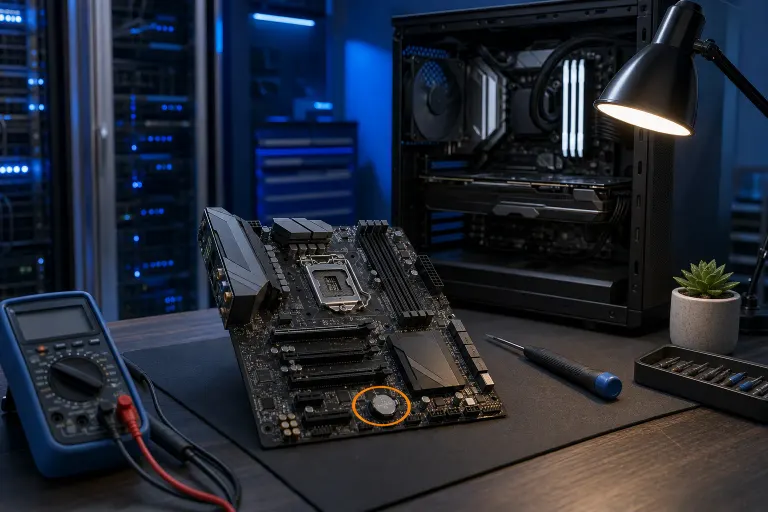
What's actually happening: The CMOS battery, a small coin-cell battery on your motherboard, has died. It's what keeps your BIOS settings and system clock alive when the PC is unplugged.
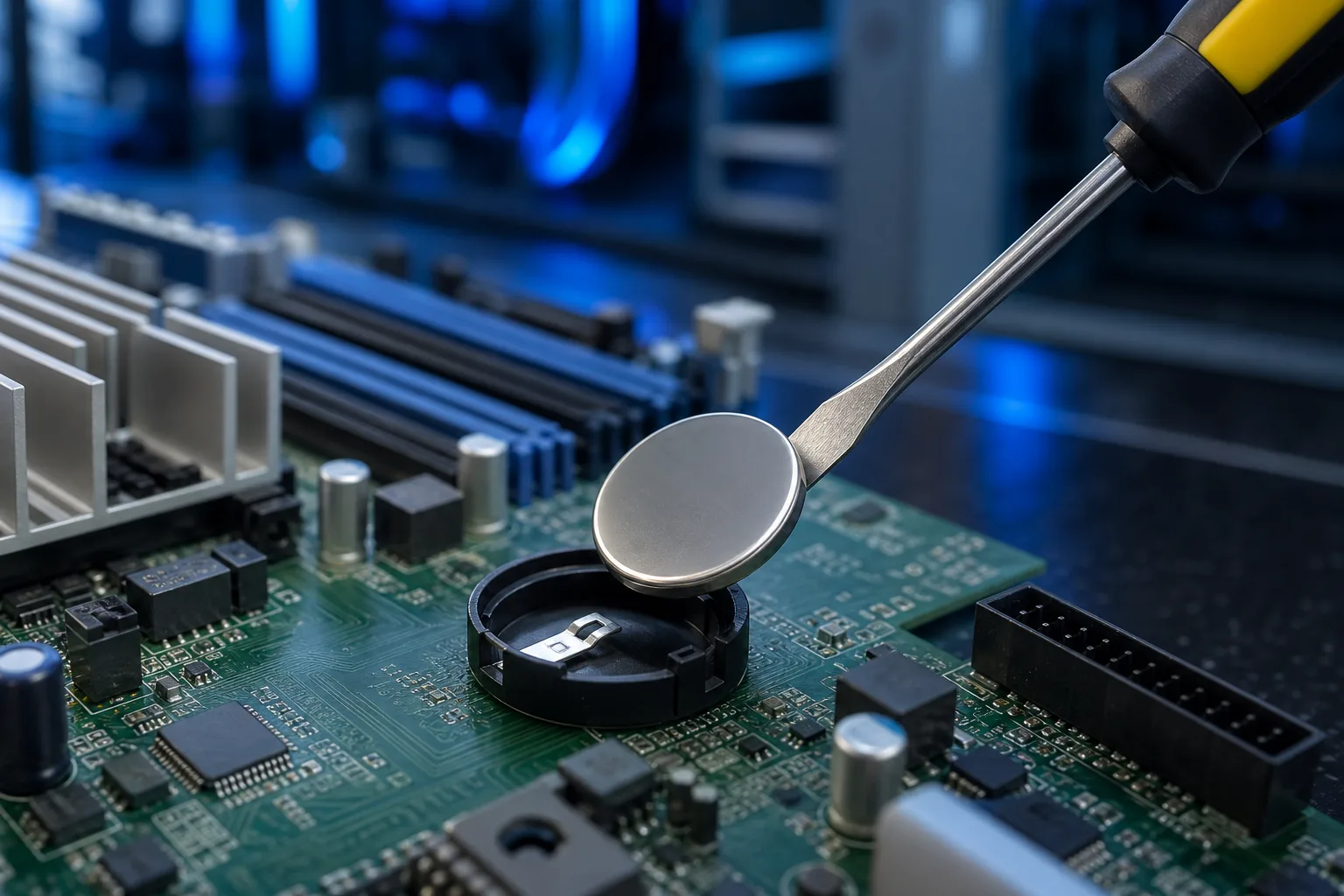
The fix: Replace the CMOS battery. It's almost always a CR2032, available for under $5 at any pharmacy or hardware store.
- Shut down and unplug the PC.
- Locate the flat coin-cell battery on the motherboard.
- Pop it out, wait 30 seconds, seat the new one.
- Boot, re-enter BIOS (usually Delete or F2 at startup), set the correct date/time, and save.
This is one of the most DIY-friendly repairs out there.
2. PC Won't Boot and Shows "No Bootable Device" or "Boot Device Not Found"
What it looks like: The system powers on, reaches the BIOS splash screen, then throws a "No bootable device" or "Boot device not found" error. Windows never starts.
What's actually happening: The BIOS can't find your storage drive, can't read the boot sector, or the boot order is pointing at the wrong device.
The fix, in order:
- Enter BIOS and check the boot order. Make sure your primary SSD or HDD is listed first, not a USB drive or optical drive.
- Check that the drive actually shows up under the BIOS storage/device list. If it doesn't appear at all, you have a hardware or cable problem, not just a settings issue.
- If the drive shows up but still won't boot, the issue is likely a corrupted Windows boot record. That requires a Windows recovery USB to repair.
If the drive doesn't show up in BIOS at all, that's often a failed drive, a loose SATA/NVMe connection, or a power issue to the drive itself.
3. BIOS Won't Detect RAM or Shows Wrong Amount
What it looks like: System posts but reports less RAM than installed, or you get a "Memory not detected" or beep-code error on startup.
What's actually happening: A RAM stick may be seated incorrectly, or it's in the wrong slot for your motherboard's preferred dual-channel configuration. Less commonly, a slot or stick has failed.
Decision table:
| Symptom | Most Likely Cause | First Step |
|---|---|---|
| Half the RAM detected | Wrong slots used | Check manual for correct slots |
| RAM not detected at all | Stick not fully seated | Reseat RAM, clean contacts |
| Correct amount shown but unstable | XMP/EXPO not enabled | Enable XMP profile in BIOS |
| One stick always causes failure | Failed stick or slot | Swap slots, test sticks individually |
Always check your motherboard manual for which slots to use. Most boards want sticks in slots 2 and 4, NOT 1 and 2.
4. BIOS Update Gone Wrong (Bricked or Stuck)
What it looks like: You started a BIOS update and the PC froze, lost power, or restarted mid-flash. Now it won't post at all, or it shows a blank screen with no beeps.
What's actually happening: A failed or interrupted BIOS flash can corrupt the firmware. This is a legit bricked board scenario.
Recovery options:
- BIOS flashback / USB BIOS recovery: Many modern motherboards (especially from ASUS, MSI, Gigabyte, and ASRock) include a dedicated BIOS flashback button. You load the correct BIOS file onto a USB drive, plug it in, hold the button, and the board reflashes without needing a CPU or RAM to work. Check your board's manual.
- Dual BIOS: Some Gigabyte boards have a backup BIOS chip that automatically kicks in.
- Board replacement or professional reflash: If neither option is available, this is board-level work. It's not something to improvise.
NEVER update your BIOS unless you have a specific reason: a CPU compatibility fix, a documented bug fix, or a security patch. Updating for fun is how this problem happens.
Computer acting up? Get a real diagnosis. Book a diagnostic
5. System Keeps Rebooting Into BIOS Instead of Windows
What it looks like: Every time you restart, the machine drops into the BIOS setup screen instead of loading Windows normally.
What's actually happening: Usually one of three things: a key is stuck and being read as the BIOS entry key, the boot order was accidentally saved without a valid boot drive selected, or a setting called "Fast Boot" is disabled and the board is pausing for input.
Fix sequence:
- Check your keyboard. Disconnect it and reboot to see if the issue stops. A stuck Delete or F2 key can do this.
- Inside BIOS, verify the boot order has your Windows drive at the top.
- Enable Fast Boot or Quiet Boot if available. This skips the manual entry window.
- Save and exit BIOS using "Save & Exit" (usually F10), not just the power button.
6. CPU or GPU Not Running at Correct Speed (OC Settings Lost or Wrong)
What it looks like: Performance drops suddenly, or HWiNFO / CPU-Z shows your CPU running at base clocks only. Your carefully tuned overclock is gone.
What's actually happening: A CMOS reset (either from a dead battery or manual clear) wiped your overclocking settings. Or XMP/EXPO for RAM was never saved properly. For AMD CPUs, PBO settings may have reverted.
What to do:
- Re-enter BIOS and re-enable your XMP or EXPO memory profile first. This alone can recover a significant chunk of performance even without custom overclocking.
- If you had a manual CPU overclock, reapply it. If you didn't write down your settings, start fresh and dial it in again.
- If you're seeing thermal throttling instead of a BIOS issue, that's a different problem entirely, check your cooler and paste.
Want to build a system where all of this is dialed in from the start? Check out the custom gaming PC builder.
7. Secure Boot or TPM Errors After a Hardware Swap
What it looks like: After replacing a CPU, GPU, or storage drive, Windows won't load and shows a BitLocker recovery key prompt or Secure Boot violation error.
What's actually happening: Windows 11 ties Secure Boot and TPM 2.0 status to your BIOS configuration. Swapping hardware, especially the motherboard or storage drive, can trip BitLocker or cause a Secure Boot mismatch.
Fix approach:
- Before any hardware swap, disable BitLocker or save your recovery key from your Microsoft account.
- After a swap, verify in BIOS that Secure Boot is enabled (required for Windows 11) and that TPM 2.0 is enabled under the security settings.
- If you're locked out by BitLocker and don't have the recovery key, data recovery becomes the main concern. That's a job for a shop.
Bottom Line
Most BIOS problems have a clear pattern: weird boot behavior, missing hardware, or a reset you didn't ask for. The CMOS battery, boot order, and RAM slot configuration fix the majority of cases at zero cost. A failed BIOS flash or BitLocker lockout are the ones that escalate fast.
If you've run through the steps above and your system still won't cooperate, bring it in. Fix My PC Store offers free initial diagnostics for most in-store repairs at 10140 Okeechobee Blvd, Suite B, West Palm Beach. Call 561-819-9999 or schedule a repair. Hours are Monday through Friday 9 a.m. to 6 p.m., Saturday 9 a.m. to 5 p.m.
Computer acting up? Get a real diagnosis.
Fix My PC Store has repaired thousands of machines across West Palm Beach. Honest pricing, no upsell games, and a free diagnostic for new customers with our email coupon.