Why Does My Mac Keep Freezing on the Apple Logo at Startup?
TL;DR: A Mac stuck on the Apple logo is almost always a software or storage problem, not a dead machine. Safe Mode and Disk Utility catch the majority of causes. If those fail, a reinstall or hardware check is the next step.
What You Need
- The Mac in question (Intel or Apple Silicon, the steps differ slightly)
- A power source plugged in
- Basic knowledge of which macOS version you were running
- A second device to look things up if needed (because your Mac is, obviously, frozen)
Step 1: Rule Out a Simple Hang
Hold the power button until the machine shuts off. Wait ten seconds. Power it back on.
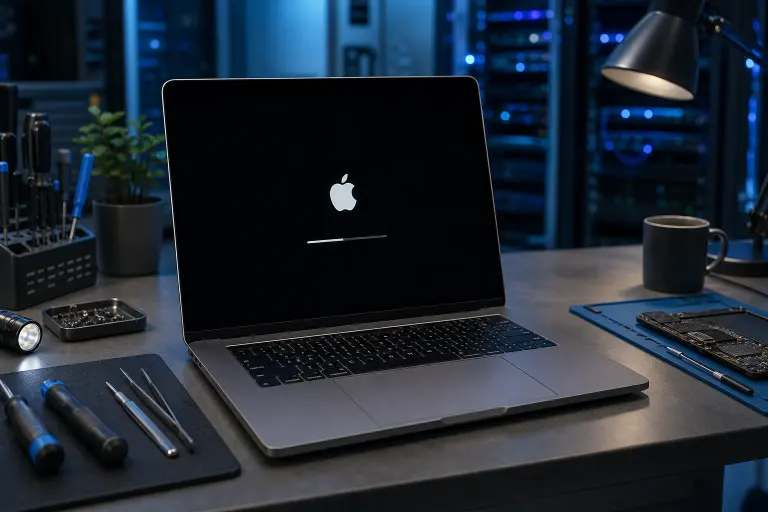
Sometimes macOS is just grinding through a background task, a large update, or a first-boot indexing job. If the progress bar crawls but eventually finishes, that was it. Give it a full five minutes before declaring it frozen.
If it hangs at the same spot every time, move on.
Step 2: Try Safe Mode
Safe Mode skips most login items, clears some caches, and runs a basic disk check. It is the fastest first filter.
Intel Mac: Hold Shift immediately after the startup chime (or after powering on) until you see the login screen. "Safe Boot" will appear in the top-right corner.
Apple Silicon Mac (M1 and later): Shut down fully. Hold the power button until "Loading startup options" appears. Select your startup disk, then hold Shift and click "Continue in Safe Mode."
If the Mac boots in Safe Mode, the culprit is almost certainly a login item, a kernel extension, or a corrupted cache. Remove recently added startup programs and restart normally.
If it still freezes in Safe Mode, the problem is lower-level: a damaged disk or corrupted system files.
Step 3: Run Disk Utility from Recovery Mode
This is where most real fixes happen.
Intel Mac: Hold Cmd + R at startup to enter Recovery Mode.
Apple Silicon Mac: Hold the power button until startup options appear, then click Options.
Once in Recovery, open Disk Utility, select your startup disk (usually "Macintosh HD"), and run First Aid. Let it finish completely. If it reports errors it could not repair, that disk is in trouble.
(A disk that fails First Aid is telling you something. Do not ignore it and reinstall macOS on top of a failing drive. That is a great way to lose data.)
Computer acting up? Get a real diagnosis. Book a diagnostic
Step 4: Check for a Bad macOS Update
If the freeze started immediately after a software update, the update may have installed incomplete or hit a power interruption mid-install.
From Recovery Mode, you can reinstall macOS without erasing your data. Choose "Reinstall macOS" from the Recovery menu. This replaces system files but leaves your documents and apps alone.
Make sure you have a network connection for this step, since Recovery will download the installer.
Step 5: Boot from External Media
If reinstalling from Recovery does not work, create a bootable macOS USB installer on another Mac or borrow one. Boot from it by holding Option (Intel) or using startup options (Apple Silicon) and selecting the external drive.
If the Mac boots fine from an external drive, the internal drive is the problem, not the logic board. That narrows things considerably.
Step 6: Check for Hardware Issues
Apple Silicon Macs run Apple Diagnostics automatically. On Intel Macs, hold D at startup to run diagnostics.
These tests check RAM, storage, and other hardware. A storage error code here confirms a failing drive. Error codes starting with "NVMe" or "HDD" point directly at the disk. Note the code, since it is useful for any repair shop.
Common Mistakes
Waiting too long to back up. If your Mac is freezing on startup, the drive may be failing. Do not keep trying fixes until you have pulled your data. Boot from external media or use Target Disk Mode to get your files off first.
Assuming the worst immediately. A freeze on the Apple logo sounds dramatic but is usually software. Plenty of people have paid for repairs that a Recovery reinstall would have fixed for free.
Skipping Safe Mode. Safe Mode is quick. It takes about three minutes and rules out an entire category of problems. Skipping it and jumping straight to an erase is how people lose data unnecessarily.
Reinstalling on a failing drive. First Aid should run before any reinstall. Installing a fresh OS on a drive with bad sectors just delays the real failure by a few weeks.
Bottom Line
A Mac frozen on the Apple logo is fixable most of the time. Work through the sequence: wait it out, Safe Mode, Disk Utility, reinstall macOS. Each step either fixes the problem or narrows it down.
If Disk Utility finds errors it cannot repair, or diagnostics flag a hardware fault, the drive likely needs replacing. That is a common repair, not a death sentence for the machine.
If you have worked through these steps and are still stuck, or if you would rather not risk the data on a drive that might be failing, bring it in. Mac repair at Fix My PC Store starts with a free initial check, and the shop is at 10140 Okeechobee Blvd, Suite B, West Palm Beach. Hours are Monday through Friday 9 a.m. to 6 p.m. and Saturday 9 a.m. to 5 p.m. You can also reach the team at 561-819-9999 or schedule a repair online.
Computer acting up? Get a real diagnosis.
Fix My PC Store has repaired thousands of machines across West Palm Beach. Honest pricing, no upsell games, and a free diagnostic for new customers with our email coupon.