Mac Fan Running Loud All the Time? What Is Actually Causing It
TL;DR: A screaming Mac fan is almost always a symptom, not the problem itself. Find what's driving up heat or confusing the fan controller, and the noise goes away. Work through the diagnostic steps below before you assume hardware failure.
What you need
- A Mac running macOS (any recent version)
- Activity Monitor (already on your Mac, search Spotlight)
- A can of compressed air if you want to check for dust
- About 10-15 minutes
Step 1: Check for a runaway process in Activity Monitor
Open Activity Monitor from Spotlight (Cmd + Space, type "Activity Monitor"). Click the CPU tab and sort by CPU%. Any process pinning 80-100% continuously is your first suspect.
Common offenders:
kernel_taskspiking (often a sensor response, see Step 4)- A browser tab with a video loop or heavy JavaScript
- Spotlight indexing after a macOS update
- A background backup or cloud sync that got stuck
If you see a rogue process, select it and hit the X button to quit it. If the fan settles within 60 seconds, you found the culprit.
Step 2: Check GPU load
In Activity Monitor, switch to the Energy tab. Look at "GPU Energy Impact." A browser with hardware acceleration running video, or a GPU-intensive app left open, can crank fan speed without the CPU column looking suspicious.
For a more detailed view, macOS Catalina and later include a GPU History window under Window > GPU History in Activity Monitor.
Step 3: Restart and test with nothing open
Before diving deeper, do a clean restart. Hold Shift while logging in to boot into Safe Mode, which disables login items and some background services. If the fans are quiet in Safe Mode, a startup item or background agent is the cause.
To find which one: go to System Settings > General > Login Items and remove anything you don't recognize or don't need.
Step 4: Look at kernel_task specifically
kernel_task is macOS intentionally throttling the CPU by consuming resources to generate less heat. It is not a virus and you cannot simply kill it. It activates when a temperature sensor reports a dangerously high reading.
Two common triggers:
- Using the left-side USB-C port on some MacBook Pro models while charging (heat from the charger confuses nearby sensors). Try moving your charger to the right-side port.
- A failing or disconnected temperature sensor, which can cause
kernel_taskto run permanently.
If moving the charger port drops kernel_task from 300%+ down to near zero, that's your answer.
Computer acting up? Get a real diagnosis. Book a diagnostic
Step 5: Check for dust and airflow blockage
This matters more on older Macs and on MacBook Pros used on soft surfaces like beds or laps. Blocked vents mean trapped heat, which means continuous fan spin.
For MacBook models with accessible vents:
- Power down completely.
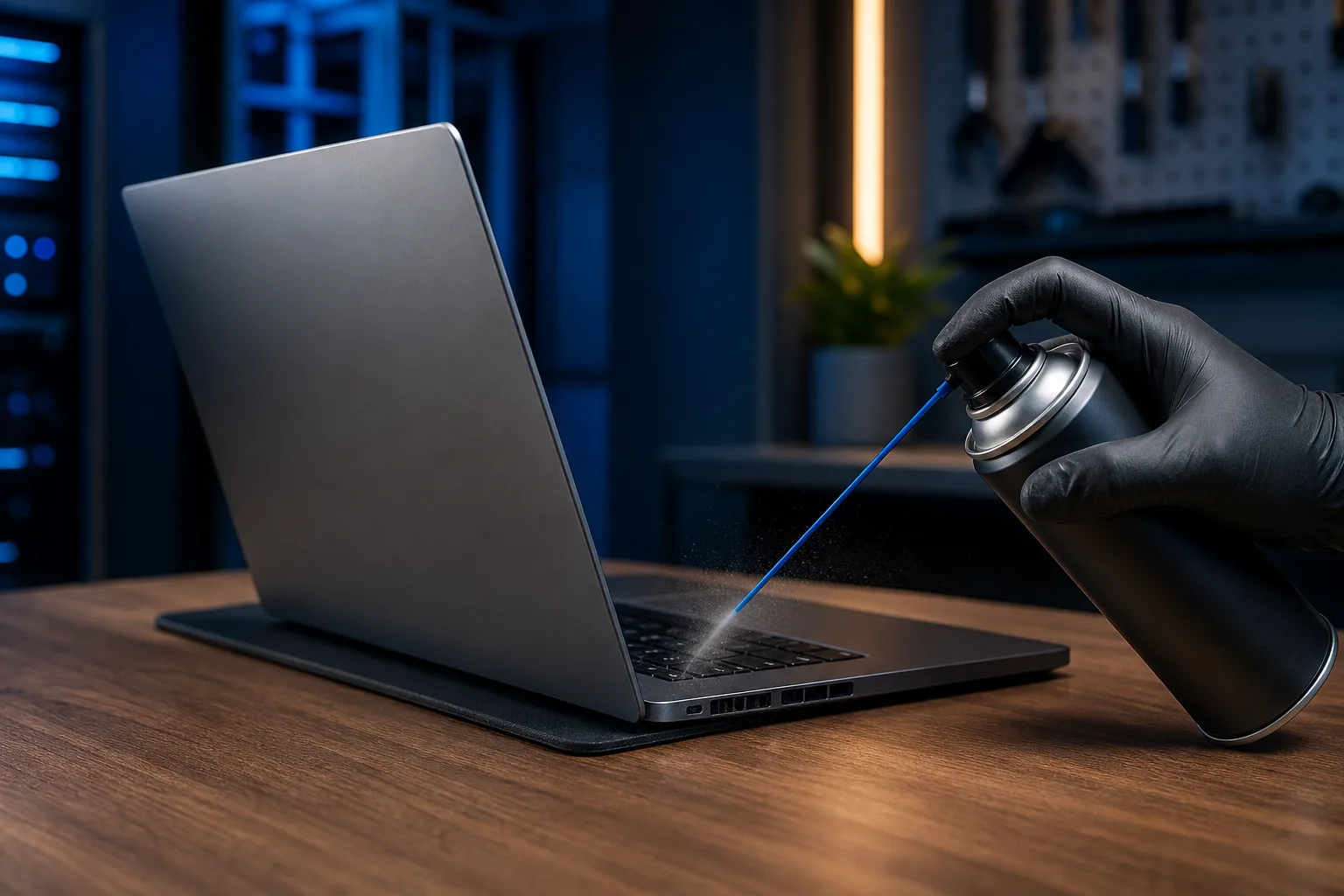
- Hold a can of compressed air 3-4 inches from the vents.
- Use short bursts, not sustained blasts.
- Do not blow into the speaker grills.
If your Mac is several years old and has never been cleaned internally, dust on the heatsink fins can be significant enough that compressed air from the outside won't cut it. Internal cleaning requires opening the machine.
Step 6: Check thermal paste age
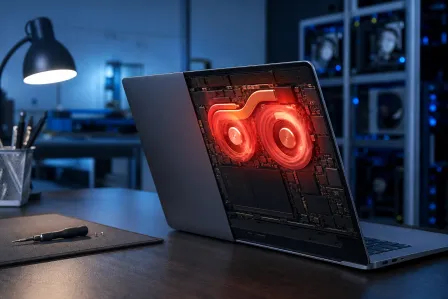
Thermal paste between the CPU and heatsink dries out over time, often after several years of use, though timelines vary depending on the compound type, operating temperatures, and usage patterns. When it degrades, heat transfer drops and the fan has to compensate. There's no software fix for this, it's a physical repair.
Signs this may be your issue:
- Mac is 5+ years old
- Fans run loud even under light load
- The machine feels hot to the touch under tasks that used to be no problem
Step 7: Run Apple Diagnostics
Apple Diagnostics can catch sensor and fan hardware failures that no software tool surfaces.
Intel Mac: Restart, hold D as it boots. Apple Silicon Mac: Shut down, then press and hold the power button until startup options appear. Release the power button, then press Cmd + D.
Let it run. Error codes starting with PPF are commonly reported in user communities as pointing to fan issues. Codes starting with PPT or PPM are similarly cited as indicating thermal or memory-related problems, though Apple does not publish a comprehensive official list of error code prefixes, contact Apple Support for authoritative interpretation of any codes you receive. Write down any codes you get.
Common mistakes
Forcing the fans to run slower with third-party apps. Tools like Macs Fan Control let you manually set fan speeds. Lowering them when your Mac has a real heat problem will shorten the life of your CPU or GPU. Only use manual fan control after you've ruled out actual heat issues.
Assuming loud fan always means hardware failure. The majority of cases are software or dust. Go through the steps above before spending money.
Ignoring kernel_task as "just macOS stuff." When kernel_task is consistently above 150-200%, something is triggering it. That's a diagnostic signal, not background noise.
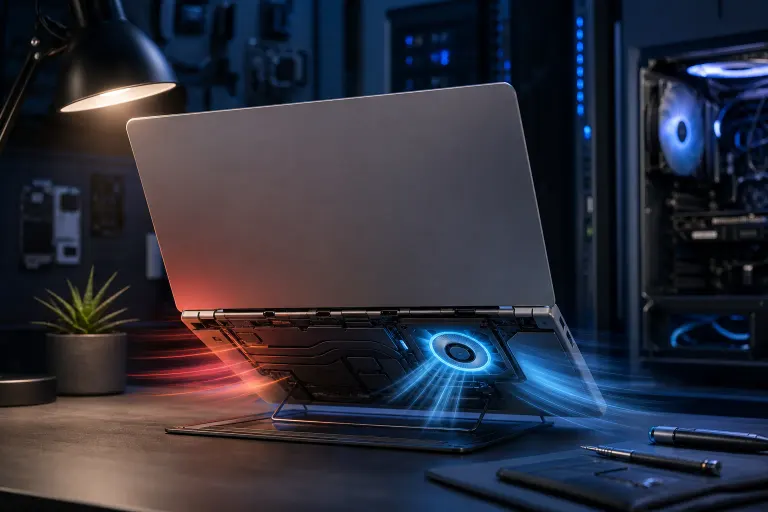
Using the Mac on a pillow or blanket. Soft surfaces block the bottom vents completely. A hard, flat surface or a laptop stand makes a real difference.
Bottom line
Loud Mac fans almost always trace back to one of four things: a runaway process, a sensor or kernel_task issue, dust and airflow blockage, or degraded thermal paste. Start with Activity Monitor, work through the steps in order, and you'll identify the cause most of the time without touching any hardware.
If Apple Diagnostics throws fan or sensor error codes, or if your fans are loud even after a clean macOS reinstall, that's a hardware problem that needs a bench diagnosis. The team at Fix My PC Store handles Mac repair on Okeechobee Boulevard in West Palm Beach, or you can start with remote support if you want a second set of eyes on what Activity Monitor is showing before bringing it in.
Computer acting up? Get a real diagnosis.
Fix My PC Store has repaired thousands of machines across West Palm Beach. Honest pricing, no upsell games, and a free diagnostic for new customers with our email coupon.
Frequently Asked Questions
Is it normal for a Mac fan to run loud during software updates?
Can a loud Mac fan damage anything if I just leave it?
Will resetting the SMC fix a Mac fan issue?
How do I know if my Mac's temperature sensor has actually failed?
kernel_task CPU usage even when the machine is cool to the touch and under no load is another strong indicator that a sensor is misreporting temperature.