Mac Dock Disappeared or Frozen? Here's What to Check
TL;DR: Your Mac Dock is most likely hidden, has a crashed process behind it, or has a setting that got toggled accidentally. Resetting the Dock process and checking System Settings takes care of 90% of cases. If none of these fixes work, it may be time to dig deeper into macOS or get a second set of eyes.
What You Need
- A Mac running macOS Big Sur or later (most steps apply to older versions too)
- Access to System Settings or System Preferences, depending on your macOS version
- Terminal, which is already installed on every Mac
- A few minutes and a willingness to try things in order
No downloads, no third-party tools, no guesswork. Let's go step by step.
Step 1: Check If Auto-Hide Is Turned On
This is the most common reason the Dock seems to disappear. macOS has a built-in Auto-Hide feature that slides the Dock off screen when you're not using it.
Here's how to check.
- Move your mouse slowly to the bottom of the screen and pause for a second. If the Dock slides up, Auto-Hide is on and that's your answer.
- To turn it off, open System Settings (called System Preferences on older macOS versions).
- Click Desktop and Dock.
- Toggle off Automatically hide and show the Dock.
The Dock will reappear immediately and stay visible.
If your Dock is set to the left or right side of the screen, move your mouse to that edge instead. The Dock position setting can also be checked in Desktop and Dock settings.
Step 2: Check the Dock Position Setting
Sometimes the Dock gets moved to a screen edge you aren't expecting. If you have a multi-monitor setup, it may be appearing on the wrong display.
- Go to System Settings, then Desktop and Dock.
- Look at the Position on screen option. It should say Bottom, Left, or Right.
- If you use multiple monitors, try moving your cursor to the bottom edge of each screen.
In a multi-monitor setup, the Dock follows your active screen. You can lock it to one display by moving your cursor to the bottom edge of the screen you want and leaving it there for a moment.
Step 3: Restart the Dock Process
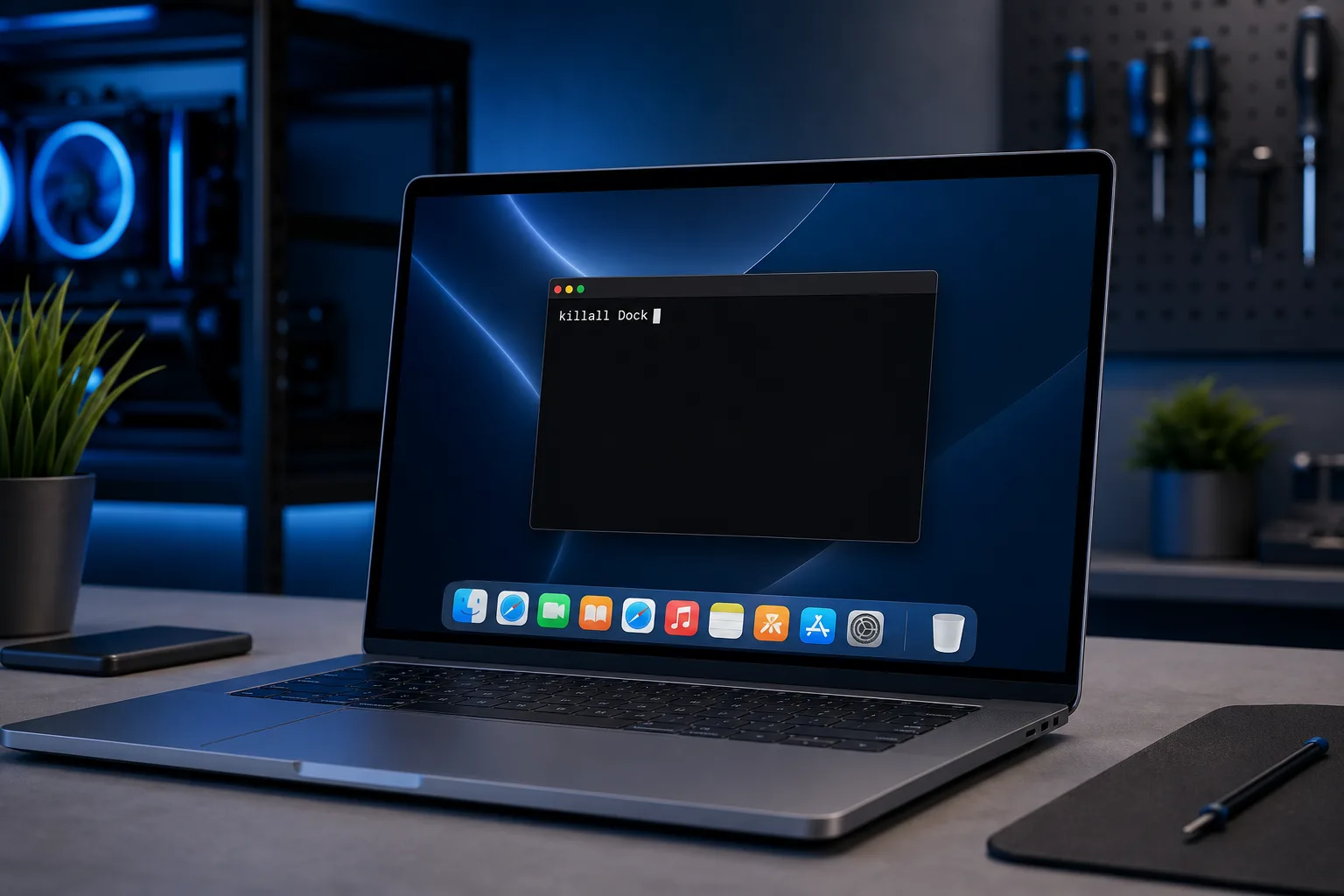
The Dock runs as its own process called Dock in macOS. When it freezes, becomes unresponsive, or partially disappears, killing and restarting that process usually solves it immediately.
You do not need to restart your whole computer to do this.
- Open Terminal. You can find it by pressing Command + Space, typing Terminal, and hitting Enter.
- Type exactly this and press Enter:
killall Dock
- The Dock will vanish for a second, then reappear fresh.
That's it. The Dock process restarts itself automatically. If the Dock was frozen or glitching visually, this almost always clears it up.
Step 4: Reset Dock Preferences
If the Dock is behaving strangely, showing icons in wrong positions, or not responding to clicks, its preference file might be corrupted. Resetting it brings the Dock back to default settings.
Warning: this will remove any custom apps you've pinned to the Dock. You'll need to re-add them afterward.
- Open Terminal.
- Type this and press Enter:
defaults delete com.apple.dock
- Then restart the Dock with:
killall Dock
Your Dock will reset to the macOS default layout. You can then drag your favorite apps back into it from Finder or Launchpad.
This step is worth it if the Dock has been behaving oddly for a while and simpler fixes haven't worked.
Computer acting up? Get a real diagnosis. Book a diagnostic
Step 5: Check for macOS Display Scaling Issues
Occasionally the Dock is technically present but invisible because of a display resolution or scaling glitch, especially after connecting or disconnecting an external monitor.
- Go to System Settings, then Displays.
- Make sure your resolution is set to Default for display rather than a custom scaled option.
- Disconnect any external monitors, restart the Mac, then reconnect.
If the Dock reappears after disconnecting a monitor, the issue is tied to how macOS is managing your display arrangement. Rearranging monitors in System Settings, Displays, Arrangement can fix this.
Step 6: Restart Your Mac
A simple restart clears cached system data, restarts all background processes including the Dock, and resolves issues that individual fixes miss.
- Click the Apple menu in the top-left corner.
- Select Restart.
- Wait for the Mac to fully restart before testing the Dock.
If the Dock comes back after a restart but disappears again later, that points to a recurring software issue, possibly a conflicting app or a macOS update needed.
Step 7: Check for Pending macOS Updates
A known bug in a macOS version can cause Dock problems that Apple has already patched. Updating takes a few minutes and is worth doing if you've skipped recent updates.
- Open System Settings.
- Click General, then Software Update.
- Install any available updates.
Keep in mind that updates can take time and will restart your Mac. Plan for that before starting.
If you manage Macs for a business and need updates handled automatically, that's something managed IT services can handle without pulling you away from your work.
Step 8: Create a New User Account to Test
If nothing else has worked, testing with a fresh user account tells you whether the problem is tied to your specific user profile or to the whole system.
- Go to System Settings, then Users and Groups.
- Click the plus button to add a new user account.
- Log out of your current account and log into the new one.
- Check if the Dock appears and works normally.
If the Dock works fine in the new account, the issue lives in your user profile. Migrating your data to a clean profile or doing a targeted repair can fix it. If the Dock is broken in the new account too, the problem is deeper in the operating system.
At that point, a Mac repair appointment is the right call. A technician can check for disk errors, corrupted system files, or hardware issues affecting your display output.
Common Mistakes to Avoid
Skipping straight to a full reinstall. macOS reinstalls are a last resort, not a first step. Most Dock issues are solved in minutes without touching your files.
Using random Terminal commands from the internet. Stick to the commands in this guide. Unfamiliar commands can change system settings in ways that are hard to undo.
Ignoring pending updates. If your macOS is several versions behind, bugs that have already been fixed can keep causing problems. Updates matter.
Assuming it's a hardware problem right away. A frozen or missing Dock is almost always a software issue. Hardware problems tend to show up as display artifacts, total screen blackouts, or the Mac not booting at all.
Not restarting the Dock process before restarting the whole Mac. The killall Dock command takes five seconds and often fixes what a full restart would take five minutes to accomplish.
If you're running into other Mac software quirks alongside the Dock issue, check out our computer repair resources for more troubleshooting starting points.
For businesses with a fleet of Macs, recurring system issues are often a sign that devices need a maintenance schedule. Our remote support team can check in without you having to bring anything in.
Bottom Line
A disappearing or frozen Mac Dock is almost always fixable without a trip anywhere or a reinstall. Start with Auto-Hide, check your display settings, restart the Dock process, and work through the steps above in order.
If you've gone through every step and the Dock is still missing or frozen, the problem has moved beyond settings into something macOS needs hands-on attention to resolve. Our team at Fix My PC Store is here in West Palm Beach and ready to help, or you can connect with us through remote support if you'd rather not come in.
You've got this. Most people fix this in under five minutes once they know where to look.
Computer acting up? Get a real diagnosis.
Fix My PC Store has repaired thousands of machines across West Palm Beach. Honest pricing, no upsell games, and a free diagnostic for new customers with our email coupon.