Why Is My Mac Copying Files So Much Slower Than My Old PC?
TL;DR
Nine times out of ten it's not the Mac being slow, it's the drive, the cable, or the formatting you're copying to or from. External hard drives, cheap USB cables, exFAT weirdness, and Spotlight indexing are the usual suspects, not Apple secretly nerfing your file transfers. Work through the checklist below before you assume something's broken.
What happened
You moved a pile of files from an external drive or network share to your new Mac and watched the progress bar crawl like it's got somewhere better to be. Your old PC chewed through the same folder in half the time. Naturally you're annoyed, and naturally you're wondering if you got swindled.
Here's the thing nobody tells you when you switch platforms: file copy speed isn't really a Mac-vs-PC contest. It's a drive-vs-drive, cable-vs-cable, filesystem-vs-filesystem contest that happens to be running on two different operating systems. Windows and macOS report progress differently too (Windows tends to lie to you with an optimistic estimate up front, then slow down, while macOS is more honest about the bad news early). That alone makes people think the Mac is underperforming when it's actually just not sugarcoating it.
Why it matters
Slow copies aren't just annoying, they're a symptom worth reading. A transfer that should take two minutes and takes twenty is telling you something about your storage setup, and ignoring it costs you time every single time you move files, not just once.
The big culprits, roughly in order of how often I see them:
- External drive is the bottleneck, not the Mac. A 5400 RPM spinning hard drive tops out around 100-160 MB/s no matter what computer it's plugged into. If your old PC had a faster internal SSD and you're now funneling everything through a USB external drive to get it onto the Mac, that's your ceiling right there.
- exFAT and FAT32 overhead. Drives formatted for cross-platform use (common if you moved from PC) aren't always as efficient as a native filesystem on either side. Lots of small files make this worse because of per-file overhead.
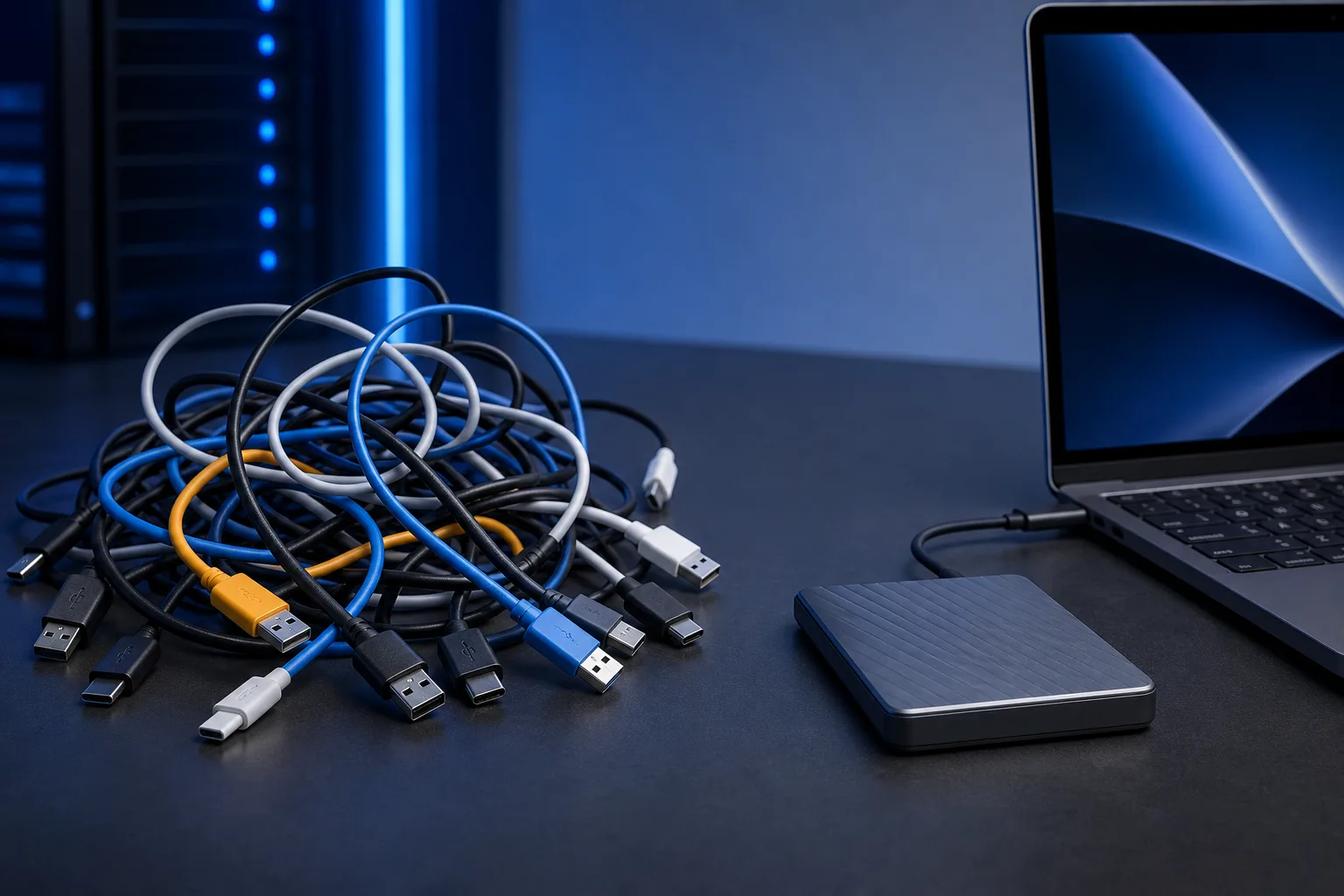
- Cable or port mismatch. Plugging a USB 3.2 drive into an older USB 2.0 port, or using a cheap USB 2.0-rated cable, caps you at USB 2.0 speeds (roughly 480 Mbps, which is nothing). Note that USB-A ports themselves aren't automatically limited to USB 2.0, many USB-A ports support USB 3.0/3.1/3.2 Gen 1 at up to 5 Gbps, but an actual USB 2.0 port or a USB 2.0-only cable will impose that limit regardless of the drive. Thunderbolt and USB4 ports on newer Macs are fast, but only if the cable and the drive both support it. A $4 cable from a gas station is not that cable.
- Spotlight indexing in the background. The first time you connect a new drive or copy a big batch of files, macOS often indexes everything for search. That competes with your transfer for disk I/O and can make the first copy noticeably slower than the second.
- Network share speed, not Mac speed. If you're copying over Wi-Fi or an SMB share, the bottleneck is almost always the network, not either computer's internal drive.
- Lots of tiny files vs. one big file. Copying 50,000 small files (photos, project files, cache folders) is slower than copying one giant archive of the same total size, on any OS. This isn't a Mac quirk, it's just how filesystems handle metadata.
Computer acting up? Get a real diagnosis. Book a diagnostic
What we don't know yet
Without knowing your exact setup, there's no way to say for certain which of these is your problem. A few things that change the diagnosis completely:
- Is the source or destination an external drive, a network share, or internal storage on both machines?
- What's the actual drive type (spinning HDD, SATA SSD, NVMe SSD) on each end?
- What port and cable are you using, and does the Mac itself have USB-C, Thunderbolt, or an older USB-A setup?
- Is this a one-time slow copy (likely indexing or a cold cache) or consistently slow every time?
If you haven't checked Activity Monitor's Disk tab during a transfer, you're guessing. It'll show you real throughput in MB/s, which tells you a lot more than staring at a progress bar.
What to do about it
Run through this in order before you decide your Mac is defective:
- Check the drive type. Right-click or get info on the external drive, or check System Information for connection speed. A spinning HDD will never match an SSD, full stop.
- Check the cable and port. Make sure you're using a cable rated for the drive's actual speed (USB-C 3.1/3.2 or Thunderbolt), not whatever cable was lying around. Confirm the port you're using is USB 3.0 or faster, not a USB 2.0 port. Plug directly into the Mac, skip hubs and docks for testing.
- Watch Activity Monitor during the copy. Open Activity Monitor, go to the Disk tab, and watch the read/write numbers while the transfer runs. Consistent low numbers point to a drive or cable limit. Numbers that start high and crash point to thermal throttling or indexing.
- Let it index once, then retest. If this is a brand-new drive to the Mac, let Spotlight finish indexing (menu bar magnifying glass will show progress, or check Spotlight privacy settings to confirm it's not still crunching), then copy again. If the second attempt is much faster, indexing was your problem.
- Test with one big file vs. many small ones. Copy a single large video file and time it, then copy a folder of thousands of small files of similar total size. If the big file is fast and the small files are slow, that's filesystem overhead, not a hardware fault.
- Reformat only if you understand the tradeoff. If the drive is staying Mac-only going forward, APFS will generally behave better than exFAT for lots of small files. Don't reformat a drive you still need to read on a PC without backing it up first.
If you've gone through all of that and a known-good SSD on a known-good cable is still crawling, something's actually wrong, could be a failing drive, a port issue, or something deeper. That's worth a real diagnostic rather than more guessing. Fix My PC Store can take a look at Mac repair if the slowdown persists after the basics check out, and if this is a business machine losing productivity to slow transfers, it might be worth a broader look at your setup through business IT or managed IT. For a quick remote look before you haul the machine in, remote support can rule things out fast.
FAQ
Is macOS just slower at file copying than Windows? No, not inherently. Both operating systems are bottlenecked by the same physics: drive speed, cable bandwidth, and filesystem overhead. Differences you notice are almost always hardware or formatting, not the OS itself being slower.
Should I reformat my external drive to APFS? Only if you don't need it to work on a PC anymore. APFS generally handles lots of small files better than exFAT, but it's not readable by Windows without extra software. Back up first regardless.
Why was my first copy from a new drive slow but the second one fast? Spotlight was probably indexing the drive the first time, competing for disk access. Once indexing finishes, subsequent copies usually speed back up to normal.
Could a bad cable really cause this much of a slowdown? Yes. A USB 2.0-only cable on a USB 3.2 drive can cut speeds down to a fraction of what the drive is capable of. It's one of the most common and most overlooked causes.
Computer acting up? Get a real diagnosis.
Fix My PC Store has repaired thousands of machines across West Palm Beach. Honest pricing, no upsell games, and a free diagnostic for new customers with our email coupon.